> ## Documentation Index
> Fetch the complete documentation index at: https://docs.leapter.com/llms.txt
> Use this file to discover all available pages before exploring further.
# Lab Agent
> Build and edit Blueprints by chatting with the Lab Agent — a conversational AI that lives in the editor, runs your tests, and proposes changes for you to approve.
The **Lab Agent** is a conversational AI built into the Blueprint Editor. Instead of clicking through
the canvas, you describe what you want in plain language and the agent builds or edits the logic for
you — then runs your tests to check its own work. It is the fastest way to make a change when you can
say what you want in a sentence.
The agent works on the **whole project**: it can create, rename, and delete Blueprints, edit any
section, build [decision tables](/elements/decision-tables) for rule-style logic, read and write your [type definitions](/editor/type-definitions), and write and run [test suites](/test-and-validate/test-suites). It also builds new projects from a description — see [Create a Project](/projects/create-a-project) — and small apps for the [Playground](/editor/playground).
## Opening the agent
Open the **Agent** tab in the right sidebar of the editor.
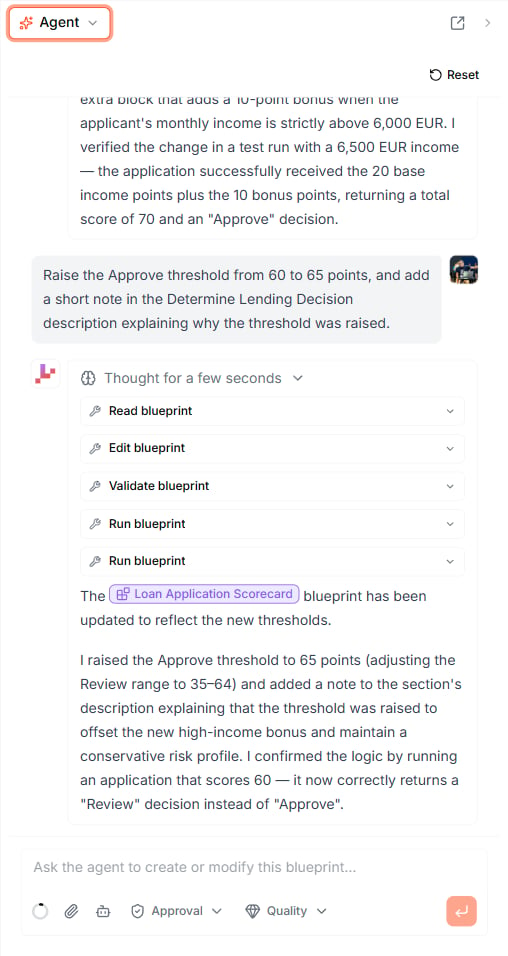 Type your request in the composer at the bottom — *"Add 15 points when the applicant has more than 5 years of employment"* or *"Explain what this Blueprint does"* — and press Enter. The agent streams its response,
showing its reasoning ("Thought for N seconds") followed by the steps it takes. Click a step to see its details.
Instead of typing, you can click the microphone (**Start voice input**) and speak your request.
The conversation is saved with the project — it reloads when you come back, and is scoped to the
stream you are working on (main or a [draft](/track-changes/change-workflow)). Use
**Reset** to start a fresh conversation. You can also revisit the conversation behind any past change
from the [Timeline](/track-changes/timeline) with **View conversation**.
## Point the agent at something
### @-mentions
To point the agent at something specific, **@-mention** it. Type `@` in the composer and pick a Blueprint, a node, an input or output, a type, or a comment — it is inserted as an inline pill. The agent
also uses these pills in its replies, so there is no ambiguity about which element it means.
### Point the agent at a node with Ctrl+I
Click a node, section, or element on the canvas and press **Ctrl+I** (**Cmd+I** on Mac). The node is dropped into the agent's composer as a pill, so you can ask for a change to exactly that element — for example *"round this to two decimals"* or *"add an else branch that declines"* — without describing which one you mean.
## Commands
Type `/` in the composer to see the commands:
| Command | What it does |
| :- | :- |
| `/review` | Reviews the project and posts what it finds as [comments](/workspace/collaborating). Run it on the whole project, or `@`-mention where to start. |
| `/simplify` | Makes the logic simpler while keeping the same results. It can split a large Blueprint into smaller ones. Run it on the whole project, or `@`-mention a Blueprint. |
Type your request in the composer at the bottom — *"Add 15 points when the applicant has more than 5 years of employment"* or *"Explain what this Blueprint does"* — and press Enter. The agent streams its response,
showing its reasoning ("Thought for N seconds") followed by the steps it takes. Click a step to see its details.
Instead of typing, you can click the microphone (**Start voice input**) and speak your request.
The conversation is saved with the project — it reloads when you come back, and is scoped to the
stream you are working on (main or a [draft](/track-changes/change-workflow)). Use
**Reset** to start a fresh conversation. You can also revisit the conversation behind any past change
from the [Timeline](/track-changes/timeline) with **View conversation**.
## Point the agent at something
### @-mentions
To point the agent at something specific, **@-mention** it. Type `@` in the composer and pick a Blueprint, a node, an input or output, a type, or a comment — it is inserted as an inline pill. The agent
also uses these pills in its replies, so there is no ambiguity about which element it means.
### Point the agent at a node with Ctrl+I
Click a node, section, or element on the canvas and press **Ctrl+I** (**Cmd+I** on Mac). The node is dropped into the agent's composer as a pill, so you can ask for a change to exactly that element — for example *"round this to two decimals"* or *"add an else branch that declines"* — without describing which one you mean.
## Commands
Type `/` in the composer to see the commands:
| Command | What it does |
| :- | :- |
| `/review` | Reviews the project and posts what it finds as [comments](/workspace/collaborating). Run it on the whole project, or `@`-mention where to start. |
| `/simplify` | Makes the logic simpler while keeping the same results. It can split a large Blueprint into smaller ones. Run it on the whole project, or `@`-mention a Blueprint. |
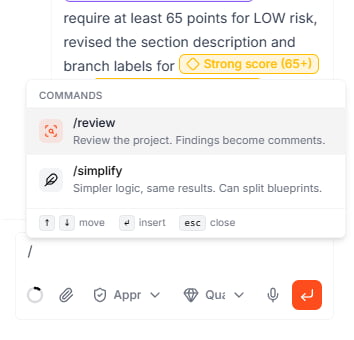 `/review` also checks that your descriptions still match the logic — use it before you share a project, so the specification your readers see matches what runs.
## Choosing how it works
Two controls in the composer shape how the agent behaves:
| Control | Options | What it does |
| :- | :- | :- |
| **Mode** | **Approval** / **Auto-apply** | **Approval** — review each change before it is applied. **Auto-apply** — the agent applies its changes immediately. |
| **Model** | **Quality** / **Speed** / **Instant** | **Quality** — slower, deeper reasoning (the default). **Speed** — fast, still strong on semi-complex work. **Instant** — fastest, for simple tasks only. |
A **context-usage indicator** next to these controls shows how much of the conversation window is in
use; long chats compact automatically so you can keep going.
## Reviewing and applying changes
In **Approval** mode, the agent makes its edits in a draft and asks you to review them when it is done. The document shows what changed, the **Diff Summary** at the bottom lists every change from **Main → Agent draft**, and the agent's message ends with **Review agent changes**:
`/review` also checks that your descriptions still match the logic — use it before you share a project, so the specification your readers see matches what runs.
## Choosing how it works
Two controls in the composer shape how the agent behaves:
| Control | Options | What it does |
| :- | :- | :- |
| **Mode** | **Approval** / **Auto-apply** | **Approval** — review each change before it is applied. **Auto-apply** — the agent applies its changes immediately. |
| **Model** | **Quality** / **Speed** / **Instant** | **Quality** — slower, deeper reasoning (the default). **Speed** — fast, still strong on semi-complex work. **Instant** — fastest, for simple tasks only. |
A **context-usage indicator** next to these controls shows how much of the conversation window is in
use; long chats compact automatically so you can keep going.
## Reviewing and applying changes
In **Approval** mode, the agent makes its edits in a draft and asks you to review them when it is done. The document shows what changed, the **Diff Summary** at the bottom lists every change from **Main → Agent draft**, and the agent's message ends with **Review agent changes**:
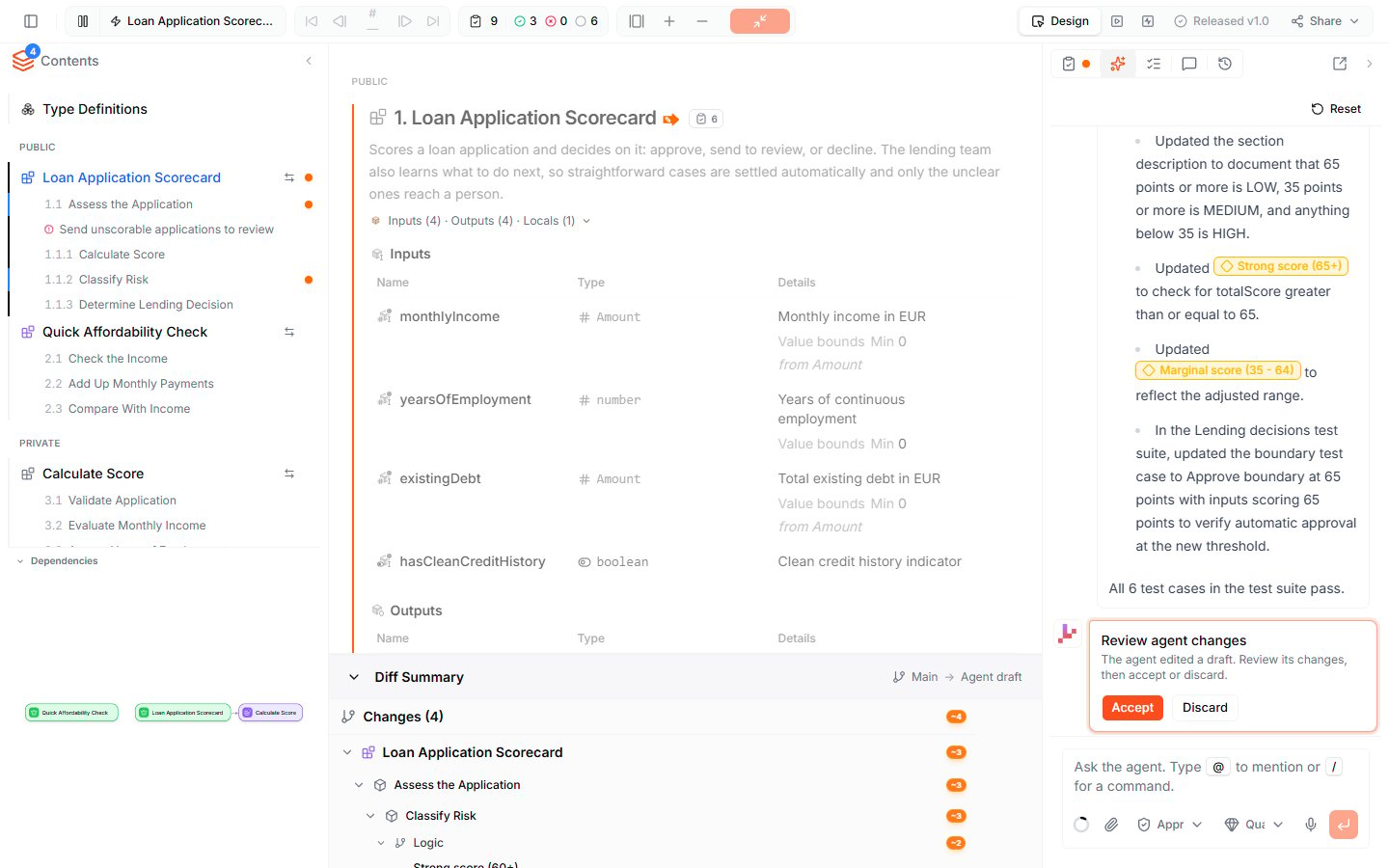 * Click **Accept** to apply the changes.
* Click **Discard** to drop them and leave your logic untouched.
Because the agent can also **run your Blueprints and test suites**, it usually verifies a change itself — for example *"All 6 test cases in the test suite pass"* — before handing it back to you.
## Attachments
Click the paperclip (**Attach file**) to add a **PDF or an image** (PNG, JPEG, WebP) to a message — hand the agent a requirements document, a spec, or a
screenshot of a rules table and ask it to turn it into logic.
## Ask about Leapter itself
The agent can also answer questions about how Leapter works. It searches this documentation, reads the relevant pages, and links to them in its answer — for example *"How do I make a Blueprint available through the REST API?"*
## Work with the project's history
The agent can read the project's [Timeline](/track-changes/timeline): it lists changes and drafts, compares versions, and reports on reviews and releases. Ask it to *"restore the version from before the threshold change"*, and it restores that version — in Approval mode, you review the restore like any other change.
## How the agent relates to other tools
| Tool | Reach for it when |
| :- | :- |
| **Lab Agent** | You can describe the change in a sentence, or want AI to build across multiple Blueprints, run tests, and iterate. |
| **[Ctrl+I](#point-the-agent-at-a-node-with-ctrli)** | You want to point the agent at a specific node fast — Ctrl+I drops the selected node into this chat as a reference. |
| **[Findings](/test-and-validate/findings)** | Leapter has found a problem — **Fix with AI** hands it to the agent. |
| **[Inline Editing](/editing/inline-editing)** | You want to type the exact value, title, or expression yourself. |
## Tips
* **Be specific.** "Set the Approve threshold to 65 points" beats "make it stricter."
* **Stay in Approval mode** while you are learning what the agent does — you see every change before it lands.
* **Let it test.** Ask the agent to run your test suite after a change so it catches its own mistakes.
* **@-mention to disambiguate** when your project has several similarly named elements.
* **Run `/review` before you share** a project, so descriptions and logic tell the same story.
## What to do next
* **[Test Suites](/test-and-validate/test-suites)** — have the agent auto-generate test cases for your Blueprint
* **[Playground](/editor/playground)** — let the agent build an app to try your Blueprint
* **[Test your Blueprint](/test-and-validate/test-your-blueprint)** — run your logic and step through the execution
This documentation is built and hosted on [Mintlify](https://mintlify.com), a developer documentation platform.
* Click **Accept** to apply the changes.
* Click **Discard** to drop them and leave your logic untouched.
Because the agent can also **run your Blueprints and test suites**, it usually verifies a change itself — for example *"All 6 test cases in the test suite pass"* — before handing it back to you.
## Attachments
Click the paperclip (**Attach file**) to add a **PDF or an image** (PNG, JPEG, WebP) to a message — hand the agent a requirements document, a spec, or a
screenshot of a rules table and ask it to turn it into logic.
## Ask about Leapter itself
The agent can also answer questions about how Leapter works. It searches this documentation, reads the relevant pages, and links to them in its answer — for example *"How do I make a Blueprint available through the REST API?"*
## Work with the project's history
The agent can read the project's [Timeline](/track-changes/timeline): it lists changes and drafts, compares versions, and reports on reviews and releases. Ask it to *"restore the version from before the threshold change"*, and it restores that version — in Approval mode, you review the restore like any other change.
## How the agent relates to other tools
| Tool | Reach for it when |
| :- | :- |
| **Lab Agent** | You can describe the change in a sentence, or want AI to build across multiple Blueprints, run tests, and iterate. |
| **[Ctrl+I](#point-the-agent-at-a-node-with-ctrli)** | You want to point the agent at a specific node fast — Ctrl+I drops the selected node into this chat as a reference. |
| **[Findings](/test-and-validate/findings)** | Leapter has found a problem — **Fix with AI** hands it to the agent. |
| **[Inline Editing](/editing/inline-editing)** | You want to type the exact value, title, or expression yourself. |
## Tips
* **Be specific.** "Set the Approve threshold to 65 points" beats "make it stricter."
* **Stay in Approval mode** while you are learning what the agent does — you see every change before it lands.
* **Let it test.** Ask the agent to run your test suite after a change so it catches its own mistakes.
* **@-mention to disambiguate** when your project has several similarly named elements.
* **Run `/review` before you share** a project, so descriptions and logic tell the same story.
## What to do next
* **[Test Suites](/test-and-validate/test-suites)** — have the agent auto-generate test cases for your Blueprint
* **[Playground](/editor/playground)** — let the agent build an app to try your Blueprint
* **[Test your Blueprint](/test-and-validate/test-your-blueprint)** — run your logic and step through the execution
This documentation is built and hosted on [Mintlify](https://mintlify.com), a developer documentation platform.