> ## Documentation Index
> Fetch the complete documentation index at: https://docs.leapter.com/llms.txt
> Use this file to discover all available pages before exploring further.
# Toolbars & Panels
> Every button, menu, and shortcut in the Blueprint Editor — what it is called in the product and what it does.
This page is the reference for the controls of the [Blueprint Editor](/editor/introduction). Most buttons show only an icon; the names below are the ones you see when you hover over them.
## Top toolbar
The top toolbar has three groups:
 ### A — Run and debug
| Control | What it does |
| :- | :- |
| **Open workspace navigation** | Opens or closes the app sidebar with Projects, Settings, Members, API Keys, and Integrations. |
| **Live execution** (play / pause) | Turns [Live mode](/test-and-validate/test-your-blueprint#live-mode) on or off. While it runs, your Blueprints re-run every time you change inputs or logic. |
| **Execution pill** | Names the Blueprint that runs live — or says what is missing, such as **4 required inputs missing**. Click it for the details of the last run. |
| **Jump to first step**, **Previous step**, **Select step**, **Next step**, **Jump to last step** | Step through the trace of the last run. See [Stepping through a trace](/test-and-validate/test-your-blueprint#stepping-through-a-trace). |
| **Step into sub-blueprint**, **Step out to parent blueprint** | Follow a trace into a Blueprint that a [Call node](/elements/calling-other-blueprints) runs, and back out. Available on Call nodes and inside called Blueprints. |
| **Test status** | Shows how many test cases the project has, and how many passed, failed, or have not run. See [Test Suites](/test-and-validate/test-suites). |
### B — Edit and view
| Control | What it does |
| :- | :- |
| **Undo**, **Redo** | Undo or redo your last edits. The tooltip names the change it would undo or redo. |
| **Search (⌘K)** | Opens **Search project** — see [Search](#search). |
| **Settings** | Opens the editor settings — see [Editor settings](#editor-settings). |
| **Center Diagram**, **Zoom In**, **Zoom Out** | Fit and zoom the diagram of a maximized Blueprint. |
| **Minimize** | Returns from a maximized Blueprint or the type canvas to the full document. Disabled when nothing is maximized. |
### C — Mode, release, share
| Control | What it does |
| :- | :- |
| **Design** / **Playground** / **Insights** | Switches what the editor shows: building and editing, the [Playground](/editor/playground), or [Insights](/release-and-integrate/insights) about production. Only the active mode shows its name. |
| **Release** | Creates a [release](/release-and-integrate/releases). The button also shows whether production is up to date, for example **Released v1.0** or **3 changes since v1.0**. |
| **Share** | Opens the [Share menu](/release-and-integrate/introduction#the-share-menu): Connect, n8n, Code, Embed, PNG, Export, and Link. |
### Editor settings
**Settings** opens five switches. Each one shows its name when you hover over it, and your choices are remembered in your browser.
| Switch | What it controls |
| :- | :- |
| **Business logic** | Shows or hides the expressions inside the diagram nodes, so you can read the flow by its labels alone |
| **Descriptions** | Shows or hides the descriptions of sections and nodes |
| **AI Copilot Suggestions** | Turns AI completion suggestions on or off while you type an expression |
| **Minimap** | Shows or hides the minimap on the right edge of the document |
| **Expression tooltips** | Turns the explanations on or off that appear when you hover over an expression — for example, whether a name is an input, an output, or a local variable |
On the type canvas, **Settings** also offers **Layout: compact** and **Layout: columns** to arrange the type cards.
## Contents sidebar
The **Contents** sidebar on the left is the project's table of contents. Click an entry to scroll the document to it; double-click a Blueprint or section to maximize it.
| Element | What it is |
| :- | :- |
| **Type Definitions** | Jumps to the project's [types](/editor/type-definitions). |
| **Public** / **Private** | The two groups of Blueprints. Drag a Blueprint from one group to the other to change its [visibility](/release-and-integrate/releases#public-and-private-blueprints). |
| Blueprint rows with numbered sections | Every Blueprint with its sections (1, 1.1, 1.1.1, …). Error handlers are marked with a red icon. |
| **⚡ Execution scope** | Marks the Blueprint that runs in Live mode. Click the spark next to another Blueprint (**Set as execution scope**) to run that one instead. It only affects runs in the editor, not what callers can reach. |
| **⇆ Show inputs and outputs** | Expands a Blueprint's inputs and outputs in the sidebar, for a quick run — see below. |
| **Dependencies** | A graph at the bottom showing which Blueprints call which. |
| **‹** (**Collapse left sidebar**) | Hides the sidebar to give the document more room. |
### Quick run from the Contents sidebar
### A — Run and debug
| Control | What it does |
| :- | :- |
| **Open workspace navigation** | Opens or closes the app sidebar with Projects, Settings, Members, API Keys, and Integrations. |
| **Live execution** (play / pause) | Turns [Live mode](/test-and-validate/test-your-blueprint#live-mode) on or off. While it runs, your Blueprints re-run every time you change inputs or logic. |
| **Execution pill** | Names the Blueprint that runs live — or says what is missing, such as **4 required inputs missing**. Click it for the details of the last run. |
| **Jump to first step**, **Previous step**, **Select step**, **Next step**, **Jump to last step** | Step through the trace of the last run. See [Stepping through a trace](/test-and-validate/test-your-blueprint#stepping-through-a-trace). |
| **Step into sub-blueprint**, **Step out to parent blueprint** | Follow a trace into a Blueprint that a [Call node](/elements/calling-other-blueprints) runs, and back out. Available on Call nodes and inside called Blueprints. |
| **Test status** | Shows how many test cases the project has, and how many passed, failed, or have not run. See [Test Suites](/test-and-validate/test-suites). |
### B — Edit and view
| Control | What it does |
| :- | :- |
| **Undo**, **Redo** | Undo or redo your last edits. The tooltip names the change it would undo or redo. |
| **Search (⌘K)** | Opens **Search project** — see [Search](#search). |
| **Settings** | Opens the editor settings — see [Editor settings](#editor-settings). |
| **Center Diagram**, **Zoom In**, **Zoom Out** | Fit and zoom the diagram of a maximized Blueprint. |
| **Minimize** | Returns from a maximized Blueprint or the type canvas to the full document. Disabled when nothing is maximized. |
### C — Mode, release, share
| Control | What it does |
| :- | :- |
| **Design** / **Playground** / **Insights** | Switches what the editor shows: building and editing, the [Playground](/editor/playground), or [Insights](/release-and-integrate/insights) about production. Only the active mode shows its name. |
| **Release** | Creates a [release](/release-and-integrate/releases). The button also shows whether production is up to date, for example **Released v1.0** or **3 changes since v1.0**. |
| **Share** | Opens the [Share menu](/release-and-integrate/introduction#the-share-menu): Connect, n8n, Code, Embed, PNG, Export, and Link. |
### Editor settings
**Settings** opens five switches. Each one shows its name when you hover over it, and your choices are remembered in your browser.
| Switch | What it controls |
| :- | :- |
| **Business logic** | Shows or hides the expressions inside the diagram nodes, so you can read the flow by its labels alone |
| **Descriptions** | Shows or hides the descriptions of sections and nodes |
| **AI Copilot Suggestions** | Turns AI completion suggestions on or off while you type an expression |
| **Minimap** | Shows or hides the minimap on the right edge of the document |
| **Expression tooltips** | Turns the explanations on or off that appear when you hover over an expression — for example, whether a name is an input, an output, or a local variable |
On the type canvas, **Settings** also offers **Layout: compact** and **Layout: columns** to arrange the type cards.
## Contents sidebar
The **Contents** sidebar on the left is the project's table of contents. Click an entry to scroll the document to it; double-click a Blueprint or section to maximize it.
| Element | What it is |
| :- | :- |
| **Type Definitions** | Jumps to the project's [types](/editor/type-definitions). |
| **Public** / **Private** | The two groups of Blueprints. Drag a Blueprint from one group to the other to change its [visibility](/release-and-integrate/releases#public-and-private-blueprints). |
| Blueprint rows with numbered sections | Every Blueprint with its sections (1, 1.1, 1.1.1, …). Error handlers are marked with a red icon. |
| **⚡ Execution scope** | Marks the Blueprint that runs in Live mode. Click the spark next to another Blueprint (**Set as execution scope**) to run that one instead. It only affects runs in the editor, not what callers can reach. |
| **⇆ Show inputs and outputs** | Expands a Blueprint's inputs and outputs in the sidebar, for a quick run — see below. |
| **Dependencies** | A graph at the bottom showing which Blueprints call which. |
| **‹** (**Collapse left sidebar**) | Hides the sidebar to give the document more room. |
### Quick run from the Contents sidebar
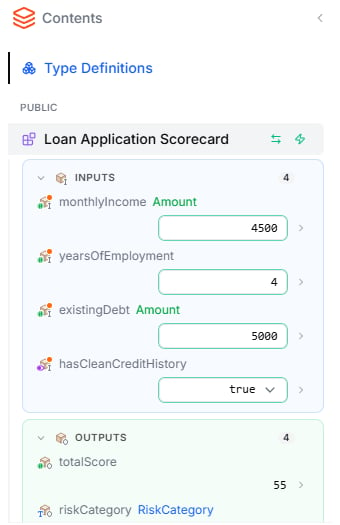 Click **⇆** next to a Blueprint to show its parameters in line:
* **Inputs** — each input shows its name, its type, and a field to set a value
* **Outputs** — each output shows its name, its type, and its value from the most recent run
Set the input values, then run the Blueprint or leave Live mode running. See [Test your Blueprint](/test-and-validate/test-your-blueprint).
## Right sidebar
The right sidebar holds the panels you work with next to the document. A tab strip at the top switches between them; the tabs show icons, and the active tab its name.
Click **⇆** next to a Blueprint to show its parameters in line:
* **Inputs** — each input shows its name, its type, and a field to set a value
* **Outputs** — each output shows its name, its type, and its value from the most recent run
Set the input values, then run the Blueprint or leave Live mode running. See [Test your Blueprint](/test-and-validate/test-your-blueprint).
## Right sidebar
The right sidebar holds the panels you work with next to the document. A tab strip at the top switches between them; the tabs show icons, and the active tab its name.
 | Tab | What the panel shows |
| :- | :- |
| **Tests** | The [test suites](/test-and-validate/test-suites) of the Blueprint you are working on. Click the Blueprint's name at the top of the panel to see the suites of all Blueprints. |
| **Agent** | The [Lab Agent](/editing/lab-agent) chat. |
| **Findings** | Problems Leapter finds in your project — see [Findings](/test-and-validate/findings). |
| **Comments** | Comments on Blueprints, sections, and nodes — see [Collaborating](/workspace/collaborating). |
| **Timeline** | The project's change history — see [Timeline](/track-changes/timeline). |
In the sidebar's top-right corner:
* **Detach panel** — opens the Tests, Agent, or Findings panel in a separate window. **Attach panel** puts it back.
* **›** (**Collapse right sidebar**) — hides the sidebar; **Expand right sidebar** brings it back.
## In the document
The [Specification view](/editor/specification-view) has its own controls, most of which appear when you hover over a heading or a row:
| Control | Where | What it does |
| :- | :- | :- |
| Chevron (**Expand** / **Collapse chapter**) | Next to a heading | Shows or hides a chapter or section. |
| **Copy link to section** | Next to a heading | Copies a link straight to this place in the document. |
| **Maximize** | Right of a heading | Opens the Blueprint or section in the [Diagram view](/editor/diagram-view). |
| **⋮ Blueprint actions** | Right of a Blueprint heading | **Section** (at the end of the Blueprint), **Make public** / **Make private**, **Delete blueprint** |
| **⋮ Section actions** | Right of a section heading | **Section** (inside this one), **Handle an error**, **Delete section** |
| **Add a section here** | Between two sections | Inserts a new section at that point. |
| **Inputs · Outputs · Locals** | Under a Blueprint's description | Shows or hides the Blueprint's parameters. |
| Type pill (**Show details for type**) | In a parameter row | Shows the definition of the type. |
| Chevron (**Edit definition**) | At the end of a row | Opens the card to edit a parameter or a type. |
| **Add an input** / **Add an output** / **Add a local** | Below the parameter groups | Adds a parameter. |
| **Outputs** | Below a diagram, after a run | The values the run produced. |
| Minimap | Right edge of the document | An overview of the whole project; click to jump. |
The steps behind these controls are described in [Specification View](/editor/specification-view#editing-in-the-specification-view).
## Node toolbar
When you select an element in a diagram, a small toolbar appears next to it with actions for that element. See [Inline Editing](/editing/inline-editing#the-node-toolbar).
## Search
Press **⌘K** (**Ctrl+K** on Windows) or click **Search (⌘K)** in the top toolbar to open **Search project**. Type a word and Leapter searches the whole project — names, labels, descriptions, expressions, and values of Blueprints, types, tests, comments, and findings. Each result shows where it was found and what matched.
| Tab | What the panel shows |
| :- | :- |
| **Tests** | The [test suites](/test-and-validate/test-suites) of the Blueprint you are working on. Click the Blueprint's name at the top of the panel to see the suites of all Blueprints. |
| **Agent** | The [Lab Agent](/editing/lab-agent) chat. |
| **Findings** | Problems Leapter finds in your project — see [Findings](/test-and-validate/findings). |
| **Comments** | Comments on Blueprints, sections, and nodes — see [Collaborating](/workspace/collaborating). |
| **Timeline** | The project's change history — see [Timeline](/track-changes/timeline). |
In the sidebar's top-right corner:
* **Detach panel** — opens the Tests, Agent, or Findings panel in a separate window. **Attach panel** puts it back.
* **›** (**Collapse right sidebar**) — hides the sidebar; **Expand right sidebar** brings it back.
## In the document
The [Specification view](/editor/specification-view) has its own controls, most of which appear when you hover over a heading or a row:
| Control | Where | What it does |
| :- | :- | :- |
| Chevron (**Expand** / **Collapse chapter**) | Next to a heading | Shows or hides a chapter or section. |
| **Copy link to section** | Next to a heading | Copies a link straight to this place in the document. |
| **Maximize** | Right of a heading | Opens the Blueprint or section in the [Diagram view](/editor/diagram-view). |
| **⋮ Blueprint actions** | Right of a Blueprint heading | **Section** (at the end of the Blueprint), **Make public** / **Make private**, **Delete blueprint** |
| **⋮ Section actions** | Right of a section heading | **Section** (inside this one), **Handle an error**, **Delete section** |
| **Add a section here** | Between two sections | Inserts a new section at that point. |
| **Inputs · Outputs · Locals** | Under a Blueprint's description | Shows or hides the Blueprint's parameters. |
| Type pill (**Show details for type**) | In a parameter row | Shows the definition of the type. |
| Chevron (**Edit definition**) | At the end of a row | Opens the card to edit a parameter or a type. |
| **Add an input** / **Add an output** / **Add a local** | Below the parameter groups | Adds a parameter. |
| **Outputs** | Below a diagram, after a run | The values the run produced. |
| Minimap | Right edge of the document | An overview of the whole project; click to jump. |
The steps behind these controls are described in [Specification View](/editor/specification-view#editing-in-the-specification-view).
## Node toolbar
When you select an element in a diagram, a small toolbar appears next to it with actions for that element. See [Inline Editing](/editing/inline-editing#the-node-toolbar).
## Search
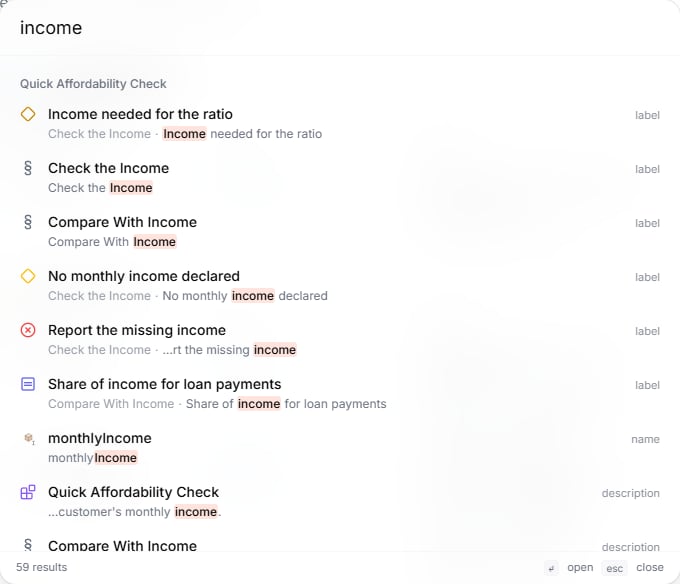
Press **⌘K** (**Ctrl+K** on Windows) or click **Search (⌘K)** in the top toolbar to open **Search project**. Type a word and Leapter searches the whole project — names, labels, descriptions, expressions, and values of Blueprints, types, tests, comments, and findings. Each result shows where it was found and what matched.
 ## Keyboard shortcuts
| Shortcut | What it does |
| :- | :- |
| **⌘K** / **Ctrl+K** | Opens **Search project** |
| **↑** / **↓**, **Enter**, **Esc** | Move through search results and menus, open the selected entry, close |
| **Ctrl+I** / **Cmd+I** | Drops the selected element into the [Lab Agent](/editing/lab-agent#point-the-agent-at-a-node-with-ctrli) chat |
| **@** in the agent composer | Mentions a Blueprint, node, parameter, type, or comment |
| **/** in the agent composer | Opens the agent [commands](/editing/lab-agent#commands) |
| **Enter** while editing a text | Saves your change. Clicking outside the field saves it too. |
| **Shift+Enter** while editing a description | Starts a new line |
| **Esc** while editing a text | Discards your change |
## What to do next
* **[Overview](/editor/introduction)** — the editor's areas at a glance
* **[Specification view](/editor/specification-view)** — read and edit the project as a document
* **[Test your Blueprint](/test-and-validate/test-your-blueprint)** — run your logic and step through it
This documentation is built and hosted on [Mintlify](https://mintlify.com), a developer documentation platform.
## Keyboard shortcuts
| Shortcut | What it does |
| :- | :- |
| **⌘K** / **Ctrl+K** | Opens **Search project** |
| **↑** / **↓**, **Enter**, **Esc** | Move through search results and menus, open the selected entry, close |
| **Ctrl+I** / **Cmd+I** | Drops the selected element into the [Lab Agent](/editing/lab-agent#point-the-agent-at-a-node-with-ctrli) chat |
| **@** in the agent composer | Mentions a Blueprint, node, parameter, type, or comment |
| **/** in the agent composer | Opens the agent [commands](/editing/lab-agent#commands) |
| **Enter** while editing a text | Saves your change. Clicking outside the field saves it too. |
| **Shift+Enter** while editing a description | Starts a new line |
| **Esc** while editing a text | Discards your change |
## What to do next
* **[Overview](/editor/introduction)** — the editor's areas at a glance
* **[Specification view](/editor/specification-view)** — read and edit the project as a document
* **[Test your Blueprint](/test-and-validate/test-your-blueprint)** — run your logic and step through it
This documentation is built and hosted on [Mintlify](https://mintlify.com), a developer documentation platform.