> ## Documentation Index
> Fetch the complete documentation index at: https://docs.leapter.com/llms.txt
> Use this file to discover all available pages before exploring further.
# Type Definitions
> Define reusable types at the project level — Value Types, Choice Types, Data Types, and Errors — so your inputs, outputs, and calls share a single source of truth.
Type Definitions let you describe your data once and reuse it across your project. They are defined at the project level — every Blueprint in the project can use the same types for its [inputs, outputs, and locals](/editor/inputs-and-outputs).
You find them in the **Type Definitions** chapter at the top of the [Specification view](/editor/specification-view). The **Type Definitions** entry in the Contents sidebar jumps there.
## Four kinds of type
| Kind | What it describes | Example from the Loan Application Scorecard |
| :- | :- | :- |
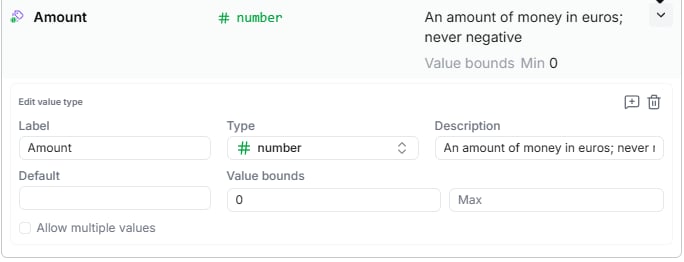
| **Value Type** | A basic value with a name and rules — a range for a number, a length for a text, a default | `Amount` — a number in euros, never below 0 |
| **Choice Type** | A value from a fixed list of allowed values | `Decision` — `Approve`, `Review`, or `Decline` |
| **Data Type** | A record with named fields, each with its own type | `ExistingLoan` — a `lender` and a `monthlyPayment` |
| **Error** | A failure your logic can raise, with a message and fields that describe it | `InvalidApplication` — a `message` and the `field` that needs correcting |
### Value Type
A **Value Type** gives a basic value a name and rules, so the same rules apply everywhere the value is used. You can set **Value bounds** (**Min** / **Max**) for a number, **Length bounds** (**Min length** / **Max length**) for a text, and a **Default**. Bounds are inclusive: **Min 0** means 0 or more.
### Choice Type
A **Choice Type** is a value that must be one of a fixed list — a status, a category, or a tier. Its base is text or a number, and you list its **Allowed values**. Use a Choice Type whenever an input can only take a few known values: callers that send anything else are rejected before your logic runs.
### Data Type
A **Data Type** is a structured record — a named group of fields. A field can be a basic type, a Value Type, a Choice Type, another Data Type, or a list of any of these. Fields can carry their own rules and defaults.
### Error
An **Error** describes a way your logic can fail. Every error has a `message` field, and you add the fields a caller needs to react — for example, which input was wrong. See [Error Handling](/elements/error-handling) for how to raise and handle errors.
### Basic types
Besides your own types, every type picker offers the basic types: **text**, **number**, **boolean** (yes/no), **date**, **date-time**, **percent**, and **any**.
* **percent** is a number shown with a % sign. It is stored as a fraction: `0.2` is shown as **20 %**.
* **any** accepts any value. Leapter doesn't check it, so prefer a specific type whenever you know the shape of the data.
## The Type Definitions chapter
The chapter lists your types grouped by kind — **Value Types**, **Choice Types**, **Data Types**, and **Errors** — with their **Name**, **Type**, and **Details** (description, rules, allowed values).
To add a type, click the **+** line below a group (for example **Add a choice type**) and give it a name. Type names are unique within a project.
To change a type, click the chevron (**Edit definition**) at the end of its row. A card opens where you edit the **Label**, **Type**, **Description**, **Default**, and the rules for this kind of type — and where you can comment on the type or delete it.
 ## The type canvas
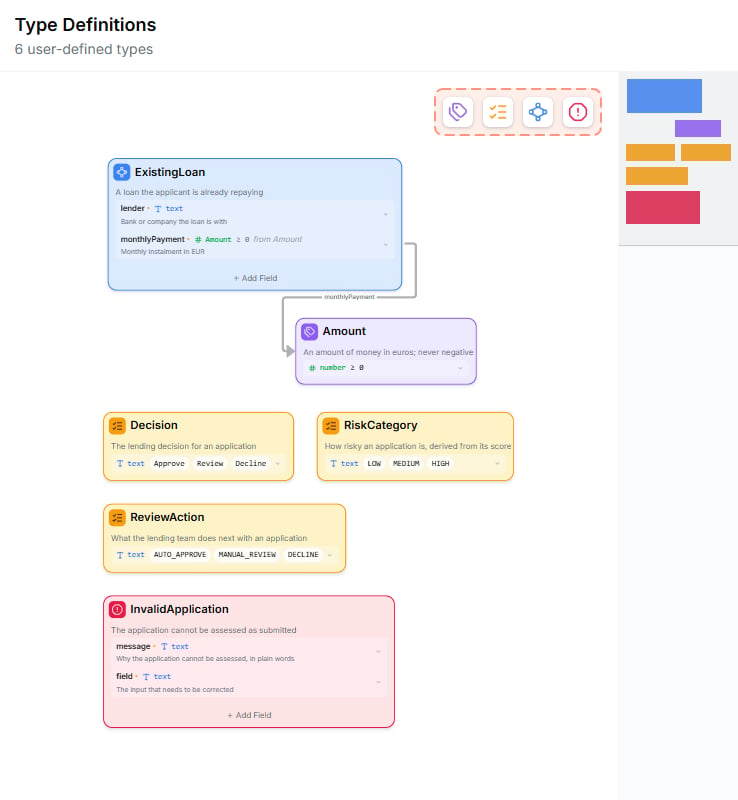
To see all types and how they relate, click the **Maximize** icon in the chapter heading. The **type canvas** shows each type as a card, colored by kind, with arrows from a type to the types its fields use.
## The type canvas
To see all types and how they relate, click the **Maximize** icon in the chapter heading. The **type canvas** shows each type as a card, colored by kind, with arrows from a type to the types its fields use.
 On the canvas you can:
* **Create a type** with the toolbar in the top-right corner: **Value Type**, **Choice Type**, **Data Type**, or **Error**.
* **Add a field** to a Data Type or an Error with **+ Add Field**.
* **Rearrange the cards** — choose **Layout: compact** or **Layout: columns** in the **Settings** popover of the top toolbar.
## Deleting and renaming types
When you delete a type that is still in use, Leapter tells you how many places use it — "*N references across M resources*" — and that they will break until you update or remove them. Click **Delete anyway** only if you are sure.
Renaming a type does not update the places that already use it. After a rename, inputs, outputs, and fields that referred to the old name show up in [Findings](/test-and-validate/findings). To rename a type that is in use, ask the [Lab Agent](/editing/lab-agent) to rename it and update every place that uses it.
## Using a type
Once defined, a type appears in every type picker in the project:
* When you set the type of an [input, output, or local](/editor/inputs-and-outputs).
* When you add a field to a Data Type or an Error.
* In **[Call nodes](/elements/calling-other-blueprints)**, when the called Blueprint expects an input or returns an output of this type.
## Why types help
* **One source of truth** — change the rules once and every input, output, and field that uses the type follows.
* **Validation for free** — Leapter checks every input against its type before any logic runs. A value outside a Choice Type's list, a number outside its bounds, or a record with a missing field is rejected, so you don't need to write those checks yourself.
* **Better AI results** — when you ask AI to [create](/projects/create-a-project) or [edit](/editing/lab-agent) a Blueprint, named types let it reason about your domain ("an `ExistingLoan` has a `monthlyPayment`") rather than guess from basic types.
* **Better readability** — a Specification view that mentions `Decision` and `ExistingLoan` reads like business prose.
## Tips
* **Start without types.** New projects don't need them — basic inputs work fine. Reach for Type Definitions when you notice the same shape or the same rule repeating.
* **Use a Choice Type for every "one of" value.** It documents the allowed values and enforces them.
* **Name types after domain concepts**, not implementation. `Customer` is better than `CustomerObject`; name errors after the situation, such as `InvalidApplication`.
## What to do next
* **[Inputs and Outputs](/editor/inputs-and-outputs)** — apply your types to a Blueprint's parameters
* **[Error Handling](/elements/error-handling)** — raise and handle the errors you defined
* **[Calling Other Blueprints](/elements/calling-other-blueprints)** — pass typed values between Blueprints
This documentation is built and hosted on [Mintlify](https://mintlify.com), a developer documentation platform.
On the canvas you can:
* **Create a type** with the toolbar in the top-right corner: **Value Type**, **Choice Type**, **Data Type**, or **Error**.
* **Add a field** to a Data Type or an Error with **+ Add Field**.
* **Rearrange the cards** — choose **Layout: compact** or **Layout: columns** in the **Settings** popover of the top toolbar.
## Deleting and renaming types
When you delete a type that is still in use, Leapter tells you how many places use it — "*N references across M resources*" — and that they will break until you update or remove them. Click **Delete anyway** only if you are sure.
Renaming a type does not update the places that already use it. After a rename, inputs, outputs, and fields that referred to the old name show up in [Findings](/test-and-validate/findings). To rename a type that is in use, ask the [Lab Agent](/editing/lab-agent) to rename it and update every place that uses it.
## Using a type
Once defined, a type appears in every type picker in the project:
* When you set the type of an [input, output, or local](/editor/inputs-and-outputs).
* When you add a field to a Data Type or an Error.
* In **[Call nodes](/elements/calling-other-blueprints)**, when the called Blueprint expects an input or returns an output of this type.
## Why types help
* **One source of truth** — change the rules once and every input, output, and field that uses the type follows.
* **Validation for free** — Leapter checks every input against its type before any logic runs. A value outside a Choice Type's list, a number outside its bounds, or a record with a missing field is rejected, so you don't need to write those checks yourself.
* **Better AI results** — when you ask AI to [create](/projects/create-a-project) or [edit](/editing/lab-agent) a Blueprint, named types let it reason about your domain ("an `ExistingLoan` has a `monthlyPayment`") rather than guess from basic types.
* **Better readability** — a Specification view that mentions `Decision` and `ExistingLoan` reads like business prose.
## Tips
* **Start without types.** New projects don't need them — basic inputs work fine. Reach for Type Definitions when you notice the same shape or the same rule repeating.
* **Use a Choice Type for every "one of" value.** It documents the allowed values and enforces them.
* **Name types after domain concepts**, not implementation. `Customer` is better than `CustomerObject`; name errors after the situation, such as `InvalidApplication`.
## What to do next
* **[Inputs and Outputs](/editor/inputs-and-outputs)** — apply your types to a Blueprint's parameters
* **[Error Handling](/elements/error-handling)** — raise and handle the errors you defined
* **[Calling Other Blueprints](/elements/calling-other-blueprints)** — pass typed values between Blueprints
This documentation is built and hosted on [Mintlify](https://mintlify.com), a developer documentation platform.