> ## Documentation Index
> Fetch the complete documentation index at: https://docs.leapter.com/llms.txt
> Use this file to discover all available pages before exploring further.
# Sections
> Group the steps of a Blueprint into named sections. Each section has a title and a description that says in plain language what its logic does.
A section is a named group of steps inside a Blueprint. Its title says what the steps do, and its description explains it in plain language, so a reader can follow the logic without reading every expression. Sections turn a Blueprint into a document that people read from top to bottom: the overview first, the details second.
## How sections appear
Every Blueprint chapter in the [Specification view](/editor/specification-view) starts with a [structure diagram](/editor/specification-view#the-structure-diagram): the main flow with each section collapsed to one box. The box shows the section's title, its description, and the number of steps directly inside it.
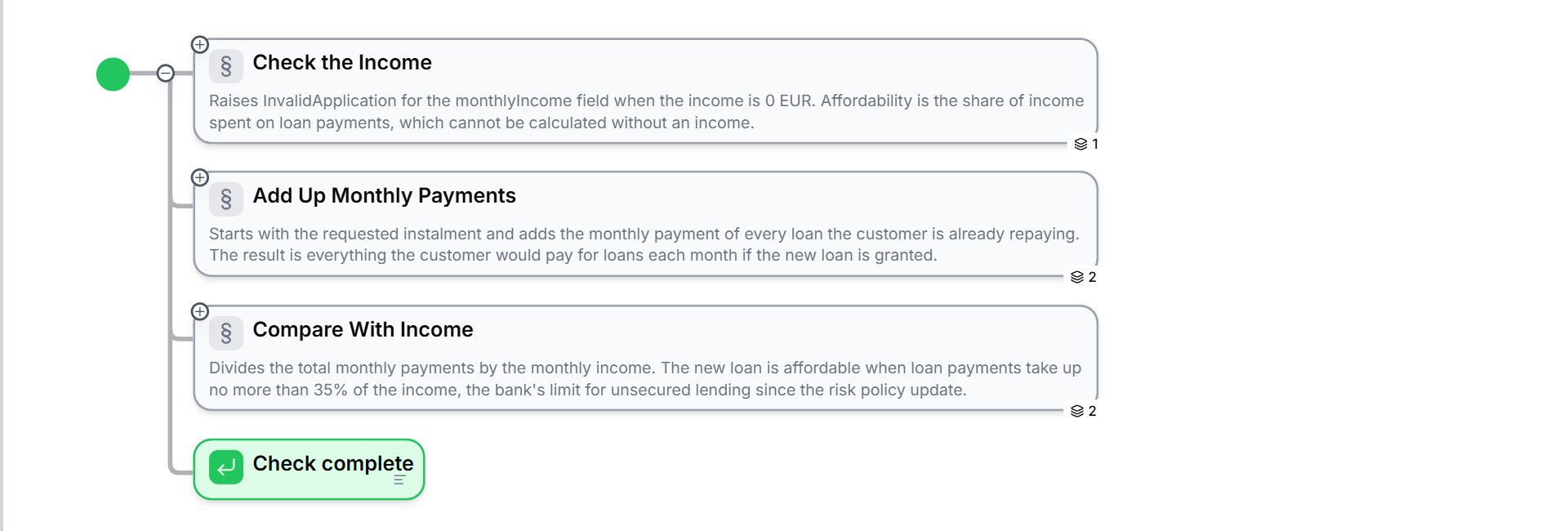 Below the structure diagram, each section follows as its own numbered heading (for example **2.1 Check the Income**), with its description and its full diagram. Sections can hold other sections, which are numbered one level deeper (**1.1.1**). The Contents sidebar lists all sections with the same numbers.
In a diagram, a section is a white box with a grey border and the **§** icon. Collapse it to see it as a single step, expand it to see its logic.
## What belongs in a section
A good section does one job: a group of steps that together produce one result. The Quick Affordability Check, for example, has three sections. **Check the Income** makes sure there is an income to work with. **Add Up Monthly Payments** adds up all loan payments. **Compare With Income** decides whether the new loan is affordable.
| Part | Guideline |
| :- | :- |
| **Title** | Says what the section does, in a few words, such as *Add Up Monthly Payments*. |
| **Description** | Two or three full sentences that walk through what the logic does: every branch, the value it produces, and the numbers it uses (thresholds, rates, codes). Add the business reason where it helps. A reader should be able to predict the result without reading the steps. |
| **Size** | Up to about 15 to 20 steps. When a section grows larger, split it, or group part of it in a section of its own inside. |
Compare the description of **Compare With Income** in the example project: it names the formula, the 35% limit, and why the limit applies. A description such as *Handles the calculation* tells the reader nothing.
### Section or Blueprint?
A section structures the logic inside one Blueprint. When a part of the logic should be tested on its own, or reused by other Blueprints, make it a Blueprint of its own and call it. In the example project, the scoring rules sit in the private Blueprint **Calculate Score**, which the Loan Application Scorecard calls. See [Calling Other Blueprints](/elements/calling-other-blueprints).
### Sections and errors
A section is also the unit for error handling. A section can catch an error raised by its steps and run its own handler instead of failing the whole run. See [Error Handling](/elements/error-handling).
## Work with sections
| To | Do this |
| :- | :- |
| Add a section at the end of a Blueprint | Open **⋮** (**Blueprint actions**) next to the Blueprint heading and choose **Section**. |
| Add a section inside another | Open **⋮** (**Section actions**) next to the section heading and choose **Section**. |
| Add a section between two others | Hover over the gap between them and click **Add a section here** → **Section here**. |
| Group existing steps | Select a step and click **Wrap in section** in the [node toolbar](/editing/inline-editing#the-node-toolbar). **Wrap in section with catch** also adds an error handler. |
| Rename a section or change its description | Double-click the title or the description. See [Inline editing](/editing/inline-editing#editing-section-headers). |
| Work on one section | Click the maximize icon next to its heading to open it in the [Diagram view](/editor/diagram-view). |
| Share a section | Click the link icon next to its heading (**Copy link to section**). |
| Delete a section | Open **⋮** (**Section actions**) and choose **Delete section**. Delete removes the steps inside too; **Keep steps** moves them up into the surrounding section. |
The [Lab Agent](/editing/lab-agent) writes a title and a description for every section it builds. Run `/review` to check that your descriptions still match the logic after you change it.
## What to do next
* **[Controlling the Flow](/elements/controlling-the-flow)**: the elements you place inside a section
* **[Error Handling](/elements/error-handling)**: catch errors at the level of a section
* **[Specification view](/editor/specification-view)**: read and edit the whole project as a document
This documentation is built and hosted on [Mintlify](https://mintlify.com), a developer documentation platform.
Below the structure diagram, each section follows as its own numbered heading (for example **2.1 Check the Income**), with its description and its full diagram. Sections can hold other sections, which are numbered one level deeper (**1.1.1**). The Contents sidebar lists all sections with the same numbers.
In a diagram, a section is a white box with a grey border and the **§** icon. Collapse it to see it as a single step, expand it to see its logic.
## What belongs in a section
A good section does one job: a group of steps that together produce one result. The Quick Affordability Check, for example, has three sections. **Check the Income** makes sure there is an income to work with. **Add Up Monthly Payments** adds up all loan payments. **Compare With Income** decides whether the new loan is affordable.
| Part | Guideline |
| :- | :- |
| **Title** | Says what the section does, in a few words, such as *Add Up Monthly Payments*. |
| **Description** | Two or three full sentences that walk through what the logic does: every branch, the value it produces, and the numbers it uses (thresholds, rates, codes). Add the business reason where it helps. A reader should be able to predict the result without reading the steps. |
| **Size** | Up to about 15 to 20 steps. When a section grows larger, split it, or group part of it in a section of its own inside. |
Compare the description of **Compare With Income** in the example project: it names the formula, the 35% limit, and why the limit applies. A description such as *Handles the calculation* tells the reader nothing.
### Section or Blueprint?
A section structures the logic inside one Blueprint. When a part of the logic should be tested on its own, or reused by other Blueprints, make it a Blueprint of its own and call it. In the example project, the scoring rules sit in the private Blueprint **Calculate Score**, which the Loan Application Scorecard calls. See [Calling Other Blueprints](/elements/calling-other-blueprints).
### Sections and errors
A section is also the unit for error handling. A section can catch an error raised by its steps and run its own handler instead of failing the whole run. See [Error Handling](/elements/error-handling).
## Work with sections
| To | Do this |
| :- | :- |
| Add a section at the end of a Blueprint | Open **⋮** (**Blueprint actions**) next to the Blueprint heading and choose **Section**. |
| Add a section inside another | Open **⋮** (**Section actions**) next to the section heading and choose **Section**. |
| Add a section between two others | Hover over the gap between them and click **Add a section here** → **Section here**. |
| Group existing steps | Select a step and click **Wrap in section** in the [node toolbar](/editing/inline-editing#the-node-toolbar). **Wrap in section with catch** also adds an error handler. |
| Rename a section or change its description | Double-click the title or the description. See [Inline editing](/editing/inline-editing#editing-section-headers). |
| Work on one section | Click the maximize icon next to its heading to open it in the [Diagram view](/editor/diagram-view). |
| Share a section | Click the link icon next to its heading (**Copy link to section**). |
| Delete a section | Open **⋮** (**Section actions**) and choose **Delete section**. Delete removes the steps inside too; **Keep steps** moves them up into the surrounding section. |
The [Lab Agent](/editing/lab-agent) writes a title and a description for every section it builds. Run `/review` to check that your descriptions still match the logic after you change it.
## What to do next
* **[Controlling the Flow](/elements/controlling-the-flow)**: the elements you place inside a section
* **[Error Handling](/elements/error-handling)**: catch errors at the level of a section
* **[Specification view](/editor/specification-view)**: read and edit the whole project as a document
This documentation is built and hosted on [Mintlify](https://mintlify.com), a developer documentation platform.