> ## Documentation Index
> Fetch the complete documentation index at: https://docs.leapter.com/llms.txt
> Use this file to discover all available pages before exploring further.
# Code Workflow
> Export an n8n workflow that runs your Blueprint logic directly as JavaScript — no API calls needed.
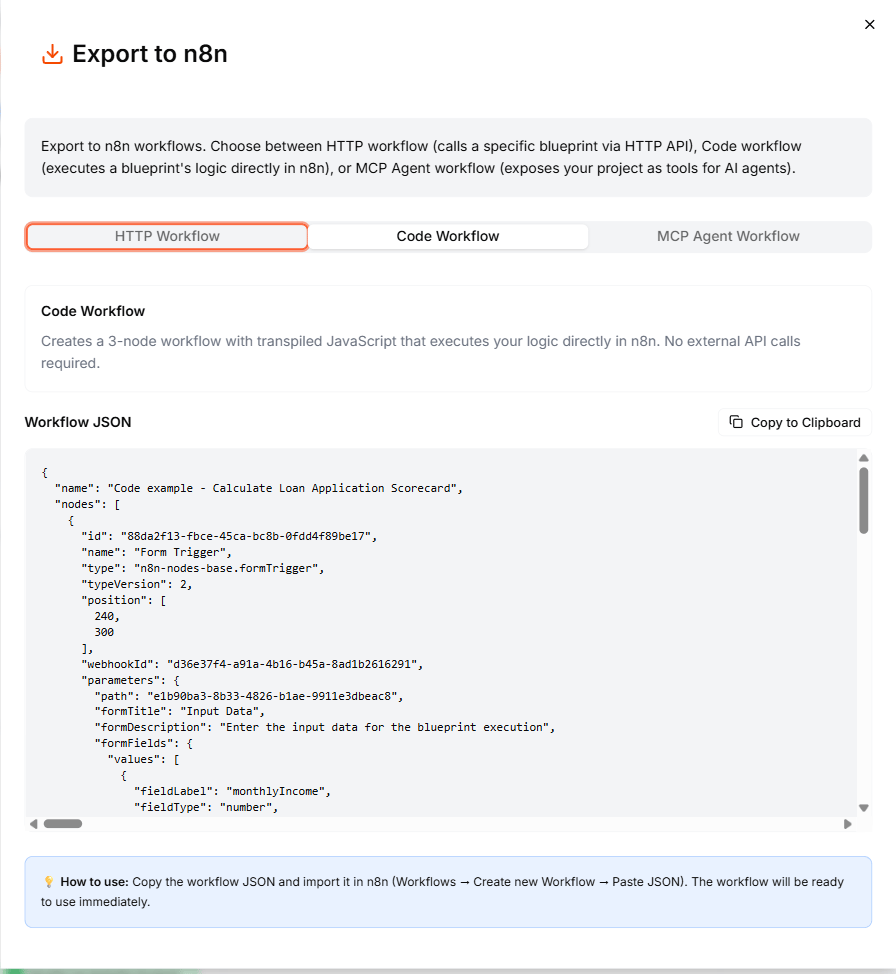
Leapter can generate an n8n workflow that runs your Blueprint logic entirely within n8n. Instead of calling an external API, the workflow contains your Blueprint transpiled to JavaScript in a Code node. This means no network latency, no API key required at runtime, and no dependency on external services.
## What this creates
The Code Workflow is a 3-node n8n workflow:
| Node | Purpose |
| :--------------- | :------------------------------------------------------------------------------------- |
| **Form Trigger** | Displays a form with input fields matching your Blueprint's data contract |
| **Code** | Contains your full Blueprint logic transpiled to JavaScript — executes directly in n8n |
| **Form** | Displays the results |
## Export the workflow
1. Open your Blueprint in the editor.
2. Click the **Share** button in the toolbar.
3. Select **n8n**.
4. In the Export to n8n dialog, select the **Code Workflow** tab.
5. Click **Copy to Clipboard**.
 ## Import into n8n
1. Open your n8n instance.
2. Create a new workflow.
3. Click the **three-dot menu** (or use **Ctrl+V** / **Cmd+V**) and select **Import from clipboard**.
4. The 3-node workflow appears on the canvas.
## How the Code node works
The Code node contains your Blueprint logic transpiled to JavaScript. You can open it to inspect the code, but you do not need to modify it. The code:
* Reads inputs from the Form Trigger node
* Executes your Blueprint's logic (conditions, calculations, data transformations)
* Returns the outputs for the final Form node to display
Since the code is a snapshot of your Blueprint at export time, you need to re-export the workflow if you update your Blueprint.
## Run the workflow
1. Click **Test Workflow** to run it manually.
2. Fill in the form with your test inputs.
3. The Code node executes your logic and the Form node displays the results.
No API key or network connection to Leapter is needed at runtime.
## When to use Code vs HTTP
| | Code Workflow | HTTP Workflow |
| :----------------- | :------------------------------------------------- | :---------------------------------------- |
| **API dependency** | None — runs locally | Requires Leapter API |
| **Authentication** | Not needed at runtime | API key required |
| **Updates** | Re-export after Blueprint changes | Always calls latest published version |
| **Best for** | Offline use, low latency, self-contained workflows | Always-current logic, no re-export needed |
## What to do next
* **[HTTP Workflow](/executing-blueprints/n8n-http)** — export a workflow that calls the API instead
* **[MCP Agent Workflow](/executing-blueprints/n8n-mcp-agent)** — use your Blueprints as AI agent tools in n8n
* **[Export as Code](/executing-blueprints/export-code)** — view and copy the transpiled code outside of n8n
## Import into n8n
1. Open your n8n instance.
2. Create a new workflow.
3. Click the **three-dot menu** (or use **Ctrl+V** / **Cmd+V**) and select **Import from clipboard**.
4. The 3-node workflow appears on the canvas.
## How the Code node works
The Code node contains your Blueprint logic transpiled to JavaScript. You can open it to inspect the code, but you do not need to modify it. The code:
* Reads inputs from the Form Trigger node
* Executes your Blueprint's logic (conditions, calculations, data transformations)
* Returns the outputs for the final Form node to display
Since the code is a snapshot of your Blueprint at export time, you need to re-export the workflow if you update your Blueprint.
## Run the workflow
1. Click **Test Workflow** to run it manually.
2. Fill in the form with your test inputs.
3. The Code node executes your logic and the Form node displays the results.
No API key or network connection to Leapter is needed at runtime.
## When to use Code vs HTTP
| | Code Workflow | HTTP Workflow |
| :----------------- | :------------------------------------------------- | :---------------------------------------- |
| **API dependency** | None — runs locally | Requires Leapter API |
| **Authentication** | Not needed at runtime | API key required |
| **Updates** | Re-export after Blueprint changes | Always calls latest published version |
| **Best for** | Offline use, low latency, self-contained workflows | Always-current logic, no re-export needed |
## What to do next
* **[HTTP Workflow](/executing-blueprints/n8n-http)** — export a workflow that calls the API instead
* **[MCP Agent Workflow](/executing-blueprints/n8n-mcp-agent)** — use your Blueprints as AI agent tools in n8n
* **[Export as Code](/executing-blueprints/export-code)** — view and copy the transpiled code outside of n8n