> ## Documentation Index
> Fetch the complete documentation index at: https://docs.leapter.com/llms.txt
> Use this file to discover all available pages before exploring further.
# AI-Assisted Editing
> Use Ctrl+I (Cmd+I on Mac) to modify any part of your Blueprint with AI — describe what you want to change in natural language.
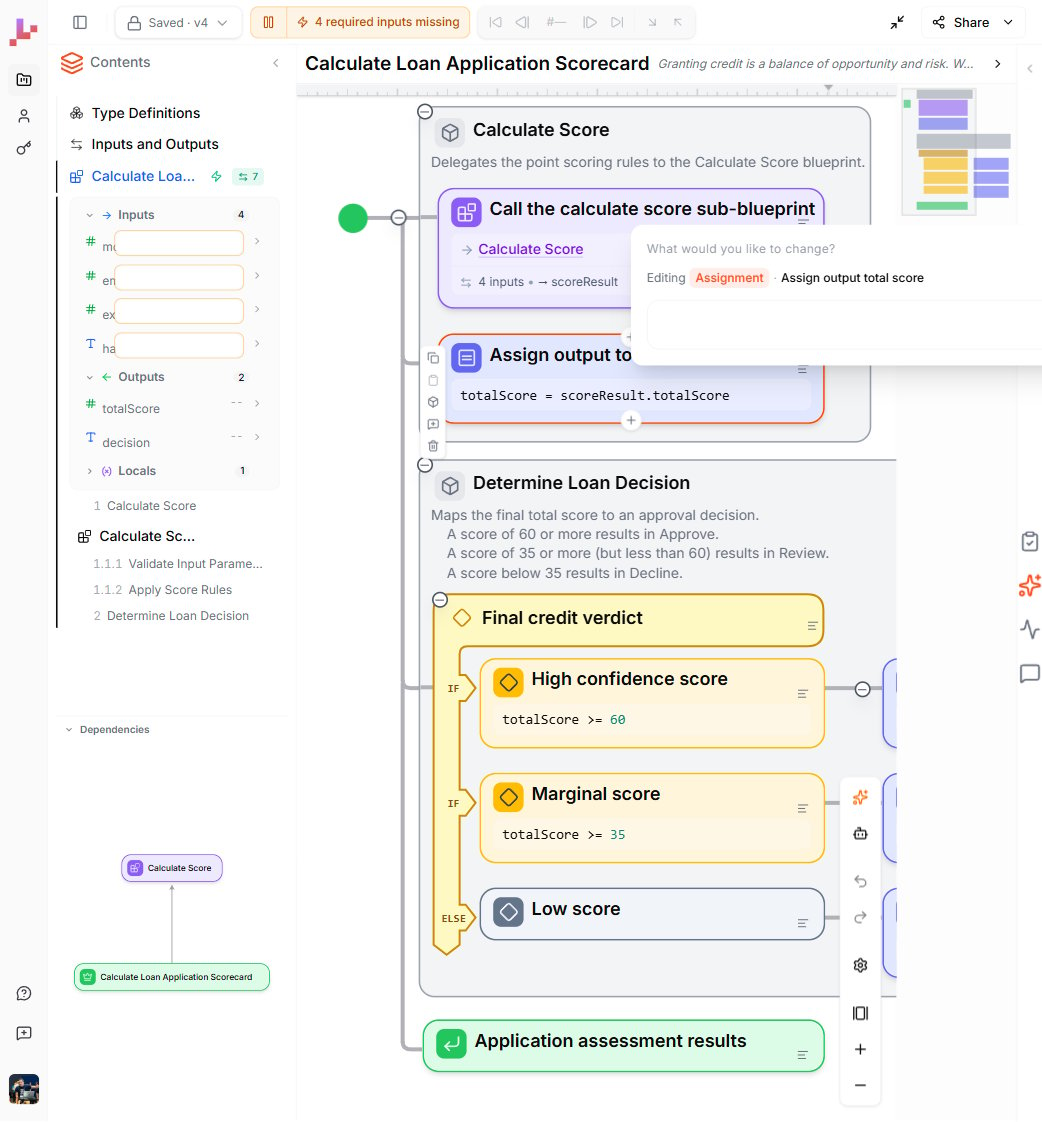
You can use AI to modify your Blueprints by describing what you want in natural language. Press **Ctrl+I** (or **Cmd+I** on Mac) to open the AI prompt bar, type your instruction, and let AI make the changes for you.
AI editing works at different levels — from changing a single element to restructuring an entire Blueprint. The scope adapts to your selection.
**Ctrl+I is the quick, scoped way to edit.** For a conversation that can build across multiple
Blueprints, run your tests, and iterate, use the **[Lab Agent](/fundamentals/change-your-blueprint/lab-agent)**
in the right sidebar instead.
For a different way to use AI — reconciling your written descriptions with your logic so they stay aligned — see [Logic & Descriptions](/fundamentals/change-your-blueprint/sync-and-suggestions).
## Opening the AI prompt
There are two ways to start an AI edit:
* Press **Ctrl+I** (or **Cmd+I** on Mac)
* Click the **sparkles icon** in the right-edge toolbar of a maximized Blueprint
Before triggering, select your target — click an element, a section header, or nothing (for the whole Blueprint). The AI prompt bar appears near your selection.
 **Coming soon:** pressing **Ctrl+I** with a node selected will drop that node into the [Lab Agent](/fundamentals/change-your-blueprint/lab-agent) chat as a reference, instead of opening a separate floating bar. See the [changelog](/changelog).
The prompt bar shows what you're editing:
* **"Editing Assignment · Assign output total score"** — scoped to a single element
* **"Editing Section · Determine Loan Decision"** — scoped to a section
* **"Editing Blueprint · Calculate Loan Application Scorecard"** — scoped to the entire Blueprint
When no element or section is selected, the prompt bar appears without a scope indicator — it targets the entire Blueprint.
## Context-sensitive scope
The AI adapts its scope based on your selection:
| What you select | AI scope | Example prompt |
| :-------------------------------------------- | :----------------------------------- | :----------------------------------------------------------------------- |
| **An element** (assignment, decision, etc.) | Changes only that element | "Add 10 points when monthly income is over 5000" |
| **A section header** | Changes elements within that section | "Add a Review band for borderline scores" |
| **Nothing** (click empty canvas, then Ctrl+I) | Changes the entire Blueprint | "Add a new section that flags applications with very high existing debt" |
This scoping means you can make precise, targeted changes without affecting the rest of your logic — or make sweeping structural changes when needed.
## Reviewing AI changes
After you submit a prompt, AI proposes changes and enters **Review mode**. You don't have to accept changes blindly — you get to review them first.
In Review mode:
* **Added elements** are highlighted in green
* **Removed elements** are highlighted in red
* **Modified elements** show the changes visually
* A summary bar shows the total changes: for example, "3 changes: 1 added, 2 modified"
You have two options:
* **Apply All** — accepts all proposed changes
* **Reject All** — discards all changes and returns to the previous state
While AI is proposing changes, the editor switches to read-only mode to prevent conflicting edits.
## What AI editing can do
### Small changes
Adjust a single expression, rename an element, or update a condition:
* *"Change the Approve threshold from 60 to 65 points"*
* *"Rename this section to Final Decision"*
* *"Update the error message to include the minimum required income"*
### Structural changes
Add new sections, reorganize logic, or introduce new decision branches:
* *"Add a section that gives bonus points for applicants with more than 5 years of employment"*
* *"Split this section into two: one for income scoring and one for debt scoring"*
* *"Add a new condition that auto-declines applications with existing debt over 50,000"*
When you make structural changes, AI updates everything — the elements on the canvas, the section hierarchy, titles, descriptions, and expressions. Both the [Specification view](/fundamentals/leapter-canvas/specification-view) document and the [Diagram view](/fundamentals/leapter-canvas/diagram-view) reflect the updates as soon as you apply them.
## Tips
* **Be specific** — "Set the Approve threshold to 65" works better than "make it stricter"
* **Start small** — try element-level edits before restructuring entire sections
* **Use Review mode** — always check what AI changed before applying
* **Combine with inline editing** — use AI for structural changes, then fine-tune expressions and descriptions manually with [inline editing](/fundamentals/change-your-blueprint/inline-editing)
## What to do next
* **[Lab Agent](/fundamentals/change-your-blueprint/lab-agent)** — have a conversation that builds across Blueprints and runs your tests
* **[Inline Editing](/fundamentals/change-your-blueprint/inline-editing)** — edit elements directly on the canvas
* **[Logic & Descriptions](/fundamentals/change-your-blueprint/sync-and-suggestions)** — keep your descriptions and logic in alignment
* **[Test your Blueprint](/fundamentals/test-your-blueprint)** — run your Blueprint to verify your changes
**Coming soon:** pressing **Ctrl+I** with a node selected will drop that node into the [Lab Agent](/fundamentals/change-your-blueprint/lab-agent) chat as a reference, instead of opening a separate floating bar. See the [changelog](/changelog).
The prompt bar shows what you're editing:
* **"Editing Assignment · Assign output total score"** — scoped to a single element
* **"Editing Section · Determine Loan Decision"** — scoped to a section
* **"Editing Blueprint · Calculate Loan Application Scorecard"** — scoped to the entire Blueprint
When no element or section is selected, the prompt bar appears without a scope indicator — it targets the entire Blueprint.
## Context-sensitive scope
The AI adapts its scope based on your selection:
| What you select | AI scope | Example prompt |
| :-------------------------------------------- | :----------------------------------- | :----------------------------------------------------------------------- |
| **An element** (assignment, decision, etc.) | Changes only that element | "Add 10 points when monthly income is over 5000" |
| **A section header** | Changes elements within that section | "Add a Review band for borderline scores" |
| **Nothing** (click empty canvas, then Ctrl+I) | Changes the entire Blueprint | "Add a new section that flags applications with very high existing debt" |
This scoping means you can make precise, targeted changes without affecting the rest of your logic — or make sweeping structural changes when needed.
## Reviewing AI changes
After you submit a prompt, AI proposes changes and enters **Review mode**. You don't have to accept changes blindly — you get to review them first.
In Review mode:
* **Added elements** are highlighted in green
* **Removed elements** are highlighted in red
* **Modified elements** show the changes visually
* A summary bar shows the total changes: for example, "3 changes: 1 added, 2 modified"
You have two options:
* **Apply All** — accepts all proposed changes
* **Reject All** — discards all changes and returns to the previous state
While AI is proposing changes, the editor switches to read-only mode to prevent conflicting edits.
## What AI editing can do
### Small changes
Adjust a single expression, rename an element, or update a condition:
* *"Change the Approve threshold from 60 to 65 points"*
* *"Rename this section to Final Decision"*
* *"Update the error message to include the minimum required income"*
### Structural changes
Add new sections, reorganize logic, or introduce new decision branches:
* *"Add a section that gives bonus points for applicants with more than 5 years of employment"*
* *"Split this section into two: one for income scoring and one for debt scoring"*
* *"Add a new condition that auto-declines applications with existing debt over 50,000"*
When you make structural changes, AI updates everything — the elements on the canvas, the section hierarchy, titles, descriptions, and expressions. Both the [Specification view](/fundamentals/leapter-canvas/specification-view) document and the [Diagram view](/fundamentals/leapter-canvas/diagram-view) reflect the updates as soon as you apply them.
## Tips
* **Be specific** — "Set the Approve threshold to 65" works better than "make it stricter"
* **Start small** — try element-level edits before restructuring entire sections
* **Use Review mode** — always check what AI changed before applying
* **Combine with inline editing** — use AI for structural changes, then fine-tune expressions and descriptions manually with [inline editing](/fundamentals/change-your-blueprint/inline-editing)
## What to do next
* **[Lab Agent](/fundamentals/change-your-blueprint/lab-agent)** — have a conversation that builds across Blueprints and runs your tests
* **[Inline Editing](/fundamentals/change-your-blueprint/inline-editing)** — edit elements directly on the canvas
* **[Logic & Descriptions](/fundamentals/change-your-blueprint/sync-and-suggestions)** — keep your descriptions and logic in alignment
* **[Test your Blueprint](/fundamentals/test-your-blueprint)** — run your Blueprint to verify your changes