> ## Documentation Index
> Fetch the complete documentation index at: https://docs.leapter.com/llms.txt
> Use this file to discover all available pages before exploring further.
# Integrations
> Connect external tools like Linear and GitHub so the Lab Agent can use them on your behalf — enabled for the workspace by an owner, connected individually by each member.
Integrations let the **[Lab Agent](/fundamentals/change-your-blueprint/lab-agent)** work with external tools — reading from and writing to systems like Linear or GitHub while it helps you build. An owner turns an integration on for the workspace; then each member connects their own account, so the agent always acts with *your* identity and permissions.
This is the reverse direction from [Deploy & Integrate](/executing-blueprints/introduction), which is about calling *your* Blueprints from outside Leapter. Here, external tools are brought *in* for the Lab Agent to use.
## How integrations work
Every integration goes through three levels:
1. **Catalog** — Leapter curates the list of available integrations. You cannot add arbitrary servers; you pick from the catalog.
2. **Workspace enablement** — an **owner** turns an integration on for the whole workspace. It is off by default.
3. **Personal connection** — each **member** connects their own account. The agent uses your connection, with your identity and permissions — so a Linear issue the agent files is filed as *you*.
## Where to find integrations
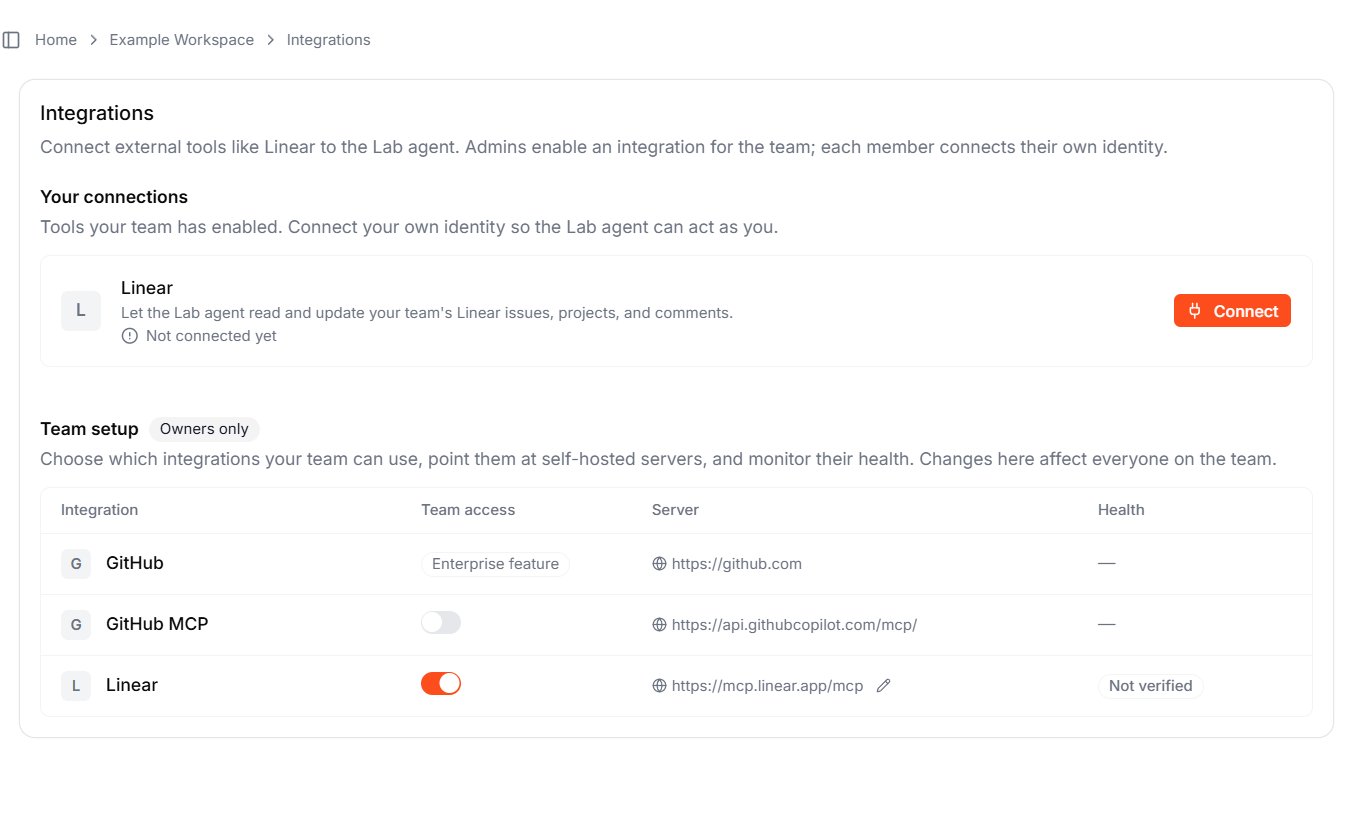
Click **Integrations** in the workspace settings sidebar. The page has two parts.
 ### Your connections
Every member sees **Your connections** — the integrations your workspace has enabled, each with a **Connect** / **Disconnect** action and a status. Connecting runs you through the tool's own sign-in so your credentials are stored against your membership, never shared with the rest of the team.
### Team setup (owners only)
Owners also see **Team setup**, the catalog of integrations the workspace can use. Each row shows:
| Column | Description |
| :-------------- | :---------------------------------------------------------------------------------------- |
| **Integration** | The tool's name and logo |
| **Team access** | Whether it is enabled for the workspace — an owner toggle, or a managed badge (see below) |
| **Server** | The server the integration connects to (some can point at a self-hosted URL) |
| **Health** | The connection's verification status |
## What you can connect today
| Integration | How it's enabled |
| :-------------------- | :-------------------------------------------------------------------------------------------------------------------------------------------- |
| **Linear** | An owner toggles **Team access** on; each member then connects their Linear account. |
| **GitHub MCP** | An owner toggles it on; each member connects with a GitHub token. |
| **GitHub** (git sync) | An **Enterprise feature** — shown with an *Enterprise feature* badge and enabled by Leapter for your workspace, not through the owner toggle. |
Some integrations are **managed for you**. GitHub git-sync shows an **Enterprise feature** badge and is enabled by Leapter; self-hosted internal servers show an **Admin managed** badge. For these, there is no owner toggle — contact Leapter or your administrator to have them enabled.
## Connect an integration
Once an owner has enabled an integration, each member connects their own account:
1. Open **Integrations** and find the tool under **Your connections**.
2. Click **Connect**.
3. Complete the tool's sign-in (for example, authorize Linear, or paste a GitHub token).
The Lab Agent can now use that tool in your sessions. Your token is stored securely against your membership; disconnect at any time from the same page.
## What to do next
* **[Lab Agent](/fundamentals/change-your-blueprint/lab-agent)** — the AI that uses your connected tools while it builds
* **[Workspaces](/fundamentals/workspaces)** — manage who is in your workspace and who can enable integrations
* **[API Keys](/fundamentals/api-keys)** — the reverse direction: let outside systems call your Blueprints
### Your connections
Every member sees **Your connections** — the integrations your workspace has enabled, each with a **Connect** / **Disconnect** action and a status. Connecting runs you through the tool's own sign-in so your credentials are stored against your membership, never shared with the rest of the team.
### Team setup (owners only)
Owners also see **Team setup**, the catalog of integrations the workspace can use. Each row shows:
| Column | Description |
| :-------------- | :---------------------------------------------------------------------------------------- |
| **Integration** | The tool's name and logo |
| **Team access** | Whether it is enabled for the workspace — an owner toggle, or a managed badge (see below) |
| **Server** | The server the integration connects to (some can point at a self-hosted URL) |
| **Health** | The connection's verification status |
## What you can connect today
| Integration | How it's enabled |
| :-------------------- | :-------------------------------------------------------------------------------------------------------------------------------------------- |
| **Linear** | An owner toggles **Team access** on; each member then connects their Linear account. |
| **GitHub MCP** | An owner toggles it on; each member connects with a GitHub token. |
| **GitHub** (git sync) | An **Enterprise feature** — shown with an *Enterprise feature* badge and enabled by Leapter for your workspace, not through the owner toggle. |
Some integrations are **managed for you**. GitHub git-sync shows an **Enterprise feature** badge and is enabled by Leapter; self-hosted internal servers show an **Admin managed** badge. For these, there is no owner toggle — contact Leapter or your administrator to have them enabled.
## Connect an integration
Once an owner has enabled an integration, each member connects their own account:
1. Open **Integrations** and find the tool under **Your connections**.
2. Click **Connect**.
3. Complete the tool's sign-in (for example, authorize Linear, or paste a GitHub token).
The Lab Agent can now use that tool in your sessions. Your token is stored securely against your membership; disconnect at any time from the same page.
## What to do next
* **[Lab Agent](/fundamentals/change-your-blueprint/lab-agent)** — the AI that uses your connected tools while it builds
* **[Workspaces](/fundamentals/workspaces)** — manage who is in your workspace and who can enable integrations
* **[API Keys](/fundamentals/api-keys)** — the reverse direction: let outside systems call your Blueprints