> ## Documentation Index
> Fetch the complete documentation index at: https://docs.leapter.com/llms.txt
> Use this file to discover all available pages before exploring further.
# Projects
> Organize your Blueprints into projects — create, browse, and manage your work in Leapter.
Projects are the top-level containers for your Blueprints. Every Blueprint belongs to a project, and you manage all your work through the Projects page.
## The Projects page
Click **Projects** in the left sidebar to open the Projects page. This is also the first screen you see after logging in.
Each project appears as a card showing:
| Element | Description |
| :------------------ | :---------------------------------------------------------------------------------------- |
| **Name** | The project name you chose when creating it |
| **Description** | The optional description (or "No description" if none was provided) |
| **Blueprint count** | How many Blueprints the project contains |
| **Blueprint names** | A preview of the Blueprint names inside the project |
| **Last updated** | When the project was last modified |
| **Globe icon** | Shown when the project has an active [public read-only share link](/fundamentals/sharing) |
You can **search** for projects by name using the search bar, or use **Filters** to narrow the list.
The **⋮** menu on each card has **Edit Project**, **Share Project**, **Export Project**, and **Delete Project** entries — **Share Project** opens the share dialog directly (see [Sharing](/fundamentals/sharing)).
## Create a project
Click **Create New** in the top-right corner of the Projects page. The **Create a Project** page opens.
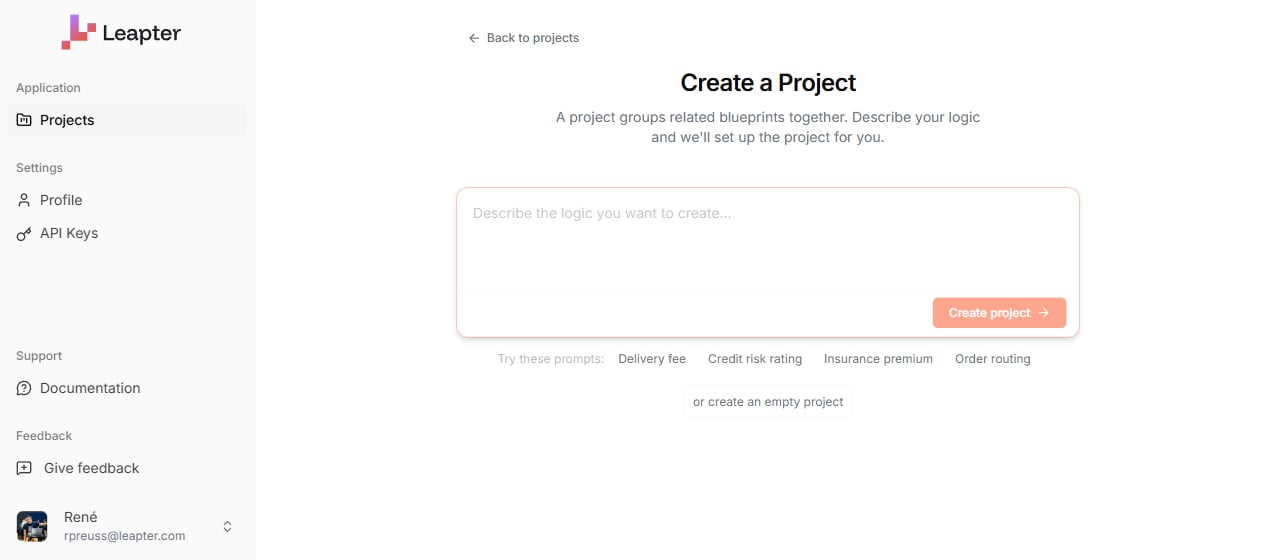 You have two options:
* **Describe your logic and let AI set up the project.** Type a description of what you want to build, then click **Create project**. Leapter creates the project, generates the Blueprints needed for the logic, and opens the editor.
* **Create an empty project.** Click **or create an empty project** below the prompt field. Enter a **Project name** (required) and an optional **Description**, then submit. Leapter creates the project and takes you straight to the [Create a Blueprint](/fundamentals/create-blueprint/ai-prompt) page so you can add your first Blueprint.
The new project appears on the Projects page once it's created.
## Open a project
Click a project card to enter it. The project opens directly into the [Blueprint Editor](/fundamentals/leapter-canvas/introduction) — you see the [Specification view](/fundamentals/leapter-canvas/specification-view) with all the project's Blueprints listed in the Contents sidebar and their diagrams embedded inline.
There is no separate "blueprint list" page inside a project. To switch between Blueprints, use the Contents sidebar; to focus on one, double-click it to maximize. To add a new Blueprint, use the **+** affordance in the editor.
## Delete a project
1. Find the project on the Projects page.
2. Click the **three-dot menu** on the project card.
3. Select **Delete Project**.
Deleting a project removes it and all its Blueprints permanently. This action cannot be undone.
## What to do next
* **[Generate with AI](/fundamentals/create-blueprint/ai-prompt)** — create your first Blueprint by describing your logic in natural language
* **[From Example Template](/fundamentals/create-blueprint/from-template)** — start from a pre-built example Blueprint
* **[From Scratch](/fundamentals/create-blueprint/from-scratch)** — create an empty Blueprint and build it yourself
You have two options:
* **Describe your logic and let AI set up the project.** Type a description of what you want to build, then click **Create project**. Leapter creates the project, generates the Blueprints needed for the logic, and opens the editor.
* **Create an empty project.** Click **or create an empty project** below the prompt field. Enter a **Project name** (required) and an optional **Description**, then submit. Leapter creates the project and takes you straight to the [Create a Blueprint](/fundamentals/create-blueprint/ai-prompt) page so you can add your first Blueprint.
The new project appears on the Projects page once it's created.
## Open a project
Click a project card to enter it. The project opens directly into the [Blueprint Editor](/fundamentals/leapter-canvas/introduction) — you see the [Specification view](/fundamentals/leapter-canvas/specification-view) with all the project's Blueprints listed in the Contents sidebar and their diagrams embedded inline.
There is no separate "blueprint list" page inside a project. To switch between Blueprints, use the Contents sidebar; to focus on one, double-click it to maximize. To add a new Blueprint, use the **+** affordance in the editor.
## Delete a project
1. Find the project on the Projects page.
2. Click the **three-dot menu** on the project card.
3. Select **Delete Project**.
Deleting a project removes it and all its Blueprints permanently. This action cannot be undone.
## What to do next
* **[Generate with AI](/fundamentals/create-blueprint/ai-prompt)** — create your first Blueprint by describing your logic in natural language
* **[From Example Template](/fundamentals/create-blueprint/from-template)** — start from a pre-built example Blueprint
* **[From Scratch](/fundamentals/create-blueprint/from-scratch)** — create an empty Blueprint and build it yourself