> ## Documentation Index
> Fetch the complete documentation index at: https://docs.leapter.com/llms.txt
> Use this file to discover all available pages before exploring further.
# Create a Team
> Create and manage teams in Leapter to share projects and collaborate with other users.
Teams let you share projects and Blueprints with other people. When you work inside a team, all members can access the team's projects, create Blueprints, and collaborate through comments.
By default, everything you create in Leapter belongs to your **Personal Account**. To work with others, you create a team and invite members.
## Personal Account vs. Teams
| | Personal Account | Team |
| :------------------- | :---------------------- | :----------------------------------- |
| **Access** | Only you | All team members |
| **Projects** | Private to your account | Shared across the team |
| **Sidebar settings** | Profile, API Keys | Settings, Account, Members, API Keys |
You can switch between your Personal Account and your teams at any time — your personal projects remain separate from team projects.
## Create a team
1. Click your **profile menu** in the bottom-left corner of the sidebar.
2. Select **Create a Team**.
3. Enter a **Team Name** — choose something descriptive that your members will recognize.
4. Click **Create Team**.
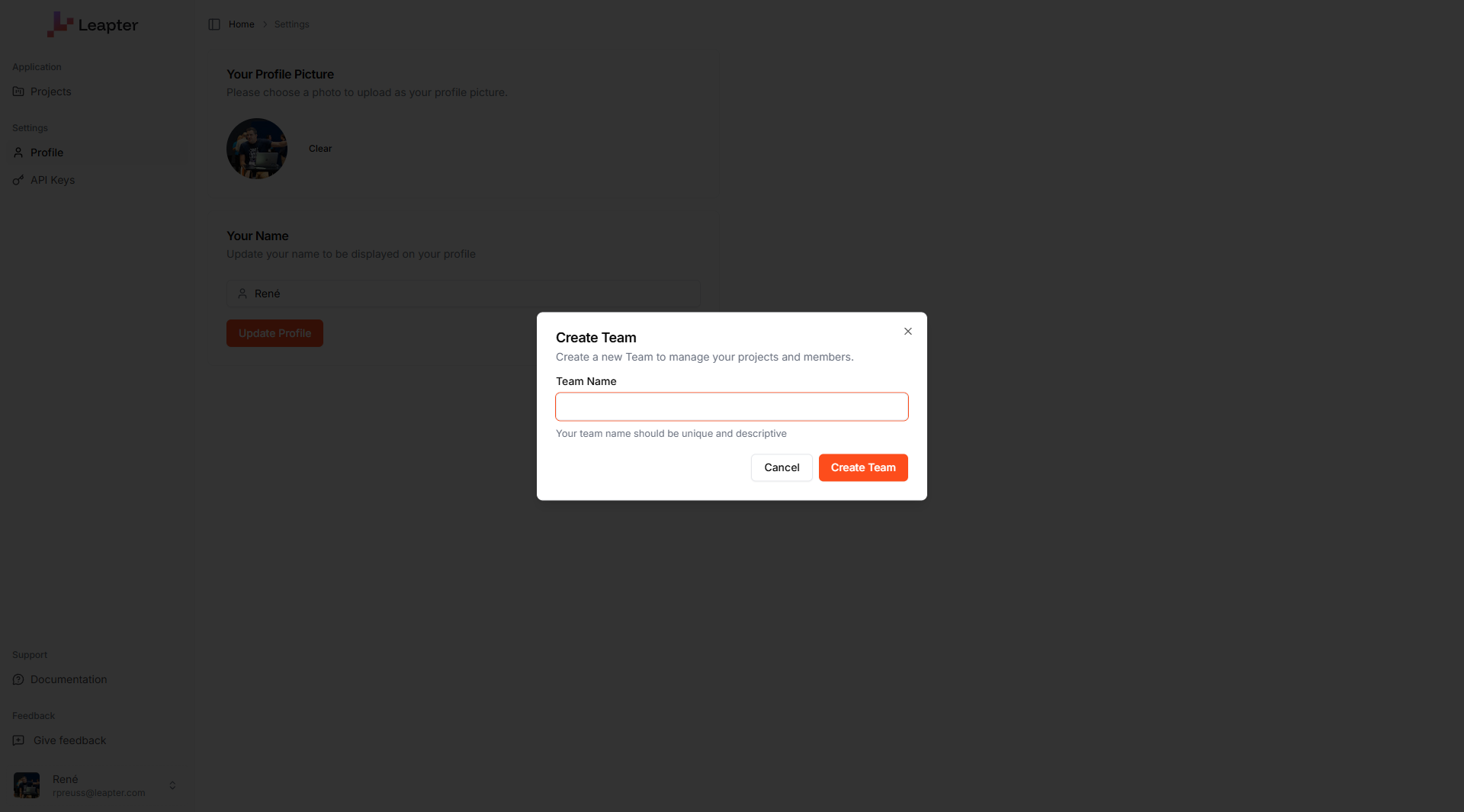 After creation, Leapter switches you to the new team context. You can now create projects and invite members.
## Switch between accounts
Click your **profile menu** in the bottom-left corner. The menu shows:
* **Personal Account** — your private workspace
* **Your Teams** — all teams you belong to
Click any account or team name to switch to it. A checkmark indicates which one is currently active. The sidebar and projects page update to show the selected context.
## Team settings
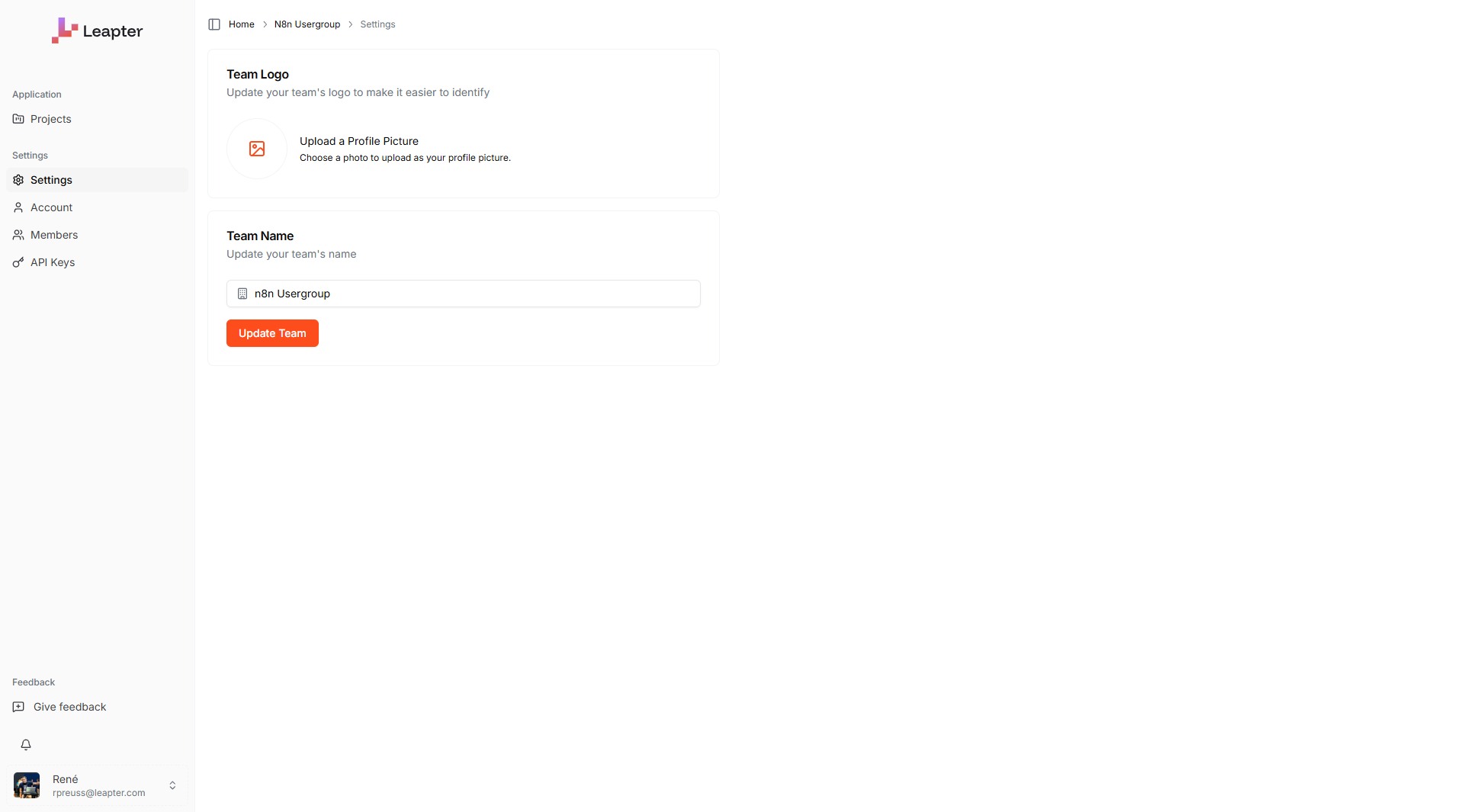
After switching to a team, click **Settings** in the left sidebar to manage the team's identity:
* **Team Logo** — upload an image to help identify the team in the profile menu
* **Team Name** — update the team's display name
After creation, Leapter switches you to the new team context. You can now create projects and invite members.
## Switch between accounts
Click your **profile menu** in the bottom-left corner. The menu shows:
* **Personal Account** — your private workspace
* **Your Teams** — all teams you belong to
Click any account or team name to switch to it. A checkmark indicates which one is currently active. The sidebar and projects page update to show the selected context.
## Team settings
After switching to a team, click **Settings** in the left sidebar to manage the team's identity:
* **Team Logo** — upload an image to help identify the team in the profile menu
* **Team Name** — update the team's display name
 ## Invite members
1. Switch to the team you want to manage.
2. Click **Members** in the left sidebar.
3. Click **Invite Members**.
4. Enter the member's **email address**.
5. Select a **role**: **Owner** or **Member**.
6. Click **Send Invites**.
## Invite members
1. Switch to the team you want to manage.
2. Click **Members** in the left sidebar.
3. Click **Invite Members**.
4. Enter the member's **email address**.
5. Select a **role**: **Owner** or **Member**.
6. Click **Send Invites**.
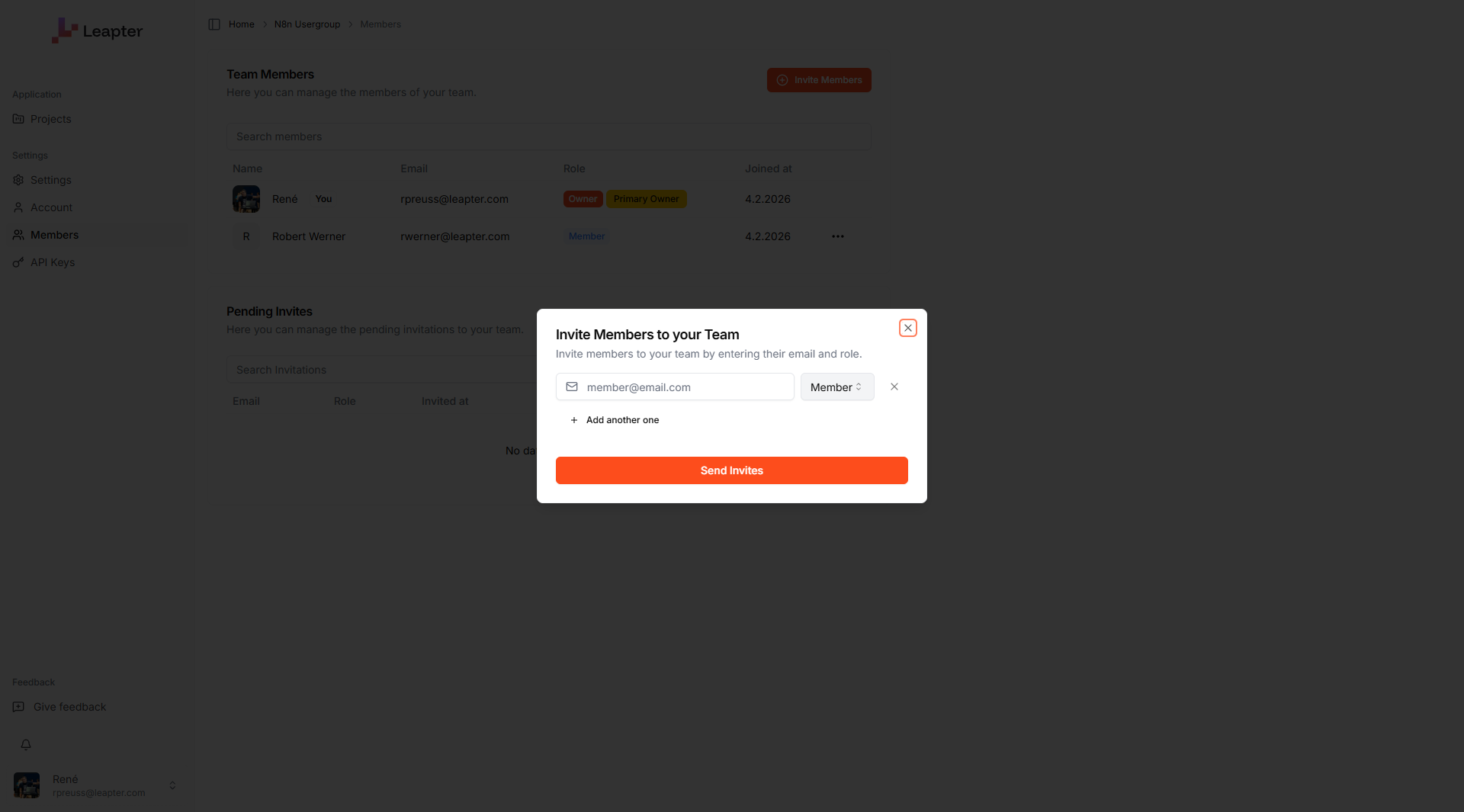 You can invite multiple people at once by clicking **+ Add another one** before sending.
## Manage members
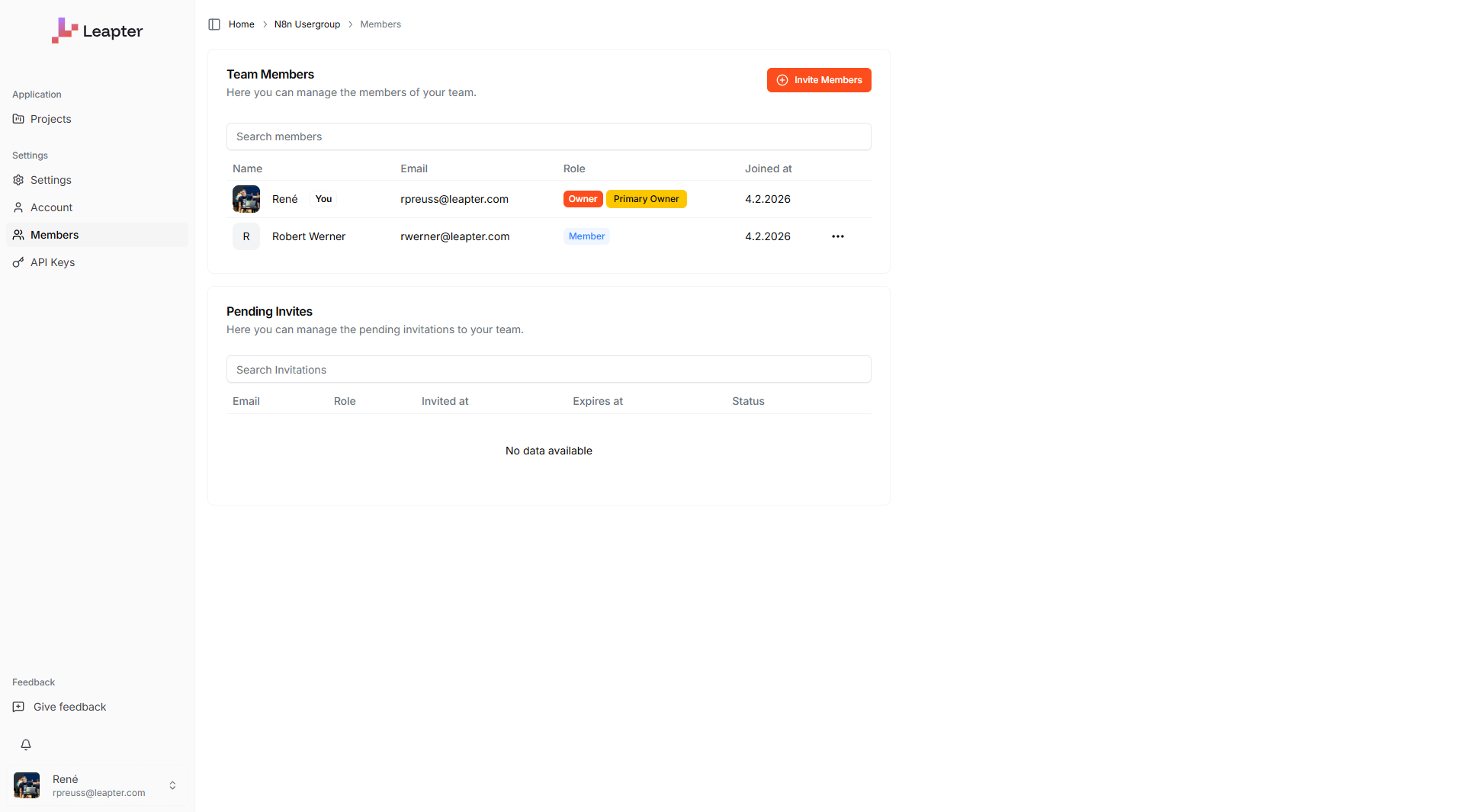
The **Members** page shows all current team members in a table:
You can invite multiple people at once by clicking **+ Add another one** before sending.
## Manage members
The **Members** page shows all current team members in a table:
 | Column | Description |
| :------------ | :------------------------------------------------------ |
| **Name** | The member's display name |
| **Email** | The email address associated with their Leapter account |
| **Role** | Owner or Member |
| **Joined at** | When the member joined the team |
Below the members table, the **Pending Invites** section shows invitations that have not been accepted yet, including their status and expiration date.
## Roles
| Role | What they can do |
| :--------- | :------------------------------------------------------------------------------------------------------- |
| **Owner** | Full access — manage team settings, invite and remove members, create and delete projects and Blueprints |
| **Member** | Create and edit projects and Blueprints within the team |
The person who creates the team is automatically the **Primary Owner**.
## What to do next
* **[Personal Profile](/fundamentals/profile)** — update your display name and profile picture
* **[Collaborating](/fundamentals/collaborating)** — learn how to work together on shared Blueprints using comments
* **[Projects](/fundamentals/projects)** — organize Blueprints into projects
| Column | Description |
| :------------ | :------------------------------------------------------ |
| **Name** | The member's display name |
| **Email** | The email address associated with their Leapter account |
| **Role** | Owner or Member |
| **Joined at** | When the member joined the team |
Below the members table, the **Pending Invites** section shows invitations that have not been accepted yet, including their status and expiration date.
## Roles
| Role | What they can do |
| :--------- | :------------------------------------------------------------------------------------------------------- |
| **Owner** | Full access — manage team settings, invite and remove members, create and delete projects and Blueprints |
| **Member** | Create and edit projects and Blueprints within the team |
The person who creates the team is automatically the **Primary Owner**.
## What to do next
* **[Personal Profile](/fundamentals/profile)** — update your display name and profile picture
* **[Collaborating](/fundamentals/collaborating)** — learn how to work together on shared Blueprints using comments
* **[Projects](/fundamentals/projects)** — organize Blueprints into projects