> ## Documentation Index
> Fetch the complete documentation index at: https://docs.leapter.com/llms.txt
> Use this file to discover all available pages before exploring further.
# Change Workflow
> Choose how edits to a project are saved — applied immediately, or held as pending changes on a draft until you save them.
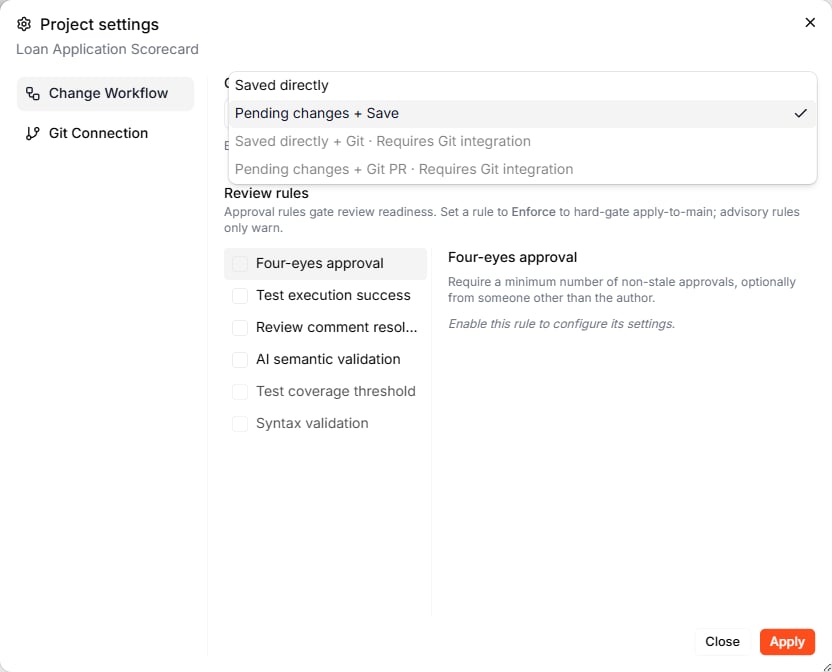
Every project has a **change workflow** that decides what happens when you edit it. You can let edits apply immediately, or hold them as pending changes on a **draft** so you can review before they reach everyone. The workflow you choose changes what you see in the editor — including whether drafts and the [Review & Delivery](/fundamentals/track-changes/review-and-approvals) tools are available at all.
## Where to find the change workflow
The change workflow is a **per-project** setting:
1. Go to the **Projects** page.
2. Click the **⋮** menu on the project card.
3. Select **Settings**.
4. Open the **Change Workflow** tab.
 ## The workflow options
| Workflow | What it does |
| :--------------------------- | :--------------------------------------------------------------------------------------------------------------------------------------------------------- |
| **Saved directly** | Every edit updates the saved version immediately. There is no Save button. |
| **Pending changes + Save** | Edits stay as pending changes on a draft until you save them. [Approval rules](/fundamentals/track-changes/review-and-approvals) can require review first. |
| **Saved directly + Git** | Like *Saved directly*, but changes are also delivered to a connected Git repository. **Requires a Git integration.** |
| **Pending changes + Git PR** | Like *Pending changes + Save*, but saving opens a pull request in a connected Git repository. **Requires a Git integration.** |
The two Git options are unavailable until a Git integration is connected for the project.
New projects start on **Saved directly**.
## Saved directly
In **Saved directly** mode, editing *is* saving. Each change you make — by hand, with the [Lab Agent](/fundamentals/change-your-blueprint/lab-agent), or with [Ctrl+I](/fundamentals/change-your-blueprint/ai-editing) — updates the project's saved version straight away and appears on the [Timeline](/fundamentals/track-changes/timeline) as a new change on **main**.
This is the fastest way to work, and it is a good fit when you are exploring on your own. There are no drafts and no Save step, so the **New draft** action and the Review & Delivery tools are not shown.
## Pending changes + Save
In **Pending changes + Save** mode, your edits are collected on a **draft** — a separate stream that forks from main — and are not visible to the rest of your team until you save. This gives you a place to work through a change, test it, and (optionally) have it reviewed before it lands.
### Create a draft
With this workflow active, a **+ New draft** action appears at the top of the [Timeline](/fundamentals/track-changes/timeline) panel. Click it to start a draft. Leapter names the draft for you and switches you onto it — the stream indicator at the bottom of the editor shows which draft you are on.
### Work on the draft
Edit as usual. Every change you make now belongs to the draft, not to main. You can switch back to main at any time from the Timeline, and switch between streams to compare.
### Save the draft to main
When the draft is ready, save it. Leapter merges your draft's changes into main as a new version for everyone, and the Timeline records an **Apply *\*** entry showing where the draft merged back.
Saving runs through the **Review & Delivery** panel, where any [approval rules](/fundamentals/track-changes/review-and-approvals) are checked first. See [Review & Approvals](/fundamentals/track-changes/review-and-approvals) for the full flow.
Changing a project's workflow does not touch its history. Switching from *Saved directly* to *Pending changes + Save* simply makes drafts available from that point on.
## What to do next
* **[Review & Approvals](/fundamentals/track-changes/review-and-approvals)** — assign reviewers and require checks before a draft reaches main
* **[Timeline](/fundamentals/track-changes/timeline)** — follow drafts and applies in the change graph
* **[Test your Blueprint](/fundamentals/test-your-blueprint)** — verify a draft before you save it
## The workflow options
| Workflow | What it does |
| :--------------------------- | :--------------------------------------------------------------------------------------------------------------------------------------------------------- |
| **Saved directly** | Every edit updates the saved version immediately. There is no Save button. |
| **Pending changes + Save** | Edits stay as pending changes on a draft until you save them. [Approval rules](/fundamentals/track-changes/review-and-approvals) can require review first. |
| **Saved directly + Git** | Like *Saved directly*, but changes are also delivered to a connected Git repository. **Requires a Git integration.** |
| **Pending changes + Git PR** | Like *Pending changes + Save*, but saving opens a pull request in a connected Git repository. **Requires a Git integration.** |
The two Git options are unavailable until a Git integration is connected for the project.
New projects start on **Saved directly**.
## Saved directly
In **Saved directly** mode, editing *is* saving. Each change you make — by hand, with the [Lab Agent](/fundamentals/change-your-blueprint/lab-agent), or with [Ctrl+I](/fundamentals/change-your-blueprint/ai-editing) — updates the project's saved version straight away and appears on the [Timeline](/fundamentals/track-changes/timeline) as a new change on **main**.
This is the fastest way to work, and it is a good fit when you are exploring on your own. There are no drafts and no Save step, so the **New draft** action and the Review & Delivery tools are not shown.
## Pending changes + Save
In **Pending changes + Save** mode, your edits are collected on a **draft** — a separate stream that forks from main — and are not visible to the rest of your team until you save. This gives you a place to work through a change, test it, and (optionally) have it reviewed before it lands.
### Create a draft
With this workflow active, a **+ New draft** action appears at the top of the [Timeline](/fundamentals/track-changes/timeline) panel. Click it to start a draft. Leapter names the draft for you and switches you onto it — the stream indicator at the bottom of the editor shows which draft you are on.
### Work on the draft
Edit as usual. Every change you make now belongs to the draft, not to main. You can switch back to main at any time from the Timeline, and switch between streams to compare.
### Save the draft to main
When the draft is ready, save it. Leapter merges your draft's changes into main as a new version for everyone, and the Timeline records an **Apply *\*** entry showing where the draft merged back.
Saving runs through the **Review & Delivery** panel, where any [approval rules](/fundamentals/track-changes/review-and-approvals) are checked first. See [Review & Approvals](/fundamentals/track-changes/review-and-approvals) for the full flow.
Changing a project's workflow does not touch its history. Switching from *Saved directly* to *Pending changes + Save* simply makes drafts available from that point on.
## What to do next
* **[Review & Approvals](/fundamentals/track-changes/review-and-approvals)** — assign reviewers and require checks before a draft reaches main
* **[Timeline](/fundamentals/track-changes/timeline)** — follow drafts and applies in the change graph
* **[Test your Blueprint](/fundamentals/test-your-blueprint)** — verify a draft before you save it