> ## Documentation Index
> Fetch the complete documentation index at: https://docs.leapter.com/llms.txt
> Use this file to discover all available pages before exploring further.
# Timeline
> See every change to a project over time — who changed what, when, and on which stream — and restore an earlier version whenever you need to.
The Timeline is your project's change history. It records every version of the project as a change you can inspect, compare, and restore — so you always know how the logic reached its current state, and you can go back if you need to.
## Where to find the Timeline
Open the **Timeline** tab in the right sidebar of the [Blueprint Editor](/fundamentals/leapter-canvas/introduction). It sits alongside Tests, Agent, Prod Runs, and Comments.
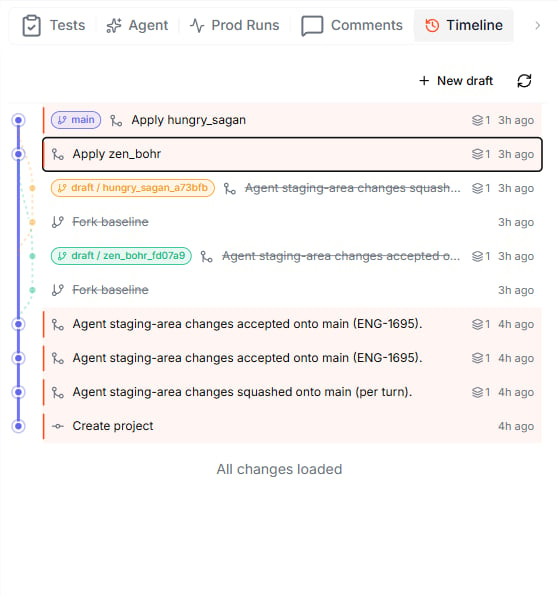 Each row is one change, newest at the top. The panel shows:
| Element | Description |
| :--------------- | :-------------------------------------------------------------------------------------------------------------- |
| **Change title** | A short summary of what happened — for example *Apply zen\_bohr* or *Create project* |
| **Branch pill** | A colored label (such as **main** or **draft / …**) marking which stream the change belongs to |
| **Graph** | The colored line on the left connects related changes and shows where drafts fork from and merge back into main |
| **Time** | When the change was made, shown as a relative time (*3h ago*) |
The collapsed list does **not** show who made each change. To see the author, open the change card.
## Streams and the change graph
A **stream** is a line of changes. Every project has a **main** stream, and — depending on your [change workflow](/fundamentals/track-changes/change-workflow) — you can also create **drafts**, which are separate streams that fork from main and merge back when saved.
The graph makes this visible:
* **Fork baseline** marks where a draft branched off main.
* **Apply *\*** marks where a draft's changes were merged back into main.
* **Closed streams are struck through** — once a draft has been applied, its history stays visible but is crossed out.
Each stream has its own color, so you can follow a draft from where it forked to where it merged.
## Open a change to see the detail
Click any change to expand its card.
Each row is one change, newest at the top. The panel shows:
| Element | Description |
| :--------------- | :-------------------------------------------------------------------------------------------------------------- |
| **Change title** | A short summary of what happened — for example *Apply zen\_bohr* or *Create project* |
| **Branch pill** | A colored label (such as **main** or **draft / …**) marking which stream the change belongs to |
| **Graph** | The colored line on the left connects related changes and shows where drafts fork from and merge back into main |
| **Time** | When the change was made, shown as a relative time (*3h ago*) |
The collapsed list does **not** show who made each change. To see the author, open the change card.
## Streams and the change graph
A **stream** is a line of changes. Every project has a **main** stream, and — depending on your [change workflow](/fundamentals/track-changes/change-workflow) — you can also create **drafts**, which are separate streams that fork from main and merge back when saved.
The graph makes this visible:
* **Fork baseline** marks where a draft branched off main.
* **Apply *\*** marks where a draft's changes were merged back into main.
* **Closed streams are struck through** — once a draft has been applied, its history stays visible but is crossed out.
Each stream has its own color, so you can follow a draft from where it forked to where it merged.
## Open a change to see the detail
Click any change to expand its card.
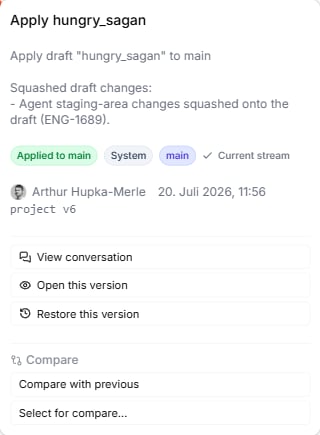 The card shows:
* **What happened** — a description and status badges (for example **Applied to main**), the origin of the change, and the stream it belongs to
* **Who and when** — the author, the exact timestamp, and the **project version** the change produced
* **Actions** — inspect, restore, or compare the change
Timestamps in the collapsed list are rounded (*3h ago*). The exact time — down to the minute — is only shown in the expanded card. Two people working minutes apart can look like a single moment until you open the cards.
### Actions on a change
| Action | What it does |
| :----------------------- | :-------------------------------------------------------------------------------------------------------------------------------------------- |
| **View conversation** | Opens the Lab Agent transcript that produced this change, when one exists — so you can read the reasoning behind an edit, not just the result |
| **Open this version** | Loads the project as it looked at this change, read-only, so you can look around without altering anything |
| **Restore this version** | Brings the project back to this state |
### Compare changes
Use the **Compare** section of a change card to see exactly what a change altered:
* **Compare with previous** — diff this change against the one before it
* **Select for compare…** — pick this change as one side of a comparison, then choose another change (or another stream) as the other side
## Restore an earlier version
If a change introduced a problem, you can roll the project back:
1. Open the change you want to return to.
2. Click **Restore this version**.
Restoring brings the project back to how it looked at that change. Leapter records the restore as a **new** entry at the top of the Timeline, so the history in between is never lost — you can always move forward again.
## What to do next
* **[Change Workflow](/fundamentals/track-changes/change-workflow)** — choose how edits are saved, and turn on drafts for safer changes
* **[Review & Approvals](/fundamentals/track-changes/review-and-approvals)** — require review before changes reach main
* **[Lab Agent](/fundamentals/change-your-blueprint/lab-agent)** — the conversations behind your changes, available from **View conversation**
The card shows:
* **What happened** — a description and status badges (for example **Applied to main**), the origin of the change, and the stream it belongs to
* **Who and when** — the author, the exact timestamp, and the **project version** the change produced
* **Actions** — inspect, restore, or compare the change
Timestamps in the collapsed list are rounded (*3h ago*). The exact time — down to the minute — is only shown in the expanded card. Two people working minutes apart can look like a single moment until you open the cards.
### Actions on a change
| Action | What it does |
| :----------------------- | :-------------------------------------------------------------------------------------------------------------------------------------------- |
| **View conversation** | Opens the Lab Agent transcript that produced this change, when one exists — so you can read the reasoning behind an edit, not just the result |
| **Open this version** | Loads the project as it looked at this change, read-only, so you can look around without altering anything |
| **Restore this version** | Brings the project back to this state |
### Compare changes
Use the **Compare** section of a change card to see exactly what a change altered:
* **Compare with previous** — diff this change against the one before it
* **Select for compare…** — pick this change as one side of a comparison, then choose another change (or another stream) as the other side
## Restore an earlier version
If a change introduced a problem, you can roll the project back:
1. Open the change you want to return to.
2. Click **Restore this version**.
Restoring brings the project back to how it looked at that change. Leapter records the restore as a **new** entry at the top of the Timeline, so the history in between is never lost — you can always move forward again.
## What to do next
* **[Change Workflow](/fundamentals/track-changes/change-workflow)** — choose how edits are saved, and turn on drafts for safer changes
* **[Review & Approvals](/fundamentals/track-changes/review-and-approvals)** — require review before changes reach main
* **[Lab Agent](/fundamentals/change-your-blueprint/lab-agent)** — the conversations behind your changes, available from **View conversation**