> ## Documentation Index
> Fetch the complete documentation index at: https://docs.leapter.com/llms.txt
> Use this file to discover all available pages before exploring further.
# Workspaces
> Every project in Leapter lives in a workspace. Create workspaces, invite members, and manage roles to collaborate on shared projects.
A **workspace** is where your projects live and where you collaborate. Everything you create in Leapter — projects, Blueprints, tests — belongs to a workspace, and everyone you invite to that workspace can work on it together.
You can belong to several workspaces and switch between them at any time. Each keeps its own projects, members, and settings.
## Switch workspaces
The **workspace switcher** sits at the bottom of the left sidebar, showing the current workspace's name. Click it to see every workspace you belong to and switch between them — the sidebar and Projects page update to the workspace you pick.
## Create a workspace
1. Click the **workspace switcher** at the bottom of the sidebar.
2. Select **Create a Workspace**.
3. Enter a **Workspace Name** — something your members will recognize.
4. Click **Create Workspace**.
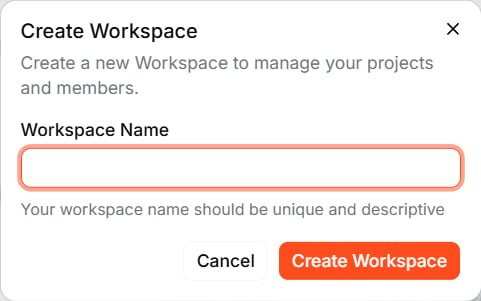 Leapter switches you into the new workspace. You can now create projects and invite members.
## Invite members
1. Switch to the workspace you want to manage.
2. Click **Members** in the settings sidebar.
3. Click **Invite Members**.
4. Enter the member's **email address**.
5. Select a **role**: **Owner** or **Member**.
6. Click **Send Invites**.
Leapter switches you into the new workspace. You can now create projects and invite members.
## Invite members
1. Switch to the workspace you want to manage.
2. Click **Members** in the settings sidebar.
3. Click **Invite Members**.
4. Enter the member's **email address**.
5. Select a **role**: **Owner** or **Member**.
6. Click **Send Invites**.
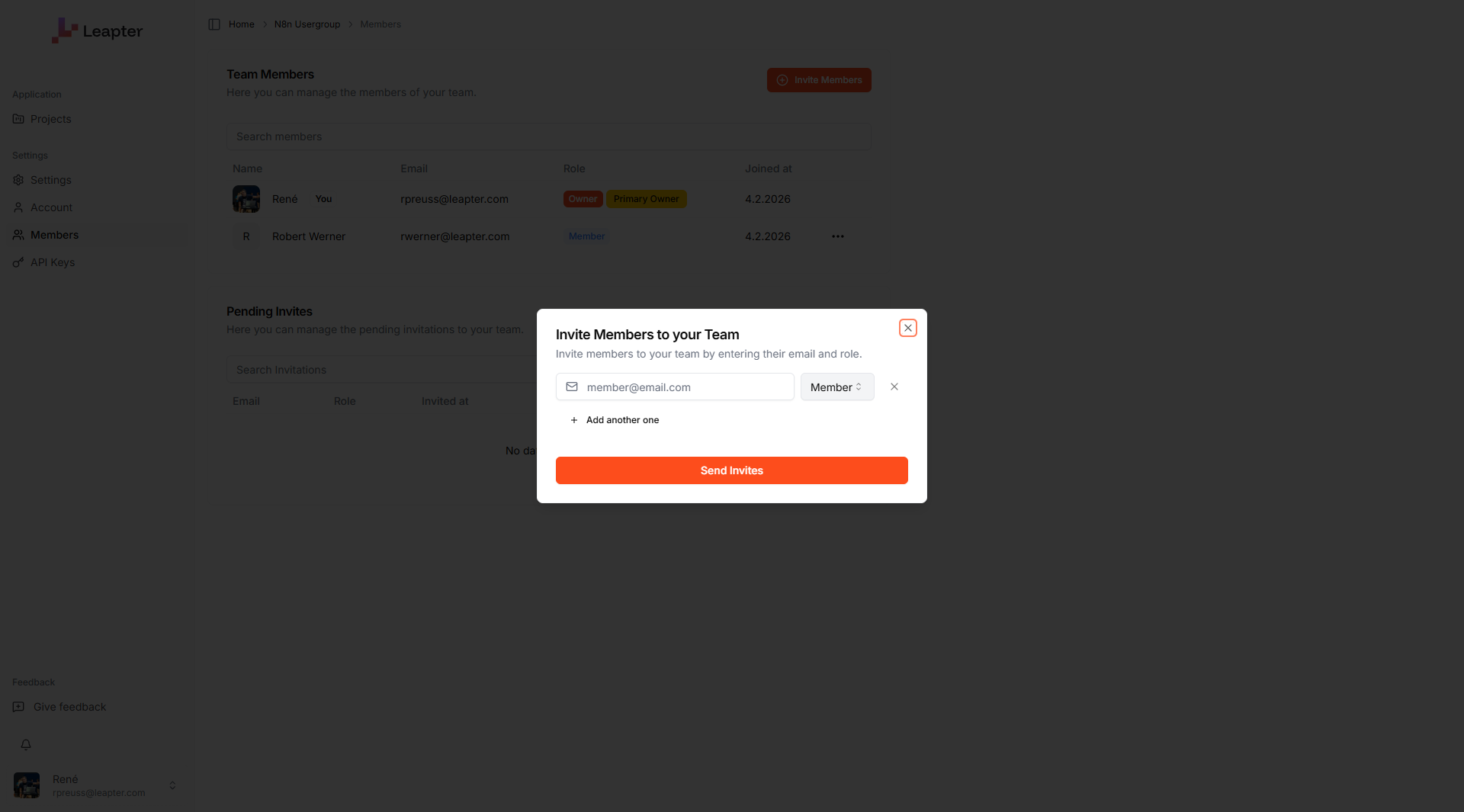 You can invite several people at once by adding another row before sending.
## Manage members
The **Members** page lists everyone in the workspace:
You can invite several people at once by adding another row before sending.
## Manage members
The **Members** page lists everyone in the workspace:
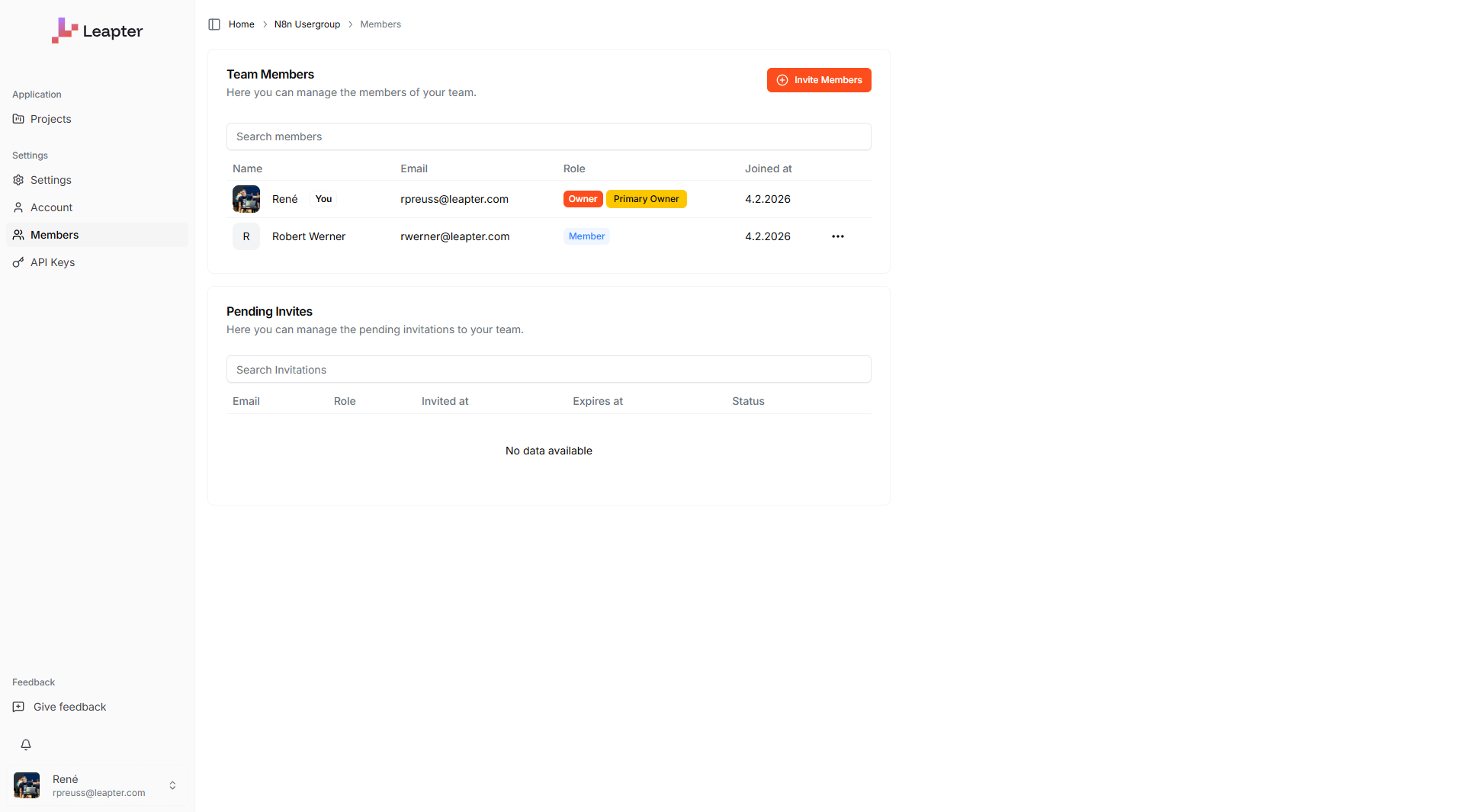 | Column | Description |
| :------------ | :--------------------------------- |
| **Name** | The member's display name |
| **Email** | The email on their Leapter account |
| **Role** | Owner or Member |
| **Joined at** | When they joined the workspace |
Below the table, **Pending Invites** shows invitations that haven't been accepted yet, with their status and expiry.
## Roles
| Role | What they can do |
| :--------- | :----------------------------------------------------------------------------------------------------------------------------------------- |
| **Owner** | Full access — manage workspace settings, invite and remove members, enable [integrations](/fundamentals/integrations), and manage projects |
| **Member** | Create and edit projects and Blueprints in the workspace |
The person who creates a workspace is its **Primary Owner**. Changing the workspace's name or logo is restricted to owners.
## Workspace settings
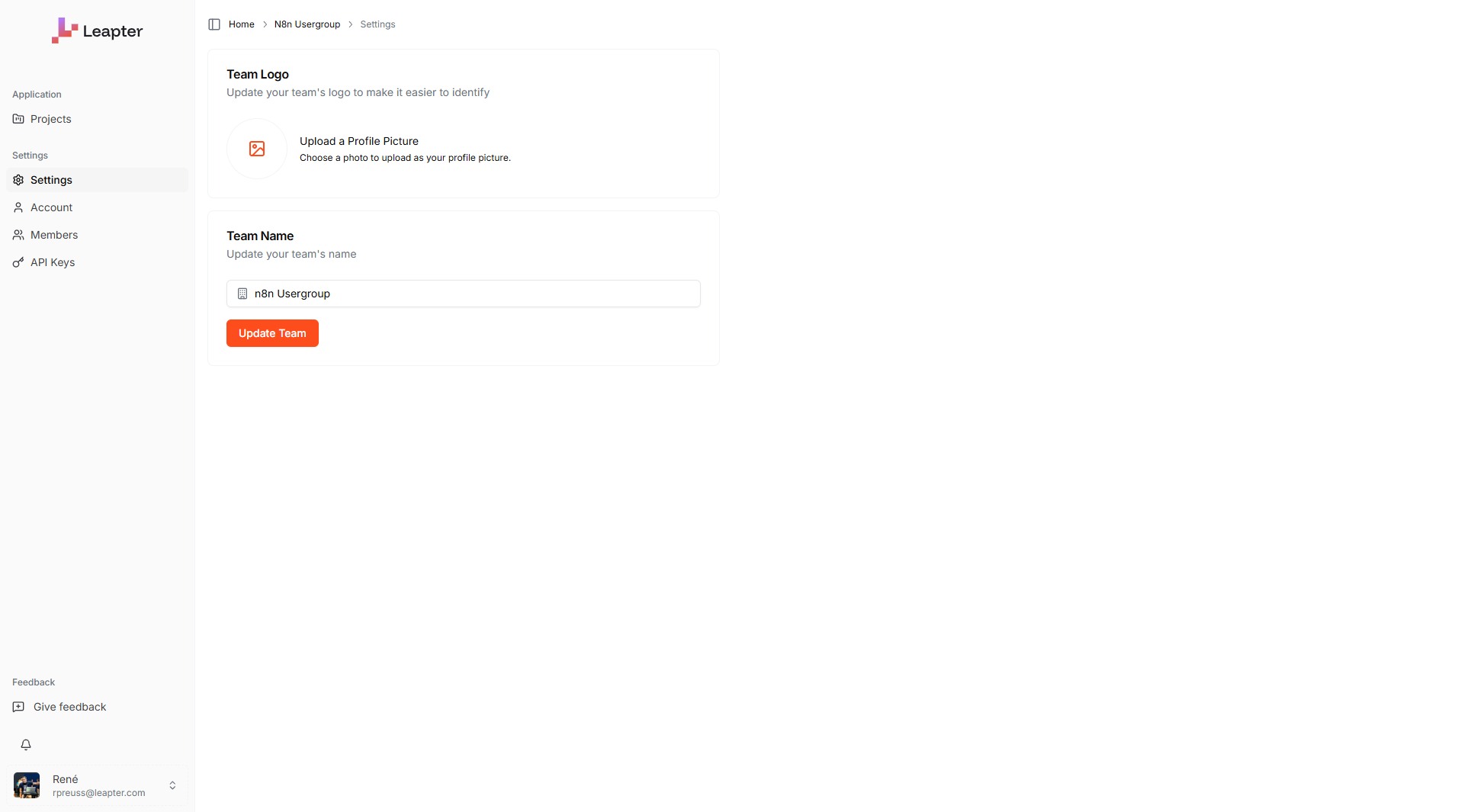
Click **Settings** in the sidebar to manage the workspace's identity (owners only):
* **Workspace Name** — the display name shown in the switcher
* **Workspace Logo** — an image to make the workspace easy to recognize
| Column | Description |
| :------------ | :--------------------------------- |
| **Name** | The member's display name |
| **Email** | The email on their Leapter account |
| **Role** | Owner or Member |
| **Joined at** | When they joined the workspace |
Below the table, **Pending Invites** shows invitations that haven't been accepted yet, with their status and expiry.
## Roles
| Role | What they can do |
| :--------- | :----------------------------------------------------------------------------------------------------------------------------------------- |
| **Owner** | Full access — manage workspace settings, invite and remove members, enable [integrations](/fundamentals/integrations), and manage projects |
| **Member** | Create and edit projects and Blueprints in the workspace |
The person who creates a workspace is its **Primary Owner**. Changing the workspace's name or logo is restricted to owners.
## Workspace settings
Click **Settings** in the sidebar to manage the workspace's identity (owners only):
* **Workspace Name** — the display name shown in the switcher
* **Workspace Logo** — an image to make the workspace easy to recognize
 ## What to do next
* **[Collaborating](/fundamentals/collaborating)** — work together on shared Blueprints with comments
* **[Integrations](/fundamentals/integrations)** — connect external tools for the Lab Agent to use
* **[Sharing](/fundamentals/sharing)** — share a project read-only with someone outside the workspace
* **[Personal Profile](/fundamentals/profile)** — update your own display name and picture
## What to do next
* **[Collaborating](/fundamentals/collaborating)** — work together on shared Blueprints with comments
* **[Integrations](/fundamentals/integrations)** — connect external tools for the Lab Agent to use
* **[Sharing](/fundamentals/sharing)** — share a project read-only with someone outside the workspace
* **[Personal Profile](/fundamentals/profile)** — update your own display name and picture