> ## Documentation Index
> Fetch the complete documentation index at: https://docs.leapter.com/llms.txt
> Use this file to discover all available pages before exploring further.
# Prod Runs
> Find a single production run, see its input and output, replay it on the diagram, or turn it into a test case.
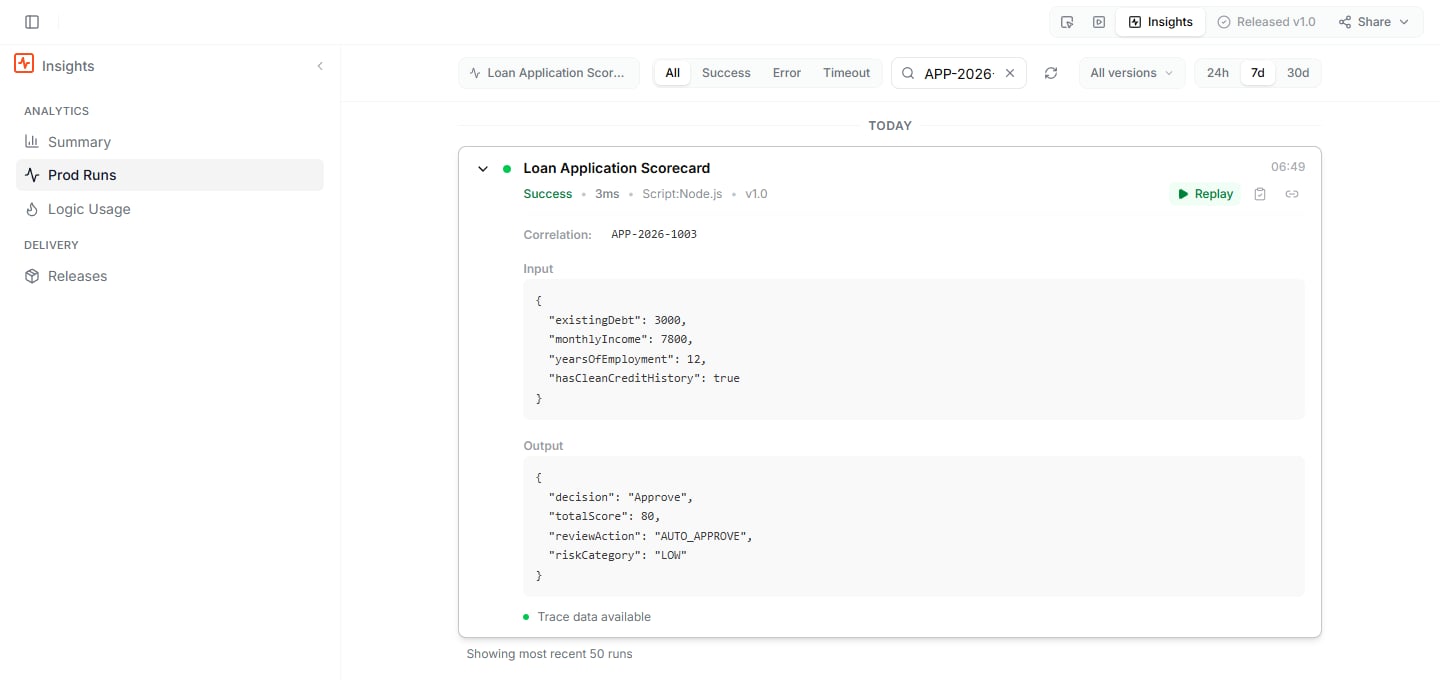
**Prod Runs** in [Insights](/insights/overview) lists the 50 most recent production runs. Each run shows its status, its duration, and the release it ran on.
## Find a run
Narrow down the list with the filters at the top:
* **Status**: **All**, **Success**, **Error**, or **Timeout**
* **Search by correlation ID**: find one specific run. Callers set the correlation ID with the `X-Correlation-Id` header, see [Tag a run with a correlation ID](/release-and-integrate/connect-rest-api#tag-a-run-with-a-correlation-id).
* The [time window and the version filter](/insights/overview#time-window-and-version)
Click a run to expand it and see its correlation ID, its **Input**, and its **Output**, or the error it ended with.
 ## Replay a run
Click **Replay** on a run to open its recorded trace on the diagram of the release that ran. You can follow the exact path the run took, step by step. Replay does not run the Blueprint again; it shows what happened at the time. Click **Runs** above the diagram to return to the list.
To share a replay with a colleague, click the link icon next to **Replay** (**Copy link to replay**).
## Create a test case from a run
When a production run shows a case worth keeping, turn it into a test:
1. Expand the run and click the clipboard icon next to **Replay** (**Create test case from run**).
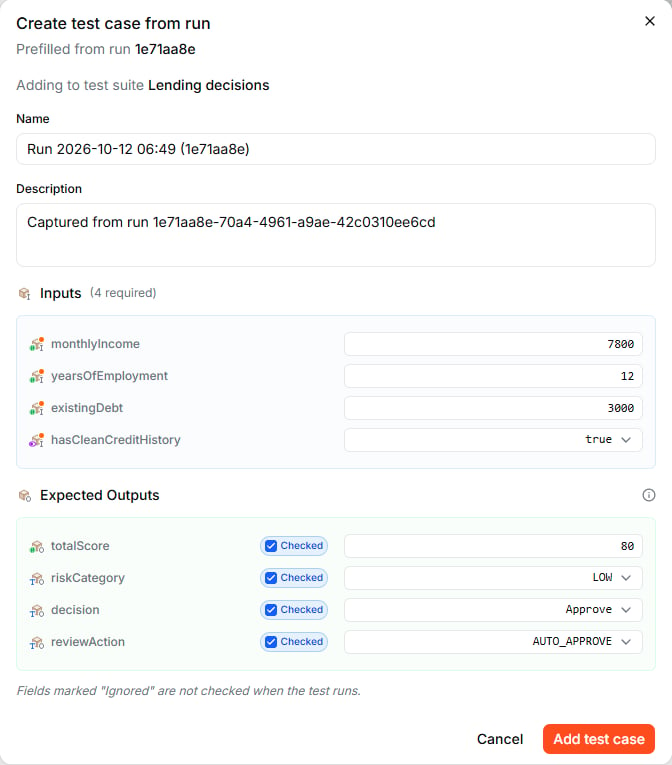
2. The dialog is prefilled with a name, the run's inputs, and its result as the expected outputs. It names the [test suite](/test-and-validate/test-suites) the case is added to. If the Blueprint has no test suite yet, Leapter creates one.
3. Adjust the values if needed. Each expected output is either **Checked** (compared with the actual result when the test runs) or **Ignored**. Click the pill next to an output to switch.
4. Click **Add test case**.
## Replay a run
Click **Replay** on a run to open its recorded trace on the diagram of the release that ran. You can follow the exact path the run took, step by step. Replay does not run the Blueprint again; it shows what happened at the time. Click **Runs** above the diagram to return to the list.
To share a replay with a colleague, click the link icon next to **Replay** (**Copy link to replay**).
## Create a test case from a run
When a production run shows a case worth keeping, turn it into a test:
1. Expand the run and click the clipboard icon next to **Replay** (**Create test case from run**).
2. The dialog is prefilled with a name, the run's inputs, and its result as the expected outputs. It names the [test suite](/test-and-validate/test-suites) the case is added to. If the Blueprint has no test suite yet, Leapter creates one.
3. Adjust the values if needed. Each expected output is either **Checked** (compared with the actual result when the test runs) or **Ignored**. Click the pill next to an output to switch.
4. Click **Add test case**.
 Leapter opens the new test case in the Tests panel. You can capture runs that succeeded and runs that ended with an error your Blueprint raises on purpose. Runs that timed out or failed for technical reasons can't be captured.
## What to do next
* **[Test Suites](/test-and-validate/test-suites)**: run the test cases you captured from production
* **[Logic Usage](/insights/logic-usage)**: see which parts of your logic production reaches
* **[Web API (OpenAPI)](/release-and-integrate/connect-rest-api)**: set the correlation ID when you call your project
This documentation is built and hosted on [Mintlify](https://mintlify.com), a developer documentation platform.
Leapter opens the new test case in the Tests panel. You can capture runs that succeeded and runs that ended with an error your Blueprint raises on purpose. Runs that timed out or failed for technical reasons can't be captured.
## What to do next
* **[Test Suites](/test-and-validate/test-suites)**: run the test cases you captured from production
* **[Logic Usage](/insights/logic-usage)**: see which parts of your logic production reaches
* **[Web API (OpenAPI)](/release-and-integrate/connect-rest-api)**: set the correlation ID when you call your project
This documentation is built and hosted on [Mintlify](https://mintlify.com), a developer documentation platform.