> ## Documentation Index
> Fetch the complete documentation index at: https://docs.leapter.com/llms.txt
> Use this file to discover all available pages before exploring further.
# Web API (OpenAPI)
> Call your Blueprints through the OpenAPI-compatible REST API from any application.
Leapter generates an OpenAPI specification for your project, giving you a standard REST API to call its public Blueprints from any application.
## Before you start
* Your project needs a [release](/release-and-integrate/releases). The REST API always runs the latest release — changes you make in the editor afterwards don't reach the API until you release again.
* Only [public Blueprints](/release-and-integrate/releases#public-and-private-blueprints) are available as endpoints.
* You need an [API key](/release-and-integrate/api-keys).
## Get the OpenAPI spec URL
1. Open any Blueprint in the editor.
2. Click the **Share** button in the toolbar.
3. Select **Connect**.
4. In the Connect dialog, select the **Web API (OpenAPI)** tab.
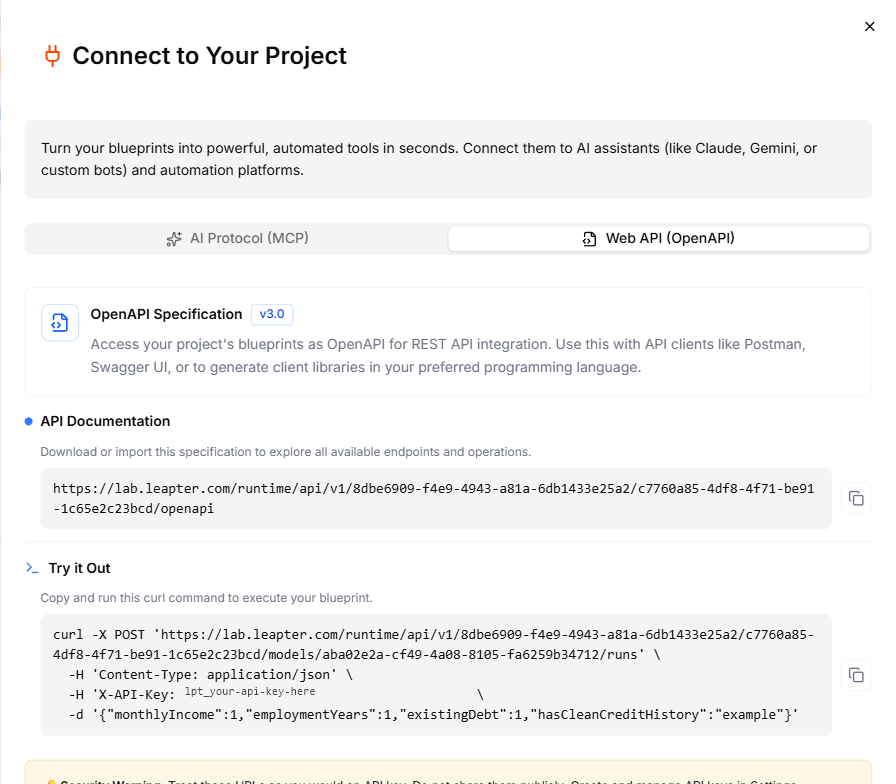 The dialog shows your OpenAPI specification URL:
```
https://lab.leapter.com/runtime/api/v1/{appspace}/{project-id}/openapi
```
Click the **Copy** button to copy it to your clipboard.
The OpenAPI spec covers **every public Blueprint in the latest release**, not just the one you currently have open.
If the project has no release yet, the dialog shows **No release yet** instead of the endpoints. Click **Create release** there to create the first one.
## Authentication
All API calls require an API key passed as a header:
* **Header name:** `X-API-Key`
* **Header value:** your API key
See [API Keys](/release-and-integrate/api-keys) to create and manage your keys.
## Example: call a Blueprint with curl
The Connect dialog provides a ready-made curl command for the Blueprint you have open — it has the appspace, project ID, Blueprint ID, and a sample API key already filled in. The general pattern is:
```bash theme={null}
curl -X POST "https://lab.leapter.com/runtime/api/v1/{appspace}/{project-id}/models/{blueprint-id}/runs" \
-H "Content-Type: application/json" \
-H "X-API-Key: your-api-key" \
-d '{"input1": "value1", "input2": "value2"}'
```
Replace the placeholders with your actual values and the request body with your Blueprint's input parameters.
### Tag a run with a correlation ID
Add an `X-Correlation-Id` header to link a run to a record in your own system, for example an application number:
```bash theme={null}
curl -X POST "https://lab.leapter.com/runtime/api/v1/{appspace}/{project-id}/models/{blueprint-id}/runs" \
-H "Content-Type: application/json" \
-H "X-API-Key: your-api-key" \
-H "X-Correlation-Id: APP-2026-1042" \
-d '{"input1": "value1"}'
```
In [Insights](/release-and-integrate/insights#prod-runs), you can then find the run with **Search by correlation ID**.
## Use with Postman
1. Copy the **OpenAPI spec URL** from the Connect dialog.
2. In Postman, click **Import** and paste the URL.
3. Postman generates a collection with all your Blueprint endpoints.
4. Set the `X-API-Key` header in the collection's authorization settings.
5. Fill in the request body with your input values and send a request.
## Use with Swagger UI
You can also paste the OpenAPI spec URL into [Swagger Editor](https://editor.swagger.io/) or any OpenAPI-compatible tool to explore and test your endpoints interactively.
## What to do next
* **[AI Protocol (MCP)](/release-and-integrate/connect-mcp)** — connect AI assistants to your Blueprints via MCP
* **[API Keys](/release-and-integrate/api-keys)** — create and manage API keys
* **[HTTP Workflow](/release-and-integrate/n8n-http)** — export an n8n workflow that calls your Blueprint via HTTP
This documentation is built and hosted on [Mintlify](https://mintlify.com), a developer documentation platform.
The dialog shows your OpenAPI specification URL:
```
https://lab.leapter.com/runtime/api/v1/{appspace}/{project-id}/openapi
```
Click the **Copy** button to copy it to your clipboard.
The OpenAPI spec covers **every public Blueprint in the latest release**, not just the one you currently have open.
If the project has no release yet, the dialog shows **No release yet** instead of the endpoints. Click **Create release** there to create the first one.
## Authentication
All API calls require an API key passed as a header:
* **Header name:** `X-API-Key`
* **Header value:** your API key
See [API Keys](/release-and-integrate/api-keys) to create and manage your keys.
## Example: call a Blueprint with curl
The Connect dialog provides a ready-made curl command for the Blueprint you have open — it has the appspace, project ID, Blueprint ID, and a sample API key already filled in. The general pattern is:
```bash theme={null}
curl -X POST "https://lab.leapter.com/runtime/api/v1/{appspace}/{project-id}/models/{blueprint-id}/runs" \
-H "Content-Type: application/json" \
-H "X-API-Key: your-api-key" \
-d '{"input1": "value1", "input2": "value2"}'
```
Replace the placeholders with your actual values and the request body with your Blueprint's input parameters.
### Tag a run with a correlation ID
Add an `X-Correlation-Id` header to link a run to a record in your own system, for example an application number:
```bash theme={null}
curl -X POST "https://lab.leapter.com/runtime/api/v1/{appspace}/{project-id}/models/{blueprint-id}/runs" \
-H "Content-Type: application/json" \
-H "X-API-Key: your-api-key" \
-H "X-Correlation-Id: APP-2026-1042" \
-d '{"input1": "value1"}'
```
In [Insights](/release-and-integrate/insights#prod-runs), you can then find the run with **Search by correlation ID**.
## Use with Postman
1. Copy the **OpenAPI spec URL** from the Connect dialog.
2. In Postman, click **Import** and paste the URL.
3. Postman generates a collection with all your Blueprint endpoints.
4. Set the `X-API-Key` header in the collection's authorization settings.
5. Fill in the request body with your input values and send a request.
## Use with Swagger UI
You can also paste the OpenAPI spec URL into [Swagger Editor](https://editor.swagger.io/) or any OpenAPI-compatible tool to explore and test your endpoints interactively.
## What to do next
* **[AI Protocol (MCP)](/release-and-integrate/connect-mcp)** — connect AI assistants to your Blueprints via MCP
* **[API Keys](/release-and-integrate/api-keys)** — create and manage API keys
* **[HTTP Workflow](/release-and-integrate/n8n-http)** — export an n8n workflow that calls your Blueprint via HTTP
This documentation is built and hosted on [Mintlify](https://mintlify.com), a developer documentation platform.