> ## Documentation Index
> Fetch the complete documentation index at: https://docs.leapter.com/llms.txt
> Use this file to discover all available pages before exploring further.
# Releases
> Release a version of your project so it can run in production, and choose which Blueprints become endpoints.
A **release** freezes the current state of your project's main stream into a version that never changes. Production always runs the **latest release**, never the version you are editing. This applies to the [REST API](/release-and-integrate/connect-rest-api), [MCP](/release-and-integrate/connect-mcp), and the n8n [HTTP](/release-and-integrate/n8n-http) and [MCP Agent](/release-and-integrate/n8n-mcp-agent) workflows.
You can keep editing, testing, and reviewing changes without affecting anyone who calls your project. Your changes reach production only when you create the next release.
A project without a release has no working endpoints. Calls to the REST API or MCP are rejected until you create the first release. If you built a project and never released it, create a release before you connect it.
## Public and private Blueprints
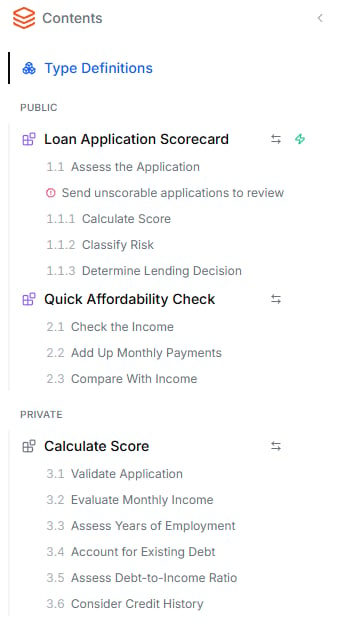
Every Blueprint in a project is either **public** or **private**:
| Visibility | What it means |
| :- | :- |
| **Public** | The Blueprint is an endpoint. In a release, it becomes a REST API operation and an MCP tool that callers can run directly. |
| **Private** | The Blueprint is a building block. Other Blueprints in the project can call it via [Call nodes](/elements/calling-other-blueprints), but callers outside the project cannot. |
A project can have several public Blueprints, so one project can offer several entry points. It needs at least one.
The [Contents sidebar](/editor/toolbars-and-panels#contents-sidebar) groups your Blueprints under **Public** and **Private**:
 To change a Blueprint's visibility, do one of the following:
* Drag the Blueprint from one group to the other.
* In the [Specification view](/editor/specification-view), open the **⋮** menu on the Blueprint's heading and choose **Make public** or **Make private**.
Visibility is part of the release. After you make a Blueprint public, create a new release so callers can reach it. Calling a Blueprint that is private in the latest release returns an error that asks you to make it public and release again.
## Create a release
You create releases from the **main** stream. If you are working on a draft, apply it to main first. See [Change Workflow](/track-changes/change-workflow).
1. Click **Release** in the top toolbar of the [Blueprint Editor](/editor/introduction).
2. Enter a **Version name**, for example `v1.0`. The name must be unique within the project.
3. Optionally, add a **Description** of what changed in this version.
4. Click **Create release**.
To change a Blueprint's visibility, do one of the following:
* Drag the Blueprint from one group to the other.
* In the [Specification view](/editor/specification-view), open the **⋮** menu on the Blueprint's heading and choose **Make public** or **Make private**.
Visibility is part of the release. After you make a Blueprint public, create a new release so callers can reach it. Calling a Blueprint that is private in the latest release returns an error that asks you to make it public and release again.
## Create a release
You create releases from the **main** stream. If you are working on a draft, apply it to main first. See [Change Workflow](/track-changes/change-workflow).
1. Click **Release** in the top toolbar of the [Blueprint Editor](/editor/introduction).
2. Enter a **Version name**, for example `v1.0`. The name must be unique within the project.
3. Optionally, add a **Description** of what changed in this version.
4. Click **Create release**.
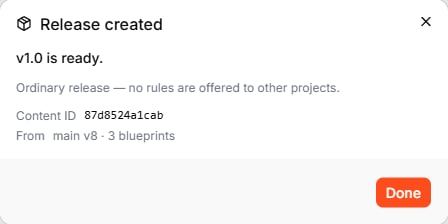
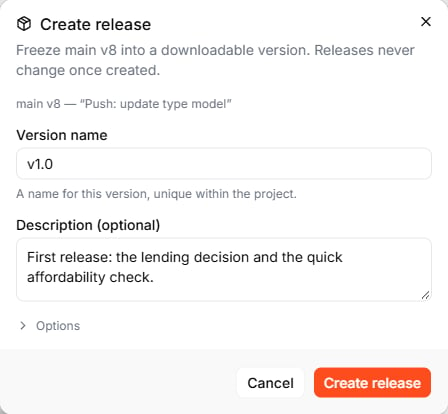 Leapter packages the project and confirms with **Release created**. The confirmation shows the version name, a **Content ID** that identifies exactly this content, and where the release came from — the stream version and the number of Blueprints.
 You can also release from the [Timeline](/track-changes/timeline): open a change on main and choose **Create release** to release the project as it was at that change.
The **Options** section in the release dialog is for validation rule libraries. Leave it unchanged for a normal release.
### What the Release button tells you
The **Release** button shows whether production is up to date:
You can also release from the [Timeline](/track-changes/timeline): open a change on main and choose **Create release** to release the project as it was at that change.
The **Options** section in the release dialog is for validation rule libraries. Leave it unchanged for a normal release.
### What the Release button tells you
The **Release** button shows whether production is up to date:
 | Button shows | Meaning |
| :- | :- |
| **Release** | The current version has not been released yet. |
| **Released v1.0** | The version you have open is exactly what runs in production. |
| **3 changes since v1.0** | You changed the project after the latest release. Production still runs v1.0. |
| Button disabled | You are on a draft (only main can be released), or there is nothing to release yet. Hover over the button to see why. |
If you try to release content that is already released, Leapter shows **Already released** and does not create a new release. Change something in the project first.
## Which version runs where
| Where the Blueprint runs | Which version |
| :- | :- |
| REST API, MCP, n8n HTTP and MCP Agent workflows | The latest release |
| Live runs and tests in the editor | The version you have open, including unreleased changes |
Every production run records the release it ran on. You can filter by release in [Insights](/release-and-integrate/insights).
A release never changes once it is created. To change what runs in production, edit the project and create a new release.
## View and download releases
All releases of a project are listed in **Insights** → **Releases**. Each entry shows the version name and description, its Content ID, who created it and when, the project version it was created from, and the number of Blueprints. Click **Download** to save the release package.
| Button shows | Meaning |
| :- | :- |
| **Release** | The current version has not been released yet. |
| **Released v1.0** | The version you have open is exactly what runs in production. |
| **3 changes since v1.0** | You changed the project after the latest release. Production still runs v1.0. |
| Button disabled | You are on a draft (only main can be released), or there is nothing to release yet. Hover over the button to see why. |
If you try to release content that is already released, Leapter shows **Already released** and does not create a new release. Change something in the project first.
## Which version runs where
| Where the Blueprint runs | Which version |
| :- | :- |
| REST API, MCP, n8n HTTP and MCP Agent workflows | The latest release |
| Live runs and tests in the editor | The version you have open, including unreleased changes |
Every production run records the release it ran on. You can filter by release in [Insights](/release-and-integrate/insights).
A release never changes once it is created. To change what runs in production, edit the project and create a new release.
## View and download releases
All releases of a project are listed in **Insights** → **Releases**. Each entry shows the version name and description, its Content ID, who created it and when, the project version it was created from, and the number of Blueprints. Click **Download** to save the release package.
 See [Insights](/release-and-integrate/insights) for details.
## What to do next
* **[Web API (OpenAPI)](/release-and-integrate/connect-rest-api)** — call the public Blueprints of your latest release from any application
* **[AI Protocol (MCP)](/release-and-integrate/connect-mcp)** — let AI assistants use your public Blueprints as tools
* **[Insights](/release-and-integrate/insights)** — monitor how your release runs in production
This documentation is built and hosted on [Mintlify](https://mintlify.com), a developer documentation platform.
See [Insights](/release-and-integrate/insights) for details.
## What to do next
* **[Web API (OpenAPI)](/release-and-integrate/connect-rest-api)** — call the public Blueprints of your latest release from any application
* **[AI Protocol (MCP)](/release-and-integrate/connect-mcp)** — let AI assistants use your public Blueprints as tools
* **[Insights](/release-and-integrate/insights)** — monitor how your release runs in production
This documentation is built and hosted on [Mintlify](https://mintlify.com), a developer documentation platform.