> ## Documentation Index
> Fetch the complete documentation index at: https://docs.leapter.com/llms.txt
> Use this file to discover all available pages before exploring further.
# Collaborating
> Discuss your logic with your team — comment right at a step, mention people, tag what kind of comment it is, and hand a comment to the Lab Agent.
When you work on a project with other members of your [workspace](/workspace/workspaces), you can discuss the logic where it lives: comments sit right at the step they are about, so everyone sees them in context.
## Add a comment
1. Select a step in a diagram. If the step's section is shown in the document, maximize the section first, so the node toolbar has room.
2. Click **Add comment** in the node toolbar. A comment box opens right at the step.
3. Write your comment and click **Comment**.
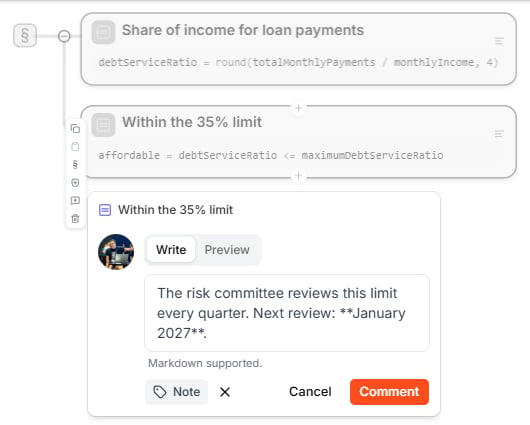 In the comment box you can:
* Use **Markdown** for formatting — **Preview** shows how it will look.
* Type **@** to mention someone. They find the comment in their **@Me** tab.
* Click **Add tag** to mark what kind of comment it is: **Note**, **Todo**, **Fixme**, **Question**, or **Suggestion**.
If you close the box before posting — with **Esc** or by clicking elsewhere — your text is kept, and it comes back when you open the box at the same step again.
A step with comments shows a speech-bubble badge with their number.
## The Comments panel
Click the **Comments** tab in the [right sidebar](/editor/toolbars-and-panels#right-sidebar) to see all comments in the project.
In the comment box you can:
* Use **Markdown** for formatting — **Preview** shows how it will look.
* Type **@** to mention someone. They find the comment in their **@Me** tab.
* Click **Add tag** to mark what kind of comment it is: **Note**, **Todo**, **Fixme**, **Question**, or **Suggestion**.
If you close the box before posting — with **Esc** or by clicking elsewhere — your text is kept, and it comes back when you open the box at the same step again.
A step with comments shows a speech-bubble badge with their number.
## The Comments panel
Click the **Comments** tab in the [right sidebar](/editor/toolbars-and-panels#right-sidebar) to see all comments in the project.
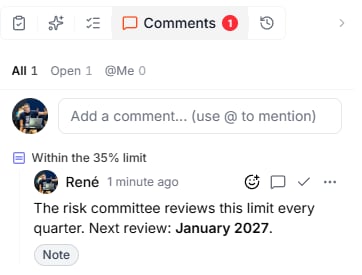 | Tab | What it shows |
| :- | :- |
| **All** | Every comment in the project |
| **Open** | Comments that are not done yet |
| **@Me** | Comments that mention you |
The field at the top adds a comment about the project as a whole. Comments on a step are grouped under the step's name.
## Reply, resolve, and more
Hover over a comment to see its actions:
| Action | What it does |
| :- | :- |
| Smiley | Adds a reaction |
| **Reply** | Answers in the same thread |
| **Done** (check mark) | Resolves the comment. It leaves the **Open** tab and collapses into one line; **Reopen** brings it back. |
| **⋮** › **Fix with Agent** | Hands the comment to the [Lab Agent](/editing/lab-agent): the agent checks it, fixes the logic or explains why not, and resolves the comment |
| **⋮** › **Mention in chat** | Adds the comment to the Lab Agent chat, so you can ask about it in your own words |
| **⋮** › **Edit** / **Delete** | Changes or removes your own comment |
## Comments in a review
While a draft is [in review](/track-changes/review-and-approvals), comments on it belong to the review: you find them under **Review comments** in **Review & Delivery**, not in the Comments panel. Comments a reviewer writes in **Draft Review** stay private until they submit their review. See [Review & Approvals](/track-changes/review-and-approvals#3-review-the-changes).
## What to do next
* **[Review & Approvals](/track-changes/review-and-approvals)** — have a teammate review a change before it reaches main
* **[Workspaces](/workspace/workspaces)** — invite the people you work with
* **[Lab Agent](/editing/lab-agent)** — let the agent work on what your comments ask for
This documentation is built and hosted on [Mintlify](https://mintlify.com), a developer documentation platform.
| Tab | What it shows |
| :- | :- |
| **All** | Every comment in the project |
| **Open** | Comments that are not done yet |
| **@Me** | Comments that mention you |
The field at the top adds a comment about the project as a whole. Comments on a step are grouped under the step's name.
## Reply, resolve, and more
Hover over a comment to see its actions:
| Action | What it does |
| :- | :- |
| Smiley | Adds a reaction |
| **Reply** | Answers in the same thread |
| **Done** (check mark) | Resolves the comment. It leaves the **Open** tab and collapses into one line; **Reopen** brings it back. |
| **⋮** › **Fix with Agent** | Hands the comment to the [Lab Agent](/editing/lab-agent): the agent checks it, fixes the logic or explains why not, and resolves the comment |
| **⋮** › **Mention in chat** | Adds the comment to the Lab Agent chat, so you can ask about it in your own words |
| **⋮** › **Edit** / **Delete** | Changes or removes your own comment |
## Comments in a review
While a draft is [in review](/track-changes/review-and-approvals), comments on it belong to the review: you find them under **Review comments** in **Review & Delivery**, not in the Comments panel. Comments a reviewer writes in **Draft Review** stay private until they submit their review. See [Review & Approvals](/track-changes/review-and-approvals#3-review-the-changes).
## What to do next
* **[Review & Approvals](/track-changes/review-and-approvals)** — have a teammate review a change before it reaches main
* **[Workspaces](/workspace/workspaces)** — invite the people you work with
* **[Lab Agent](/editing/lab-agent)** — let the agent work on what your comments ask for
This documentation is built and hosted on [Mintlify](https://mintlify.com), a developer documentation platform.