There are two ways to change your Blueprint while your are working directly in the canvas: Change Blueprint

Option 1: Working directly at the Blueprint

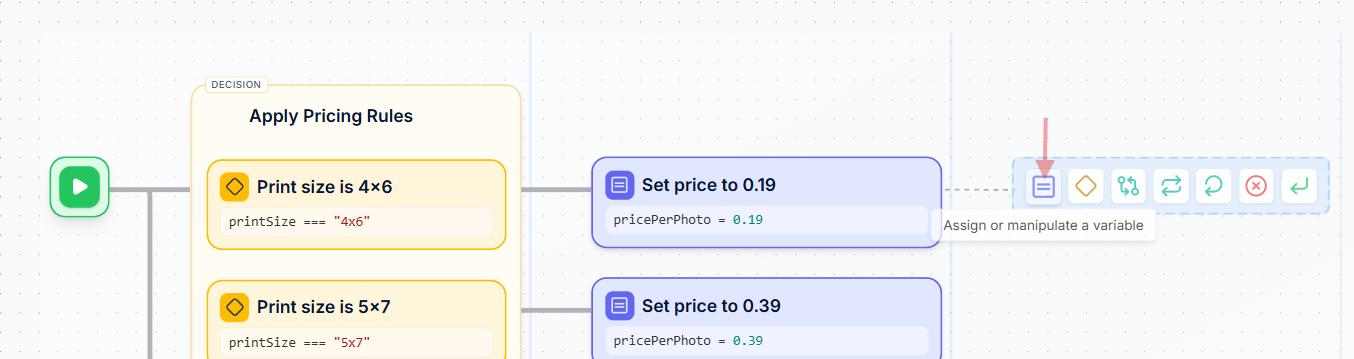
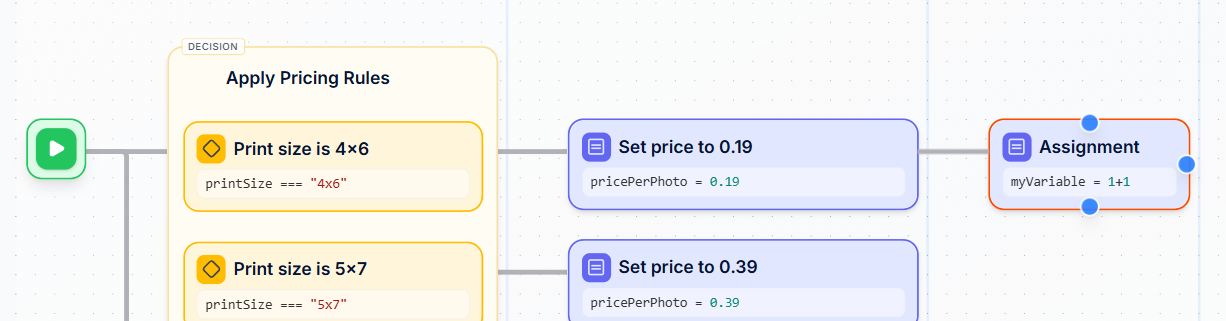
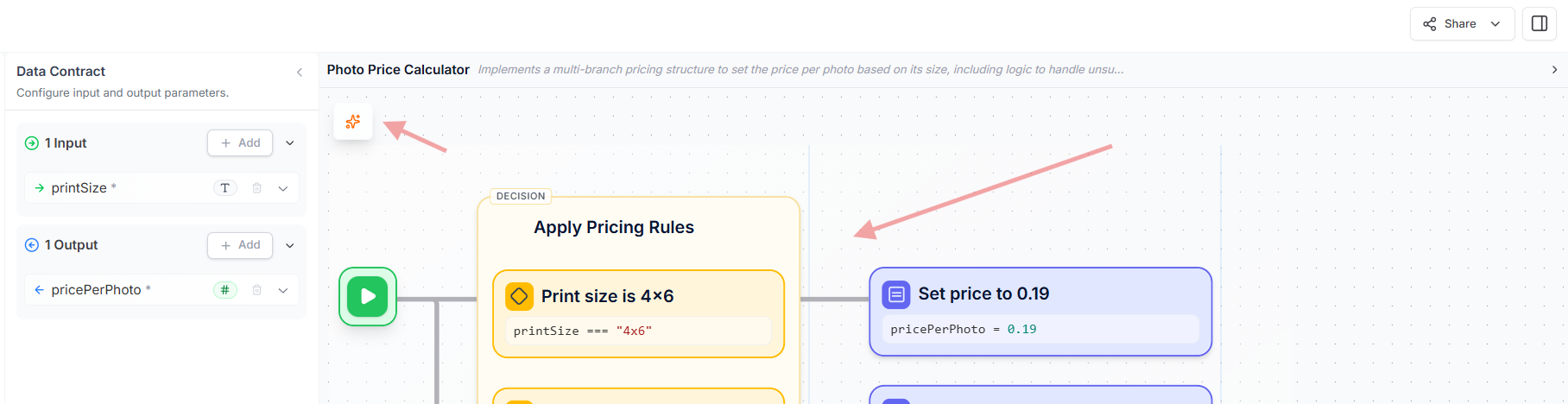
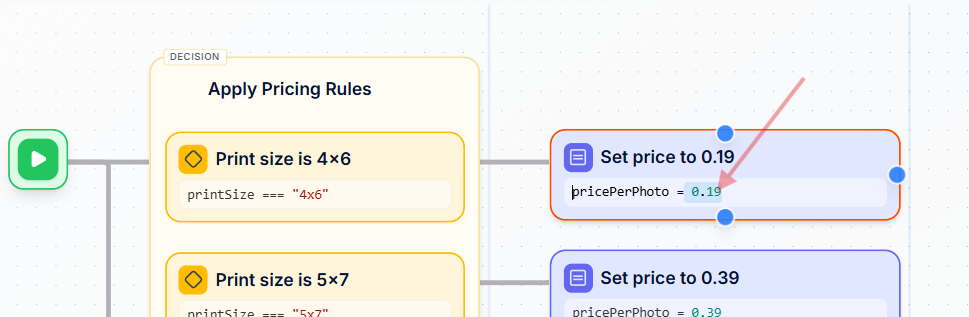
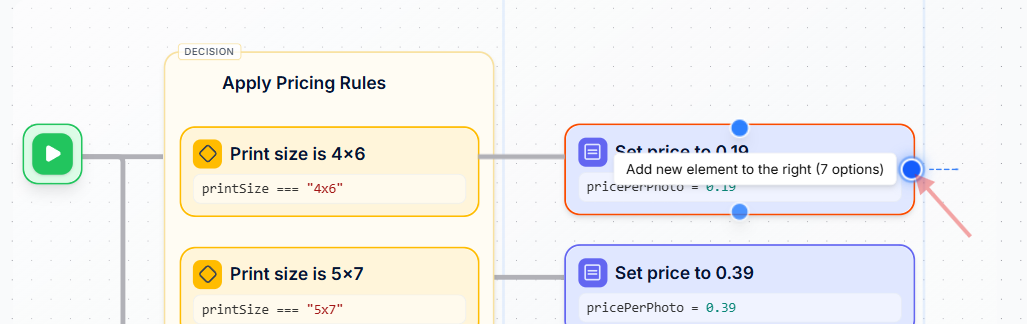
If you want to “manually” adjust or enhance your logic you can click on any element in the Blueprint. To change the description or the actual logic (expression) of an element please click directly on either of them. While editing the content of this section you will be supported by AI powered content completion: Change Blueprint To add an element you can to do that by selecting one of the extension points: Change Blueprint This will open a palette from where you can choose the element you want to add on this point. More details about how the different elements work can be found here: Controlling the Flow Change Blueprint The new element will be displayed and you can continue setting it up as described above. Change Blueprint To delete an element just click on the little logo in the top left corner of the element and hit your backspace key on your keyboard.
Option 2: Use the Built In AI Assistant
Work in Progress