

Quick Run from the Contents sidebar
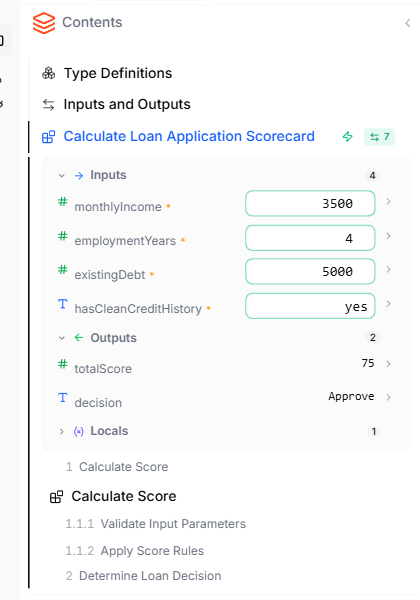
- Open the Contents sidebar on the left of the editor.
- Click the
# Nbadge next to a Blueprint — N is the count of its parameters. The Blueprint expands to show its inputs and outputs in line. - Set values for the inputs. Each input has a control matching its type — a dropdown for enums, a number field for numbers, a text field for strings, and so on. Required inputs are marked.
- Run the Blueprint. Either run it once, or leave Live mode running and the Blueprint re-runs automatically every time you change an input or edit the logic.
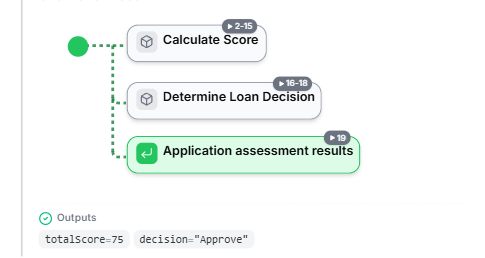
- Read the outputs. Each output shows its current value next to its name in the Contents sidebar, and the Outputs footer at the bottom of the Blueprint’s section in the document does too.
- The execution path is highlighted on the embedded diagram, showing which branches and elements were visited.
- Each visited element shows a step number so you can see the order of execution.
- The trace controls in the top toolbar become active for stepping through the execution.
Live mode
- Tweaking values — adjusting a threshold or rate and seeing every output update at once
- Reviewing edge cases — flipping a boolean input and watching which branch becomes active
- Pair-editing with AI — applying AI changes and confirming the outputs immediately
- Reading an unfamiliar project — turn it on and you can see real values flowing through every Blueprint as you scroll the document
Stepping through a trace

While stepping, the active node is highlighted on whichever diagram contains it. Variable values at the current step are visible on the embedded diagram and in the Outputs footer.
The editor is read-only while a trace is active — exit the trace to resume editing.
Autoplay
The trace toolbar also has a play / pause button and a playback speed control for animating through the trace automatically:- Play — auto-advance through every step in order. The button toggles to a pause icon while running.
- Pause — stop the auto-advance at the current step. The button toggles back to the play icon.
- Speed — adjust how fast autoplay moves through the trace.
autoplay attribute on <leapter-logic-viewer>) and in public read-only shares.
What to do next
- Test Suites — create and auto-generate test suites for systematic testing
- Inputs and Outputs — see how Blueprint signatures work
- Logic & Descriptions — let AI catch drift between your descriptions and your logic