

Create
Describe your logic and let the Lab Agent build the project
Edit & Refine
Modify your logic inline or with AI assistance
Test
Run your Blueprint and verify it works correctly
Release
Release your project, then connect via API or export to n8n
Blueprints
A Blueprint is the central building block in Leapter. It is a visual, executable representation of your business logic, displayed as a flowchart-like diagram that you can run, test, and deploy. Unlike logic written inside AI prompts, a Blueprint executes deterministically: the same inputs always produce the same outputs. This makes Blueprints reliable enough for billing, compliance, risk calculations, and any other scenario where “close enough” is not acceptable.Projects
A Project is a container that groups related Blueprints together. For example, a Loan Decisioning project might contain Blueprints for application scoring, affordability checks, and risk rating. Every Blueprint in a project is either public or private. Public Blueprints are the project’s entry points: once you release the project, each public Blueprint can be called from outside through the REST API, MCP, and other integrations, and its signature is the interface callers use. Private Blueprints are reusable sub-routines that other Blueprints call via Call nodes. Projects are also the unit of sharing. Every project lives in a workspace, and all workspace members can access its projects and the Blueprints inside them. To share a project read-only with someone outside your workspace, generate a public link.Creating a project
You start new work on the Create a Project page:- Describe your logic in plain language, and the Lab Agent builds the whole project (Blueprints, types, and tests) while you watch. This is the fastest way to get started.
- Start from an example: copy a ready-made project and adapt it.
- Start with an empty project: begin with one blank Blueprint and build it yourself.
The Blueprint Editor
The Blueprint Editor is a single workspace where you build, inspect, and run every Blueprint in your project. The editor opens directly into a structured document, the Specification view, that shows your project’s Type Definitions, Inputs and Outputs, and each Blueprint with its interactive diagram embedded inline. To focus on a single Blueprint, you maximize it in place and the canvas fills with its Diagram view. There is no separate “diagram page”. The diagram view is one mode of the same editor.Blueprint Elements
Blueprints are made up of different types of nodes, each with a specific purpose. Here is a real Blueprint showing several element types working together: a Decision (yellow) with an Error (red), Assignments (blue), a Loop (teal), and a Return (green), organized into sections.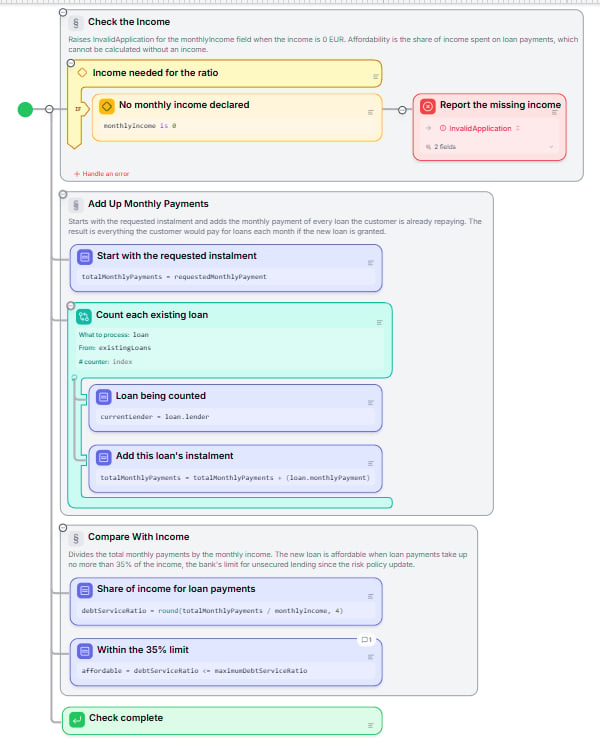
Several element types work together in one Blueprint, organized into sections.
Learn more in Controlling the Flow, Decision Tables, Error Handling, and Calling Other Blueprints.
Editing a Blueprint
Once a Blueprint exists, you can modify it several ways:- Lab Agent: open the Agent tab and describe the change in plain language. The agent builds and edits across your Blueprints, runs your tests, and proposes changes for you to approve. This is the main way to make AI-assisted changes.
- Inline Editing: click on any node, description, or heading to edit it in place.
- Ctrl+I: select a node, press Ctrl+I (Cmd+I on Mac), and the agent gets that node as context for a quick, scoped change.
- /review: the descriptions you write and the logic in your diagrams describe the same thing; run
/reviewin the Lab Agent to check that they still match.
Testing
Before deploying, you can verify your Blueprint works correctly:- Test your Blueprint: run your Blueprint with sample inputs directly in the editor and inspect the outputs step by step.
- Test Suites: create reusable sets of test cases that you can run repeatedly to catch regressions. You can also auto-generate test cases with AI.
Releasing and deploying
Production never runs the version you are editing. To make your work available, create a release, a frozen version of the project. Callers always get the latest release, so you can keep editing and testing without affecting them until you release again. Once released, you can connect your public Blueprints to the outside world through multiple channels:
All API-based integrations require an API Key for authentication.
After release, you can monitor production in Insights: see the totals of your production runs, inspect and replay every run, and find out which parts of your logic production actually uses. Learn more in Release & Integrate.