


Assignment
The Assignment element performs a calculation or stores a value in a variable. It appears as a purple block on the canvas.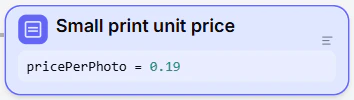
- Variable name (left of
=) — the variable to create or update - Expression (right of
=) — the value or calculation to assign
+, -, *, /), variable references, and literal values like numbers or strings.
Decision
The Decision element creates conditional branches in your flow. It evaluates a condition and routes execution down different paths (IF/ELSE). It appears as a yellow block.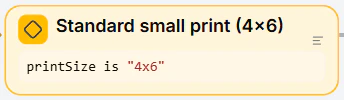
- Condition — a comparison expression (e.g.,
printSize is "4x6",cartValue >= 50) - True path — executes when the condition is true
- False/Else path — executes when the condition is false
Multiple conditions
You can add multiple condition blocks to handle more complex scenarios. Each condition is evaluated top to bottom — execution follows the first one that is true.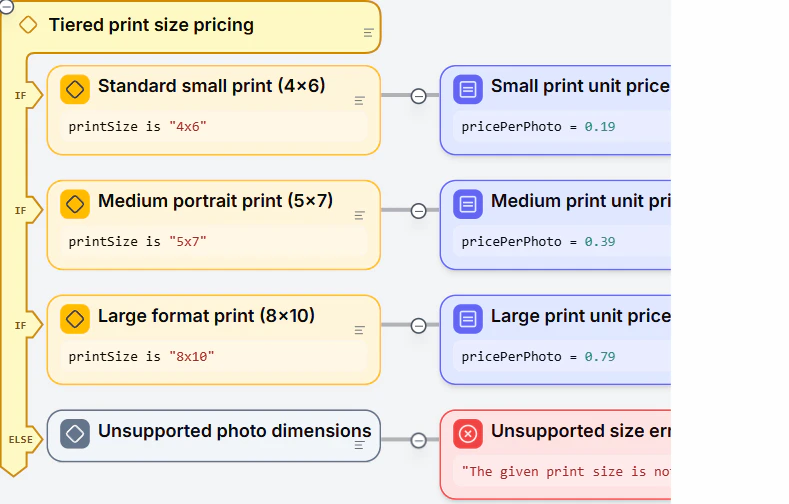
When a rule is really a lookup — several inputs mapping to an outcome — a Decision Table is often clearer than a long chain of conditions. It lays the rules out as a grid you can read at a glance.
Loops
Loops repeat a section of your flow. There are three types:Loop over Items
Iterates through each item in a list. You specify:- Variable — holds the current item (e.g.,
item) - Collection — the list to iterate over (e.g.,
itemValues) - Counter (optional) — tracks the current position (e.g.,
index)
Loop with Counter
Repeats a fixed number of times, like a classicfor loop. You specify:
- Variable — the counter with its starting value (e.g.,
i=0) - Condition — when to stop (e.g.,
i < 10) - Step — how the counter changes each iteration (e.g.,
i=i + 1)
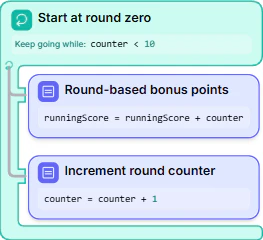
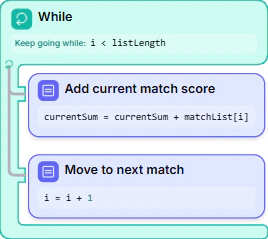
Loop with While Condition
Repeats as long as a condition remains true. You specify:- Condition — checked before each iteration (e.g.,
debtBalance > 0)
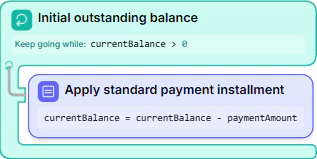
Continue and Exit Loop
Inside any loop, two additional elements become available:- Continue — skips the rest of the current iteration and moves to the next one. Useful for filtering out items you don’t want to process.
- Exit Loop — stops the entire loop immediately. Useful for search operations where you can stop once you’ve found what you’re looking for.
Return
The Return element ends your Blueprint successfully and returns the output values. It appears as a green block with a check icon.
Error
The Error element stops your Blueprint and returns an error message. It appears as a red block.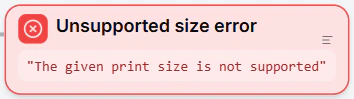
What to do next
- Calling Other Blueprints — reuse logic by calling one Blueprint from another
- Inputs and Outputs — define the data your Blueprint works with
- Test your Blueprint — run your Blueprint with test inputs