

Where to find API Keys
Click API Keys in the left sidebar of Leapter. This opens the API Keys management page.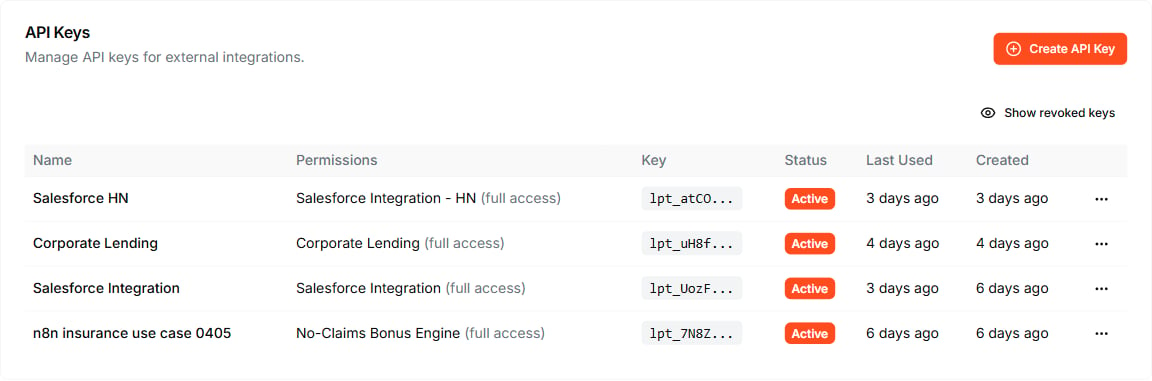
The API Keys page lists every key with its permissions, status, and usage.
Create an API key
- Click Create API Key in the top right.
- Enter a Key Name: a friendly name to help you identify this key later (e.g., “n8n Integration” or “Production API”).
- Select one or more Projects the key should have access to. A single key can grant access to several projects. This is useful when one integration calls Blueprints from multiple projects.
- Click Create Key.
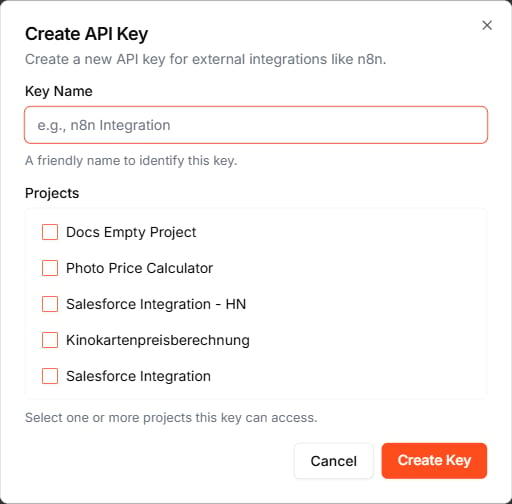
Name the key and select the projects it can access.
lpt_ prefix.
Edit which projects a key can access
You can change a key’s project scope without revoking it. This is useful when you add a new project that an existing integration should also be able to call.- Find the key in the table.
- Click the three-dot menu on the right.
- Select Edit projects.
- Adjust the project selection and confirm.
Use your API key
Pass the API key as a header in all requests to Leapter:- Header name:
X-API-Key - Header value: your API key
- MCP connections: set as a header in your MCP client configuration
- REST API: pass as the
X-API-Keyheader in HTTP requests - n8n HTTP Workflow: configure in the HTTP Request node’s authentication settings
- n8n MCP Agent Workflow: set up as a Header Auth credential in the MCP Client node
Revoke a key
If a key is compromised or no longer needed, you can revoke it:- Find the key in the table.
- Click the three-dot menu on the right.
- Select Revoke.
What to do next
- AI Protocol (MCP): connect AI assistants to your Blueprints
- Web API (OpenAPI): call your Blueprints through a REST API
- Deploy & Integrate: explore all deployment options