

This is the reverse direction from Deploy & Integrate, which is about calling your Blueprints from outside Leapter. Here, external tools are brought in for the Lab Agent to use.
How integrations work
Every integration goes through three levels:- Catalog — Leapter curates the list of available integrations. You cannot add arbitrary servers; you pick from the catalog.
- Workspace enablement — an owner turns an integration on for the whole workspace. It is off by default.
- Personal connection — each member connects their own account. The agent uses your connection, with your identity and permissions — so a Linear issue the agent files is filed as you.
Where to find integrations
Click Integrations in the workspace settings sidebar. The page has two parts.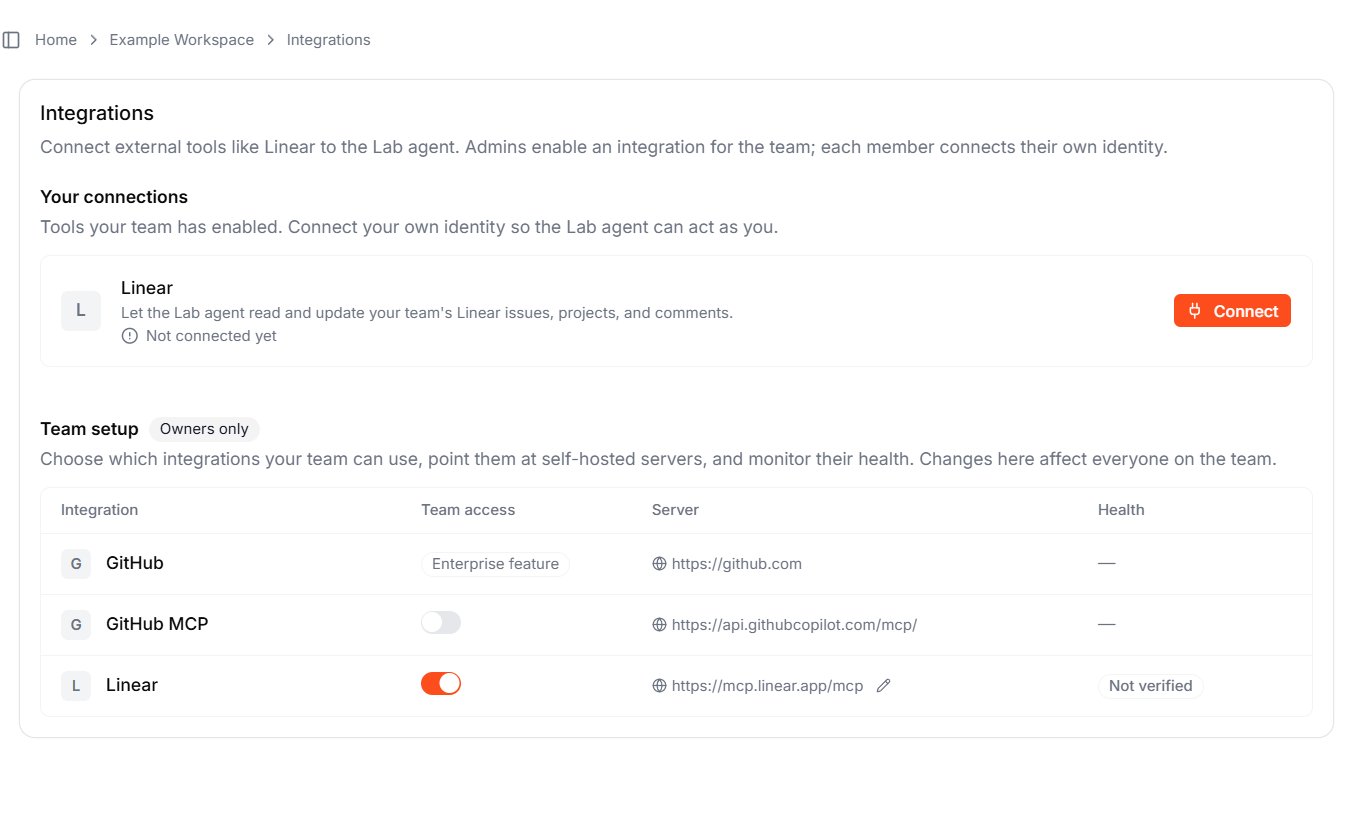
Your connections
Every member sees Your connections — the integrations your workspace has enabled, each with a Connect / Disconnect action and a status. Connecting runs you through the tool’s own sign-in so your credentials are stored against your membership, never shared with the rest of the team.Team setup (owners only)
Owners also see Team setup, the catalog of integrations the workspace can use. Each row shows:What you can connect today
Some integrations are managed for you. GitHub git-sync shows an Enterprise feature badge and is enabled by Leapter; self-hosted internal servers show an Admin managed badge. For these, there is no owner toggle — contact Leapter or your administrator to have them enabled.
Connect an integration
Once an owner has enabled an integration, each member connects their own account:- Open Integrations and find the tool under Your connections.
- Click Connect.
- Complete the tool’s sign-in (for example, authorize Linear, or paste a GitHub token).
What to do next
- Lab Agent — the AI that uses your connected tools while it builds
- Workspaces — manage who is in your workspace and who can enable integrations
- API Keys — the reverse direction: let outside systems call your Blueprints