

Opening the agent
Open the Agent tab in the right sidebar of the editor.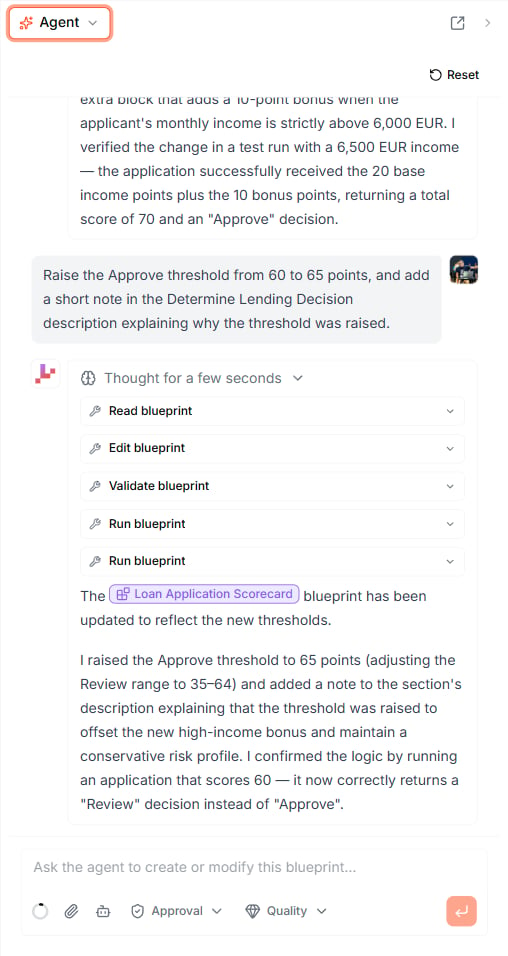
The Lab Agent works from a panel beside the canvas — here it takes a request, shows the steps it ran, and reports back referencing the Blueprint it changed.
@-mention pills
To point the agent at something specific, @-mention it. Type@ in the composer to reference a
type definition, parameter, variable, or Blueprint, and it is inserted as an inline pill. The agent
also uses these pills in its replies, so there is no ambiguity about which element it means.
Choosing how it works
Two controls in the composer shape how the agent behaves:
A context-usage indicator next to these controls shows how much of the conversation window is in
use; long chats compact automatically so you can keep going.
Reviewing and applying changes
In Approval mode, the agent’s edits arrive as a proposed change you can inspect before they touch your Blueprint. Apply the change to write it in, or discard it to leave your logic untouched. Because the agent can also run your Blueprints and test suites, it often verifies a change itself and reports the result inline before handing it back to you.Attachments
You can attach a PDF or image to a message — hand the agent a requirements document, a spec, or a screenshot of a rules table and ask it to turn it into logic.How the agent relates to other tools
Tips
- Be specific. “Set the Approve threshold to 65 points” beats “make it stricter.”
- Stay in Approval mode while you are learning what the agent does — you see every change before it lands.
- Let it test. Ask the agent to run your test suite after a change so it catches its own mistakes.
- @-mention to disambiguate when your project has several similarly named elements.
What to do next
- Test Suites — have the agent auto-generate test cases for your Blueprint
- AI Editing (Ctrl+I) — make a quick, scoped edit on the canvas
- Test your Blueprint — run your logic and step through the execution