

- Breaking down complexity — split large logic into smaller, focused Blueprints instead of ending up with one giant, hard-to-maintain Blueprint. Each piece handles a specific part of the logic and can be understood on its own.
- Reusing logic — build common operations once (like a validation check or a calculation) and call them from multiple Blueprints without duplicating the logic.
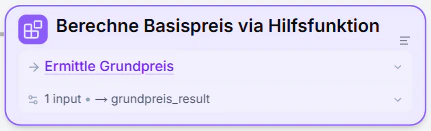
How Call nodes work
A Call node has three parts:- Target Blueprint — which Blueprint to call
- Inputs — the values you pass to the called Blueprint
- Result variable — where to store the result that comes back
Adding a Call node
- In the Diagram view, find an open connection point in your flow — the element palette appears next to it.
- Click the Call icon (the purple grid) in the palette.

- The placed Call node opens a Blueprint selector. Pick which Blueprint to call.
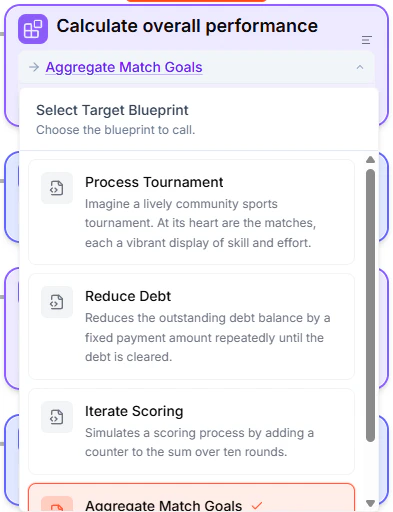
Mapping inputs
When you call a Blueprint, you map values from your current Blueprint to the inputs that the called Blueprint expects. For each input parameter, you enter an expression — a variable name, calculation, or literal value.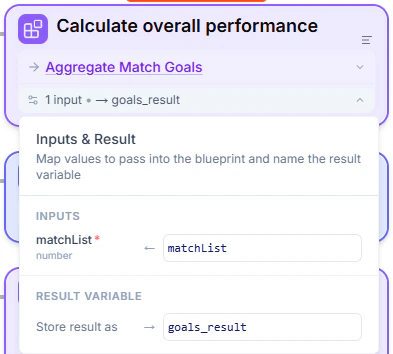
Capturing the result
After the called Blueprint finishes, it returns a result. You store this in a result variable so your Blueprint can use it in subsequent elements. For example, if you call a “Calculate Tax” Blueprint, you might store the result intaxAmount. You can then use taxAmount in any element that comes after the Call node.
Navigating to called Blueprints
Call nodes show the name of the called Blueprint as a clickable link, both in the Specification view document and in the maximized Diagram view. Click to preview it, or Shift+click to navigate directly to it.When to use Call nodes
- Keeping Blueprints manageable — if your Blueprint is growing large and hard to follow, split it into smaller pieces connected by Call nodes. Each Blueprint should ideally handle one clear responsibility.
- Reusing common logic — build validation, calculations, or formatting once and call from multiple Blueprints
- Standardizing business rules — ensure the same logic is used consistently everywhere
- Team collaboration — different team members can work on different Blueprints independently, then connect them with Call nodes
Tips
- Name called Blueprints clearly — the name appears in the Call node, so descriptive names like “Calculate Tax” make your flow easier to read
- Keep called Blueprints focused on a single task
- Test called Blueprints independently before calling them
- Avoid deep nesting — while Blueprints can call other Blueprints (and so on), too many levels make the logic hard to follow. Leapter limits call depth to 10 levels.
What to do next
- Controlling the Flow — learn about all the element types
- Inputs and Outputs — define the data contract between Blueprints
- Diagram view — see how Call nodes appear in the diagram