

Personal Account vs. Teams
You can switch between your Personal Account and your teams at any time — your personal projects remain separate from team projects.
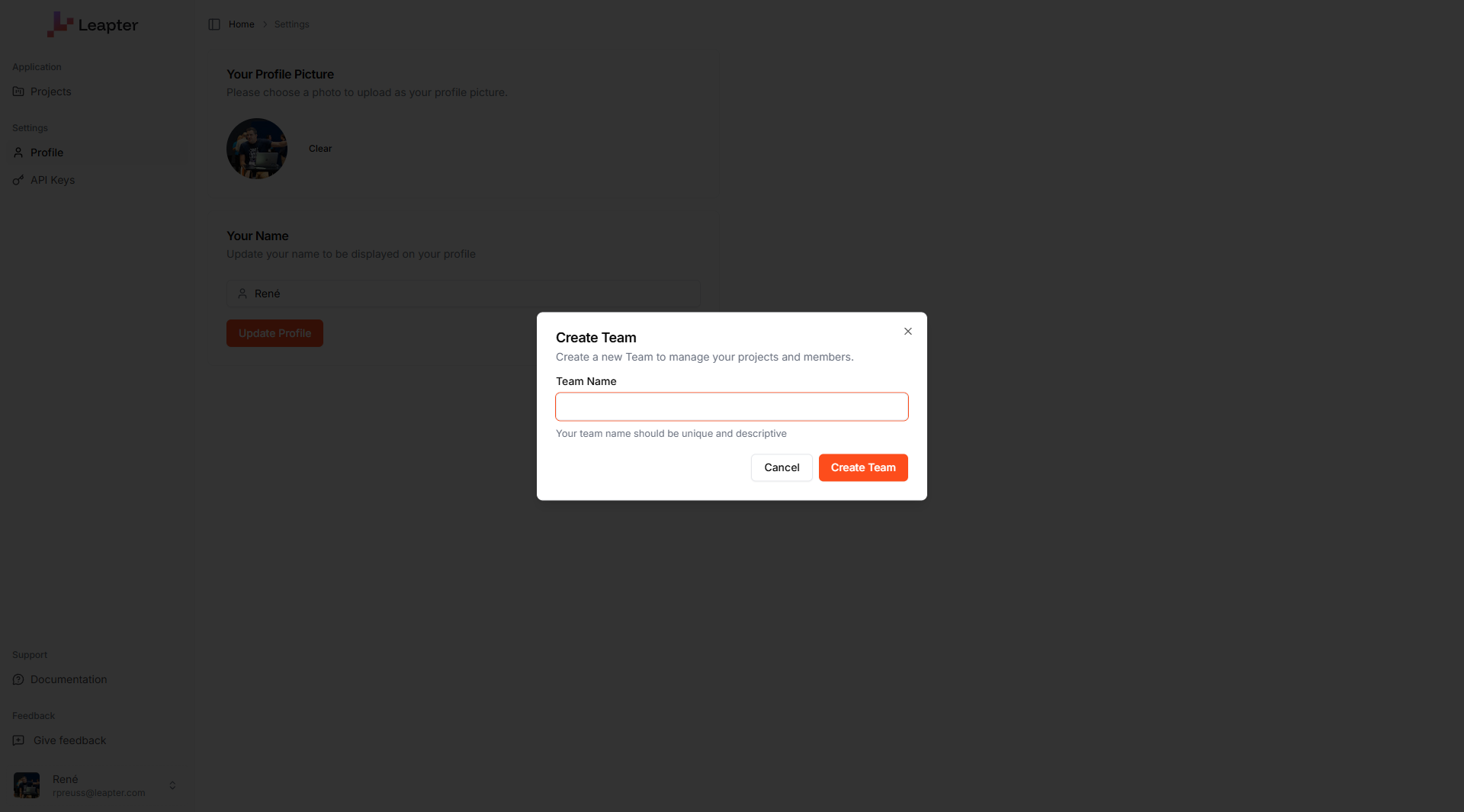
Create a team
- Click your profile menu in the bottom-left corner of the sidebar.
- Select Create a Team.
- Enter a Team Name — choose something descriptive that your members will recognize.
- Click Create Team.
Switch between accounts
Click your profile menu in the bottom-left corner. The menu shows:- Personal Account — your private workspace
- Your Teams — all teams you belong to
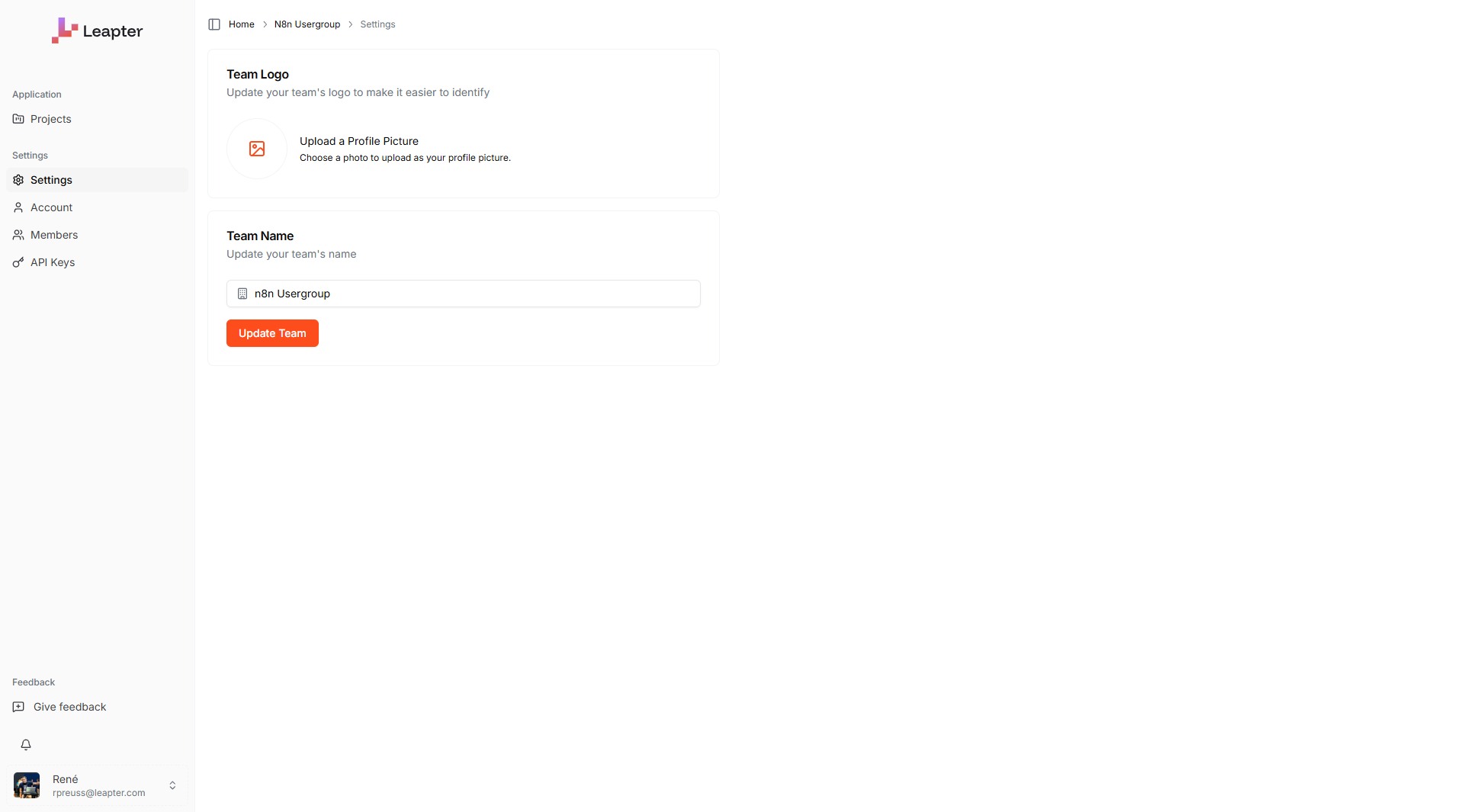
Team settings
After switching to a team, click Settings in the left sidebar to manage the team’s identity:- Team Logo — upload an image to help identify the team in the profile menu
- Team Name — update the team’s display name
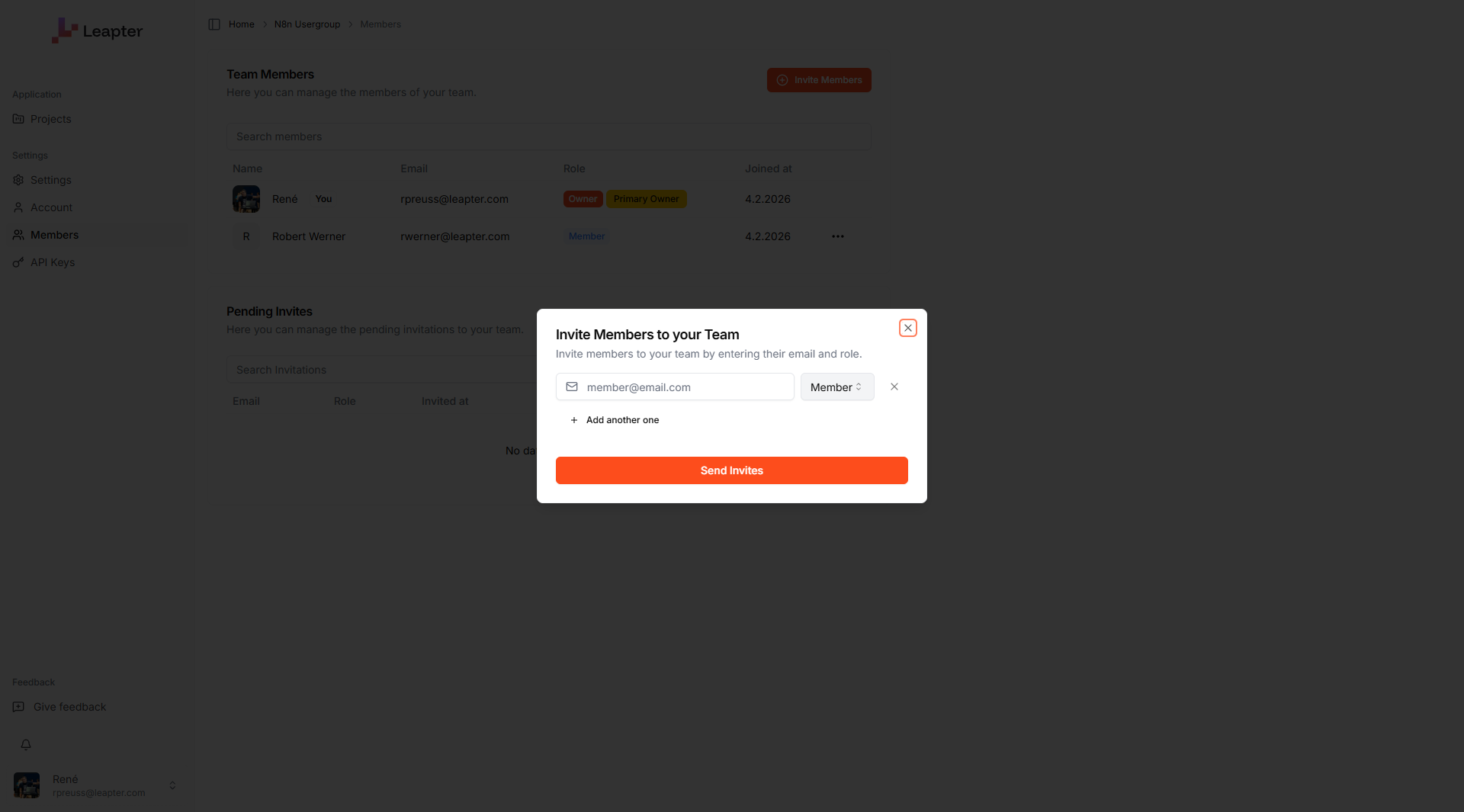
Invite members
- Switch to the team you want to manage.
- Click Members in the left sidebar.
- Click Invite Members.
- Enter the member’s email address.
- Select a role: Owner or Member.
- Click Send Invites.
Manage members
The Members page shows all current team members in a table: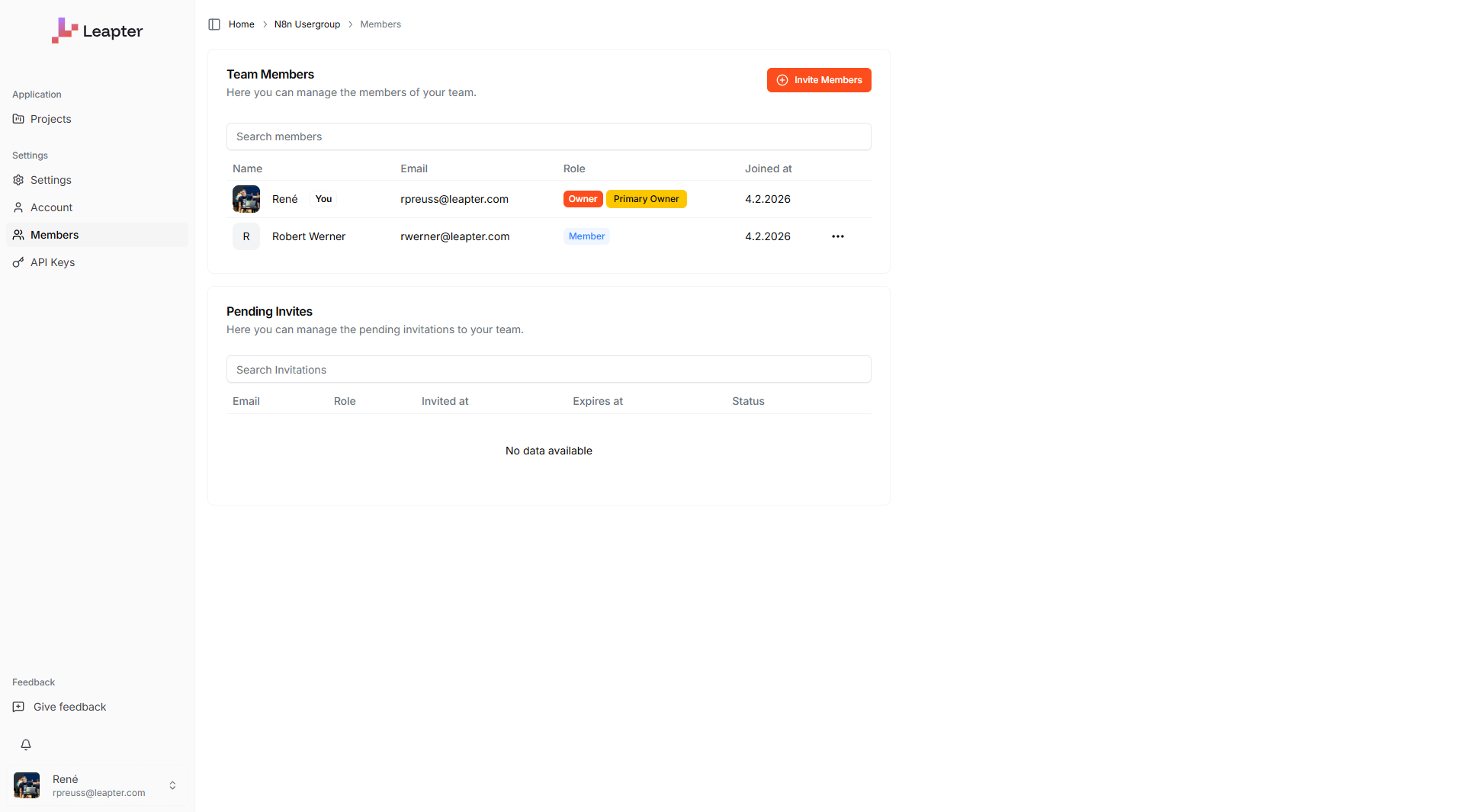
Below the members table, the Pending Invites section shows invitations that have not been accepted yet, including their status and expiration date.
Roles
The person who creates the team is automatically the Primary Owner.
What to do next
- Personal Profile — update your display name and profile picture
- Collaborating — learn how to work together on shared Blueprints using comments
- Projects — organize Blueprints into projects