

How it works
Step 1: Open the Create Blueprint page
When you open an empty project — one with no Blueprints yet — Leapter takes you straight to the Create a Blueprint page, which has a prompt field in the center.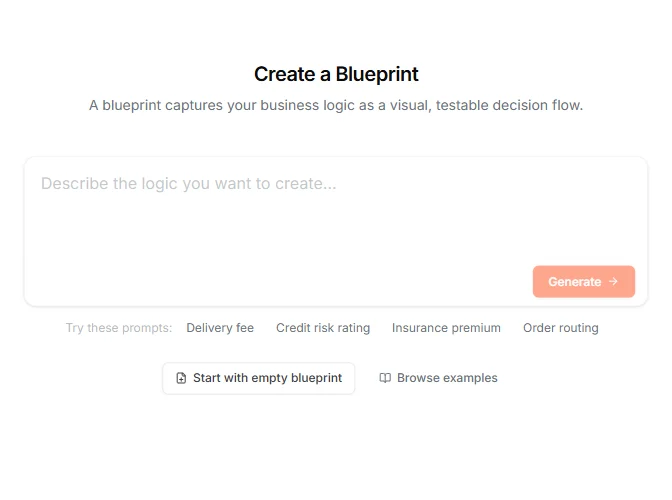
Step 2: Describe your logic
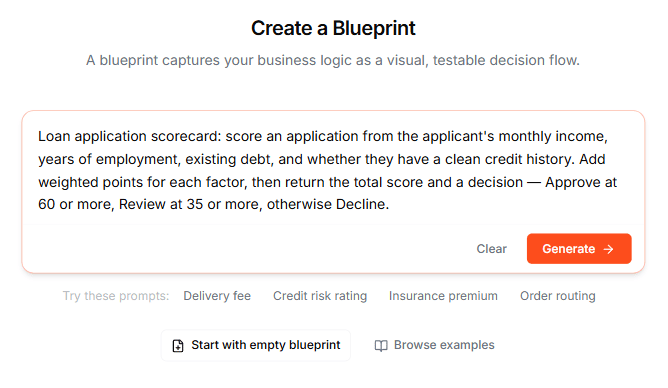
Type a natural language description of the logic you want to build into the text area. Be as specific as you can — include the conditions, calculations, input values, and expected outputs. For example:Loan application scorecard: score an application from the applicant’s monthly income, years of employment, existing debt, and whether they have a clean credit history. Add weighted points for each factor, then return the total score and a decision — Approve at 60 or more, Review at 35 or more, otherwise DeclineIf you’re not sure where to start, click one of the Try these prompts: suggestions below the prompt field. These fill in a ready-made description you can use as-is or edit to fit your needs:
- Delivery fee — distance-based pricing with discounts and surcharges
- Credit risk rating — scoring logic based on financial criteria
- Insurance premium — rate calculation with age and coverage factors
- Order routing — conditional routing based on order properties
Step 3: Generate the Blueprint
Click the Generate button. Leapter processes your description through several steps — you’ll see a progress indicator showing the current stage, such as “Naming elements” or “Structuring code”, and a row of dots that fills in as each stage completes.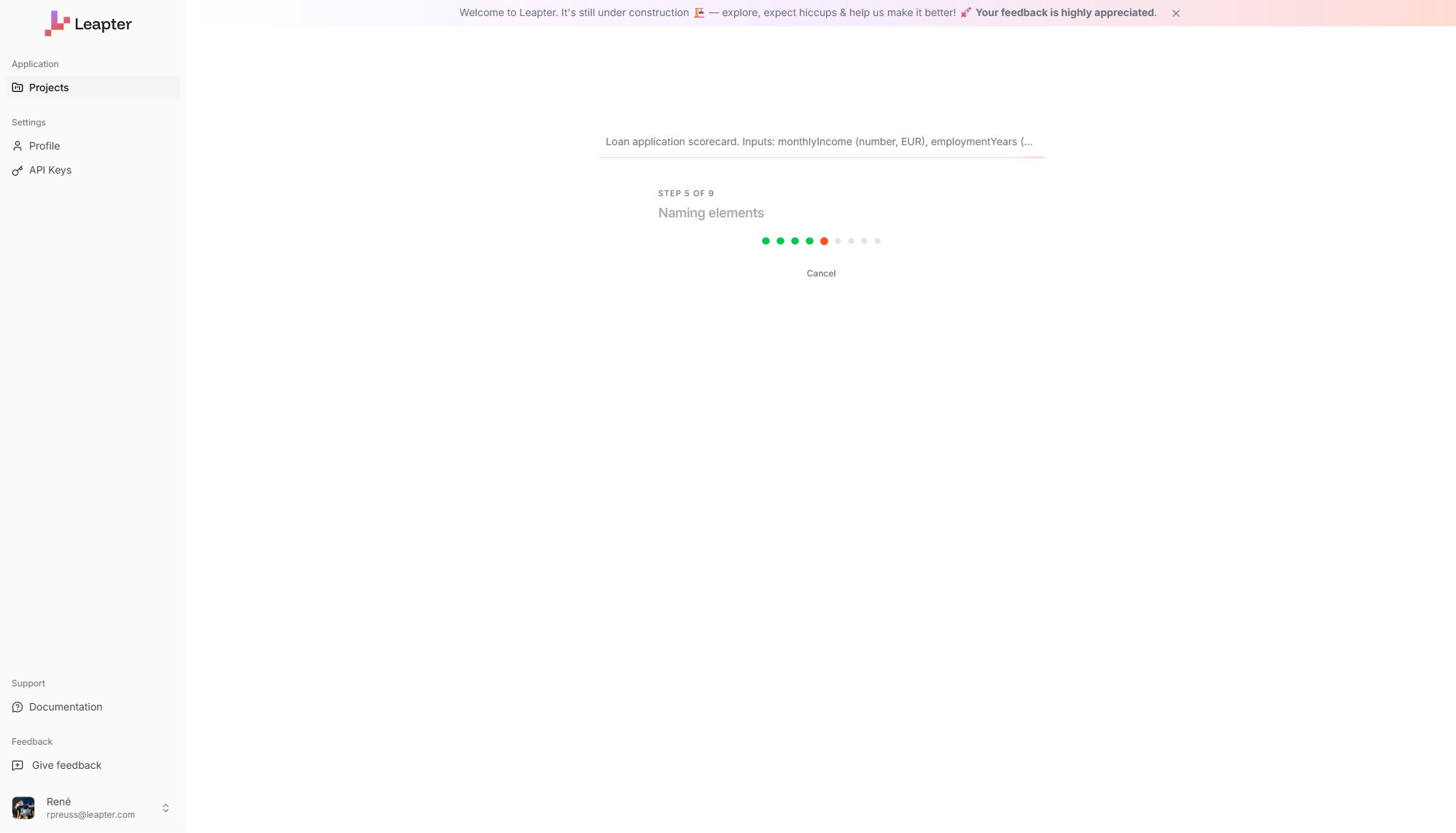
Step 4: Review the result
Once generation completes, you land directly in the Blueprint Editor — the project opens in the Specification view with the generated Blueprint and its diagram embedded inline. Your Blueprint is ready to inspect and run.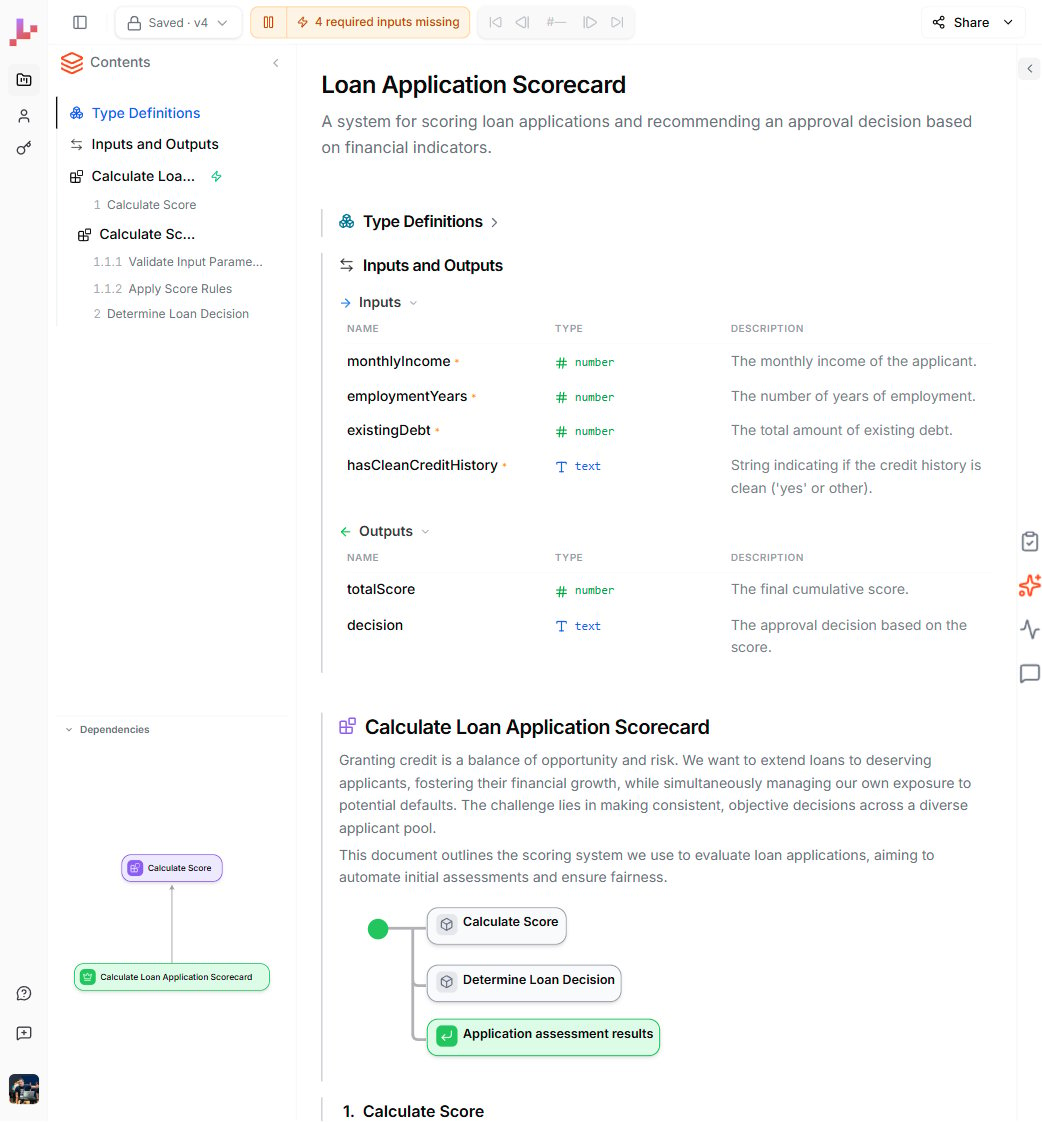
- Input parameters — the data your Blueprint needs to run (for example:
monthlyIncome,employmentYears,existingDebt,hasCleanCreditHistory) - Output parameters — the results your Blueprint returns (for example:
totalScore,decision) - Decision nodes — conditional branches that route the flow based on your rules
- Assignment nodes — calculations that compute values
- Call nodes — reusable sub-blueprints for modular logic (when the logic is complex enough)
Tips for better results
- Be specific about conditions. “Approve when the total score is 60 or more” generates better logic than “approve strong applicants.”
- Name your inputs and outputs. If you mention “the applicant’s monthly income” and “the final decision”, the AI picks up those as parameter names.
- Include edge cases. Mention what should happen in boundary situations — for example, “if existing debt is over 10,000, subtract 20 points.”
- Start simple, then iterate. You can always edit the Blueprint with AI after generation to add more conditions or adjust the logic.
What to do next
After generation, you’ll typically want to:- Test your Blueprint — click the green play button on the Start node to run it with sample inputs and verify the outputs.
- Refine the logic — use inline editing to adjust individual nodes, or AI editing to make broader changes.
- Deploy it — once you’re satisfied, connect your Blueprint via REST API, MCP, or export it as code.