You can sign in to the Admin UI of the runtime cluster. Its address is the cluster address followed by /runtime-management/ui/, for example https://cluster.example.com/runtime-management/ui/.
A terminal with curl. The examples use the Pizza Pricing Calculator project.
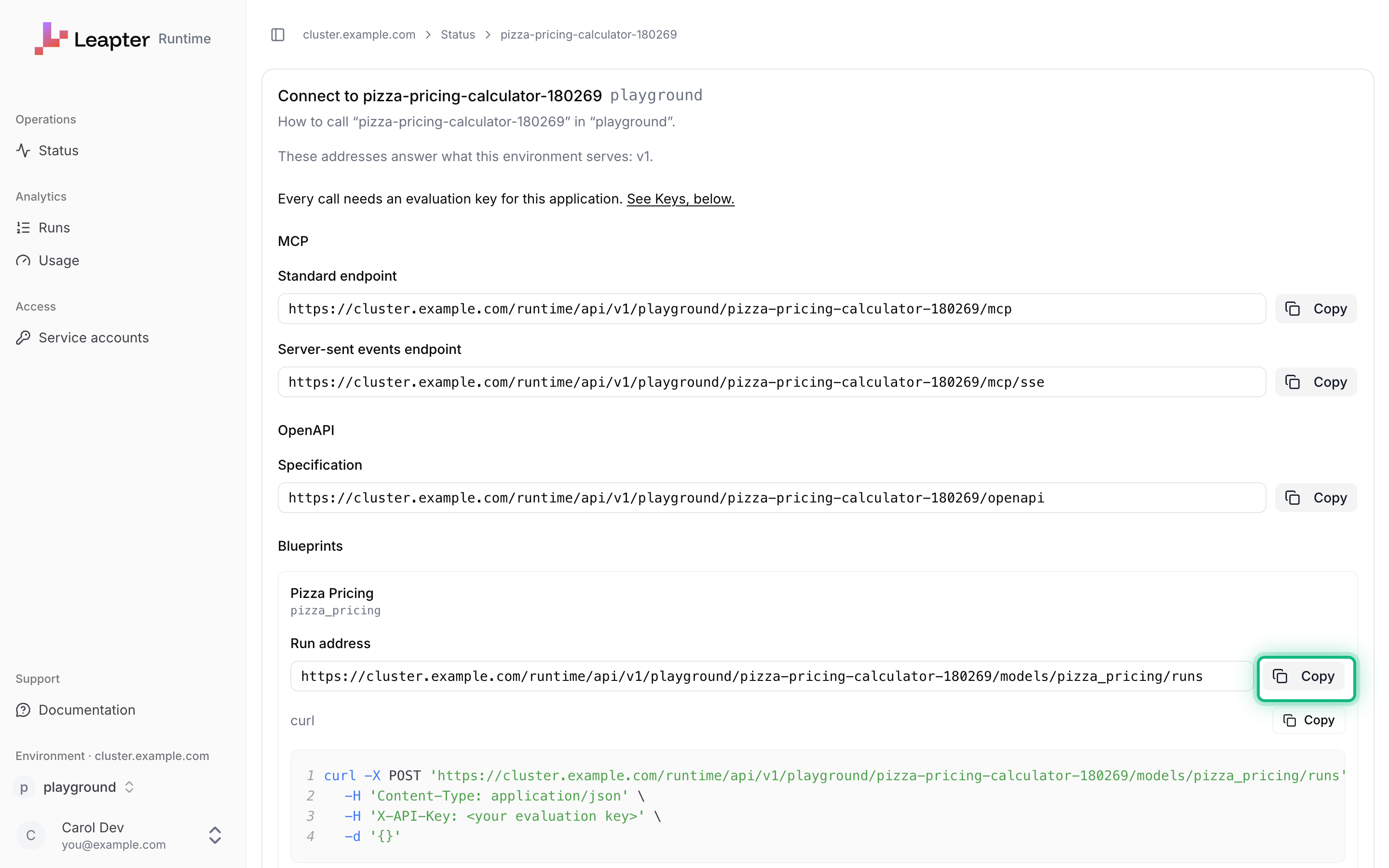
Open the Admin UI and click Sign in with Leapter. Choose the environment in the environment list at the bottom of the sidebar, and click the application’s name on the Status page. In the card Connect to with the application’s name, find the blueprint under Blueprints and click Copy next to Run address.
The run address of the blueprint Pizza Pricing.
A run address always has this form. The blueprint’s name is in lowercase with underscores:
Send the blueprint’s inputs as a JSON object in a POST request. Send the key in the X-API-Key header. You can add an X-Correlation-Id header with an ID from your own system, for example an order number. It is stored with the run, and you can search for it later.
Keep the X-Run-Id or your correlation ID if you want to find this run again.
4
Find the run
In the Admin UI, click Runs and type your correlation ID, here order-1042, in the search field. The run is listed with its status, release and duration. If your system sent the same correlation ID more than once, every run with it is listed, the newest first. Find a run and read usage explains the page, and how to open a run by its X-Run-Id.
5
Read the OpenAPI document
Every deployed release describes its blueprints in an OpenAPI document. Its address is in the card Connect to, next to Specification. Send the key here too:
The answer is an OpenAPI 3.0 document with one path per callable blueprint and the schema of its inputs and outputs. It starts like this:
{"openapi":"3.0.0","info":{"title":"Pizza Pricing Calculator","version":"1.0.0","description":"Pizza Pricing Calculator - Calculates pizza prices based on size, toppings, crust, and the day of the week"},"servers":[{"url":"https://cluster.example.com/runtime/api/v1/playground/pizza-pricing-calculator-180269","description":"Runtime server endpoint for this project"}],"paths":{"/models/f1ae47d5-b5bf-427a-a964-b7d18bd86609/runs":{"post":{"summary":"Pizza Pricing",…
The paths in the document use the blueprint’s ID (/models/f1ae47d5-…/runs), which works like the name. Tools that read OpenAPI can build a client from it.
Your system runs the blueprint with a POST to its run address and reads the result from outputData. Each run has an ID in X-Run-Id, and the Admin UI shows the run under this ID.
After Sign in with Leapter, you are in the Lab and not in the Admin UI. Open the Admin UI’s address again and click Sign in with Leapter once more. The Status page opens.400 Bad Request with "title":"Validation Error". An input is missing or has the wrong type. errors names each field:
{"type":"about:blank","title":"Validation Error","status":400,"detail":"Input validation failed. Please check the errors for details.","instance":"/playground/pizza-pricing-calculator-180269/models/pizza_pricing/runs","errors":[{"field":"toppings","message":"Invalid input: expected array, received string","code":"invalid_type","path":["toppings"]}]}
Fields that the blueprint does not know are ignored.401 Unauthorized. The key is missing, wrong, revoked, or belongs to another application or environment. The answer is the same in every case:
{"type":"about:blank","title":"Unauthorized","status":401,"detail":"This request was refused. Present a valid evaluation key for this environment and application.","instance":"/runtime/api/v1/playground/pizza-pricing-calculator-180269/models/pizza_pricing/runs"}
404 page not found as plain text. The environment or application in the address is wrong, or the application has no key yet. A new application’s first key needs about a minute.404 Not Found with "title":"Model Not Found". The blueprint name in the address is wrong, or the blueprint is not public in this release:
{"type":"about:blank","title":"Model Not Found","status":404,"detail":"Model not found: no_such_blueprint is not part of release v1","instance":"/playground/pizza-pricing-calculator-180269/models/no_such_blueprint/runs"}
{"docsConfig":{"theme":"aspen","$schema":"https://mintlify.com/docs.json","name":"Leapter Documentation","colors":{"primary":"#FA4B00","light":"#FF7A45","dark":"#FA4B00"},"logo":{"light":"https://mintcdn.com/leapter/n-gCe0s55i-T1r4S/logo/leapter-logo-horizontal-dark.svg?fit=max\u0026auto=format\u0026n=n-gCe0s55i-T1r4S\u0026q=85\u0026s=aa6ff0318f24b8562163ccbe2c6d72f1","dark":"https://mintcdn.com/leapter/n-gCe0s55i-T1r4S/logo/leapter-logo-horizontal-white.svg?fit=max\u0026auto=format\u0026n=n-gCe0s55i-T1r4S\u0026q=85\u0026s=d7c1732991fb6a811bb7d3d49acf8b1e"},"favicon":"https://mintcdn.com/leapter/f4oBwv4ei0bdQSOY/favicon.png?fit=max\u0026auto=format\u0026n=f4oBwv4ei0bdQSOY\u0026q=85\u0026s=e95dc9c2b2dfd0712c9417ae054962df","navbar":{"links":[{"href":"mailto:support@leapter.com","label":"Support"}],"primary":{"type":"button","label":"Leapter","href":"https://lab.leapter.com"}},"footer":{"socials":{"youtube":"https://www.youtube.com/@Leapter-Corp","linkedin":"https://www.linkedin.com/company/leapter"},"links":[{"items":[{"label":"Privacy Policy","href":"https://www.leapter.com/privacy-policy"},{"label":"Cookies","href":"https://www.leapter.com/cookies"}]}]},"fonts":{"heading":{"family":"Funnel Display"},"body":{"family":"Inter"}},"integrations":{"gtm":{"tagId":"GTM-KR74BFGF"}},"banner":{"content":"🚀 **New:** Leapter now runs your releases on the Runtime Cluster. [See how to deploy »](/release-and-integrate/releases)","dismissible":true,"type":"info"},"contextual":{"options":["copy","chatgpt","claude","perplexity","mcp","cursor","vscode"],"display":"header"},"styling":{"latex":false},"navigation":{"global":{"anchors":[{"anchor":"Homepage","icon":"book-open-cover","href":"https://www.leapter.com"},{"anchor":"Blog","icon":"newspaper","href":"https://www.leapter.com/blog"}]},"pages":[]}},"deployment":{"deploymentMetadataValue":{"subdomain":"leapter","hasAudioNarration":false,"actualSubdomain":"leapter","customDomains":["docs.leapter.com"],"gitSource":{"type":"github","owner":"leapter","repo":"docs","deployBranch":"main","contentDirectory":"","isPrivate":true,"mountPath":"","label":""},"chroma":{"liveDeploymentHistoryId":"6aec4a5607f9eeebb2937b54","collectionId":"c9d78a34-eb4f-4f02-85c5-8f4541112b0e","schemaVersion":"v3","latestBuiltDeploymentHistoryId":"6aec4a5607f9eeebb2937b54"},"entitlements":{"AI_CHAT":{"status":"DISABLED"},"REMOVE_BRANDING":{"status":"DISABLED"},"CONTEXTUAL_FEEDBACK":{"status":"DISABLED"},"CODE_SNIPPET_FEEDBACK":{"status":"DISABLED"}},"buildId":"6aec5d07aceee0d6e0b03bfa","clientVersion":"0.0.4067","searchFilterCounts":[{"language":"default","tag":"Lab User Guide","count":36},{"language":"default","tag":"Create \u0026 Edit Blueprints","count":15},{"language":"default","tag":"Runtime Cluster User Guide","count":12},{"language":"default","tag":"The Blueprint Editor","count":6},{"language":"default","tag":"Blueprint Elements","count":5},{"language":"default","tag":"Get Started","count":5},{"language":"default","tag":"Release \u0026 Integrate","count":5},{"language":"default","tag":"Workspace \u0026 Collaboration","count":5},{"language":"default","tag":"n8n","count":4},{"language":"default","tag":"Test \u0026 Validate","count":4}]},"assistantConfig":{"enableStarterQuestions":false},"basePath":"","hasChatPermissions":false,"hasWebMcpPermissions":false,"toggles":[{"name":"kill-isr","enabled":true,"variant":{"name":"disabled","enabled":false,"feature_enabled":true},"impressionData":false},{"name":"agent-mintlify-slack","enabled":true,"variant":{"name":"disabled","enabled":false,"feature_enabled":true},"impressionData":false},{"name":"agent-integrations-settings","enabled":true,"variant":{"name":"disabled","enabled":false,"feature_enabled":true},"impressionData":false},{"name":"rbac-expansion","enabled":true,"variant":{"name":"disabled","enabled":false,"feature_enabled":true},"impressionData":false},{"name":"automations-pr-grouping","enabled":true,"variant":{"name":"disabled","enabled":false,"feature_enabled":true},"impressionData":false},{"name":"custom-prefix","enabled":true,"variant":{"name":"disabled","enabled":false,"feature_enabled":true},"impressionData":false},{"name":"analytics-v7","enabled":true,"variant":{"name":"disabled","enabled":false,"feature_enabled":true},"impressionData":false},{"name":"user-flows-analytics","enabled":true,"variant":{"name":"disabled","enabled":false,"feature_enabled":true},"impressionData":false},{"name":"no-publish-flow","enabled":true,"variant":{"name":"disabled","enabled":false,"feature_enabled":true},"impressionData":false},{"name":"workos-onboarding","enabled":true,"variant":{"name":"disabled","enabled":false,"feature_enabled":true},"impressionData":false},{"name":"llms-txt-v2","enabled":true,"variant":{"name":"disabled","enabled":false,"feature_enabled":true},"impressionData":false},{"name":"snapshot-serving-live","enabled":true,"variant":{"name":"disabled","enabled":false,"feature_enabled":true},"impressionData":false},{"name":"stripTemperatureMiddleware","enabled":true,"variant":{"name":"disabled","enabled":false,"feature_enabled":true},"impressionData":false},{"name":"support-platform-pylon-zendesk","enabled":true,"variant":{"name":"disabled","enabled":false,"feature_enabled":true},"impressionData":false},{"name":"snapshot-serving","enabled":true,"variant":{"name":"disabled","enabled":false,"feature_enabled":true},"impressionData":false},{"name":"instant-rollback","enabled":true,"variant":{"name":"disabled","enabled":false,"feature_enabled":true},"impressionData":false},{"name":"granular-notifications-server","enabled":true,"variant":{"name":"disabled","enabled":false,"feature_enabled":true},"impressionData":false},{"name":"granular-notifications","enabled":true,"variant":{"name":"disabled","enabled":false,"feature_enabled":true},"impressionData":false},{"name":"automations-fable","enabled":true,"variant":{"name":"disabled","enabled":false,"feature_enabled":true},"impressionData":false},{"name":"fixed-ai-action-pricing","enabled":true,"variant":{"name":"disabled","enabled":false,"feature_enabled":true},"impressionData":false},{"name":"automation-resolve-merge-conflict","enabled":true,"variant":{"name":"disabled","enabled":false,"feature_enabled":true},"impressionData":false},{"name":"scoped-publishing","enabled":true,"variant":{"name":"disabled","enabled":false,"feature_enabled":true},"impressionData":false},{"name":"mintql","enabled":true,"variant":{"name":"disabled","enabled":false,"feature_enabled":true},"impressionData":false},{"name":"page-level-analytics","enabled":true,"variant":{"name":"disabled","enabled":false,"feature_enabled":true},"impressionData":false},{"name":"editor-version-history-v2","enabled":true,"variant":{"name":"disabled","enabled":false,"feature_enabled":true},"impressionData":false},{"name":"billing-page-v2","enabled":true,"variant":{"name":"disabled","enabled":false,"feature_enabled":true},"impressionData":false},{"name":"full-page-search","enabled":true,"variant":{"name":"disabled","enabled":false,"feature_enabled":true},"impressionData":false},{"name":"workspace-projects","enabled":true,"variant":{"name":"disabled","enabled":false,"feature_enabled":true},"impressionData":false},{"name":"assistant-v5","enabled":true,"variant":{"name":"disabled","enabled":false,"feature_enabled":true},"impressionData":false},{"name":"fork-pr-previews","enabled":true,"variant":{"name":"disabled","enabled":false,"feature_enabled":true},"impressionData":false},{"name":"revalidation-jwt","enabled":true,"variant":{"name":"disabled","enabled":false,"feature_enabled":true},"impressionData":false},{"name":"vite-origin","enabled":true,"variant":{"name":"disabled","enabled":false,"feature_enabled":true},"impressionData":false},{"name":"workos-sso-scim","enabled":true,"variant":{"name":"disabled","enabled":false,"feature_enabled":true},"impressionData":false},{"name":"hobby-abuse-scan","enabled":true,"variant":{"name":"disabled","enabled":false,"feature_enabled":true},"impressionData":false},{"name":"dashboard-inbox","enabled":true,"variant":{"name":"disabled","enabled":false,"feature_enabled":true},"impressionData":false},{"name":"workos-signup","enabled":true,"variant":{"name":"disabled","enabled":false,"feature_enabled":true},"impressionData":false},{"name":"turbopuffer-dual-write","enabled":true,"variant":{"name":"disabled","enabled":false,"feature_enabled":true},"impressionData":false},{"name":"workos-enabled","enabled":true,"variant":{"name":"disabled","enabled":false,"feature_enabled":true},"impressionData":false},{"name":"approve-review-flow","enabled":true,"variant":{"name":"disabled","enabled":false,"feature_enabled":true},"impressionData":false},{"name":"sso-setup-deadline-banner","enabled":true,"variant":{"name":"disabled","enabled":false,"feature_enabled":true},"impressionData":false},{"name":"turbopuffer-serve","enabled":true,"variant":{"name":"disabled","enabled":false,"feature_enabled":true},"impressionData":false},{"name":"live-agents","enabled":true,"variant":{"name":"disabled","enabled":false,"feature_enabled":true},"impressionData":false}],"googleFontsInlined":true},"customCss":[{"filePath":"consent-overrides.css","content":":root{--cc-bg: #ffffff;--cc-text: #0f172a;--cc-btn-primary-bg: #6A6CF2;--cc-btn-primary-text: #ffffff;--cc-btn-primary-hover-bg: #5558d9;--cc-btn-secondary-bg: #f1f5f9;--cc-btn-secondary-text: #334155;--cc-btn-secondary-hover-bg: #e2e8f0;--cc-toggle-on-bg: #6A6CF2;--cc-toggle-off-bg: #cbd5e1;--cc-toggle-on-knob-bg: #ffffff;--cc-toggle-off-knob-bg: #ffffff;--cc-separator-border-color: #e2e8f0;--cc-cookie-category-block-bg: #f8fafc;--cc-cookie-category-block-bg-hover: #f1f5f9;--cc-overlay-bg: rgba(15, 23, 42, 0.5);--cc-webkit-scrollbar-bg: #f1f5f9;--cc-webkit-scrollbar-hover-bg: #cbd5e1}html.dark :root{--cc-bg: #1e293b;--cc-text: #f8fafc;--cc-btn-primary-bg: #6A6CF2;--cc-btn-primary-text: #ffffff;--cc-btn-primary-hover-bg: #5558d9;--cc-btn-secondary-bg: #334155;--cc-btn-secondary-text: #f1f5f9;--cc-btn-secondary-hover-bg: #475569;--cc-toggle-on-bg: #6A6CF2;--cc-toggle-off-bg: #475569;--cc-separator-border-color: #334155;--cc-cookie-category-block-bg: #0f172a;--cc-cookie-category-block-bg-hover: #1e293b;--cc-overlay-bg: rgba(0, 0, 0, 0.7);--cc-webkit-scrollbar-bg: #334155;--cc-webkit-scrollbar-hover-bg: #475569}#cc-main{font-family:inherit;z-index:2147483647;font-size:14px}#cc-main .cm{border-radius:12px;box-shadow:0 20px 25px -5px rgba(0, 0, 0, 0.1), 0 10px 10px -5px rgba(0, 0, 0, 0.04)}html.dark #cc-main .cm{box-shadow:0 20px 25px -5px rgba(0, 0, 0, 0.5), 0 10px 10px -5px rgba(0, 0, 0, 0.3)}#cc-main button{border-radius:6px;font-weight:500;transition:all 0.2s ease}#cc-main button:hover{transform:translateY(-1px)}#cc-main button:active{transform:translateY(0)}#cc-main a{color:#6A6CF2;text-decoration:underline;text-decoration-color:rgba(106, 108, 242, 0.3);transition:text-decoration-color 0.2s ease}#cc-main a:hover{text-decoration-color:rgba(106, 108, 242, 1)}html.dark #cc-main a{color:#8b8dff}#cc-main .section-toggle{transition:all 0.3s ease}#cc-main .cookie-category-block{border-radius:8px;border:1px solid var(--cc-separator-border-color);transition:background-color 0.2s ease}#cc-main button:focus,#cc-main .section-toggle:focus{outline:2px solid #6A6CF2;outline-offset:2px}#cc-main,#cc-main .cm,#cc-main button,#cc-main .cookie-category-block{transition:background-color 0.3s ease, color 0.3s ease, border-color 0.3s ease}@media (max-width: 640px){#cc-main .cm{border-radius:12px 12px 0 0;max-height:85vh}}@keyframes cc-fade-in{from{opacity:0;transform:translateY(20px)}to{opacity:1;transform:translateY(0)}}#cc-main .cm{animation:cc-fade-in 0.3s ease-out}"},{"filePath":"cookieconsent.css","content":"#cc-main{background:transparent;color:var(--cc-primary-color);font-family:var(--cc-font-family);font-size:16px;font-weight:400;-webkit-font-smoothing:antialiased;-moz-osx-font-smoothing:grayscale;line-height:1.15;position:relative;text-rendering:optimizeLegibility;-webkit-text-size-adjust:100%;position:fixed;z-index:var(--cc-z-index)}#cc-main :after,#cc-main :before,#cc-main a,#cc-main button,#cc-main div,#cc-main h2,#cc-main input,#cc-main p,#cc-main span{all:unset;box-sizing:border-box}#cc-main .pm__badge,#cc-main button{all:initial;box-sizing:border-box;color:unset;visibility:unset}#cc-main .pm__badge,#cc-main a,#cc-main button,#cc-main input{-webkit-appearance:none;appearance:none;cursor:pointer;font-family:inherit;font-size:100%;line-height:normal;margin:0;outline:revert;outline-offset:2px;overflow:hidden}#cc-main table,#cc-main tbody,#cc-main td,#cc-main th,#cc-main thead,#cc-main tr{all:revert;color:inherit;font-family:inherit;font-size:inherit;font-weight:inherit}:root{--cc-font-family:-apple-system,BlinkMacSystemFont,\"Segoe UI\",Roboto,Helvetica,Arial,sans-serif,\"Apple Color Emoji\",\"Segoe UI Emoji\",\"Segoe UI Symbol\";--cc-modal-border-radius:.5rem;--cc-btn-border-radius:.4rem;--cc-modal-transition-duration:.25s;--cc-link-color:var(--cc-btn-primary-bg);--cc-modal-margin:1rem;--cc-z-index:2147483647;--cc-bg:#fff;--cc-primary-color:#2c2f31;--cc-secondary-color:#5e6266;--cc-btn-primary-bg:#30363c;--cc-btn-primary-color:#fff;--cc-btn-primary-border-color:var(--cc-btn-primary-bg);--cc-btn-primary-hover-bg:#000;--cc-btn-primary-hover-color:#fff;--cc-btn-primary-hover-border-color:var(--cc-btn-primary-hover-bg);--cc-btn-secondary-bg:#eaeff2;--cc-btn-secondary-color:var(--cc-primary-color);--cc-btn-secondary-border-color:var(--cc-btn-secondary-bg);--cc-btn-secondary-hover-bg:#d4dae0;--cc-btn-secondary-hover-color:#000;--cc-btn-secondary-hover-border-color:#d4dae0;--cc-separator-border-color:#f0f4f7;--cc-toggle-on-bg:var(--cc-btn-primary-bg);--cc-toggle-off-bg:#667481;--cc-toggle-on-knob-bg:#fff;--cc-toggle-off-knob-bg:var(--cc-toggle-on-knob-bg);--cc-toggle-enabled-icon-color:var(--cc-bg);--cc-toggle-disabled-icon-color:var(--cc-bg);--cc-toggle-readonly-bg:#d5dee2;--cc-toggle-readonly-knob-bg:#fff;--cc-toggle-readonly-knob-icon-color:var(--cc-toggle-readonly-bg);--cc-section-category-border:var(--cc-cookie-category-block-bg);--cc-cookie-category-block-bg:#f0f4f7;--cc-cookie-category-block-border:#f0f4f7;--cc-cookie-category-block-hover-bg:#e9eff4;--cc-cookie-category-block-hover-border:#e9eff4;--cc-cookie-category-expanded-block-bg:transparent;--cc-cookie-category-expanded-block-hover-bg:#dee4e9;--cc-overlay-bg:rgba(0,0,0,.65);--cc-webkit-scrollbar-bg:var(--cc-section-category-border);--cc-webkit-scrollbar-hover-bg:var(--cc-btn-primary-hover-bg);--cc-footer-bg:var(--cc-btn-secondary-bg);--cc-footer-color:var(--cc-secondary-color);--cc-footer-border-color:#e4eaed;--cc-pm-toggle-border-radius:4em}#cc-main.cc--rtl{direction:rtl}#cc-main .cm__title,#cc-main a,#cc-main b,#cc-main em,#cc-main strong{font-weight:600}#cc-main button>span{pointer-events:none}#cc-main .cc__link,#cc-main a{background-image:linear-gradient(currentColor,currentColor);background-position:0 100%;background-repeat:no-repeat;background-size:0 1px;font-weight:600;position:relative;transition:background-size .25s,color .25s ease}#cc-main .cc__link:hover,#cc-main a:hover{background-size:100% 1px;color:var(--cc-primary-color)}#cc-main .cc__link{color:var(--cc-link-color)}#cc-main .cm__desc,#cc-main .pm__body{overscroll-behavior:auto contain;scrollbar-width:thin}@media screen and (min-width:640px){#cc-main ::-webkit-scrollbar,#cc-main ::-webkit-scrollbar-thumb,#cc-main ::-webkit-scrollbar-track{all:revert}#cc-main ::-webkit-scrollbar-thumb{-webkit-background-clip:padding-box;background-clip:padding-box;background:var(--cc-toggle-readonly-bg);border:.25rem solid var(--cc-bg);border-radius:1rem}#cc-main ::-webkit-scrollbar-thumb:hover{background:var(--cc-toggle-off-bg)}#cc-main ::-webkit-scrollbar{background:transparent;width:12px}}html.disable--interaction.show--consent,html.disable--interaction.show--consent body{height:auto!important;overflow:hidden!important}@media (prefers-reduced-motion){#cc-main{--cc-modal-transition-duration:0s}}.cc--darkmode{--cc-bg:#161a1c;--cc-primary-color:#ebf3f6;--cc-secondary-color:#aebbc5;--cc-btn-primary-bg:#c2d0e0;--cc-btn-primary-color:var(--cc-bg);--cc-btn-primary-border-color:var(--cc-btn-primary-bg);--cc-btn-primary-hover-bg:#98a7b6;--cc-btn-primary-hover-color:#000;--cc-btn-primary-hover-border-color:var(--cc-btn-primary-hover-bg);--cc-btn-secondary-bg:#242c31;--cc-btn-secondary-color:var(--cc-primary-color);--cc-btn-secondary-border-color:var(--cc-btn-secondary-bg);--cc-btn-secondary-hover-bg:#353d43;--cc-btn-secondary-hover-color:#fff;--cc-btn-secondary-hover-border-color:var(--cc-btn-secondary-hover-bg);--cc-separator-border-color:#222a30;--cc-toggle-on-bg:var(--cc-btn-primary-bg);--cc-toggle-off-bg:#525f6b;--cc-toggle-on-knob-bg:var(--cc-btn-primary-color);--cc-toggle-off-knob-bg:var(--cc-btn-primary-color);--cc-toggle-enabled-icon-color:var(--cc-btn-primary-color);--cc-toggle-disabled-icon-color:var(--cc-btn-primary-color);--cc-toggle-readonly-bg:#343e45;--cc-toggle-readonly-knob-bg:#5f6b72;--cc-toggle-readonly-knob-icon-color:var(--cc-toggle-readonly-bg);--cc-section-category-border:#1e2428;--cc-cookie-category-block-bg:#1e2428;--cc-cookie-category-block-border:var(--cc-section-category-border);--cc-cookie-category-block-hover-bg:#242c31;--cc-cookie-category-block-hover-border:#232a2f;--cc-cookie-category-expanded-block-bg:transparent;--cc-cookie-category-expanded-block-hover-bg:var(--cc-toggle-readonly-bg);--cc-overlay-bg:rgba(0,0,0,.65);--cc-webkit-scrollbar-bg:var(--cc-section-category-border);--cc-webkit-scrollbar-hover-bg:var(--cc-btn-primary-hover-bg);--cc-footer-bg:#0c0e0f;--cc-footer-color:var(--cc-secondary-color);--cc-footer-border-color:#060809}.cc--darkmode #cc-main{color-scheme:dark}#cc-main .cm{background:var(--cc-bg);border-radius:var(--cc-modal-border-radius);box-shadow:0 .625em 1.875em rgba(0,0,2,.3);display:flex;flex-direction:column;max-width:24rem;opacity:0;overflow:hidden;position:fixed;transform:translateY(1.6em);visibility:hidden;z-index:1}#cc-main .cm--top{top:var(--cc-modal-margin)}#cc-main .cm--middle{top:50%;transform:translateY(calc(-50% + 1.6em))}#cc-main .cm--bottom{bottom:var(--cc-modal-margin)}#cc-main .cm--center{left:var(--cc-modal-margin);margin:0 auto;right:var(--cc-modal-margin);width:unset}#cc-main .cm--left{left:var(--cc-modal-margin);margin-right:var(--cc-modal-margin)}#cc-main .cm--right{margin-left:var(--cc-modal-margin);right:var(--cc-modal-margin)}#cc-main .cm__body{display:flex;flex-direction:column;justify-content:space-between;position:relative}#cc-main .cm__btns,#cc-main .cm__links{padding:1rem 1.3rem;width:unset}#cc-main .cm__texts{display:flex;flex:1;flex-direction:column;justify-content:center;padding:1rem 0 0}#cc-main .cm__desc,#cc-main .cm__title{padding:0 1.3rem}#cc-main .cm__title{font-size:1.05em}#cc-main .cm__title+.cm__desc{margin-top:1.1em}#cc-main .cm__desc{color:var(--cc-secondary-color);font-size:.9em;line-height:1.5;max-height:40vh;overflow-x:visible;overflow-y:auto;padding-bottom:1em}#cc-main .cm__btns{border-top:1px solid var(--cc-separator-border-color);display:flex;flex-direction:column;justify-content:center}#cc-main .cm__btn-group{display:grid;grid-auto-columns:minmax(0,1fr)}#cc-main .cm__btn+.cm__btn,#cc-main .cm__btn-group+.cm__btn-group{margin-top:.375rem}#cc-main .cm--flip .cm__btn+.cm__btn,#cc-main .cm--flip .cm__btn-group+.cm__btn-group{margin-bottom:.375rem;margin-top:0}#cc-main .cm--inline .cm__btn+.cm__btn{margin-left:.375rem;margin-top:0}#cc-main .cm--inline.cm--flip .cm__btn+.cm__btn{margin-bottom:0;margin-left:0;margin-right:.375rem}#cc-main .cm--inline.cm--flip .cm__btn-group+.cm__btn-group{margin-bottom:.375rem;margin-right:0}#cc-main .cm--wide .cm__btn+.cm__btn,#cc-main .cm--wide .cm__btn-group+.cm__btn-group{margin-left:.375rem;margin-top:0}#cc-main .cm--wide.cm--flip .cm__btn+.cm__btn,#cc-main .cm--wide.cm--flip .cm__btn-group+.cm__btn-group{margin-bottom:0;margin-right:.375rem}#cc-main .cm--bar:not(.cm--inline) .cm__btn-group--uneven,#cc-main .cm--wide .cm__btn-group--uneven{display:flex;flex:1;justify-content:space-between}#cc-main .cm--bar:not(.cm--inline).cm--flip .cm__btn-group--uneven,#cc-main .cm--wide.cm--flip .cm__btn-group--uneven{flex-direction:row-reverse}#cc-main .cm__btn{background:var(--cc-btn-primary-bg);border:1px solid var(--cc-btn-primary-border-color);border-radius:var(--cc-btn-border-radius);color:var(--cc-btn-primary-color);font-size:.82em;font-weight:600;min-height:42px;padding:.5em 1em;text-align:center}#cc-main .cm__btn:hover{background:var(--cc-btn-primary-hover-bg);border-color:var(--cc-btn-primary-hover-border-color);color:var(--cc-btn-primary-hover-color)}#cc-main .cm__btn--secondary{background:var(--cc-btn-secondary-bg);border-color:var(--cc-btn-secondary-border-color);color:var(--cc-btn-secondary-color)}#cc-main .cm__btn--secondary:hover{background:var(--cc-btn-secondary-hover-bg);border-color:var(--cc-btn-secondary-hover-border-color);color:var(--cc-btn-secondary-hover-color)}#cc-main .cm__btn--close{border-radius:0;border-bottom-left-radius:var(--cc-btn-border-radius);border-right:none;border-top:none;display:none;font-size:1em;height:42px;min-width:auto!important;overflow:hidden;padding:0!important;position:absolute;right:0;top:0;width:42px}#cc-main .cm__btn--close svg{stroke:var(--cc-btn-primary-color);transform:scale(.5);transition:stroke .15s ease}#cc-main .cm__btn--close:hover svg{stroke:var(--cc-btn-primary-hover-color)}#cc-main .cm__btn--close.cm__btn--secondary svg{stroke:var(--cc-btn-secondary-color)}#cc-main .cm__btn--close.cm__btn--secondary:hover svg{stroke:var(--cc-btn-secondary-hover-color)}#cc-main .cm__btn--close+.cm__texts .cm__title{padding-right:3rem}#cc-main .cm--inline .cm__btn-group{grid-auto-flow:column}#cc-main .cm__footer{background:var(--cc-footer-bg);border-top:1px solid var(--cc-footer-border-color);color:var(--cc-footer-color);padding:.4em 0 .5em}#cc-main .cm__links{display:flex;flex-direction:row;padding-bottom:0;padding-top:0}#cc-main .cm__link-group{display:flex;flex-direction:row;font-size:.8em;width:100%}#cc-main .cm__link-group>*+*{margin-left:1.3rem}#cc-main .cm--flip .cm__btn:last-child{grid-row:1}#cc-main .cm--inline.cm--flip .cm__btn:last-child{grid-column:1}#cc-main .cm--box .cm__btn--close{display:block}#cc-main .cm--box.cm--flip .cm__btns{flex-direction:column-reverse}#cc-main .cm--box.cm--wide{max-width:36em}#cc-main .cm--box.cm--wide .cm__btns{flex-direction:row;justify-content:space-between}#cc-main .cm--box.cm--wide .cm__btn-group{grid-auto-flow:column}#cc-main .cm--box.cm--wide .cm__btn{min-width:120px;padding-left:1.8em;padding-right:1.8em}#cc-main .cm--box.cm--wide.cm--flip .cm__btns{flex-direction:row-reverse}#cc-main .cm--box.cm--wide.cm--flip .cm__btn:last-child{grid-column:1}#cc-main .cm--cloud{max-width:54em;width:unset}#cc-main .cm--cloud .cm__body{flex-direction:row}#cc-main .cm--cloud .cm__texts{flex:1}#cc-main .cm--cloud .cm__desc{max-height:9.4em}#cc-main .cm--cloud .cm__btns{border-left:1px solid var(--cc-separator-border-color);border-top:none;max-width:23em}#cc-main .cm--cloud .cm__btn-group{flex-direction:column}#cc-main .cm--cloud .cm__btn{min-width:19em}#cc-main .cm--cloud.cm--flip .cm__btn-group,#cc-main .cm--cloud.cm--flip .cm__btns{flex-direction:column-reverse}#cc-main .cm--cloud.cm--inline .cm__btn-group{flex-direction:row}#cc-main .cm--cloud.cm--inline .cm__btn{min-width:10em}#cc-main .cm--cloud.cm--inline.cm--flip .cm__btn-group{flex-direction:row-reverse}#cc-main .cm--bar{border-radius:0;left:0;margin:0;max-width:unset;opacity:1;right:0;transform:translateY(0);width:100vw;--cc-modal-transition-duration:.35s}#cc-main .cm--bar.cm--top{top:0;transform:translateY(-100%)}#cc-main .cm--bar.cm--bottom{bottom:0;transform:translateY(100%)}#cc-main .cm--bar .cm__body,#cc-main .cm--bar .cm__links{margin:0 auto;max-width:55em;width:100%}#cc-main .cm--bar .cm__body{padding:.5em 0 .9em}#cc-main .cm--bar .cm__btns{border-top:none;flex-direction:row;justify-content:space-between}#cc-main .cm--bar .cm__btn-group{grid-auto-flow:column}#cc-main .cm--bar:not(.cm--inline) .cm__btn+.cm__btn,#cc-main .cm--bar:not(.cm--inline) .cm__btn-group+.cm__btn-group{margin-left:.375rem;margin-top:0}#cc-main .cm--bar .cm__btn{min-width:120px;padding-left:2em;padding-right:2em}#cc-main .cm--bar.cm--flip:not(.cm--inline) .cm__btn+.cm__btn,#cc-main .cm--bar.cm--flip:not(.cm--inline) .cm__btn-group+.cm__btn-group{margin-bottom:0;margin-left:0;margin-right:.375rem}#cc-main .cm--bar.cm--flip .cm__btns{flex-direction:row-reverse}#cc-main .cm--bar.cm--flip .cm__btn:last-child{grid-column:1}#cc-main .cm--bar.cm--inline .cm__body,#cc-main .cm--bar.cm--inline .cm__links{max-width:74em}#cc-main .cm--bar.cm--inline .cm__body{flex-direction:row;padding:0}#cc-main .cm--bar.cm--inline .cm__btns{flex-direction:column;justify-content:center;max-width:23em}#cc-main .cm--bar.cm--inline.cm--flip .cm__btns{flex-direction:column-reverse}#cc-main .cc--anim .cm,#cc-main .cc--anim.cm-wrapper:before{transition:opacity var(--cc-modal-transition-duration) ease,visibility var(--cc-modal-transition-duration) ease,transform var(--cc-modal-transition-duration) ease}#cc-main .cc--anim .cm__btn,#cc-main .cc--anim .cm__close{transition:background-color .15s ease,border-color .15s ease,color .15s ease}.disable--interaction #cc-main .cm-wrapper:before{background:var(--cc-overlay-bg);bottom:0;content:\"\";left:0;opacity:0;position:fixed;right:0;top:0;visibility:hidden;z-index:0}.show--consent #cc-main .cc--anim .cm{opacity:1;transform:translateY(0);visibility:visible!important}.show--consent #cc-main .cc--anim .cm--middle{transform:translateY(-50%)}.show--consent #cc-main .cc--anim .cm--bar{transform:translateY(0)}.show--consent #cc-main .cc--anim.cm-wrapper:before{opacity:1;visibility:visible}#cc-main.cc--rtl .cm__btn--close{border-bottom-left-radius:unset;border-bottom-right-radius:var(--cc-btn-border-radius);left:0;right:unset}#cc-main.cc--rtl .cm__btn--close+.cm__texts .cm__title{padding-left:3rem!important;padding-right:1.3rem}#cc-main.cc--rtl .cm--inline .cm__btn+.cm__btn{margin-left:0;margin-right:.375rem}#cc-main.cc--rtl .cm--inline.cm--flip .cm__btn+.cm__btn{margin-left:.375rem;margin-right:0}#cc-main.cc--rtl .cm:not(.cm--inline).cm--bar .cm__btn+.cm__btn,#cc-main.cc--rtl .cm:not(.cm--inline).cm--bar .cm__btn-group+.cm__btn-group,#cc-main.cc--rtl .cm:not(.cm--inline).cm--wide .cm__btn+.cm__btn,#cc-main.cc--rtl .cm:not(.cm--inline).cm--wide .cm__btn-group+.cm__btn-group{margin-left:0;margin-right:.375rem}#cc-main.cc--rtl .cm:not(.cm--inline).cm--bar.cm--flip .cm__btn+.cm__btn,#cc-main.cc--rtl .cm:not(.cm--inline).cm--wide.cm--flip .cm__btn+.cm__btn{margin-left:.375rem;margin-right:0}#cc-main.cc--rtl .cm__link-group>*+*{margin-left:0;margin-right:1.3rem}@media screen and (max-width:640px){#cc-main{--cc-modal-margin:.5em}#cc-main .cm{max-width:none!important;width:auto!important}#cc-main .cm__body{flex-direction:column!important;padding:0!important}#cc-main .cm__btns,#cc-main .cm__desc,#cc-main .cm__links,#cc-main .cm__title{padding-left:1.1rem!important;padding-right:1.1rem!important}#cc-main .cm__btns{border-left:none!important;border-top:1px solid var(--cc-separator-border-color)!important;flex-direction:column!important;max-width:none!important;min-width:auto!important}#cc-main .cm__btn+.cm__btn,#cc-main .cm__btn-group+.cm__btn-group{margin:.375rem 0 0!important}#cc-main .cm--flip .cm__btn+.cm__btn,#cc-main .cm--flip .cm__btn-group+.cm__btn-group{margin-bottom:.375rem!important;margin-top:0!important}#cc-main .cm__btn-group{display:flex!important;flex-direction:column!important;min-width:auto!important}#cc-main .cm__btn{flex:auto!important}#cc-main .cm__link-group{justify-content:center!important}#cc-main .cm--flip .cm__btn-group,#cc-main .cm--flip .cm__btns{flex-direction:column-reverse!important}}#cc-main .pm-wrapper{position:relative;z-index:2}#cc-main .pm{background:var(--cc-bg);border-radius:var(--cc-modal-border-radius);box-shadow:0 .625em 1.875em rgba(0,0,2,.3);display:flex;flex-direction:column;opacity:0;overflow:hidden;position:fixed;visibility:hidden;width:100%;width:unset;z-index:1}#cc-main svg{fill:none;width:100%}#cc-main .pm__body,#cc-main .pm__footer,#cc-main .pm__header{padding:1em 1.4em}#cc-main .pm__header{align-items:center;border-bottom:1px solid var(--cc-separator-border-color);display:flex;justify-content:space-between}#cc-main .pm__title{align-items:center;display:flex;flex:1;font-weight:600;margin-right:2em}#cc-main .pm__close-btn{background:var(--cc-btn-secondary-bg);border:1px solid var(--cc-btn-secondary-border-color);border-radius:var(--cc-btn-border-radius);height:40px;position:relative;transition:all .15s ease;width:40px}#cc-main .pm__close-btn span{display:flex;height:100%;width:100%}#cc-main .pm__close-btn svg{stroke:var(--cc-btn-secondary-color);transform:scale(.5);transition:stroke .15s ease}#cc-main .pm__close-btn:hover{background:var(--cc-btn-secondary-hover-bg);border-color:var(--cc-btn-secondary-hover-border-color)}#cc-main .pm__close-btn:hover svg{stroke:var(--cc-btn-secondary-hover-color)}#cc-main .pm__body{flex:1;overflow-y:auto;overflow-y:overlay}#cc-main .pm__section,#cc-main .pm__section--toggle{border-radius:var(--cc-btn-border-radius);display:flex;flex-direction:column;margin-bottom:.5em}#cc-main .pm__section--toggle .pm__section-desc-wrapper{border:1px solid var(--cc-cookie-category-block-border);border-radius:var(--cc-btn-border-radius);border-top:none;border-top-left-radius:0;border-top-right-radius:0;display:none;margin-top:0!important;overflow:hidden}#cc-main .pm__section{border:1px solid var(--cc-separator-border-color);padding:1em;transition:background-color .25s ease,border-color .25s ease}#cc-main .pm__section:first-child{border:none;margin-bottom:2em;margin-top:0;padding:0;transition:none}#cc-main .pm__section:not(:first-child):hover{background:var(--cc-cookie-category-block-bg);border-color:var(--cc-cookie-category-block-border)}#cc-main .pm__section-toggles+.pm__section{margin-top:2em}#cc-main .pm__section--toggle{background:var(--cc-cookie-category-block-bg);border-top:none;margin-bottom:.375rem}#cc-main .pm__section--toggle .pm__section-title{align-items:center;background:var(--cc-cookie-category-block-bg);border:1px solid var(--cc-cookie-category-block-border);display:flex;justify-content:space-between;min-height:58px;padding:1.1em 5.4em 1.1em 1.2em;position:relative;transition:background-color .25s ease,border-color .25s ease;width:100%}#cc-main .pm__section--toggle .pm__section-title:hover{background:var(--cc-cookie-category-block-hover-bg);border-color:var(--cc-cookie-category-block-hover-border)}#cc-main .pm__section--toggle .pm__section-desc{margin-top:0;padding:1em}#cc-main .pm__section--toggle.is-expanded{--cc-cookie-category-block-bg:var(--cc-cookie-category-expanded-block-bg);--cc-cookie-category-block-border:var(--cc-cookie-category-expanded-block-hover-bg)}#cc-main .pm__section--toggle.is-expanded .pm__section-title{border-bottom-left-radius:0;border-bottom-right-radius:0}#cc-main .pm__section--toggle.is-expanded .pm__section-arrow svg{transform:scale(.5) rotate(180deg)}#cc-main .pm__section--toggle.is-expanded .pm__section-desc-wrapper{display:flex}#cc-main .pm__section--expandable .pm__section-title{cursor:pointer;padding-left:3.4em}#cc-main .pm__section--expandable .pm__section-arrow{background:var(--cc-toggle-readonly-bg);border-radius:100%;display:flex;height:20px;justify-content:center;left:18px;pointer-events:none;position:absolute;width:20px}#cc-main .pm__section--expandable .pm__section-arrow svg{stroke:var(--cc-btn-secondary-color);transform:scale(.5)}#cc-main .pm__section-title-wrapper{align-items:center;display:flex;position:relative}#cc-main .pm__section-title-wrapper+.pm__section-desc-wrapper{margin-top:.85em}#cc-main .pm__section-title{border-radius:var(--cc-btn-border-radius);font-size:.95em;font-weight:600}#cc-main .pm__badge{align-items:center;background:var(--cc-btn-secondary-bg);border-radius:5em;color:var(--cc-secondary-color);display:flex;flex:none;font-size:.8em;font-weight:600;height:23px;justify-content:center;margin-left:1em;min-width:23px;overflow:hidden;padding:0 .6em 1px;position:relative;text-align:center;white-space:nowrap;width:auto}#cc-main .pm__service-counter{background:var(--cc-btn-primary-bg);color:var(--cc-btn-primary-color);padding:0;width:23px}#cc-main .pm__service-counter[data-counterlabel]{padding:0 .6em 1px;width:auto}#cc-main .section__toggle,#cc-main .section__toggle-wrapper,#cc-main .toggle__icon,#cc-main .toggle__label{border-radius:var(--cc-pm-toggle-border-radius);height:23px;transform:translateZ(0);width:50px}#cc-main .section__toggle-wrapper{cursor:pointer;position:absolute;right:18px;z-index:1}#cc-main .toggle-service{height:19px;position:relative;right:0;width:42px}#cc-main .toggle-service .section__toggle,#cc-main .toggle-service .toggle__icon,#cc-main .toggle-service .toggle__label{height:19px;width:42px}#cc-main .toggle-service .toggle__icon{position:relative}#cc-main .toggle-service .toggle__icon-circle{height:19px;width:19px}#cc-main .toggle-service .section__toggle:checked~.toggle__icon .toggle__icon-circle{transform:translateX(23px)}#cc-main .pm__section--toggle:nth-child(2) .section__toggle-wrapper:after{display:none!important}#cc-main .section__toggle{border:0;cursor:pointer;display:block;left:0;margin:0;position:absolute;top:0}#cc-main .section__toggle:disabled{cursor:not-allowed}#cc-main .toggle__icon{background:var(--cc-toggle-off-bg);box-shadow:0 0 0 1px var(--cc-toggle-off-bg);display:flex;flex-direction:row;pointer-events:none;position:absolute;transition:all .25s ease}#cc-main .toggle__icon-circle{background:var(--cc-toggle-off-knob-bg);border:none;border-radius:var(--cc-pm-toggle-border-radius);box-shadow:0 1px 2px rgba(24,32,3,.36);display:block;height:23px;left:0;position:absolute;top:0;transition:transform .25s ease,background-color .25s ease;width:23px}#cc-main .toggle__icon-off,#cc-main .toggle__icon-on{height:100%;position:absolute;transition:opacity .15s ease;width:100%}#cc-main .toggle__icon-on{opacity:0;transform:rotate(45deg)}#cc-main .toggle__icon-on svg{stroke:var(--cc-toggle-on-bg);transform:scale(.55) rotate(-45deg)}#cc-main .toggle__icon-off{opacity:1}#cc-main .toggle__icon-off svg{stroke:var(--cc-toggle-off-bg);transform:scale(.55)}#cc-main .section__toggle:checked~.toggle__icon{background:var(--cc-toggle-on-bg);box-shadow:0 0 0 1px var(--cc-toggle-on-bg)}#cc-main .section__toggle:checked~.toggle__icon .toggle__icon-circle{background-color:var(--cc-toggle-on-knob-bg);transform:translateX(27px)}#cc-main .section__toggle:checked~.toggle__icon .toggle__icon-on{opacity:1}#cc-main .section__toggle:checked~.toggle__icon .toggle__icon-off{opacity:0}#cc-main .section__toggle:checked:disabled~.toggle__icon{background:var(--cc-toggle-readonly-bg);box-shadow:0 0 0 1px var(--cc-toggle-readonly-bg)}#cc-main .section__toggle:checked:disabled~.toggle__icon .toggle__icon-circle{background:var(--cc-toggle-readonly-knob-bg);box-shadow:none}#cc-main .section__toggle:checked:disabled~.toggle__icon svg{stroke:var(--cc-toggle-readonly-knob-icon-color)}#cc-main .toggle__label{opacity:0;overflow:hidden;pointer-events:none;position:absolute;top:0;z-index:-1}#cc-main .pm__section-desc-wrapper{color:var(--cc-secondary-color);display:flex;flex-direction:column;font-size:.9em}#cc-main .pm__section-desc-wrapper>:not(:last-child){border-bottom:1px solid var(--cc-cookie-category-block-border)}#cc-main .pm__section-services{display:flex;flex-direction:column}#cc-main .pm__service{align-items:center;display:flex;justify-content:space-between;padding:.4em 1.2em;position:relative;transition:background-color .15s ease}#cc-main .pm__service:hover{background-color:var(--cc-cookie-category-block-hover-bg)}#cc-main .pm__service-header{align-items:center;display:flex;margin-right:1em;width:100%}#cc-main .pm__service-icon{border:2px solid;border-radius:100%;height:8px;margin-left:6px;margin-right:20px;margin-top:1px;min-width:8px}#cc-main .pm__service-title{font-size:.95em;width:100%;word-break:break-word}#cc-main .pm__section-desc{line-height:1.5em}#cc-main .pm__section-table{border-collapse:collapse;font-size:.9em;margin:0;overflow:hidden;padding:0;text-align:left;width:100%}#cc-main .pm__table-caption{text-align:left}#cc-main .pm__table-caption,#cc-main .pm__table-head>tr{border-bottom:1px dashed var(--cc-separator-border-color);color:var(--cc-primary-color);font-weight:600}#cc-main .pm__table-tr{transition:background-color .15s ease}#cc-main .pm__table-tr:hover{background:var(--cc-cookie-category-block-hover-bg)}#cc-main .pm__table-caption,#cc-main .pm__table-td,#cc-main .pm__table-th{padding:.625em .625em .625em 1.2em;vertical-align:top}#cc-main .pm__footer{border-top:1px solid var(--cc-separator-border-color);display:flex;justify-content:space-between}#cc-main .pm__btn-group{display:flex}#cc-main .pm__btn+.pm__btn,#cc-main .pm__btn-group+.pm__btn-group{margin-left:.375rem}#cc-main .pm--flip .pm__btn+.pm__btn,#cc-main .pm--flip .pm__btn-group+.pm__btn-group{margin-left:0;margin-right:.375rem}#cc-main .pm__btn{background:var(--cc-btn-primary-bg);border:1px solid var(--cc-btn-primary-border-color);border-radius:var(--cc-btn-border-radius);color:var(--cc-btn-primary-color);flex:auto;font-size:.82em;font-weight:600;min-height:42px;min-width:110px;padding:.5em 1.5em;text-align:center;transition:background-color .15s ease,border-color .15s ease,color .15s ease}#cc-main .pm__btn:hover{background:var(--cc-btn-primary-hover-bg);border-color:var(--cc-btn-primary-hover-border-color);color:var(--cc-btn-primary-hover-color)}#cc-main .pm__btn--secondary{background:var(--cc-btn-secondary-bg);border-color:var(--cc-btn-secondary-border-color);color:var(--cc-btn-secondary-color)}#cc-main .pm__btn--secondary:hover{background:var(--cc-btn-secondary-hover-bg);border-color:var(--cc-btn-secondary-hover-border-color);color:var(--cc-btn-secondary-hover-color)}#cc-main .pm--box{height:calc(100% - 2em);left:var(--cc-modal-margin);margin:0 auto;max-height:37.5em;max-width:43em;right:var(--cc-modal-margin);top:50%;transform:translateY(calc(-50% + 1.6em))}#cc-main .pm--box.pm--flip .pm__btn-group,#cc-main .pm--box.pm--flip .pm__footer{flex-direction:row-reverse}#cc-main .pm--bar{border-radius:0;bottom:0;height:100%;margin:0;max-height:none;max-width:29em;opacity:1;top:0;width:100%;--cc-modal-transition-duration:.35s}#cc-main .pm--bar .pm__section-table,#cc-main .pm--bar .pm__table-body,#cc-main .pm--bar .pm__table-td,#cc-main .pm--bar .pm__table-th,#cc-main .pm--bar .pm__table-tr{display:block}#cc-main .pm--bar .pm__table-head{display:none}#cc-main .pm--bar .pm__table-caption{display:block}#cc-main .pm--bar .pm__table-tr:not(:last-child){border-bottom:1px solid var(--cc-separator-border-color)}#cc-main .pm--bar .pm__table-td{display:flex;justify-content:space-between}#cc-main .pm--bar .pm__table-td:before{color:var(--cc-primary-color);content:attr(data-column);flex:1;font-weight:600;min-width:100px;overflow:hidden;padding-right:2em;text-overflow:ellipsis}#cc-main .pm--bar .pm__table-td>div{flex:3}#cc-main .pm--bar:not(.pm--wide) .pm__body,#cc-main .pm--bar:not(.pm--wide) .pm__footer,#cc-main .pm--bar:not(.pm--wide) .pm__header{padding:1em 1.3em}#cc-main .pm--bar:not(.pm--wide) .pm__btn-group,#cc-main .pm--bar:not(.pm--wide) .pm__footer{flex-direction:column}#cc-main .pm--bar:not(.pm--wide) .pm__btn+.pm__btn,#cc-main .pm--bar:not(.pm--wide) .pm__btn-group+.pm__btn-group{margin:.375rem 0 0}#cc-main .pm--bar:not(.pm--wide).pm--flip .pm__btn-group,#cc-main .pm--bar:not(.pm--wide).pm--flip .pm__footer{flex-direction:column-reverse}#cc-main .pm--bar:not(.pm--wide).pm--flip .pm__btn+.pm__btn,#cc-main .pm--bar:not(.pm--wide).pm--flip .pm__btn-group+.pm__btn-group{margin-bottom:.375rem;margin-top:0}#cc-main .pm--bar:not(.pm--wide) .pm__badge{display:none}#cc-main .pm--bar.pm--left{left:0;transform:translateX(-100%)}#cc-main .pm--bar.pm--right{right:0;transform:translateX(100%)}#cc-main .pm--bar.pm--wide{max-width:35em}#cc-main .pm--bar.pm--wide .pm__body,#cc-main .pm--bar.pm--wide .pm__footer,#cc-main .pm--bar.pm--wide .pm__header{padding:1em 1.4em}#cc-main .pm--bar.pm--wide.pm--flip .pm__btn-group,#cc-main .pm--bar.pm--wide.pm--flip .pm__footer{flex-direction:row-reverse}#cc-main .pm-overlay{background:var(--cc-overlay-bg);bottom:0;content:\"\";left:0;opacity:0;position:fixed;right:0;top:0;visibility:hidden;z-index:1}#cc-main .cc--anim .pm,#cc-main .cc--anim .pm-overlay{transition:opacity var(--cc-modal-transition-duration) ease,visibility var(--cc-modal-transition-duration) ease,transform var(--cc-modal-transition-duration) ease}.show--preferences #cc-main .cc--anim .pm{opacity:1;visibility:visible!important}.show--preferences #cc-main .cc--anim .pm--box{transform:translateY(-50%)}.show--preferences #cc-main .cc--anim .pm--bar{transform:translateX(0)}.show--preferences #cc-main .cc--anim .pm-overlay{opacity:1;visibility:visible}#cc-main.cc--rtl .pm__service-header{margin-left:1em;margin-right:0}#cc-main.cc--rtl .pm__section-arrow{left:unset;right:18px}#cc-main.cc--rtl .section__toggle-wrapper{left:18px;right:unset;transform-origin:left}#cc-main.cc--rtl .toggle-service{left:0}#cc-main.cc--rtl .pm__service-icon{margin-left:20px;margin-right:5px}#cc-main.cc--rtl .pm__section--toggle .pm__section-title{padding-left:5.4em;padding-right:1.2em}#cc-main.cc--rtl .pm__section--expandable .pm__section-title{padding-right:3.4em}#cc-main.cc--rtl .pm__badge{margin-left:unset;margin-right:1em}#cc-main.cc--rtl .toggle__icon-circle{transform:translateX(27px)}#cc-main.cc--rtl .toggle-service .toggle__icon-circle{transform:translateX(23px)}#cc-main.cc--rtl .section__toggle:checked~.toggle__icon .toggle__icon-circle{transform:translateX(0)}#cc-main.cc--rtl .pm__table-td,#cc-main.cc--rtl .pm__table-th{padding-left:unset;padding-right:1.2em;text-align:right}#cc-main.cc--rtl .pm__table-td{padding-left:unset;padding-right:1.2em}#cc-main.cc--rtl .pm__table-td:before{padding-left:2em;padding-right:unset}#cc-main.cc--rtl .pm__btn+.pm__btn,#cc-main.cc--rtl .pm__btn-group+.pm__btn-group{margin-left:0;margin-right:.375rem}#cc-main.cc--rtl .pm--flip .pm__btn+.pm__btn,#cc-main.cc--rtl .pm--flip .pm__btn-group+.pm__btn-group{margin-left:.375rem;margin-right:0}#cc-main.cc--rtl .pm--flip.pm--bar:not(.pm--wide) .pm__btn+.pm__btn,#cc-main.cc--rtl .pm--flip.pm--bar:not(.pm--wide) .pm__btn-group+.pm__btn-group{margin-left:0}@media screen and (max-width:640px){#cc-main .pm{border-radius:0;bottom:0;height:auto;left:0;max-height:100%;max-width:none!important;right:0;top:0;transform:translateY(1.6em)}#cc-main .pm__body,#cc-main .pm__footer,#cc-main .pm__header{padding:.9em!important}#cc-main .pm__badge{display:none}#cc-main .pm__section-table,#cc-main .pm__table-body,#cc-main .pm__table-caption,#cc-main .pm__table-td,#cc-main .pm__table-th,#cc-main .pm__table-tr{display:block}#cc-main .pm__table-head{display:none}#cc-main .pm__table-tr:not(:last-child){border-bottom:1px solid var(--cc-separator-border-color)}#cc-main .pm__table-td{display:flex;justify-content:space-between}#cc-main .pm__table-td:before{color:var(--cc-primary-color);content:attr(data-column);flex:1;font-weight:600;min-width:100px;overflow:hidden;padding-right:2em;text-overflow:ellipsis}#cc-main .pm__table-td>div{flex:3}#cc-main .pm__btn-group,#cc-main .pm__footer{flex-direction:column!important}#cc-main .pm__btn-group{display:flex!important}#cc-main .pm__btn+.pm__btn,#cc-main .pm__btn-group+.pm__btn-group{margin:.375rem 0 0!important}#cc-main .pm--flip .pm__btn+.pm__btn,#cc-main .pm--flip .pm__btn-group+.pm__btn-group{margin-bottom:.375rem!important;margin-top:0!important}#cc-main .pm--flip .pm__btn-group,#cc-main .pm--flip .pm__footer{flex-direction:column-reverse!important}.show--preferences #cc-main .cc--anim .pm{transform:translateY(0)!important}}"}],"page":{"pagePath":"rc/user-guide/call-rest","slug":"/rc/user-guide/call-rest","pageMetadata":{"title":"Call a release over REST","description":"Run a blueprint of a deployed release with an HTTP request, find the run again, and read the release's OpenAPI document.","href":"/rc/user-guide/call-rest"},"description":{"compiledSource":"\"use strict\";\nconst {jsx: _jsx} = arguments[0];\nconst {useMDXComponents: _provideComponents} = arguments[0];\nfunction _createMdxContent(props) {\n const _components = {\n p: \"p\",\n ..._provideComponents(),\n ...props.components\n };\n return _jsx(_components.p, {\n children: \"Run a blueprint of a deployed release with an HTTP request, find the run again, and read the release’s OpenAPI document.\"\n });\n}\nfunction MDXContent(props = {}) {\n const {wrapper: MDXLayout} = {\n ..._provideComponents(),\n ...props.components\n };\n return MDXLayout ? _jsx(MDXLayout, {\n ...props,\n children: _jsx(_createMdxContent, {\n ...props\n })\n }) : _createMdxContent(props);\n}\nreturn {\n default: MDXContent\n};\n","frontmatter":{},"scope":{}},"pageType":"default","mdx":{"mdxSource":{"compiledSource":"\"use strict\";const{Fragment:_Fragment,jsx:_jsx,jsxs:_jsxs}=arguments[0];const{useMDXComponents:_provideComponents}=arguments[0];function _createMdxContent(props){const _components={a:`a`,code:`code`,li:`li`,p:`p`,pre:`pre`,span:`span`,strong:`strong`,ul:`ul`,..._provideComponents(),...props.components},{CodeBlock,Frame,Heading,OptimizedImage,Step,Steps}=_components;if(!CodeBlock)_missingMdxReference(`CodeBlock`,true);if(!Frame)_missingMdxReference(`Frame`,true);if(!Heading)_missingMdxReference(`Heading`,true);if(!OptimizedImage)_missingMdxReference(`OptimizedImage`,true);if(!Step)_missingMdxReference(`Step`,true);if(!Steps)_missingMdxReference(`Steps`,true);return _jsxs(_Fragment,{children:[_jsx(_components.p,{children:`Use this when a system of yours, such as a web shop or a backend service, should run a blueprint and use its result.`}),`\n`,_jsx(Heading,{level:`2`,id:`before-you-start`,children:`Before you start`}),`\n`,_jsxs(_components.ul,{children:[`\n`,_jsxs(_components.li,{children:[`The application is deployed and has an evaluation key (`,_jsx(_components.a,{href:`/rc/user-guide/deploy-and-call`,children:`Deploy a release and call it`}),`, `,_jsx(_components.a,{href:`/rc/user-guide/evaluation-keys`,children:`Create and revoke an evaluation key`}),`).`]}),`\n`,_jsxs(_components.li,{children:[`You can sign in to the Admin UI of the runtime cluster. Its address is the cluster address followed by `,_jsx(_components.code,{children:`/runtime-management/ui/`}),`, for example `,_jsx(_components.code,{children:`https://cluster.example.com/runtime-management/ui/`}),`.`]}),`\n`,_jsxs(_components.li,{children:[`A terminal with `,_jsx(_components.code,{children:`curl`}),`. The examples use the Pizza Pricing Calculator project.`]}),`\n`]}),`\n`,_jsx(Heading,{level:`2`,id:`steps`,children:`Steps`}),`\n`,_jsxs(Steps,{children:[_jsxs(Step,{title:`Copy the run address`,children:[_jsxs(_components.p,{children:[`Open the Admin UI and click `,_jsx(_components.strong,{children:`Sign in with Leapter`}),`. Choose the environment in the environment list at the bottom of the sidebar, and click the application’s name on the `,_jsx(_components.strong,{children:`Status`}),` page. In the card `,_jsx(_components.strong,{children:`Connect to`}),` with the application’s name, find the blueprint under `,_jsx(_components.strong,{children:`Blueprints`}),` and click `,_jsx(_components.strong,{children:`Copy`}),` next to `,_jsx(_components.strong,{children:`Run address`}),`.`]}),_jsx(Frame,{caption:`The run address of the blueprint Pizza Pricing.`,children:_jsx(OptimizedImage,{src:`https://mintcdn.com/leapter/3NthIZmfsFFgUhyn/rc/user-guide/images/admin-connect-rest.png?fit=max\u0026auto=format\u0026n=3NthIZmfsFFgUhyn\u0026q=85\u0026s=cf93796d2e5eaf439d07d4ba9ff57ec5`,alt:`The card Connect to pizza-pricing-calculator-180269 with the MCP endpoints, the OpenAPI specification and, under Blueprints, the run address of Pizza Pricing. The Copy button of the run address has a green ring.`,\"data-og-width\":`2880`,width:`2880`,\"data-og-height\":`1800`,height:`1800`,\"data-path\":`rc/user-guide/images/admin-connect-rest.png`,\"data-optimize\":`true`,\"data-opv\":`3`,srcset:`https://mintcdn.com/leapter/3NthIZmfsFFgUhyn/rc/user-guide/images/admin-connect-rest.png?w=280\u0026fit=max\u0026auto=format\u0026n=3NthIZmfsFFgUhyn\u0026q=85\u0026s=4fe391e3ef3a55afcd819d800bb122a1 280w, https://mintcdn.com/leapter/3NthIZmfsFFgUhyn/rc/user-guide/images/admin-connect-rest.png?w=560\u0026fit=max\u0026auto=format\u0026n=3NthIZmfsFFgUhyn\u0026q=85\u0026s=cfb0ed13e79c2f4a6837f2435925802c 560w, https://mintcdn.com/leapter/3NthIZmfsFFgUhyn/rc/user-guide/images/admin-connect-rest.png?w=840\u0026fit=max\u0026auto=format\u0026n=3NthIZmfsFFgUhyn\u0026q=85\u0026s=e89adc799ebdc42ae8395116cfad08f8 840w, https://mintcdn.com/leapter/3NthIZmfsFFgUhyn/rc/user-guide/images/admin-connect-rest.png?w=1100\u0026fit=max\u0026auto=format\u0026n=3NthIZmfsFFgUhyn\u0026q=85\u0026s=3caefc212013ac21da0b40479fe4d1b3 1100w, https://mintcdn.com/leapter/3NthIZmfsFFgUhyn/rc/user-guide/images/admin-connect-rest.png?w=1650\u0026fit=max\u0026auto=format\u0026n=3NthIZmfsFFgUhyn\u0026q=85\u0026s=b877d2c9c2beff6be94c468615cfbad2 1650w, https://mintcdn.com/leapter/3NthIZmfsFFgUhyn/rc/user-guide/images/admin-connect-rest.png?w=2500\u0026fit=max\u0026auto=format\u0026n=3NthIZmfsFFgUhyn\u0026q=85\u0026s=5dd937a667b267256a6b67bba1b69da8 2500w`})}),_jsx(_components.p,{children:`A run address always has this form. The blueprint’s name is in lowercase with underscores:`}),_jsx(CodeBlock,{filename:``,numberOfLines:`2`,language:`text`,children:_jsx(_components.pre,{className:`shiki shiki-themes github-light-default dark-plus`,style:{backgroundColor:`#ffffff`,\"--shiki-dark-bg\":`#0B0C0E`,color:`#1f2328`,\"--shiki-dark\":`#D4D4D4`},language:`text`,children:_jsxs(_components.code,{language:`text`,numberOfLines:`2`,children:[_jsx(_components.span,{className:`line`,children:_jsx(_components.span,{children:`https://cluster.example.com/runtime/api/v1/\u003cenvironment>/\u003capplication>/models/\u003cblueprint>/runs`})}),`\n`,_jsx(_components.span,{className:`line`,children:_jsx(_components.span,{})})]})})}),_jsx(_components.p,{children:`In place of the name, the address also takes the blueprint’s ID. The name changes when the blueprint’s title changes; the ID does not.`})]}),_jsxs(Step,{title:`Store the address and the key`,children:[_jsxs(_components.p,{children:[`Replace `,_jsx(_components.code,{children:`\u003crun-address>`}),` with the run address you copied, and `,_jsx(_components.code,{children:`\u003cyour-evaluation-key>`}),` with your key:`]}),_jsx(CodeBlock,{filename:``,numberOfLines:`2`,language:`shellscript`,children:_jsx(_components.pre,{className:`shiki shiki-themes github-light-default dark-plus`,style:{backgroundColor:`#ffffff`,\"--shiki-dark-bg\":`#0B0C0E`,color:`#1f2328`,\"--shiki-dark\":`#D4D4D4`},language:`shellscript`,children:_jsxs(_components.code,{language:`shellscript`,numberOfLines:`2`,children:[_jsxs(_components.span,{className:`line`,children:[_jsx(_components.span,{style:{color:`#CF222E`,\"--shiki-dark\":`#569CD6`},children:`export`}),_jsx(_components.span,{style:{color:`#1F2328`,\"--shiki-dark\":`#9CDCFE`},children:` RUN_ADDRESS`}),_jsx(_components.span,{style:{color:`#CF222E`,\"--shiki-dark\":`#D4D4D4`},children:`=`}),_jsx(_components.span,{style:{color:`#0A3069`,\"--shiki-dark\":`#CE9178`},children:`'\u003crun-address>'`})]}),`\n`,_jsxs(_components.span,{className:`line`,children:[_jsx(_components.span,{style:{color:`#CF222E`,\"--shiki-dark\":`#569CD6`},children:`export`}),_jsx(_components.span,{style:{color:`#1F2328`,\"--shiki-dark\":`#9CDCFE`},children:` LEAPTER_EVALUATION_KEY`}),_jsx(_components.span,{style:{color:`#CF222E`,\"--shiki-dark\":`#D4D4D4`},children:`=`}),_jsx(_components.span,{style:{color:`#0A3069`,\"--shiki-dark\":`#CE9178`},children:`'\u003cyour-evaluation-key>'`})]}),`\n`]})})})]}),_jsxs(Step,{title:`Send the input`,children:[_jsxs(_components.p,{children:[`Send the blueprint’s inputs as a JSON object in a `,_jsx(_components.code,{children:`POST`}),` request. Send the key in the `,_jsx(_components.code,{children:`X-API-Key`}),` header. You can add an `,_jsx(_components.code,{children:`X-Correlation-Id`}),` header with an ID from your own system, for example an order number. It is stored with the run, and you can search for it later.`]}),_jsx(CodeBlock,{filename:``,numberOfLines:`5`,language:`shellscript`,children:_jsx(_components.pre,{className:`shiki shiki-themes github-light-default dark-plus`,style:{backgroundColor:`#ffffff`,\"--shiki-dark-bg\":`#0B0C0E`,color:`#1f2328`,\"--shiki-dark\":`#D4D4D4`},language:`shellscript`,children:_jsxs(_components.code,{language:`shellscript`,numberOfLines:`5`,children:[_jsxs(_components.span,{className:`line`,children:[_jsx(_components.span,{style:{color:`#953800`,\"--shiki-dark\":`#DCDCAA`},children:`curl`}),_jsx(_components.span,{style:{color:`#0550AE`,\"--shiki-dark\":`#569CD6`},children:` -i`}),_jsx(_components.span,{style:{color:`#0550AE`,\"--shiki-dark\":`#569CD6`},children:` -X`}),_jsx(_components.span,{style:{color:`#0A3069`,\"--shiki-dark\":`#CE9178`},children:` POST`}),_jsx(_components.span,{style:{color:`#0A3069`,\"--shiki-dark\":`#CE9178`},children:` \"`}),_jsx(_components.span,{style:{color:`#1F2328`,\"--shiki-dark\":`#9CDCFE`},children:`$RUN_ADDRESS`}),_jsx(_components.span,{style:{color:`#0A3069`,\"--shiki-dark\":`#CE9178`},children:`\"`}),_jsx(_components.span,{style:{color:`#CF222E`,\"--shiki-dark\":`#D7BA7D`},children:` \\\\`})]}),`\n`,_jsxs(_components.span,{className:`line`,children:[_jsx(_components.span,{style:{color:`#0550AE`,\"--shiki-dark\":`#569CD6`},children:` -H`}),_jsx(_components.span,{style:{color:`#0A3069`,\"--shiki-dark\":`#CE9178`},children:` 'Content-Type: application/json'`}),_jsx(_components.span,{style:{color:`#CF222E`,\"--shiki-dark\":`#D7BA7D`},children:` \\\\`})]}),`\n`,_jsxs(_components.span,{className:`line`,children:[_jsx(_components.span,{style:{color:`#0550AE`,\"--shiki-dark\":`#569CD6`},children:` -H`}),_jsx(_components.span,{style:{color:`#0A3069`,\"--shiki-dark\":`#CE9178`},children:` \"X-API-Key: `}),_jsx(_components.span,{style:{color:`#1F2328`,\"--shiki-dark\":`#9CDCFE`},children:`$LEAPTER_EVALUATION_KEY`}),_jsx(_components.span,{style:{color:`#0A3069`,\"--shiki-dark\":`#CE9178`},children:`\"`}),_jsx(_components.span,{style:{color:`#CF222E`,\"--shiki-dark\":`#D7BA7D`},children:` \\\\`})]}),`\n`,_jsxs(_components.span,{className:`line`,children:[_jsx(_components.span,{style:{color:`#0550AE`,\"--shiki-dark\":`#569CD6`},children:` -H`}),_jsx(_components.span,{style:{color:`#0A3069`,\"--shiki-dark\":`#CE9178`},children:` 'X-Correlation-Id: order-1042'`}),_jsx(_components.span,{style:{color:`#CF222E`,\"--shiki-dark\":`#D7BA7D`},children:` \\\\`})]}),`\n`,_jsxs(_components.span,{className:`line`,children:[_jsx(_components.span,{style:{color:`#0550AE`,\"--shiki-dark\":`#569CD6`},children:` -d`}),_jsx(_components.span,{style:{color:`#0A3069`,\"--shiki-dark\":`#CE9178`},children:` '{\"pizzaSize\":\"medium\",\"toppings\":[\"bacon\"],\"crustType\":\"stuffed\",\"dayOfWeek\":\"tuesday\"}'`})]}),`\n`]})})}),_jsxs(_components.p,{children:[`You should see `,_jsx(_components.code,{children:`200 OK`}),`, an `,_jsx(_components.code,{children:`X-Run-Id`}),` header and the blueprint’s outputs in `,_jsx(_components.code,{children:`outputData`}),`:`]}),_jsx(CodeBlock,{filename:``,numberOfLines:`9`,language:`text`,children:_jsx(_components.pre,{className:`shiki shiki-themes github-light-default dark-plus`,style:{backgroundColor:`#ffffff`,\"--shiki-dark-bg\":`#0B0C0E`,color:`#1f2328`,\"--shiki-dark\":`#D4D4D4`},language:`text`,children:_jsxs(_components.code,{language:`text`,numberOfLines:`9`,children:[_jsx(_components.span,{className:`line`,children:_jsx(_components.span,{children:`HTTP/1.1 200 OK`})}),`\n`,_jsx(_components.span,{className:`line`,children:_jsx(_components.span,{children:`Access-Control-Allow-Origin: *`})}),`\n`,_jsx(_components.span,{className:`line`,children:_jsx(_components.span,{children:`Content-Length: 177`})}),`\n`,_jsx(_components.span,{className:`line`,children:_jsx(_components.span,{children:`Content-Type: application/json`})}),`\n`,_jsx(_components.span,{className:`line`,children:_jsx(_components.span,{children:`Date: Wed, 21 Oct 2026 15:16:09 GMT`})}),`\n`,_jsx(_components.span,{className:`line`,children:_jsx(_components.span,{children:`X-Run-Id: 0d5e32b5-373a-4b2b-b740-dc3ca7cff9aa`})}),`\n`,_jsx(_components.span,{className:`line`,children:_jsx(_components.span,{})}),`\n`,_jsx(_components.span,{className:`line`,children:_jsx(_components.span,{children:`{\"outputData\":{\"basePrice\":12,\"crustUpcharge\":3,\"dayMultiplier\":0.8,\"subtotal\":16.5,\"toppingsCost\":1.5,\"totalPrice\":13.2,\"weeklyPrices\":[16.5,13.2,14.85,16.5,18.15,18.98,16.5]}}`})}),`\n`,_jsx(_components.span,{className:`line`,children:_jsx(_components.span,{})})]})})}),_jsxs(_components.p,{children:[`Keep the `,_jsx(_components.code,{children:`X-Run-Id`}),` or your correlation ID if you want to find this run again.`]})]}),_jsx(Step,{title:`Find the run`,children:_jsxs(_components.p,{children:[`In the Admin UI, click `,_jsx(_components.strong,{children:`Runs`}),` and type your correlation ID, here `,_jsx(_components.code,{children:`order-1042`}),`, in the search field. The run is listed with its status, release and duration. If your system sent the same correlation ID more than once, every run with it is listed, the newest first. `,_jsx(_components.a,{href:`/rc/user-guide/runs-and-usage`,children:`Find a run and read usage`}),` explains the page, and how to open a run by its `,_jsx(_components.code,{children:`X-Run-Id`}),`.`]})}),_jsxs(Step,{title:`Read the OpenAPI document`,children:[_jsxs(_components.p,{children:[`Every deployed release describes its blueprints in an OpenAPI document. Its address is in the card `,_jsx(_components.strong,{children:`Connect to`}),`, next to `,_jsx(_components.strong,{children:`Specification`}),`. Send the key here too:`]}),_jsx(CodeBlock,{filename:``,numberOfLines:`2`,language:`shellscript`,children:_jsx(_components.pre,{className:`shiki shiki-themes github-light-default dark-plus`,style:{backgroundColor:`#ffffff`,\"--shiki-dark-bg\":`#0B0C0E`,color:`#1f2328`,\"--shiki-dark\":`#D4D4D4`},language:`shellscript`,children:_jsxs(_components.code,{language:`shellscript`,numberOfLines:`2`,children:[_jsxs(_components.span,{className:`line`,children:[_jsx(_components.span,{style:{color:`#953800`,\"--shiki-dark\":`#DCDCAA`},children:`curl`}),_jsx(_components.span,{style:{color:`#0A3069`,\"--shiki-dark\":`#CE9178`},children:` 'https://cluster.example.com/runtime/api/v1/\u003cenvironment>/\u003capplication>/openapi'`}),_jsx(_components.span,{style:{color:`#CF222E`,\"--shiki-dark\":`#D7BA7D`},children:` \\\\`})]}),`\n`,_jsxs(_components.span,{className:`line`,children:[_jsx(_components.span,{style:{color:`#0550AE`,\"--shiki-dark\":`#569CD6`},children:` -H`}),_jsx(_components.span,{style:{color:`#0A3069`,\"--shiki-dark\":`#CE9178`},children:` \"X-API-Key: `}),_jsx(_components.span,{style:{color:`#1F2328`,\"--shiki-dark\":`#9CDCFE`},children:`$LEAPTER_EVALUATION_KEY`}),_jsx(_components.span,{style:{color:`#0A3069`,\"--shiki-dark\":`#CE9178`},children:`\"`})]}),`\n`]})})}),_jsx(_components.p,{children:`The answer is an OpenAPI 3.0 document with one path per callable blueprint and the schema of its inputs and outputs. It starts like this:`}),_jsx(CodeBlock,{filename:``,numberOfLines:`3`,language:`text`,children:_jsx(_components.pre,{className:`shiki shiki-themes github-light-default dark-plus`,style:{backgroundColor:`#ffffff`,\"--shiki-dark-bg\":`#0B0C0E`,color:`#1f2328`,\"--shiki-dark\":`#D4D4D4`},language:`text`,children:_jsxs(_components.code,{language:`text`,numberOfLines:`3`,children:[_jsx(_components.span,{className:`line`,children:_jsx(_components.span,{children:`{\"openapi\":\"3.0.0\",\"info\":{\"title\":\"Pizza Pricing Calculator\",\"version\":\"1.0.0\",\"description\":\"Pizza Pricing Calculator - Calculates pizza prices based on size, toppings, crust, and the day of the week\"},\"servers\":[{\"url\":\"https://cluster.example.com/runtime/api/v1/playground/pizza-pricing-calculator-180269\",\"description\":\"Runtime server endpoint for this project\"}],\"paths\":{\"/models/f1ae47d5-b5bf-427a-a964-b7d18bd86609/runs\":{\"post\":{\"summary\":\"Pizza Pricing\",`})}),`\n`,_jsx(_components.span,{className:`line`,children:_jsx(_components.span,{children:`…`})}),`\n`,_jsx(_components.span,{className:`line`,children:_jsx(_components.span,{})})]})})}),_jsxs(_components.p,{children:[`The paths in the document use the blueprint’s ID (`,_jsx(_components.code,{children:`/models/f1ae47d5-…/runs`}),`), which works like the name. Tools that read OpenAPI can build a client from it.`]})]})]}),`\n`,_jsx(Heading,{level:`2`,id:`result`,children:`Result`}),`\n`,_jsxs(_components.p,{children:[`Your system runs the blueprint with a `,_jsx(_components.code,{children:`POST`}),` to its run address and reads the result from `,_jsx(_components.code,{children:`outputData`}),`. Each run has an ID in `,_jsx(_components.code,{children:`X-Run-Id`}),`, and the Admin UI shows the run under this ID.`]}),`\n`,_jsx(Heading,{level:`2`,id:`troubleshooting`,children:`Troubleshooting`}),`\n`,_jsxs(_components.p,{children:[_jsx(_components.strong,{children:`After Sign in with Leapter, you are in the Lab and not in the Admin UI.`}),` Open the Admin UI’s address again and click `,_jsx(_components.strong,{children:`Sign in with Leapter`}),` once more. The `,_jsx(_components.strong,{children:`Status`}),` page opens.`]}),`\n`,_jsxs(_components.p,{children:[_jsxs(_components.strong,{children:[_jsx(_components.code,{children:`400 Bad Request`}),` with `,_jsx(_components.code,{children:`\"title\":\"Validation Error\"`}),`.`]}),` An input is missing or has the wrong type. `,_jsx(_components.code,{children:`errors`}),` names each field:`]}),`\n`,_jsx(CodeBlock,{filename:``,numberOfLines:`1`,language:`json`,children:_jsx(_components.pre,{className:`shiki shiki-themes github-light-default dark-plus`,style:{backgroundColor:`#ffffff`,\"--shiki-dark-bg\":`#0B0C0E`,color:`#1f2328`,\"--shiki-dark\":`#D4D4D4`},language:`json`,children:_jsxs(_components.code,{language:`json`,numberOfLines:`1`,children:[_jsxs(_components.span,{className:`line`,children:[_jsx(_components.span,{style:{color:`#1F2328`,\"--shiki-dark\":`#D4D4D4`},children:`{`}),_jsx(_components.span,{style:{color:`#116329`,\"--shiki-dark\":`#9CDCFE`},children:`\"type\"`}),_jsx(_components.span,{style:{color:`#1F2328`,\"--shiki-dark\":`#D4D4D4`},children:`:`}),_jsx(_components.span,{style:{color:`#0A3069`,\"--shiki-dark\":`#CE9178`},children:`\"about:blank\"`}),_jsx(_components.span,{style:{color:`#1F2328`,\"--shiki-dark\":`#D4D4D4`},children:`,`}),_jsx(_components.span,{style:{color:`#116329`,\"--shiki-dark\":`#9CDCFE`},children:`\"title\"`}),_jsx(_components.span,{style:{color:`#1F2328`,\"--shiki-dark\":`#D4D4D4`},children:`:`}),_jsx(_components.span,{style:{color:`#0A3069`,\"--shiki-dark\":`#CE9178`},children:`\"Validation Error\"`}),_jsx(_components.span,{style:{color:`#1F2328`,\"--shiki-dark\":`#D4D4D4`},children:`,`}),_jsx(_components.span,{style:{color:`#116329`,\"--shiki-dark\":`#9CDCFE`},children:`\"status\"`}),_jsx(_components.span,{style:{color:`#1F2328`,\"--shiki-dark\":`#D4D4D4`},children:`:`}),_jsx(_components.span,{style:{color:`#0550AE`,\"--shiki-dark\":`#B5CEA8`},children:`400`}),_jsx(_components.span,{style:{color:`#1F2328`,\"--shiki-dark\":`#D4D4D4`},children:`,`}),_jsx(_components.span,{style:{color:`#116329`,\"--shiki-dark\":`#9CDCFE`},children:`\"detail\"`}),_jsx(_components.span,{style:{color:`#1F2328`,\"--shiki-dark\":`#D4D4D4`},children:`:`}),_jsx(_components.span,{style:{color:`#0A3069`,\"--shiki-dark\":`#CE9178`},children:`\"Input validation failed. Please check the errors for details.\"`}),_jsx(_components.span,{style:{color:`#1F2328`,\"--shiki-dark\":`#D4D4D4`},children:`,`}),_jsx(_components.span,{style:{color:`#116329`,\"--shiki-dark\":`#9CDCFE`},children:`\"instance\"`}),_jsx(_components.span,{style:{color:`#1F2328`,\"--shiki-dark\":`#D4D4D4`},children:`:`}),_jsx(_components.span,{style:{color:`#0A3069`,\"--shiki-dark\":`#CE9178`},children:`\"/playground/pizza-pricing-calculator-180269/models/pizza_pricing/runs\"`}),_jsx(_components.span,{style:{color:`#1F2328`,\"--shiki-dark\":`#D4D4D4`},children:`,`}),_jsx(_components.span,{style:{color:`#116329`,\"--shiki-dark\":`#9CDCFE`},children:`\"errors\"`}),_jsx(_components.span,{style:{color:`#1F2328`,\"--shiki-dark\":`#D4D4D4`},children:`:[{`}),_jsx(_components.span,{style:{color:`#116329`,\"--shiki-dark\":`#9CDCFE`},children:`\"field\"`}),_jsx(_components.span,{style:{color:`#1F2328`,\"--shiki-dark\":`#D4D4D4`},children:`:`}),_jsx(_components.span,{style:{color:`#0A3069`,\"--shiki-dark\":`#CE9178`},children:`\"toppings\"`}),_jsx(_components.span,{style:{color:`#1F2328`,\"--shiki-dark\":`#D4D4D4`},children:`,`}),_jsx(_components.span,{style:{color:`#116329`,\"--shiki-dark\":`#9CDCFE`},children:`\"message\"`}),_jsx(_components.span,{style:{color:`#1F2328`,\"--shiki-dark\":`#D4D4D4`},children:`:`}),_jsx(_components.span,{style:{color:`#0A3069`,\"--shiki-dark\":`#CE9178`},children:`\"Invalid input: expected array, received string\"`}),_jsx(_components.span,{style:{color:`#1F2328`,\"--shiki-dark\":`#D4D4D4`},children:`,`}),_jsx(_components.span,{style:{color:`#116329`,\"--shiki-dark\":`#9CDCFE`},children:`\"code\"`}),_jsx(_components.span,{style:{color:`#1F2328`,\"--shiki-dark\":`#D4D4D4`},children:`:`}),_jsx(_components.span,{style:{color:`#0A3069`,\"--shiki-dark\":`#CE9178`},children:`\"invalid_type\"`}),_jsx(_components.span,{style:{color:`#1F2328`,\"--shiki-dark\":`#D4D4D4`},children:`,`}),_jsx(_components.span,{style:{color:`#116329`,\"--shiki-dark\":`#9CDCFE`},children:`\"path\"`}),_jsx(_components.span,{style:{color:`#1F2328`,\"--shiki-dark\":`#D4D4D4`},children:`:[`}),_jsx(_components.span,{style:{color:`#0A3069`,\"--shiki-dark\":`#CE9178`},children:`\"toppings\"`}),_jsx(_components.span,{style:{color:`#1F2328`,\"--shiki-dark\":`#D4D4D4`},children:`]}]}`})]}),`\n`]})})}),`\n`,_jsx(_components.p,{children:`Fields that the blueprint does not know are ignored.`}),`\n`,_jsxs(_components.p,{children:[_jsxs(_components.strong,{children:[_jsx(_components.code,{children:`401 Unauthorized`}),`.`]}),` The key is missing, wrong, revoked, or belongs to another application or environment. The answer is the same in every case:`]}),`\n`,_jsx(CodeBlock,{filename:``,numberOfLines:`1`,language:`json`,children:_jsx(_components.pre,{className:`shiki shiki-themes github-light-default dark-plus`,style:{backgroundColor:`#ffffff`,\"--shiki-dark-bg\":`#0B0C0E`,color:`#1f2328`,\"--shiki-dark\":`#D4D4D4`},language:`json`,children:_jsxs(_components.code,{language:`json`,numberOfLines:`1`,children:[_jsxs(_components.span,{className:`line`,children:[_jsx(_components.span,{style:{color:`#1F2328`,\"--shiki-dark\":`#D4D4D4`},children:`{`}),_jsx(_components.span,{style:{color:`#116329`,\"--shiki-dark\":`#9CDCFE`},children:`\"type\"`}),_jsx(_components.span,{style:{color:`#1F2328`,\"--shiki-dark\":`#D4D4D4`},children:`:`}),_jsx(_components.span,{style:{color:`#0A3069`,\"--shiki-dark\":`#CE9178`},children:`\"about:blank\"`}),_jsx(_components.span,{style:{color:`#1F2328`,\"--shiki-dark\":`#D4D4D4`},children:`,`}),_jsx(_components.span,{style:{color:`#116329`,\"--shiki-dark\":`#9CDCFE`},children:`\"title\"`}),_jsx(_components.span,{style:{color:`#1F2328`,\"--shiki-dark\":`#D4D4D4`},children:`:`}),_jsx(_components.span,{style:{color:`#0A3069`,\"--shiki-dark\":`#CE9178`},children:`\"Unauthorized\"`}),_jsx(_components.span,{style:{color:`#1F2328`,\"--shiki-dark\":`#D4D4D4`},children:`,`}),_jsx(_components.span,{style:{color:`#116329`,\"--shiki-dark\":`#9CDCFE`},children:`\"status\"`}),_jsx(_components.span,{style:{color:`#1F2328`,\"--shiki-dark\":`#D4D4D4`},children:`:`}),_jsx(_components.span,{style:{color:`#0550AE`,\"--shiki-dark\":`#B5CEA8`},children:`401`}),_jsx(_components.span,{style:{color:`#1F2328`,\"--shiki-dark\":`#D4D4D4`},children:`,`}),_jsx(_components.span,{style:{color:`#116329`,\"--shiki-dark\":`#9CDCFE`},children:`\"detail\"`}),_jsx(_components.span,{style:{color:`#1F2328`,\"--shiki-dark\":`#D4D4D4`},children:`:`}),_jsx(_components.span,{style:{color:`#0A3069`,\"--shiki-dark\":`#CE9178`},children:`\"This request was refused. Present a valid evaluation key for this environment and application.\"`}),_jsx(_components.span,{style:{color:`#1F2328`,\"--shiki-dark\":`#D4D4D4`},children:`,`}),_jsx(_components.span,{style:{color:`#116329`,\"--shiki-dark\":`#9CDCFE`},children:`\"instance\"`}),_jsx(_components.span,{style:{color:`#1F2328`,\"--shiki-dark\":`#D4D4D4`},children:`:`}),_jsx(_components.span,{style:{color:`#0A3069`,\"--shiki-dark\":`#CE9178`},children:`\"/runtime/api/v1/playground/pizza-pricing-calculator-180269/models/pizza_pricing/runs\"`}),_jsx(_components.span,{style:{color:`#1F2328`,\"--shiki-dark\":`#D4D4D4`},children:`}`})]}),`\n`]})})}),`\n`,_jsxs(_components.p,{children:[_jsxs(_components.strong,{children:[_jsx(_components.code,{children:`404 page not found`}),` as plain text.`]}),` The environment or application in the address is wrong, or the application has no key yet. A new application’s first key needs about a minute.`]}),`\n`,_jsxs(_components.p,{children:[_jsxs(_components.strong,{children:[_jsx(_components.code,{children:`404 Not Found`}),` with `,_jsx(_components.code,{children:`\"title\":\"Model Not Found\"`}),`.`]}),` The blueprint name in the address is wrong, or the blueprint is not public in this release:`]}),`\n`,_jsx(CodeBlock,{filename:``,numberOfLines:`1`,language:`json`,children:_jsx(_components.pre,{className:`shiki shiki-themes github-light-default dark-plus`,style:{backgroundColor:`#ffffff`,\"--shiki-dark-bg\":`#0B0C0E`,color:`#1f2328`,\"--shiki-dark\":`#D4D4D4`},language:`json`,children:_jsxs(_components.code,{language:`json`,numberOfLines:`1`,children:[_jsxs(_components.span,{className:`line`,children:[_jsx(_components.span,{style:{color:`#1F2328`,\"--shiki-dark\":`#D4D4D4`},children:`{`}),_jsx(_components.span,{style:{color:`#116329`,\"--shiki-dark\":`#9CDCFE`},children:`\"type\"`}),_jsx(_components.span,{style:{color:`#1F2328`,\"--shiki-dark\":`#D4D4D4`},children:`:`}),_jsx(_components.span,{style:{color:`#0A3069`,\"--shiki-dark\":`#CE9178`},children:`\"about:blank\"`}),_jsx(_components.span,{style:{color:`#1F2328`,\"--shiki-dark\":`#D4D4D4`},children:`,`}),_jsx(_components.span,{style:{color:`#116329`,\"--shiki-dark\":`#9CDCFE`},children:`\"title\"`}),_jsx(_components.span,{style:{color:`#1F2328`,\"--shiki-dark\":`#D4D4D4`},children:`:`}),_jsx(_components.span,{style:{color:`#0A3069`,\"--shiki-dark\":`#CE9178`},children:`\"Model Not Found\"`}),_jsx(_components.span,{style:{color:`#1F2328`,\"--shiki-dark\":`#D4D4D4`},children:`,`}),_jsx(_components.span,{style:{color:`#116329`,\"--shiki-dark\":`#9CDCFE`},children:`\"status\"`}),_jsx(_components.span,{style:{color:`#1F2328`,\"--shiki-dark\":`#D4D4D4`},children:`:`}),_jsx(_components.span,{style:{color:`#0550AE`,\"--shiki-dark\":`#B5CEA8`},children:`404`}),_jsx(_components.span,{style:{color:`#1F2328`,\"--shiki-dark\":`#D4D4D4`},children:`,`}),_jsx(_components.span,{style:{color:`#116329`,\"--shiki-dark\":`#9CDCFE`},children:`\"detail\"`}),_jsx(_components.span,{style:{color:`#1F2328`,\"--shiki-dark\":`#D4D4D4`},children:`:`}),_jsx(_components.span,{style:{color:`#0A3069`,\"--shiki-dark\":`#CE9178`},children:`\"Model not found: no_such_blueprint is not part of release v1\"`}),_jsx(_components.span,{style:{color:`#1F2328`,\"--shiki-dark\":`#D4D4D4`},children:`,`}),_jsx(_components.span,{style:{color:`#116329`,\"--shiki-dark\":`#9CDCFE`},children:`\"instance\"`}),_jsx(_components.span,{style:{color:`#1F2328`,\"--shiki-dark\":`#D4D4D4`},children:`:`}),_jsx(_components.span,{style:{color:`#0A3069`,\"--shiki-dark\":`#CE9178`},children:`\"/playground/pizza-pricing-calculator-180269/models/no_such_blueprint/runs\"`}),_jsx(_components.span,{style:{color:`#1F2328`,\"--shiki-dark\":`#D4D4D4`},children:`}`})]}),`\n`]})})}),`\n`,_jsx(Heading,{level:`2`,id:`what-to-do-next`,children:`What to do next`}),`\n`,_jsxs(_components.ul,{children:[`\n`,_jsxs(_components.li,{children:[_jsx(_components.a,{href:`/rc/user-guide/connect-mcp`,children:`Connect an MCP client to a release`}),`: the same blueprints as tools for an AI agent.`]}),`\n`,_jsxs(_components.li,{children:[_jsx(_components.a,{href:`/rc/user-guide/runs-and-usage`,children:`Find a run and read usage`}),`: what the cluster recorded.`]}),`\n`]})]})}function MDXContent(props={}){const{wrapper:MDXLayout}={..._provideComponents(),...props.components};return MDXLayout?_jsx(MDXLayout,{...props,children:_jsx(_createMdxContent,{...props})}):_createMdxContent(props)}return{default:MDXContent};function _missingMdxReference(id,component){throw new Error(`Expected `+(component?`component`:`object`)+\" `\"+id+\"` to be defined: you likely forgot to import, pass, or provide it.\")}","frontmatter":{},"scope":{"config":{},"pageMetadata":{"title":"Call a release over REST","description":"Run a blueprint of a deployed release with an HTTP request, find the run again, and read the release's OpenAPI document.","href":"/rc/user-guide/call-rest"}}},"mdxSourceWithNoJs":null},"mdxExtracts":{"tableOfContents":[{"title":"Before you start","slug":"before-you-start","depth":2,"children":[]},{"title":"Steps","slug":"steps","depth":2,"children":[]},{"title":"Result","slug":"result","depth":2,"children":[]},{"title":"Troubleshooting","slug":"troubleshooting","depth":2,"children":[]},{"title":"What to do next","slug":"what-to-do-next","depth":2,"children":[]}],"codeExamples":{}},"jsLinks":["/_mintlify/custom/leapter/64a27696885a464d/userback.js","/_mintlify/custom/leapter/bc6e2f2e6381fc02/cookieconsent.umd.js"],"subdomain":"leapter","siteName":"Leapter Documentation","title":"Call a release over REST - Leapter Documentation","navMaps":{"firstHrefInVersion":{},"firstHrefInLanguage":{}},"lastModified":"2026-11-05T10:40:14.418Z","originalFileLocation":"rc/user-guide/call-rest.mdx"},"headHtml":"\u003cscript data-mint-head>(function(){var d=document.documentElement,p=null;if(!p){try{p=localStorage.getItem(\"isDarkMode\")}catch(e){}if(p==='true')p='dark';else if(p==='false')p='light';if(p!=='light'\u0026\u0026p!=='dark'\u0026\u0026p!=='system')p=\"system\"}var r=p==='system'?(matchMedia(\"(prefers-color-scheme: dark)\").matches?'dark':'light'):p;d.classList.remove(r==='dark'?'light':'dark');d.classList.add(r);d.setAttribute(\"data-theme-preference\",p)})();\u003c/script>\u003cmeta data-mint-head name=\"description\" content=\"Run a blueprint of a deployed release with an HTTP request, find the run again, and read the release\u0026#x27;s OpenAPI document.\">\u003cmeta data-mint-head name=\"application-name\" content=\"Leapter Documentation\">\u003cmeta data-mint-head name=\"generator\" content=\"Mintlify\">\u003clink data-mint-head rel=\"icon\" type=\"image/png\" sizes=\"192x192\" href=\"/mintlify-assets/_mintlify/favicons/leapter/4YjeVL3ot7I33F1v/_generated/favicon/android-chrome-192x192.png\" media=\"(prefers-color-scheme: light)\">\u003clink data-mint-head rel=\"apple-touch-icon\" type=\"image/png\" sizes=\"180x180\" href=\"/mintlify-assets/_mintlify/favicons/leapter/4YjeVL3ot7I33F1v/_generated/favicon/apple-touch-icon.png\">\u003clink data-mint-head rel=\"icon\" type=\"image/png\" sizes=\"16x16\" href=\"/mintlify-assets/_mintlify/favicons/leapter/4YjeVL3ot7I33F1v/_generated/favicon/favicon-16x16.png\" media=\"(prefers-color-scheme: light)\">\u003clink data-mint-head rel=\"icon\" type=\"image/png\" sizes=\"32x32\" href=\"/mintlify-assets/_mintlify/favicons/leapter/4YjeVL3ot7I33F1v/_generated/favicon/favicon-32x32.png\" media=\"(prefers-color-scheme: light)\">\u003clink data-mint-head rel=\"shortcut icon\" type=\"image/x-icon\" href=\"/mintlify-assets/_mintlify/favicons/leapter/4YjeVL3ot7I33F1v/_generated/favicon/favicon.ico\" media=\"(prefers-color-scheme: light)\">\u003clink data-mint-head rel=\"icon\" type=\"image/png\" sizes=\"192x192\" href=\"/mintlify-assets/_mintlify/favicons/leapter/4YjeVL3ot7I33F1v/_generated/favicon-dark/android-chrome-192x192.png\" media=\"(prefers-color-scheme: dark)\">\u003clink data-mint-head rel=\"icon\" type=\"image/png\" sizes=\"16x16\" href=\"/mintlify-assets/_mintlify/favicons/leapter/4YjeVL3ot7I33F1v/_generated/favicon-dark/favicon-16x16.png\" media=\"(prefers-color-scheme: dark)\">\u003clink data-mint-head rel=\"icon\" type=\"image/png\" sizes=\"32x32\" href=\"/mintlify-assets/_mintlify/favicons/leapter/4YjeVL3ot7I33F1v/_generated/favicon-dark/favicon-32x32.png\" media=\"(prefers-color-scheme: dark)\">\u003clink data-mint-head rel=\"shortcut icon\" type=\"image/x-icon\" href=\"/mintlify-assets/_mintlify/favicons/leapter/4YjeVL3ot7I33F1v/_generated/favicon-dark/favicon.ico\" media=\"(prefers-color-scheme: dark)\">\u003cmeta data-mint-head property=\"og:title\" content=\"Call a release over REST - Leapter Documentation\">\u003cmeta data-mint-head property=\"og:description\" content=\"Run a blueprint of a deployed release with an HTTP request, find the run again, and read the release\u0026#x27;s OpenAPI document.\">\u003cmeta data-mint-head property=\"og:site_name\" content=\"Leapter Documentation\">\u003cmeta data-mint-head property=\"og:url\" content=\"https://docs.leapter.com/rc/user-guide/call-rest\">\u003cmeta data-mint-head property=\"og:type\" content=\"website\">\u003cmeta data-mint-head property=\"og:image\" content=\"https://leapter.mintlify.app/_mintlify/api/og/v2?division=Call+Blueprints\u0026amp;title=Call+a+release+over+REST\u0026amp;description=Run+a+blueprint+of+a+deployed+release+with+an+HTTP+request%2C+find+the+run+again%2C+and+read+the+release%27s+OpenAPI+document.\u0026amp;theme=6278f51e7a2c745d557cb7fa\u0026amp;signature=267194c4866404fec894a17917297452cca40d0cc6041a6cc6477fa46ade6779\">\u003cmeta data-mint-head property=\"og:image:width\" content=\"1200\">\u003cmeta data-mint-head property=\"og:image:height\" content=\"630\">\u003cmeta data-mint-head name=\"twitter:card\" content=\"summary_large_image\">\u003cmeta data-mint-head name=\"twitter:title\" content=\"Call a release over REST - Leapter Documentation\">\u003cmeta data-mint-head name=\"twitter:description\" content=\"Run a blueprint of a deployed release with an HTTP request, find the run again, and read the release\u0026#x27;s OpenAPI document.\">\u003cmeta data-mint-head name=\"twitter:image\" content=\"https://leapter.mintlify.app/_mintlify/api/og/v2?division=Call+Blueprints\u0026amp;title=Call+a+release+over+REST\u0026amp;description=Run+a+blueprint+of+a+deployed+release+with+an+HTTP+request%2C+find+the+run+again%2C+and+read+the+release%27s+OpenAPI+document.\u0026amp;theme=6278f51e7a2c745d557cb7fa\u0026amp;signature=267194c4866404fec894a17917297452cca40d0cc6041a6cc6477fa46ade6779\">\u003cmeta data-mint-head name=\"twitter:image:width\" content=\"1200\">\u003cmeta data-mint-head name=\"twitter:image:height\" content=\"630\">\u003cmeta data-mint-head name=\"msapplication-config\" content=\"/mintlify-assets/_mintlify/favicons/leapter/4YjeVL3ot7I33F1v/_generated/favicon/browserconfig.xml\">\u003cmeta data-mint-head name=\"apple-mobile-web-app-title\" content=\"Leapter Documentation\">\u003cmeta data-mint-head name=\"msapplication-TileColor\" content=\"#FA4B00\">\u003clink data-mint-head rel=\"canonical\" href=\"https://docs.leapter.com/rc/user-guide/call-rest\">\u003clink data-mint-head rel=\"alternate\" type=\"application/xml\" href=\"/sitemap.xml\">\u003clink data-mint-head rel=\"alternate\" type=\"text/markdown\" href=\"/rc/user-guide/call-rest.md\">\u003cscript data-mint-head type=\"application/ld+json\">{\"@context\":\"https://schema.org\",\"@graph\":[{\"@type\":\"Organization\",\"@id\":\"https://docs.leapter.com/#organization\",\"name\":\"Leapter Documentation\",\"url\":\"https://docs.leapter.com\",\"logo\":{\"@type\":\"ImageObject\",\"url\":\"https://mintcdn.com/leapter/n-gCe0s55i-T1r4S/logo/leapter-logo-horizontal-dark.svg?fit=max\u0026auto=format\u0026n=n-gCe0s55i-T1r4S\u0026q=85\u0026s=aa6ff0318f24b8562163ccbe2c6d72f1\"}},{\"@type\":\"WebSite\",\"@id\":\"https://docs.leapter.com#website\",\"name\":\"Leapter Documentation\",\"url\":\"https://docs.leapter.com\",\"publisher\":{\"@id\":\"https://docs.leapter.com/#organization\"}},{\"@type\":\"WebPage\",\"@id\":\"https://docs.leapter.com/rc/user-guide/call-rest#webpage\",\"url\":\"https://docs.leapter.com/rc/user-guide/call-rest\",\"name\":\"Call a release over REST\",\"description\":\"Run a blueprint of a deployed release with an HTTP request, find the run again, and read the release's OpenAPI document.\",\"dateModified\":\"2026-11-05T10:40:14.418Z\",\"isPartOf\":{\"@id\":\"https://docs.leapter.com#website\"},\"breadcrumb\":{\"@id\":\"https://docs.leapter.com/rc/user-guide/call-rest#breadcrumb\"}},{\"@type\":\"BreadcrumbList\",\"@id\":\"https://docs.leapter.com/rc/user-guide/call-rest#breadcrumb\",\"itemListElement\":[{\"@type\":\"ListItem\",\"position\":1,\"name\":\"Leapter Documentation\",\"item\":\"https://docs.leapter.com\"},{\"@type\":\"ListItem\",\"position\":2,\"name\":\"Call a release over REST\",\"item\":\"https://docs.leapter.com/rc/user-guide/call-rest\"}]},{\"@type\":[\"Article\",\"TechArticle\"],\"@id\":\"https://docs.leapter.com/rc/user-guide/call-rest#article\",\"headline\":\"Call a release over REST\",\"name\":\"Call a release over REST\",\"description\":\"Run a blueprint of a deployed release with an HTTP request, find the run again, and read the release's OpenAPI document.\",\"url\":\"https://docs.leapter.com/rc/user-guide/call-rest\",\"mainEntityOfPage\":{\"@id\":\"https://docs.leapter.com/rc/user-guide/call-rest#webpage\"},\"dateModified\":\"2026-11-05T10:40:14.418Z\",\"publisher\":{\"@id\":\"https://docs.leapter.com/#organization\"},\"isPartOf\":{\"@id\":\"https://docs.leapter.com#website\"}}]}\u003c/script>\u003cscript data-mint-head type=\"application/ld+json\">{\"@context\":\"https://schema.org\",\"@type\":\"WebSite\",\"name\":\"Leapter Documentation\",\"creator\":{\"@type\":\"Organization\",\"name\":\"Mintlify\",\"url\":\"https://mintlify.com\"}}\u003c/script>","siteName":"Leapter Documentation","nav":{"global":{"anchors":[{"anchor":"Homepage","icon":"book-open-cover","href":"https://www.leapter.com"},{"anchor":"Blog","icon":"newspaper","href":"https://www.leapter.com/blog"}]},"tabs":[{"tab":"Lab User Guide","pages":[{"title":"Lab User Guide","href":"/get-started/what-is-leapter"}]},{"tab":"Runtime Cluster User Guide","groups":[{"group":"Get Started","pages":[{"title":"Runtime cluster guide","href":"/rc/user-guide"},{"title":"What is Leapter","href":"/rc/user-guide/what-is-leapter"},{"title":"Runtime clusters, environments and releases","href":"/rc/user-guide/concepts"}]},{"group":"Deploy","pages":[{"title":"Deploy a release and call it","href":"/rc/user-guide/deploy-and-call"},{"title":"Create and revoke an evaluation key","description":"Give a calling system its own key for one application, and revoke the key when the system no longer calls.","href":"/rc/user-guide/evaluation-keys"}]},{"group":"Call Blueprints","pages":[{"title":"Call a release over REST","href":"/rc/user-guide/call-rest"},{"title":"Connect an MCP client to a release","description":"Give an AI agent the blueprints of a deployed release as MCP tools, using the application's MCP address and an evaluation key.","href":"/rc/user-guide/connect-mcp"}]},{"group":"n8n","pages":[{"title":"Call a release from n8n with the Leapter node","sidebarTitle":"Leapter node","href":"/rc/user-guide/n8n-node"},{"title":"Call a release from n8n","href":"/rc/user-guide/call-from-n8n"},{"title":"Run a blueprint inside n8n","href":"/rc/user-guide/n8n-code"},{"title":"Use your blueprints in an n8n AI agent","href":"/rc/user-guide/n8n-mcp-agent"}]},{"group":"Runs","pages":[{"title":"Find a run and read usage","href":"/rc/user-guide/runs-and-usage"}]}]},{"tab":"Changelog \u0026 Features","pages":[{"title":"Changelog \u0026 Features","href":"/changelog"}]}]},"basePath":"","title":"Call a release over REST - Leapter Documentation","buildId":"dpl_9VVk5y1P8k1ATeJguVngy9Q3cmbD","deploymentId":"dpl_9VVk5y1P8k1ATeJguVngy9Q3cmbD","dynamics":["10e4515597","07c022d89b","a74be98ba7"],"chunks":["BannerMarkdown-DicSZcaX.js","dist-CIQkMg3R.js","lib-DuNMoZ05.js","lib-B8HbPgcC.js","clsx-ClVdStUn.js","html-void-elements-mCSPHezU.js","katex-YMM-FMeD.js","marked.esm-CZWythHk.js","Frame-BdiBGm0H.js","DynamicMarkdown-CbqEDjbV.js","zoom-image-lightbox-CvtNkYOX.js","lightbox-handle-r17bVUz3.js"]}