Give a calling system its own key for one application, and revoke the key when the system no longer calls.
You need an evaluation key whenever a new system should call a deployed application, and you revoke it when that system stops calling or the key was seen by someone who should not have it.
To create and revoke keys, you hold key:mint and key:revoke in the environment, for example as an operator. To see the list of keys, you hold binding:read, for example as an auditor. Who may do what lists the roles.
You can sign in to the Admin UI of the runtime cluster, for example https://cluster.example.com/runtime-management/ui/.
Open the Admin UI and click Sign in with Leapter. Choose the environment in the environment list at the bottom of the sidebar. On the Status page, click the application’s name. The application’s page opens.
2
Start a new key
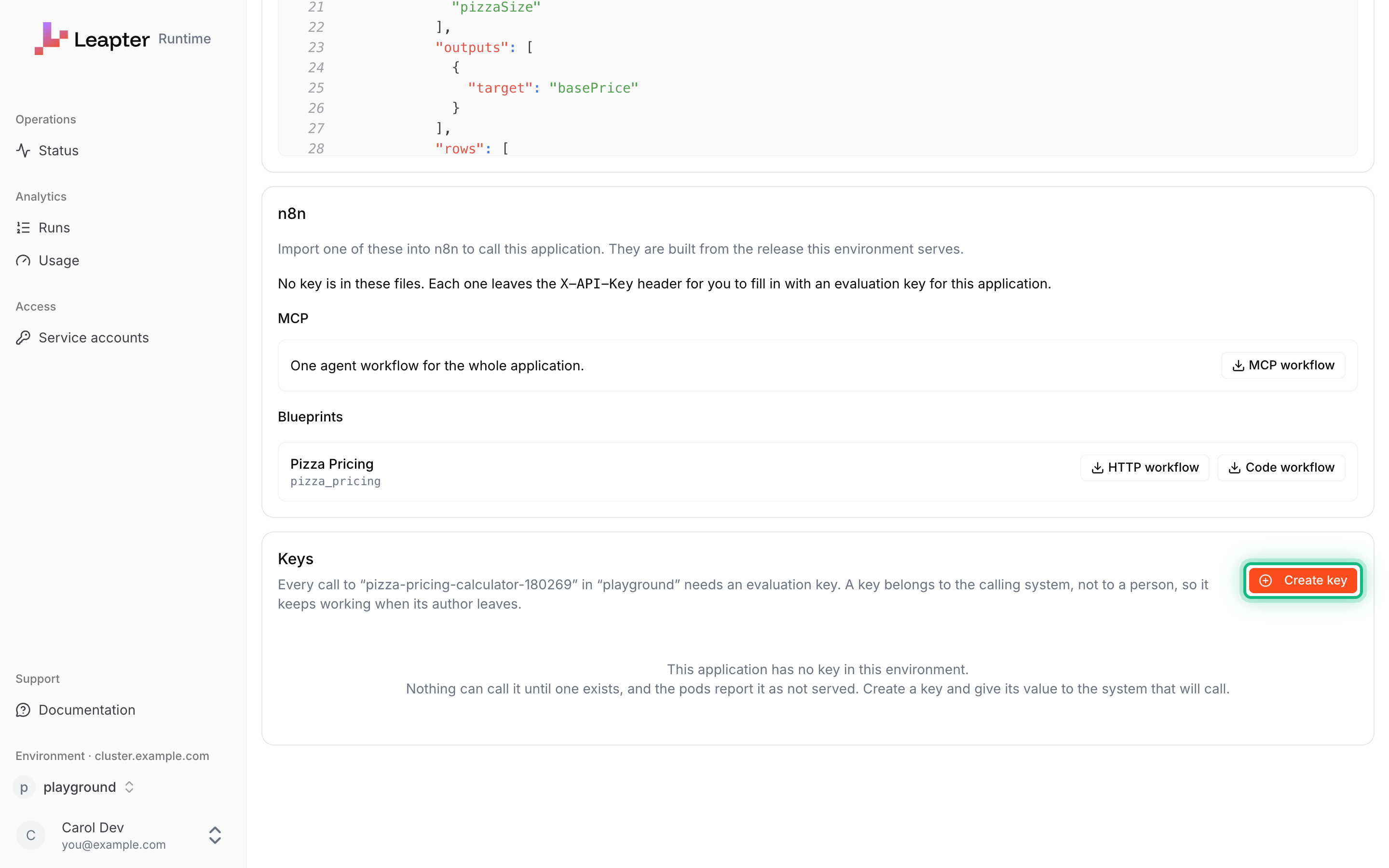
Scroll down to the Keys card and click Create key.
The Keys card with Create key.
3
Name the calling system
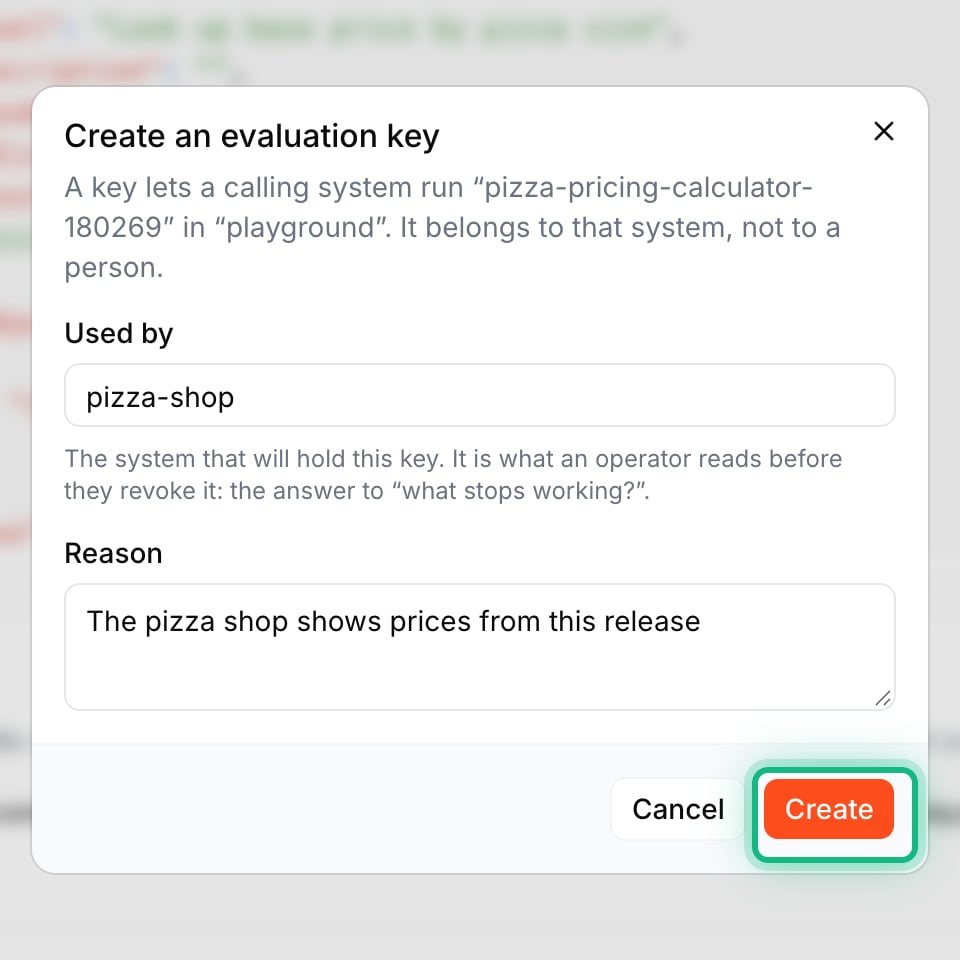
In Used by, type the system that will hold the key, for example pizza-shop. An operator reads this before they revoke a key, to know what stops working. In Reason, type why the system needs the key. Click Create.
The dialog Create an evaluation key.
4
Copy the key and give it to the system
In Copy this key now, the dialog says “Nothing has been copied yet. Done drops this value for good.” Click the copy button next to the key. Copied appears. Give the key to the calling system, for example as a secret in its configuration. Then click Done. The Admin UI never shows the key again.
The key is shown only once.
The new key is in the Keys table with the state Active. A new key needs up to about a minute before calls with it work. Until then, calls with it get 401 Unauthorized, and calls to an application that had no key before get 404 page not found.
On the application’s page, find the key in the Keys table. Used by tells you which system holds it.
2
Revoke it
Click the actions button (…) at the end of the key’s row and choose Revoke. In a narrow window, the table scrolls sideways: scroll it to the right to see the button. In Revoke this key, type why in Reason and click Revoke this key.
Revoking marks the key as revoked. Nothing is deleted.
3
Check the result
The dialog changes to The key is revoked and shows Revoked with the time, and By with your principal as leapter cluster whoami prints it, for example oidc:supabase:0a1b2c3d-4e5f-4a6b-8c7d-9e0f1a2b3c4d. Click Close. In the Keys table, the key’s state is Revoked.
To give the system access again, create a new key.
The calling system has a key of its own, and you can take it away without touching the keys of other systems. Within about a minute of a revocation, calls with the revoked key get the answer 401 Unauthorized:
{"type":"about:blank","title":"Unauthorized","status":401,"detail":"This request was refused. Present a valid evaluation key for this environment and application.","instance":"/runtime/api/v1/playground/pizza-pricing-calculator-180269/models/pizza_pricing/runs"}
After Sign in with Leapter, you are in the Lab and not in the Admin UI. Open the Admin UI’s address again and click Sign in with Leapter once more. You are signed in now, so the Status page opens.The Keys card shows no table, but a sentence that starts with “You need the binding:read right”. You may create and revoke keys, but not see the list. Ask an auditor or an admin of the environment to look up a key for you.The Keys card has no Create key button. You may see the keys, but not create or revoke them. The card says “You need the key:mint and key:revoke rights”. Ask an operator or an admin of the environment.
{"docsConfig":{"theme":"aspen","$schema":"https://mintlify.com/docs.json","name":"Leapter Documentation","colors":{"primary":"#FA4B00","light":"#FF7A45","dark":"#FA4B00"},"logo":{"light":"https://mintcdn.com/leapter/n-gCe0s55i-T1r4S/logo/leapter-logo-horizontal-dark.svg?fit=max\u0026auto=format\u0026n=n-gCe0s55i-T1r4S\u0026q=85\u0026s=aa6ff0318f24b8562163ccbe2c6d72f1","dark":"https://mintcdn.com/leapter/n-gCe0s55i-T1r4S/logo/leapter-logo-horizontal-white.svg?fit=max\u0026auto=format\u0026n=n-gCe0s55i-T1r4S\u0026q=85\u0026s=d7c1732991fb6a811bb7d3d49acf8b1e"},"favicon":"https://mintcdn.com/leapter/f4oBwv4ei0bdQSOY/favicon.png?fit=max\u0026auto=format\u0026n=f4oBwv4ei0bdQSOY\u0026q=85\u0026s=e95dc9c2b2dfd0712c9417ae054962df","navbar":{"links":[{"href":"mailto:support@leapter.com","label":"Support"}],"primary":{"type":"button","label":"Leapter","href":"https://lab.leapter.com"}},"footer":{"socials":{"youtube":"https://www.youtube.com/@Leapter-Corp","linkedin":"https://www.linkedin.com/company/leapter"},"links":[{"items":[{"label":"Privacy Policy","href":"https://www.leapter.com/privacy-policy"},{"label":"Cookies","href":"https://www.leapter.com/cookies"}]}]},"fonts":{"heading":{"family":"Funnel Display"},"body":{"family":"Inter"}},"integrations":{"gtm":{"tagId":"GTM-KR74BFGF"}},"banner":{"content":"🚀 **New:** Leapter now runs your releases on the Runtime Cluster. [See how to deploy »](/release-and-integrate/releases)","dismissible":true,"type":"info"},"contextual":{"options":["copy","chatgpt","claude","perplexity","mcp","cursor","vscode"],"display":"header"},"styling":{"latex":false},"navigation":{"global":{"anchors":[{"anchor":"Homepage","icon":"book-open-cover","href":"https://www.leapter.com"},{"anchor":"Blog","icon":"newspaper","href":"https://www.leapter.com/blog"}]},"pages":[]}},"deployment":{"deploymentMetadataValue":{"subdomain":"leapter","hasAudioNarration":false,"actualSubdomain":"leapter","customDomains":["docs.leapter.com"],"gitSource":{"type":"github","owner":"leapter","repo":"docs","deployBranch":"main","contentDirectory":"","isPrivate":true,"mountPath":"","label":""},"chroma":{"liveDeploymentHistoryId":"6aec4a5607f9eeebb2937b54","collectionId":"c9d78a34-eb4f-4f02-85c5-8f4541112b0e","schemaVersion":"v3","latestBuiltDeploymentHistoryId":"6aec4a5607f9eeebb2937b54"},"entitlements":{"AI_CHAT":{"status":"DISABLED"},"REMOVE_BRANDING":{"status":"DISABLED"},"CONTEXTUAL_FEEDBACK":{"status":"DISABLED"},"CODE_SNIPPET_FEEDBACK":{"status":"DISABLED"}},"buildId":"6aec5d07aceee0d6e0b03bfa","clientVersion":"0.0.4067","searchFilterCounts":[{"language":"default","tag":"Lab User Guide","count":36},{"language":"default","tag":"Create \u0026 Edit Blueprints","count":15},{"language":"default","tag":"Runtime Cluster User Guide","count":12},{"language":"default","tag":"The Blueprint Editor","count":6},{"language":"default","tag":"Blueprint Elements","count":5},{"language":"default","tag":"Get Started","count":5},{"language":"default","tag":"Release \u0026 Integrate","count":5},{"language":"default","tag":"Workspace \u0026 Collaboration","count":5},{"language":"default","tag":"n8n","count":4},{"language":"default","tag":"Test \u0026 Validate","count":4}]},"assistantConfig":{"enableStarterQuestions":false},"basePath":"","hasChatPermissions":false,"hasWebMcpPermissions":false,"toggles":[{"name":"kill-isr","enabled":true,"variant":{"name":"disabled","enabled":false,"feature_enabled":true},"impressionData":false},{"name":"agent-mintlify-slack","enabled":true,"variant":{"name":"disabled","enabled":false,"feature_enabled":true},"impressionData":false},{"name":"agent-integrations-settings","enabled":true,"variant":{"name":"disabled","enabled":false,"feature_enabled":true},"impressionData":false},{"name":"rbac-expansion","enabled":true,"variant":{"name":"disabled","enabled":false,"feature_enabled":true},"impressionData":false},{"name":"automations-pr-grouping","enabled":true,"variant":{"name":"disabled","enabled":false,"feature_enabled":true},"impressionData":false},{"name":"custom-prefix","enabled":true,"variant":{"name":"disabled","enabled":false,"feature_enabled":true},"impressionData":false},{"name":"analytics-v7","enabled":true,"variant":{"name":"disabled","enabled":false,"feature_enabled":true},"impressionData":false},{"name":"user-flows-analytics","enabled":true,"variant":{"name":"disabled","enabled":false,"feature_enabled":true},"impressionData":false},{"name":"no-publish-flow","enabled":true,"variant":{"name":"disabled","enabled":false,"feature_enabled":true},"impressionData":false},{"name":"workos-onboarding","enabled":true,"variant":{"name":"disabled","enabled":false,"feature_enabled":true},"impressionData":false},{"name":"llms-txt-v2","enabled":true,"variant":{"name":"disabled","enabled":false,"feature_enabled":true},"impressionData":false},{"name":"snapshot-serving-live","enabled":true,"variant":{"name":"disabled","enabled":false,"feature_enabled":true},"impressionData":false},{"name":"stripTemperatureMiddleware","enabled":true,"variant":{"name":"disabled","enabled":false,"feature_enabled":true},"impressionData":false},{"name":"support-platform-pylon-zendesk","enabled":true,"variant":{"name":"disabled","enabled":false,"feature_enabled":true},"impressionData":false},{"name":"snapshot-serving","enabled":true,"variant":{"name":"disabled","enabled":false,"feature_enabled":true},"impressionData":false},{"name":"instant-rollback","enabled":true,"variant":{"name":"disabled","enabled":false,"feature_enabled":true},"impressionData":false},{"name":"granular-notifications-server","enabled":true,"variant":{"name":"disabled","enabled":false,"feature_enabled":true},"impressionData":false},{"name":"granular-notifications","enabled":true,"variant":{"name":"disabled","enabled":false,"feature_enabled":true},"impressionData":false},{"name":"automations-fable","enabled":true,"variant":{"name":"disabled","enabled":false,"feature_enabled":true},"impressionData":false},{"name":"fixed-ai-action-pricing","enabled":true,"variant":{"name":"disabled","enabled":false,"feature_enabled":true},"impressionData":false},{"name":"automation-resolve-merge-conflict","enabled":true,"variant":{"name":"disabled","enabled":false,"feature_enabled":true},"impressionData":false},{"name":"scoped-publishing","enabled":true,"variant":{"name":"disabled","enabled":false,"feature_enabled":true},"impressionData":false},{"name":"mintql","enabled":true,"variant":{"name":"disabled","enabled":false,"feature_enabled":true},"impressionData":false},{"name":"page-level-analytics","enabled":true,"variant":{"name":"disabled","enabled":false,"feature_enabled":true},"impressionData":false},{"name":"editor-version-history-v2","enabled":true,"variant":{"name":"disabled","enabled":false,"feature_enabled":true},"impressionData":false},{"name":"billing-page-v2","enabled":true,"variant":{"name":"disabled","enabled":false,"feature_enabled":true},"impressionData":false},{"name":"full-page-search","enabled":true,"variant":{"name":"disabled","enabled":false,"feature_enabled":true},"impressionData":false},{"name":"workspace-projects","enabled":true,"variant":{"name":"disabled","enabled":false,"feature_enabled":true},"impressionData":false},{"name":"assistant-v5","enabled":true,"variant":{"name":"disabled","enabled":false,"feature_enabled":true},"impressionData":false},{"name":"fork-pr-previews","enabled":true,"variant":{"name":"disabled","enabled":false,"feature_enabled":true},"impressionData":false},{"name":"revalidation-jwt","enabled":true,"variant":{"name":"disabled","enabled":false,"feature_enabled":true},"impressionData":false},{"name":"vite-origin","enabled":true,"variant":{"name":"disabled","enabled":false,"feature_enabled":true},"impressionData":false},{"name":"workos-sso-scim","enabled":true,"variant":{"name":"disabled","enabled":false,"feature_enabled":true},"impressionData":false},{"name":"hobby-abuse-scan","enabled":true,"variant":{"name":"disabled","enabled":false,"feature_enabled":true},"impressionData":false},{"name":"dashboard-inbox","enabled":true,"variant":{"name":"disabled","enabled":false,"feature_enabled":true},"impressionData":false},{"name":"workos-signup","enabled":true,"variant":{"name":"disabled","enabled":false,"feature_enabled":true},"impressionData":false},{"name":"turbopuffer-dual-write","enabled":true,"variant":{"name":"disabled","enabled":false,"feature_enabled":true},"impressionData":false},{"name":"workos-enabled","enabled":true,"variant":{"name":"disabled","enabled":false,"feature_enabled":true},"impressionData":false},{"name":"approve-review-flow","enabled":true,"variant":{"name":"disabled","enabled":false,"feature_enabled":true},"impressionData":false},{"name":"sso-setup-deadline-banner","enabled":true,"variant":{"name":"disabled","enabled":false,"feature_enabled":true},"impressionData":false},{"name":"turbopuffer-serve","enabled":true,"variant":{"name":"disabled","enabled":false,"feature_enabled":true},"impressionData":false},{"name":"live-agents","enabled":true,"variant":{"name":"disabled","enabled":false,"feature_enabled":true},"impressionData":false}],"googleFontsInlined":true},"customCss":[{"filePath":"consent-overrides.css","content":":root{--cc-bg: #ffffff;--cc-text: #0f172a;--cc-btn-primary-bg: #6A6CF2;--cc-btn-primary-text: #ffffff;--cc-btn-primary-hover-bg: #5558d9;--cc-btn-secondary-bg: #f1f5f9;--cc-btn-secondary-text: #334155;--cc-btn-secondary-hover-bg: #e2e8f0;--cc-toggle-on-bg: #6A6CF2;--cc-toggle-off-bg: #cbd5e1;--cc-toggle-on-knob-bg: #ffffff;--cc-toggle-off-knob-bg: #ffffff;--cc-separator-border-color: #e2e8f0;--cc-cookie-category-block-bg: #f8fafc;--cc-cookie-category-block-bg-hover: #f1f5f9;--cc-overlay-bg: rgba(15, 23, 42, 0.5);--cc-webkit-scrollbar-bg: #f1f5f9;--cc-webkit-scrollbar-hover-bg: #cbd5e1}html.dark :root{--cc-bg: #1e293b;--cc-text: #f8fafc;--cc-btn-primary-bg: #6A6CF2;--cc-btn-primary-text: #ffffff;--cc-btn-primary-hover-bg: #5558d9;--cc-btn-secondary-bg: #334155;--cc-btn-secondary-text: #f1f5f9;--cc-btn-secondary-hover-bg: #475569;--cc-toggle-on-bg: #6A6CF2;--cc-toggle-off-bg: #475569;--cc-separator-border-color: #334155;--cc-cookie-category-block-bg: #0f172a;--cc-cookie-category-block-bg-hover: #1e293b;--cc-overlay-bg: rgba(0, 0, 0, 0.7);--cc-webkit-scrollbar-bg: #334155;--cc-webkit-scrollbar-hover-bg: #475569}#cc-main{font-family:inherit;z-index:2147483647;font-size:14px}#cc-main .cm{border-radius:12px;box-shadow:0 20px 25px -5px rgba(0, 0, 0, 0.1), 0 10px 10px -5px rgba(0, 0, 0, 0.04)}html.dark #cc-main .cm{box-shadow:0 20px 25px -5px rgba(0, 0, 0, 0.5), 0 10px 10px -5px rgba(0, 0, 0, 0.3)}#cc-main button{border-radius:6px;font-weight:500;transition:all 0.2s ease}#cc-main button:hover{transform:translateY(-1px)}#cc-main button:active{transform:translateY(0)}#cc-main a{color:#6A6CF2;text-decoration:underline;text-decoration-color:rgba(106, 108, 242, 0.3);transition:text-decoration-color 0.2s ease}#cc-main a:hover{text-decoration-color:rgba(106, 108, 242, 1)}html.dark #cc-main a{color:#8b8dff}#cc-main .section-toggle{transition:all 0.3s ease}#cc-main .cookie-category-block{border-radius:8px;border:1px solid var(--cc-separator-border-color);transition:background-color 0.2s ease}#cc-main button:focus,#cc-main .section-toggle:focus{outline:2px solid #6A6CF2;outline-offset:2px}#cc-main,#cc-main .cm,#cc-main button,#cc-main .cookie-category-block{transition:background-color 0.3s ease, color 0.3s ease, border-color 0.3s ease}@media (max-width: 640px){#cc-main .cm{border-radius:12px 12px 0 0;max-height:85vh}}@keyframes cc-fade-in{from{opacity:0;transform:translateY(20px)}to{opacity:1;transform:translateY(0)}}#cc-main .cm{animation:cc-fade-in 0.3s ease-out}"},{"filePath":"cookieconsent.css","content":"#cc-main{background:transparent;color:var(--cc-primary-color);font-family:var(--cc-font-family);font-size:16px;font-weight:400;-webkit-font-smoothing:antialiased;-moz-osx-font-smoothing:grayscale;line-height:1.15;position:relative;text-rendering:optimizeLegibility;-webkit-text-size-adjust:100%;position:fixed;z-index:var(--cc-z-index)}#cc-main :after,#cc-main :before,#cc-main a,#cc-main button,#cc-main div,#cc-main h2,#cc-main input,#cc-main p,#cc-main span{all:unset;box-sizing:border-box}#cc-main .pm__badge,#cc-main button{all:initial;box-sizing:border-box;color:unset;visibility:unset}#cc-main .pm__badge,#cc-main a,#cc-main button,#cc-main input{-webkit-appearance:none;appearance:none;cursor:pointer;font-family:inherit;font-size:100%;line-height:normal;margin:0;outline:revert;outline-offset:2px;overflow:hidden}#cc-main table,#cc-main tbody,#cc-main td,#cc-main th,#cc-main thead,#cc-main tr{all:revert;color:inherit;font-family:inherit;font-size:inherit;font-weight:inherit}:root{--cc-font-family:-apple-system,BlinkMacSystemFont,\"Segoe UI\",Roboto,Helvetica,Arial,sans-serif,\"Apple Color Emoji\",\"Segoe UI Emoji\",\"Segoe UI Symbol\";--cc-modal-border-radius:.5rem;--cc-btn-border-radius:.4rem;--cc-modal-transition-duration:.25s;--cc-link-color:var(--cc-btn-primary-bg);--cc-modal-margin:1rem;--cc-z-index:2147483647;--cc-bg:#fff;--cc-primary-color:#2c2f31;--cc-secondary-color:#5e6266;--cc-btn-primary-bg:#30363c;--cc-btn-primary-color:#fff;--cc-btn-primary-border-color:var(--cc-btn-primary-bg);--cc-btn-primary-hover-bg:#000;--cc-btn-primary-hover-color:#fff;--cc-btn-primary-hover-border-color:var(--cc-btn-primary-hover-bg);--cc-btn-secondary-bg:#eaeff2;--cc-btn-secondary-color:var(--cc-primary-color);--cc-btn-secondary-border-color:var(--cc-btn-secondary-bg);--cc-btn-secondary-hover-bg:#d4dae0;--cc-btn-secondary-hover-color:#000;--cc-btn-secondary-hover-border-color:#d4dae0;--cc-separator-border-color:#f0f4f7;--cc-toggle-on-bg:var(--cc-btn-primary-bg);--cc-toggle-off-bg:#667481;--cc-toggle-on-knob-bg:#fff;--cc-toggle-off-knob-bg:var(--cc-toggle-on-knob-bg);--cc-toggle-enabled-icon-color:var(--cc-bg);--cc-toggle-disabled-icon-color:var(--cc-bg);--cc-toggle-readonly-bg:#d5dee2;--cc-toggle-readonly-knob-bg:#fff;--cc-toggle-readonly-knob-icon-color:var(--cc-toggle-readonly-bg);--cc-section-category-border:var(--cc-cookie-category-block-bg);--cc-cookie-category-block-bg:#f0f4f7;--cc-cookie-category-block-border:#f0f4f7;--cc-cookie-category-block-hover-bg:#e9eff4;--cc-cookie-category-block-hover-border:#e9eff4;--cc-cookie-category-expanded-block-bg:transparent;--cc-cookie-category-expanded-block-hover-bg:#dee4e9;--cc-overlay-bg:rgba(0,0,0,.65);--cc-webkit-scrollbar-bg:var(--cc-section-category-border);--cc-webkit-scrollbar-hover-bg:var(--cc-btn-primary-hover-bg);--cc-footer-bg:var(--cc-btn-secondary-bg);--cc-footer-color:var(--cc-secondary-color);--cc-footer-border-color:#e4eaed;--cc-pm-toggle-border-radius:4em}#cc-main.cc--rtl{direction:rtl}#cc-main .cm__title,#cc-main a,#cc-main b,#cc-main em,#cc-main strong{font-weight:600}#cc-main button>span{pointer-events:none}#cc-main .cc__link,#cc-main a{background-image:linear-gradient(currentColor,currentColor);background-position:0 100%;background-repeat:no-repeat;background-size:0 1px;font-weight:600;position:relative;transition:background-size .25s,color .25s ease}#cc-main .cc__link:hover,#cc-main a:hover{background-size:100% 1px;color:var(--cc-primary-color)}#cc-main .cc__link{color:var(--cc-link-color)}#cc-main .cm__desc,#cc-main .pm__body{overscroll-behavior:auto contain;scrollbar-width:thin}@media screen and (min-width:640px){#cc-main ::-webkit-scrollbar,#cc-main ::-webkit-scrollbar-thumb,#cc-main ::-webkit-scrollbar-track{all:revert}#cc-main ::-webkit-scrollbar-thumb{-webkit-background-clip:padding-box;background-clip:padding-box;background:var(--cc-toggle-readonly-bg);border:.25rem solid var(--cc-bg);border-radius:1rem}#cc-main ::-webkit-scrollbar-thumb:hover{background:var(--cc-toggle-off-bg)}#cc-main ::-webkit-scrollbar{background:transparent;width:12px}}html.disable--interaction.show--consent,html.disable--interaction.show--consent body{height:auto!important;overflow:hidden!important}@media (prefers-reduced-motion){#cc-main{--cc-modal-transition-duration:0s}}.cc--darkmode{--cc-bg:#161a1c;--cc-primary-color:#ebf3f6;--cc-secondary-color:#aebbc5;--cc-btn-primary-bg:#c2d0e0;--cc-btn-primary-color:var(--cc-bg);--cc-btn-primary-border-color:var(--cc-btn-primary-bg);--cc-btn-primary-hover-bg:#98a7b6;--cc-btn-primary-hover-color:#000;--cc-btn-primary-hover-border-color:var(--cc-btn-primary-hover-bg);--cc-btn-secondary-bg:#242c31;--cc-btn-secondary-color:var(--cc-primary-color);--cc-btn-secondary-border-color:var(--cc-btn-secondary-bg);--cc-btn-secondary-hover-bg:#353d43;--cc-btn-secondary-hover-color:#fff;--cc-btn-secondary-hover-border-color:var(--cc-btn-secondary-hover-bg);--cc-separator-border-color:#222a30;--cc-toggle-on-bg:var(--cc-btn-primary-bg);--cc-toggle-off-bg:#525f6b;--cc-toggle-on-knob-bg:var(--cc-btn-primary-color);--cc-toggle-off-knob-bg:var(--cc-btn-primary-color);--cc-toggle-enabled-icon-color:var(--cc-btn-primary-color);--cc-toggle-disabled-icon-color:var(--cc-btn-primary-color);--cc-toggle-readonly-bg:#343e45;--cc-toggle-readonly-knob-bg:#5f6b72;--cc-toggle-readonly-knob-icon-color:var(--cc-toggle-readonly-bg);--cc-section-category-border:#1e2428;--cc-cookie-category-block-bg:#1e2428;--cc-cookie-category-block-border:var(--cc-section-category-border);--cc-cookie-category-block-hover-bg:#242c31;--cc-cookie-category-block-hover-border:#232a2f;--cc-cookie-category-expanded-block-bg:transparent;--cc-cookie-category-expanded-block-hover-bg:var(--cc-toggle-readonly-bg);--cc-overlay-bg:rgba(0,0,0,.65);--cc-webkit-scrollbar-bg:var(--cc-section-category-border);--cc-webkit-scrollbar-hover-bg:var(--cc-btn-primary-hover-bg);--cc-footer-bg:#0c0e0f;--cc-footer-color:var(--cc-secondary-color);--cc-footer-border-color:#060809}.cc--darkmode #cc-main{color-scheme:dark}#cc-main .cm{background:var(--cc-bg);border-radius:var(--cc-modal-border-radius);box-shadow:0 .625em 1.875em rgba(0,0,2,.3);display:flex;flex-direction:column;max-width:24rem;opacity:0;overflow:hidden;position:fixed;transform:translateY(1.6em);visibility:hidden;z-index:1}#cc-main .cm--top{top:var(--cc-modal-margin)}#cc-main .cm--middle{top:50%;transform:translateY(calc(-50% + 1.6em))}#cc-main .cm--bottom{bottom:var(--cc-modal-margin)}#cc-main .cm--center{left:var(--cc-modal-margin);margin:0 auto;right:var(--cc-modal-margin);width:unset}#cc-main .cm--left{left:var(--cc-modal-margin);margin-right:var(--cc-modal-margin)}#cc-main .cm--right{margin-left:var(--cc-modal-margin);right:var(--cc-modal-margin)}#cc-main .cm__body{display:flex;flex-direction:column;justify-content:space-between;position:relative}#cc-main .cm__btns,#cc-main .cm__links{padding:1rem 1.3rem;width:unset}#cc-main .cm__texts{display:flex;flex:1;flex-direction:column;justify-content:center;padding:1rem 0 0}#cc-main .cm__desc,#cc-main .cm__title{padding:0 1.3rem}#cc-main .cm__title{font-size:1.05em}#cc-main .cm__title+.cm__desc{margin-top:1.1em}#cc-main .cm__desc{color:var(--cc-secondary-color);font-size:.9em;line-height:1.5;max-height:40vh;overflow-x:visible;overflow-y:auto;padding-bottom:1em}#cc-main .cm__btns{border-top:1px solid var(--cc-separator-border-color);display:flex;flex-direction:column;justify-content:center}#cc-main .cm__btn-group{display:grid;grid-auto-columns:minmax(0,1fr)}#cc-main .cm__btn+.cm__btn,#cc-main .cm__btn-group+.cm__btn-group{margin-top:.375rem}#cc-main .cm--flip .cm__btn+.cm__btn,#cc-main .cm--flip .cm__btn-group+.cm__btn-group{margin-bottom:.375rem;margin-top:0}#cc-main .cm--inline .cm__btn+.cm__btn{margin-left:.375rem;margin-top:0}#cc-main .cm--inline.cm--flip .cm__btn+.cm__btn{margin-bottom:0;margin-left:0;margin-right:.375rem}#cc-main .cm--inline.cm--flip .cm__btn-group+.cm__btn-group{margin-bottom:.375rem;margin-right:0}#cc-main .cm--wide .cm__btn+.cm__btn,#cc-main .cm--wide .cm__btn-group+.cm__btn-group{margin-left:.375rem;margin-top:0}#cc-main .cm--wide.cm--flip .cm__btn+.cm__btn,#cc-main .cm--wide.cm--flip .cm__btn-group+.cm__btn-group{margin-bottom:0;margin-right:.375rem}#cc-main .cm--bar:not(.cm--inline) .cm__btn-group--uneven,#cc-main .cm--wide .cm__btn-group--uneven{display:flex;flex:1;justify-content:space-between}#cc-main .cm--bar:not(.cm--inline).cm--flip .cm__btn-group--uneven,#cc-main .cm--wide.cm--flip .cm__btn-group--uneven{flex-direction:row-reverse}#cc-main .cm__btn{background:var(--cc-btn-primary-bg);border:1px solid var(--cc-btn-primary-border-color);border-radius:var(--cc-btn-border-radius);color:var(--cc-btn-primary-color);font-size:.82em;font-weight:600;min-height:42px;padding:.5em 1em;text-align:center}#cc-main .cm__btn:hover{background:var(--cc-btn-primary-hover-bg);border-color:var(--cc-btn-primary-hover-border-color);color:var(--cc-btn-primary-hover-color)}#cc-main .cm__btn--secondary{background:var(--cc-btn-secondary-bg);border-color:var(--cc-btn-secondary-border-color);color:var(--cc-btn-secondary-color)}#cc-main .cm__btn--secondary:hover{background:var(--cc-btn-secondary-hover-bg);border-color:var(--cc-btn-secondary-hover-border-color);color:var(--cc-btn-secondary-hover-color)}#cc-main .cm__btn--close{border-radius:0;border-bottom-left-radius:var(--cc-btn-border-radius);border-right:none;border-top:none;display:none;font-size:1em;height:42px;min-width:auto!important;overflow:hidden;padding:0!important;position:absolute;right:0;top:0;width:42px}#cc-main .cm__btn--close svg{stroke:var(--cc-btn-primary-color);transform:scale(.5);transition:stroke .15s ease}#cc-main .cm__btn--close:hover svg{stroke:var(--cc-btn-primary-hover-color)}#cc-main .cm__btn--close.cm__btn--secondary svg{stroke:var(--cc-btn-secondary-color)}#cc-main .cm__btn--close.cm__btn--secondary:hover svg{stroke:var(--cc-btn-secondary-hover-color)}#cc-main .cm__btn--close+.cm__texts .cm__title{padding-right:3rem}#cc-main .cm--inline .cm__btn-group{grid-auto-flow:column}#cc-main .cm__footer{background:var(--cc-footer-bg);border-top:1px solid var(--cc-footer-border-color);color:var(--cc-footer-color);padding:.4em 0 .5em}#cc-main .cm__links{display:flex;flex-direction:row;padding-bottom:0;padding-top:0}#cc-main .cm__link-group{display:flex;flex-direction:row;font-size:.8em;width:100%}#cc-main .cm__link-group>*+*{margin-left:1.3rem}#cc-main .cm--flip .cm__btn:last-child{grid-row:1}#cc-main .cm--inline.cm--flip .cm__btn:last-child{grid-column:1}#cc-main .cm--box .cm__btn--close{display:block}#cc-main .cm--box.cm--flip .cm__btns{flex-direction:column-reverse}#cc-main .cm--box.cm--wide{max-width:36em}#cc-main .cm--box.cm--wide .cm__btns{flex-direction:row;justify-content:space-between}#cc-main .cm--box.cm--wide .cm__btn-group{grid-auto-flow:column}#cc-main .cm--box.cm--wide .cm__btn{min-width:120px;padding-left:1.8em;padding-right:1.8em}#cc-main .cm--box.cm--wide.cm--flip .cm__btns{flex-direction:row-reverse}#cc-main .cm--box.cm--wide.cm--flip .cm__btn:last-child{grid-column:1}#cc-main .cm--cloud{max-width:54em;width:unset}#cc-main .cm--cloud .cm__body{flex-direction:row}#cc-main .cm--cloud .cm__texts{flex:1}#cc-main .cm--cloud .cm__desc{max-height:9.4em}#cc-main .cm--cloud .cm__btns{border-left:1px solid var(--cc-separator-border-color);border-top:none;max-width:23em}#cc-main .cm--cloud .cm__btn-group{flex-direction:column}#cc-main .cm--cloud .cm__btn{min-width:19em}#cc-main .cm--cloud.cm--flip .cm__btn-group,#cc-main .cm--cloud.cm--flip .cm__btns{flex-direction:column-reverse}#cc-main .cm--cloud.cm--inline .cm__btn-group{flex-direction:row}#cc-main .cm--cloud.cm--inline .cm__btn{min-width:10em}#cc-main .cm--cloud.cm--inline.cm--flip .cm__btn-group{flex-direction:row-reverse}#cc-main .cm--bar{border-radius:0;left:0;margin:0;max-width:unset;opacity:1;right:0;transform:translateY(0);width:100vw;--cc-modal-transition-duration:.35s}#cc-main .cm--bar.cm--top{top:0;transform:translateY(-100%)}#cc-main .cm--bar.cm--bottom{bottom:0;transform:translateY(100%)}#cc-main .cm--bar .cm__body,#cc-main .cm--bar .cm__links{margin:0 auto;max-width:55em;width:100%}#cc-main .cm--bar .cm__body{padding:.5em 0 .9em}#cc-main .cm--bar .cm__btns{border-top:none;flex-direction:row;justify-content:space-between}#cc-main .cm--bar .cm__btn-group{grid-auto-flow:column}#cc-main .cm--bar:not(.cm--inline) .cm__btn+.cm__btn,#cc-main .cm--bar:not(.cm--inline) .cm__btn-group+.cm__btn-group{margin-left:.375rem;margin-top:0}#cc-main .cm--bar .cm__btn{min-width:120px;padding-left:2em;padding-right:2em}#cc-main .cm--bar.cm--flip:not(.cm--inline) .cm__btn+.cm__btn,#cc-main .cm--bar.cm--flip:not(.cm--inline) .cm__btn-group+.cm__btn-group{margin-bottom:0;margin-left:0;margin-right:.375rem}#cc-main .cm--bar.cm--flip .cm__btns{flex-direction:row-reverse}#cc-main .cm--bar.cm--flip .cm__btn:last-child{grid-column:1}#cc-main .cm--bar.cm--inline .cm__body,#cc-main .cm--bar.cm--inline .cm__links{max-width:74em}#cc-main .cm--bar.cm--inline .cm__body{flex-direction:row;padding:0}#cc-main .cm--bar.cm--inline .cm__btns{flex-direction:column;justify-content:center;max-width:23em}#cc-main .cm--bar.cm--inline.cm--flip .cm__btns{flex-direction:column-reverse}#cc-main .cc--anim .cm,#cc-main .cc--anim.cm-wrapper:before{transition:opacity var(--cc-modal-transition-duration) ease,visibility var(--cc-modal-transition-duration) ease,transform var(--cc-modal-transition-duration) ease}#cc-main .cc--anim .cm__btn,#cc-main .cc--anim .cm__close{transition:background-color .15s ease,border-color .15s ease,color .15s ease}.disable--interaction #cc-main .cm-wrapper:before{background:var(--cc-overlay-bg);bottom:0;content:\"\";left:0;opacity:0;position:fixed;right:0;top:0;visibility:hidden;z-index:0}.show--consent #cc-main .cc--anim .cm{opacity:1;transform:translateY(0);visibility:visible!important}.show--consent #cc-main .cc--anim .cm--middle{transform:translateY(-50%)}.show--consent #cc-main .cc--anim .cm--bar{transform:translateY(0)}.show--consent #cc-main .cc--anim.cm-wrapper:before{opacity:1;visibility:visible}#cc-main.cc--rtl .cm__btn--close{border-bottom-left-radius:unset;border-bottom-right-radius:var(--cc-btn-border-radius);left:0;right:unset}#cc-main.cc--rtl .cm__btn--close+.cm__texts .cm__title{padding-left:3rem!important;padding-right:1.3rem}#cc-main.cc--rtl .cm--inline .cm__btn+.cm__btn{margin-left:0;margin-right:.375rem}#cc-main.cc--rtl .cm--inline.cm--flip .cm__btn+.cm__btn{margin-left:.375rem;margin-right:0}#cc-main.cc--rtl .cm:not(.cm--inline).cm--bar .cm__btn+.cm__btn,#cc-main.cc--rtl .cm:not(.cm--inline).cm--bar .cm__btn-group+.cm__btn-group,#cc-main.cc--rtl .cm:not(.cm--inline).cm--wide .cm__btn+.cm__btn,#cc-main.cc--rtl .cm:not(.cm--inline).cm--wide .cm__btn-group+.cm__btn-group{margin-left:0;margin-right:.375rem}#cc-main.cc--rtl .cm:not(.cm--inline).cm--bar.cm--flip .cm__btn+.cm__btn,#cc-main.cc--rtl .cm:not(.cm--inline).cm--wide.cm--flip .cm__btn+.cm__btn{margin-left:.375rem;margin-right:0}#cc-main.cc--rtl .cm__link-group>*+*{margin-left:0;margin-right:1.3rem}@media screen and (max-width:640px){#cc-main{--cc-modal-margin:.5em}#cc-main .cm{max-width:none!important;width:auto!important}#cc-main .cm__body{flex-direction:column!important;padding:0!important}#cc-main .cm__btns,#cc-main .cm__desc,#cc-main .cm__links,#cc-main .cm__title{padding-left:1.1rem!important;padding-right:1.1rem!important}#cc-main .cm__btns{border-left:none!important;border-top:1px solid var(--cc-separator-border-color)!important;flex-direction:column!important;max-width:none!important;min-width:auto!important}#cc-main .cm__btn+.cm__btn,#cc-main .cm__btn-group+.cm__btn-group{margin:.375rem 0 0!important}#cc-main .cm--flip .cm__btn+.cm__btn,#cc-main .cm--flip .cm__btn-group+.cm__btn-group{margin-bottom:.375rem!important;margin-top:0!important}#cc-main .cm__btn-group{display:flex!important;flex-direction:column!important;min-width:auto!important}#cc-main .cm__btn{flex:auto!important}#cc-main .cm__link-group{justify-content:center!important}#cc-main .cm--flip .cm__btn-group,#cc-main .cm--flip .cm__btns{flex-direction:column-reverse!important}}#cc-main .pm-wrapper{position:relative;z-index:2}#cc-main .pm{background:var(--cc-bg);border-radius:var(--cc-modal-border-radius);box-shadow:0 .625em 1.875em rgba(0,0,2,.3);display:flex;flex-direction:column;opacity:0;overflow:hidden;position:fixed;visibility:hidden;width:100%;width:unset;z-index:1}#cc-main svg{fill:none;width:100%}#cc-main .pm__body,#cc-main .pm__footer,#cc-main .pm__header{padding:1em 1.4em}#cc-main .pm__header{align-items:center;border-bottom:1px solid var(--cc-separator-border-color);display:flex;justify-content:space-between}#cc-main .pm__title{align-items:center;display:flex;flex:1;font-weight:600;margin-right:2em}#cc-main .pm__close-btn{background:var(--cc-btn-secondary-bg);border:1px solid var(--cc-btn-secondary-border-color);border-radius:var(--cc-btn-border-radius);height:40px;position:relative;transition:all .15s ease;width:40px}#cc-main .pm__close-btn span{display:flex;height:100%;width:100%}#cc-main .pm__close-btn svg{stroke:var(--cc-btn-secondary-color);transform:scale(.5);transition:stroke .15s ease}#cc-main .pm__close-btn:hover{background:var(--cc-btn-secondary-hover-bg);border-color:var(--cc-btn-secondary-hover-border-color)}#cc-main .pm__close-btn:hover svg{stroke:var(--cc-btn-secondary-hover-color)}#cc-main .pm__body{flex:1;overflow-y:auto;overflow-y:overlay}#cc-main .pm__section,#cc-main .pm__section--toggle{border-radius:var(--cc-btn-border-radius);display:flex;flex-direction:column;margin-bottom:.5em}#cc-main .pm__section--toggle .pm__section-desc-wrapper{border:1px solid var(--cc-cookie-category-block-border);border-radius:var(--cc-btn-border-radius);border-top:none;border-top-left-radius:0;border-top-right-radius:0;display:none;margin-top:0!important;overflow:hidden}#cc-main .pm__section{border:1px solid var(--cc-separator-border-color);padding:1em;transition:background-color .25s ease,border-color .25s ease}#cc-main .pm__section:first-child{border:none;margin-bottom:2em;margin-top:0;padding:0;transition:none}#cc-main .pm__section:not(:first-child):hover{background:var(--cc-cookie-category-block-bg);border-color:var(--cc-cookie-category-block-border)}#cc-main .pm__section-toggles+.pm__section{margin-top:2em}#cc-main .pm__section--toggle{background:var(--cc-cookie-category-block-bg);border-top:none;margin-bottom:.375rem}#cc-main .pm__section--toggle .pm__section-title{align-items:center;background:var(--cc-cookie-category-block-bg);border:1px solid var(--cc-cookie-category-block-border);display:flex;justify-content:space-between;min-height:58px;padding:1.1em 5.4em 1.1em 1.2em;position:relative;transition:background-color .25s ease,border-color .25s ease;width:100%}#cc-main .pm__section--toggle .pm__section-title:hover{background:var(--cc-cookie-category-block-hover-bg);border-color:var(--cc-cookie-category-block-hover-border)}#cc-main .pm__section--toggle .pm__section-desc{margin-top:0;padding:1em}#cc-main .pm__section--toggle.is-expanded{--cc-cookie-category-block-bg:var(--cc-cookie-category-expanded-block-bg);--cc-cookie-category-block-border:var(--cc-cookie-category-expanded-block-hover-bg)}#cc-main .pm__section--toggle.is-expanded .pm__section-title{border-bottom-left-radius:0;border-bottom-right-radius:0}#cc-main .pm__section--toggle.is-expanded .pm__section-arrow svg{transform:scale(.5) rotate(180deg)}#cc-main .pm__section--toggle.is-expanded .pm__section-desc-wrapper{display:flex}#cc-main .pm__section--expandable .pm__section-title{cursor:pointer;padding-left:3.4em}#cc-main .pm__section--expandable .pm__section-arrow{background:var(--cc-toggle-readonly-bg);border-radius:100%;display:flex;height:20px;justify-content:center;left:18px;pointer-events:none;position:absolute;width:20px}#cc-main .pm__section--expandable .pm__section-arrow svg{stroke:var(--cc-btn-secondary-color);transform:scale(.5)}#cc-main .pm__section-title-wrapper{align-items:center;display:flex;position:relative}#cc-main .pm__section-title-wrapper+.pm__section-desc-wrapper{margin-top:.85em}#cc-main .pm__section-title{border-radius:var(--cc-btn-border-radius);font-size:.95em;font-weight:600}#cc-main .pm__badge{align-items:center;background:var(--cc-btn-secondary-bg);border-radius:5em;color:var(--cc-secondary-color);display:flex;flex:none;font-size:.8em;font-weight:600;height:23px;justify-content:center;margin-left:1em;min-width:23px;overflow:hidden;padding:0 .6em 1px;position:relative;text-align:center;white-space:nowrap;width:auto}#cc-main .pm__service-counter{background:var(--cc-btn-primary-bg);color:var(--cc-btn-primary-color);padding:0;width:23px}#cc-main .pm__service-counter[data-counterlabel]{padding:0 .6em 1px;width:auto}#cc-main .section__toggle,#cc-main .section__toggle-wrapper,#cc-main .toggle__icon,#cc-main .toggle__label{border-radius:var(--cc-pm-toggle-border-radius);height:23px;transform:translateZ(0);width:50px}#cc-main .section__toggle-wrapper{cursor:pointer;position:absolute;right:18px;z-index:1}#cc-main .toggle-service{height:19px;position:relative;right:0;width:42px}#cc-main .toggle-service .section__toggle,#cc-main .toggle-service .toggle__icon,#cc-main .toggle-service .toggle__label{height:19px;width:42px}#cc-main .toggle-service .toggle__icon{position:relative}#cc-main .toggle-service .toggle__icon-circle{height:19px;width:19px}#cc-main .toggle-service .section__toggle:checked~.toggle__icon .toggle__icon-circle{transform:translateX(23px)}#cc-main .pm__section--toggle:nth-child(2) .section__toggle-wrapper:after{display:none!important}#cc-main .section__toggle{border:0;cursor:pointer;display:block;left:0;margin:0;position:absolute;top:0}#cc-main .section__toggle:disabled{cursor:not-allowed}#cc-main .toggle__icon{background:var(--cc-toggle-off-bg);box-shadow:0 0 0 1px var(--cc-toggle-off-bg);display:flex;flex-direction:row;pointer-events:none;position:absolute;transition:all .25s ease}#cc-main .toggle__icon-circle{background:var(--cc-toggle-off-knob-bg);border:none;border-radius:var(--cc-pm-toggle-border-radius);box-shadow:0 1px 2px rgba(24,32,3,.36);display:block;height:23px;left:0;position:absolute;top:0;transition:transform .25s ease,background-color .25s ease;width:23px}#cc-main .toggle__icon-off,#cc-main .toggle__icon-on{height:100%;position:absolute;transition:opacity .15s ease;width:100%}#cc-main .toggle__icon-on{opacity:0;transform:rotate(45deg)}#cc-main .toggle__icon-on svg{stroke:var(--cc-toggle-on-bg);transform:scale(.55) rotate(-45deg)}#cc-main .toggle__icon-off{opacity:1}#cc-main .toggle__icon-off svg{stroke:var(--cc-toggle-off-bg);transform:scale(.55)}#cc-main .section__toggle:checked~.toggle__icon{background:var(--cc-toggle-on-bg);box-shadow:0 0 0 1px var(--cc-toggle-on-bg)}#cc-main .section__toggle:checked~.toggle__icon .toggle__icon-circle{background-color:var(--cc-toggle-on-knob-bg);transform:translateX(27px)}#cc-main .section__toggle:checked~.toggle__icon .toggle__icon-on{opacity:1}#cc-main .section__toggle:checked~.toggle__icon .toggle__icon-off{opacity:0}#cc-main .section__toggle:checked:disabled~.toggle__icon{background:var(--cc-toggle-readonly-bg);box-shadow:0 0 0 1px var(--cc-toggle-readonly-bg)}#cc-main .section__toggle:checked:disabled~.toggle__icon .toggle__icon-circle{background:var(--cc-toggle-readonly-knob-bg);box-shadow:none}#cc-main .section__toggle:checked:disabled~.toggle__icon svg{stroke:var(--cc-toggle-readonly-knob-icon-color)}#cc-main .toggle__label{opacity:0;overflow:hidden;pointer-events:none;position:absolute;top:0;z-index:-1}#cc-main .pm__section-desc-wrapper{color:var(--cc-secondary-color);display:flex;flex-direction:column;font-size:.9em}#cc-main .pm__section-desc-wrapper>:not(:last-child){border-bottom:1px solid var(--cc-cookie-category-block-border)}#cc-main .pm__section-services{display:flex;flex-direction:column}#cc-main .pm__service{align-items:center;display:flex;justify-content:space-between;padding:.4em 1.2em;position:relative;transition:background-color .15s ease}#cc-main .pm__service:hover{background-color:var(--cc-cookie-category-block-hover-bg)}#cc-main .pm__service-header{align-items:center;display:flex;margin-right:1em;width:100%}#cc-main .pm__service-icon{border:2px solid;border-radius:100%;height:8px;margin-left:6px;margin-right:20px;margin-top:1px;min-width:8px}#cc-main .pm__service-title{font-size:.95em;width:100%;word-break:break-word}#cc-main .pm__section-desc{line-height:1.5em}#cc-main .pm__section-table{border-collapse:collapse;font-size:.9em;margin:0;overflow:hidden;padding:0;text-align:left;width:100%}#cc-main .pm__table-caption{text-align:left}#cc-main .pm__table-caption,#cc-main .pm__table-head>tr{border-bottom:1px dashed var(--cc-separator-border-color);color:var(--cc-primary-color);font-weight:600}#cc-main .pm__table-tr{transition:background-color .15s ease}#cc-main .pm__table-tr:hover{background:var(--cc-cookie-category-block-hover-bg)}#cc-main .pm__table-caption,#cc-main .pm__table-td,#cc-main .pm__table-th{padding:.625em .625em .625em 1.2em;vertical-align:top}#cc-main .pm__footer{border-top:1px solid var(--cc-separator-border-color);display:flex;justify-content:space-between}#cc-main .pm__btn-group{display:flex}#cc-main .pm__btn+.pm__btn,#cc-main .pm__btn-group+.pm__btn-group{margin-left:.375rem}#cc-main .pm--flip .pm__btn+.pm__btn,#cc-main .pm--flip .pm__btn-group+.pm__btn-group{margin-left:0;margin-right:.375rem}#cc-main .pm__btn{background:var(--cc-btn-primary-bg);border:1px solid var(--cc-btn-primary-border-color);border-radius:var(--cc-btn-border-radius);color:var(--cc-btn-primary-color);flex:auto;font-size:.82em;font-weight:600;min-height:42px;min-width:110px;padding:.5em 1.5em;text-align:center;transition:background-color .15s ease,border-color .15s ease,color .15s ease}#cc-main .pm__btn:hover{background:var(--cc-btn-primary-hover-bg);border-color:var(--cc-btn-primary-hover-border-color);color:var(--cc-btn-primary-hover-color)}#cc-main .pm__btn--secondary{background:var(--cc-btn-secondary-bg);border-color:var(--cc-btn-secondary-border-color);color:var(--cc-btn-secondary-color)}#cc-main .pm__btn--secondary:hover{background:var(--cc-btn-secondary-hover-bg);border-color:var(--cc-btn-secondary-hover-border-color);color:var(--cc-btn-secondary-hover-color)}#cc-main .pm--box{height:calc(100% - 2em);left:var(--cc-modal-margin);margin:0 auto;max-height:37.5em;max-width:43em;right:var(--cc-modal-margin);top:50%;transform:translateY(calc(-50% + 1.6em))}#cc-main .pm--box.pm--flip .pm__btn-group,#cc-main .pm--box.pm--flip .pm__footer{flex-direction:row-reverse}#cc-main .pm--bar{border-radius:0;bottom:0;height:100%;margin:0;max-height:none;max-width:29em;opacity:1;top:0;width:100%;--cc-modal-transition-duration:.35s}#cc-main .pm--bar .pm__section-table,#cc-main .pm--bar .pm__table-body,#cc-main .pm--bar .pm__table-td,#cc-main .pm--bar .pm__table-th,#cc-main .pm--bar .pm__table-tr{display:block}#cc-main .pm--bar .pm__table-head{display:none}#cc-main .pm--bar .pm__table-caption{display:block}#cc-main .pm--bar .pm__table-tr:not(:last-child){border-bottom:1px solid var(--cc-separator-border-color)}#cc-main .pm--bar .pm__table-td{display:flex;justify-content:space-between}#cc-main .pm--bar .pm__table-td:before{color:var(--cc-primary-color);content:attr(data-column);flex:1;font-weight:600;min-width:100px;overflow:hidden;padding-right:2em;text-overflow:ellipsis}#cc-main .pm--bar .pm__table-td>div{flex:3}#cc-main .pm--bar:not(.pm--wide) .pm__body,#cc-main .pm--bar:not(.pm--wide) .pm__footer,#cc-main .pm--bar:not(.pm--wide) .pm__header{padding:1em 1.3em}#cc-main .pm--bar:not(.pm--wide) .pm__btn-group,#cc-main .pm--bar:not(.pm--wide) .pm__footer{flex-direction:column}#cc-main .pm--bar:not(.pm--wide) .pm__btn+.pm__btn,#cc-main .pm--bar:not(.pm--wide) .pm__btn-group+.pm__btn-group{margin:.375rem 0 0}#cc-main .pm--bar:not(.pm--wide).pm--flip .pm__btn-group,#cc-main .pm--bar:not(.pm--wide).pm--flip .pm__footer{flex-direction:column-reverse}#cc-main .pm--bar:not(.pm--wide).pm--flip .pm__btn+.pm__btn,#cc-main .pm--bar:not(.pm--wide).pm--flip .pm__btn-group+.pm__btn-group{margin-bottom:.375rem;margin-top:0}#cc-main .pm--bar:not(.pm--wide) .pm__badge{display:none}#cc-main .pm--bar.pm--left{left:0;transform:translateX(-100%)}#cc-main .pm--bar.pm--right{right:0;transform:translateX(100%)}#cc-main .pm--bar.pm--wide{max-width:35em}#cc-main .pm--bar.pm--wide .pm__body,#cc-main .pm--bar.pm--wide .pm__footer,#cc-main .pm--bar.pm--wide .pm__header{padding:1em 1.4em}#cc-main .pm--bar.pm--wide.pm--flip .pm__btn-group,#cc-main .pm--bar.pm--wide.pm--flip .pm__footer{flex-direction:row-reverse}#cc-main .pm-overlay{background:var(--cc-overlay-bg);bottom:0;content:\"\";left:0;opacity:0;position:fixed;right:0;top:0;visibility:hidden;z-index:1}#cc-main .cc--anim .pm,#cc-main .cc--anim .pm-overlay{transition:opacity var(--cc-modal-transition-duration) ease,visibility var(--cc-modal-transition-duration) ease,transform var(--cc-modal-transition-duration) ease}.show--preferences #cc-main .cc--anim .pm{opacity:1;visibility:visible!important}.show--preferences #cc-main .cc--anim .pm--box{transform:translateY(-50%)}.show--preferences #cc-main .cc--anim .pm--bar{transform:translateX(0)}.show--preferences #cc-main .cc--anim .pm-overlay{opacity:1;visibility:visible}#cc-main.cc--rtl .pm__service-header{margin-left:1em;margin-right:0}#cc-main.cc--rtl .pm__section-arrow{left:unset;right:18px}#cc-main.cc--rtl .section__toggle-wrapper{left:18px;right:unset;transform-origin:left}#cc-main.cc--rtl .toggle-service{left:0}#cc-main.cc--rtl .pm__service-icon{margin-left:20px;margin-right:5px}#cc-main.cc--rtl .pm__section--toggle .pm__section-title{padding-left:5.4em;padding-right:1.2em}#cc-main.cc--rtl .pm__section--expandable .pm__section-title{padding-right:3.4em}#cc-main.cc--rtl .pm__badge{margin-left:unset;margin-right:1em}#cc-main.cc--rtl .toggle__icon-circle{transform:translateX(27px)}#cc-main.cc--rtl .toggle-service .toggle__icon-circle{transform:translateX(23px)}#cc-main.cc--rtl .section__toggle:checked~.toggle__icon .toggle__icon-circle{transform:translateX(0)}#cc-main.cc--rtl .pm__table-td,#cc-main.cc--rtl .pm__table-th{padding-left:unset;padding-right:1.2em;text-align:right}#cc-main.cc--rtl .pm__table-td{padding-left:unset;padding-right:1.2em}#cc-main.cc--rtl .pm__table-td:before{padding-left:2em;padding-right:unset}#cc-main.cc--rtl .pm__btn+.pm__btn,#cc-main.cc--rtl .pm__btn-group+.pm__btn-group{margin-left:0;margin-right:.375rem}#cc-main.cc--rtl .pm--flip .pm__btn+.pm__btn,#cc-main.cc--rtl .pm--flip .pm__btn-group+.pm__btn-group{margin-left:.375rem;margin-right:0}#cc-main.cc--rtl .pm--flip.pm--bar:not(.pm--wide) .pm__btn+.pm__btn,#cc-main.cc--rtl .pm--flip.pm--bar:not(.pm--wide) .pm__btn-group+.pm__btn-group{margin-left:0}@media screen and (max-width:640px){#cc-main .pm{border-radius:0;bottom:0;height:auto;left:0;max-height:100%;max-width:none!important;right:0;top:0;transform:translateY(1.6em)}#cc-main .pm__body,#cc-main .pm__footer,#cc-main .pm__header{padding:.9em!important}#cc-main .pm__badge{display:none}#cc-main .pm__section-table,#cc-main .pm__table-body,#cc-main .pm__table-caption,#cc-main .pm__table-td,#cc-main .pm__table-th,#cc-main .pm__table-tr{display:block}#cc-main .pm__table-head{display:none}#cc-main .pm__table-tr:not(:last-child){border-bottom:1px solid var(--cc-separator-border-color)}#cc-main .pm__table-td{display:flex;justify-content:space-between}#cc-main .pm__table-td:before{color:var(--cc-primary-color);content:attr(data-column);flex:1;font-weight:600;min-width:100px;overflow:hidden;padding-right:2em;text-overflow:ellipsis}#cc-main .pm__table-td>div{flex:3}#cc-main .pm__btn-group,#cc-main .pm__footer{flex-direction:column!important}#cc-main .pm__btn-group{display:flex!important}#cc-main .pm__btn+.pm__btn,#cc-main .pm__btn-group+.pm__btn-group{margin:.375rem 0 0!important}#cc-main .pm--flip .pm__btn+.pm__btn,#cc-main .pm--flip .pm__btn-group+.pm__btn-group{margin-bottom:.375rem!important;margin-top:0!important}#cc-main .pm--flip .pm__btn-group,#cc-main .pm--flip .pm__footer{flex-direction:column-reverse!important}.show--preferences #cc-main .cc--anim .pm{transform:translateY(0)!important}}"}],"page":{"pagePath":"rc/user-guide/evaluation-keys","slug":"/rc/user-guide/evaluation-keys","pageMetadata":{"title":"Create and revoke an evaluation key","description":"Give a calling system its own key for one application, and revoke the key when the system no longer calls.","href":"/rc/user-guide/evaluation-keys"},"description":{"compiledSource":"\"use strict\";\nconst {jsx: _jsx} = arguments[0];\nconst {useMDXComponents: _provideComponents} = arguments[0];\nfunction _createMdxContent(props) {\n const _components = {\n p: \"p\",\n ..._provideComponents(),\n ...props.components\n };\n return _jsx(_components.p, {\n children: \"Give a calling system its own key for one application, and revoke the key when the system no longer calls.\"\n });\n}\nfunction MDXContent(props = {}) {\n const {wrapper: MDXLayout} = {\n ..._provideComponents(),\n ...props.components\n };\n return MDXLayout ? _jsx(MDXLayout, {\n ...props,\n children: _jsx(_createMdxContent, {\n ...props\n })\n }) : _createMdxContent(props);\n}\nreturn {\n default: MDXContent\n};\n","frontmatter":{},"scope":{}},"pageType":"default","mdx":{"mdxSource":{"compiledSource":"\"use strict\";const{Fragment:_Fragment,jsx:_jsx,jsxs:_jsxs}=arguments[0];const{useMDXComponents:_provideComponents}=arguments[0];function _createMdxContent(props){const _components={a:`a`,code:`code`,li:`li`,p:`p`,pre:`pre`,span:`span`,strong:`strong`,ul:`ul`,..._provideComponents(),...props.components},{CodeBlock,Frame,Heading,OptimizedImage,Step,Steps}=_components;if(!CodeBlock)_missingMdxReference(`CodeBlock`,true);if(!Frame)_missingMdxReference(`Frame`,true);if(!Heading)_missingMdxReference(`Heading`,true);if(!OptimizedImage)_missingMdxReference(`OptimizedImage`,true);if(!Step)_missingMdxReference(`Step`,true);if(!Steps)_missingMdxReference(`Steps`,true);return _jsxs(_Fragment,{children:[_jsx(_components.p,{children:`You need an evaluation key whenever a new system should call a deployed application, and you revoke it when that system stops calling or the key was seen by someone who should not have it.`}),`\n`,_jsx(Heading,{level:`2`,id:`before-you-start`,children:`Before you start`}),`\n`,_jsxs(_components.ul,{children:[`\n`,_jsxs(_components.li,{children:[`The application is deployed to the environment (`,_jsx(_components.a,{href:`/rc/user-guide/deploy-and-call`,children:`Deploy a release and call it`}),`).`]}),`\n`,_jsxs(_components.li,{children:[`To create and revoke keys, you hold `,_jsx(_components.code,{children:`key:mint`}),` and `,_jsx(_components.code,{children:`key:revoke`}),` in the environment, for example as an operator. To see the list of keys, you hold `,_jsx(_components.code,{children:`binding:read`}),`, for example as an auditor. `,_jsx(_components.a,{href:`/rc/user-guide/concepts#who-may-do-what`,children:`Who may do what`}),` lists the roles.`]}),`\n`,_jsxs(_components.li,{children:[`You can sign in to the Admin UI of the runtime cluster, for example `,_jsx(_components.code,{children:`https://cluster.example.com/runtime-management/ui/`}),`.`]}),`\n`]}),`\n`,_jsx(Heading,{level:`2`,id:`create-a-key`,children:`Create a key`}),`\n`,_jsxs(Steps,{children:[_jsx(Step,{title:`Open the application`,children:_jsxs(_components.p,{children:[`Open the Admin UI and click `,_jsx(_components.strong,{children:`Sign in with Leapter`}),`. Choose the environment in the environment list at the bottom of the sidebar. On the `,_jsx(_components.strong,{children:`Status`}),` page, click the application’s name. The application’s page opens.`]})}),_jsxs(Step,{title:`Start a new key`,children:[_jsxs(_components.p,{children:[`Scroll down to the `,_jsx(_components.strong,{children:`Keys`}),` card and click `,_jsx(_components.strong,{children:`Create key`}),`.`]}),_jsx(Frame,{caption:`The Keys card with Create key.`,children:_jsx(OptimizedImage,{src:`https://mintcdn.com/leapter/3NthIZmfsFFgUhyn/rc/user-guide/images/admin-keys-create.png?fit=max\u0026auto=format\u0026n=3NthIZmfsFFgUhyn\u0026q=85\u0026s=5a9f087ce07bff935b083d47a26f47e0`,alt:`The application page of pizza-pricing-calculator-180269. The Keys card says This application has no key in this environment. The Create key button has a green ring.`,\"data-og-width\":`2880`,width:`2880`,\"data-og-height\":`1800`,height:`1800`,\"data-path\":`rc/user-guide/images/admin-keys-create.png`,\"data-optimize\":`true`,\"data-opv\":`3`,srcset:`https://mintcdn.com/leapter/3NthIZmfsFFgUhyn/rc/user-guide/images/admin-keys-create.png?w=280\u0026fit=max\u0026auto=format\u0026n=3NthIZmfsFFgUhyn\u0026q=85\u0026s=da4747f86cecf501c7d2ec02a81a47f5 280w, https://mintcdn.com/leapter/3NthIZmfsFFgUhyn/rc/user-guide/images/admin-keys-create.png?w=560\u0026fit=max\u0026auto=format\u0026n=3NthIZmfsFFgUhyn\u0026q=85\u0026s=2a49d1add2b363c432fe94801cddc5da 560w, https://mintcdn.com/leapter/3NthIZmfsFFgUhyn/rc/user-guide/images/admin-keys-create.png?w=840\u0026fit=max\u0026auto=format\u0026n=3NthIZmfsFFgUhyn\u0026q=85\u0026s=1c5b1c74545f555543b9e92f65507a5f 840w, https://mintcdn.com/leapter/3NthIZmfsFFgUhyn/rc/user-guide/images/admin-keys-create.png?w=1100\u0026fit=max\u0026auto=format\u0026n=3NthIZmfsFFgUhyn\u0026q=85\u0026s=c6166bb736c36e8d0fde8c444cc034f9 1100w, https://mintcdn.com/leapter/3NthIZmfsFFgUhyn/rc/user-guide/images/admin-keys-create.png?w=1650\u0026fit=max\u0026auto=format\u0026n=3NthIZmfsFFgUhyn\u0026q=85\u0026s=31cb4d41efe359d6d6d1dcd28fe4a76d 1650w, https://mintcdn.com/leapter/3NthIZmfsFFgUhyn/rc/user-guide/images/admin-keys-create.png?w=2500\u0026fit=max\u0026auto=format\u0026n=3NthIZmfsFFgUhyn\u0026q=85\u0026s=8673fe129bb1856856da5c1504b29b37 2500w`})})]}),_jsxs(Step,{title:`Name the calling system`,children:[_jsxs(_components.p,{children:[`In `,_jsx(_components.strong,{children:`Used by`}),`, type the system that will hold the key, for example `,_jsx(_components.code,{children:`pizza-shop`}),`. An operator reads this before they revoke a key, to know what stops working. In `,_jsx(_components.strong,{children:`Reason`}),`, type why the system needs the key. Click `,_jsx(_components.strong,{children:`Create`}),`.`]}),_jsx(Frame,{caption:`The dialog Create an evaluation key.`,children:_jsx(OptimizedImage,{src:`https://mintcdn.com/leapter/3NthIZmfsFFgUhyn/rc/user-guide/images/admin-keys-create-dialog.png?fit=max\u0026auto=format\u0026n=3NthIZmfsFFgUhyn\u0026q=85\u0026s=24c7681ca2ee4651550c1eef554f454d`,alt:`The dialog Create an evaluation key with Used by pizza-shop and Reason The pizza shop shows prices from this release. The Create button has a green ring.`,\"data-og-width\":`960`,width:`960`,\"data-og-height\":`960`,height:`960`,\"data-path\":`rc/user-guide/images/admin-keys-create-dialog.png`,\"data-optimize\":`true`,\"data-opv\":`3`,srcset:`https://mintcdn.com/leapter/3NthIZmfsFFgUhyn/rc/user-guide/images/admin-keys-create-dialog.png?w=280\u0026fit=max\u0026auto=format\u0026n=3NthIZmfsFFgUhyn\u0026q=85\u0026s=371c891150ccb8faa0602fcc348f9485 280w, https://mintcdn.com/leapter/3NthIZmfsFFgUhyn/rc/user-guide/images/admin-keys-create-dialog.png?w=560\u0026fit=max\u0026auto=format\u0026n=3NthIZmfsFFgUhyn\u0026q=85\u0026s=1cfeb7e90680357686fd7acc8750b660 560w, https://mintcdn.com/leapter/3NthIZmfsFFgUhyn/rc/user-guide/images/admin-keys-create-dialog.png?w=840\u0026fit=max\u0026auto=format\u0026n=3NthIZmfsFFgUhyn\u0026q=85\u0026s=7a8e707c9d18b54334e4f7c00ca3215f 840w, https://mintcdn.com/leapter/3NthIZmfsFFgUhyn/rc/user-guide/images/admin-keys-create-dialog.png?w=1100\u0026fit=max\u0026auto=format\u0026n=3NthIZmfsFFgUhyn\u0026q=85\u0026s=2c42a3f7458a9a53ab5d01b97d55ea88 1100w, https://mintcdn.com/leapter/3NthIZmfsFFgUhyn/rc/user-guide/images/admin-keys-create-dialog.png?w=1650\u0026fit=max\u0026auto=format\u0026n=3NthIZmfsFFgUhyn\u0026q=85\u0026s=52206609f2c22f1a06e5bb6c0ef3a61c 1650w, https://mintcdn.com/leapter/3NthIZmfsFFgUhyn/rc/user-guide/images/admin-keys-create-dialog.png?w=2500\u0026fit=max\u0026auto=format\u0026n=3NthIZmfsFFgUhyn\u0026q=85\u0026s=0bfcbb62e0c4d5e2c2c0f6262c29ae42 2500w`})})]}),_jsxs(Step,{title:`Copy the key and give it to the system`,children:[_jsxs(_components.p,{children:[`In `,_jsx(_components.strong,{children:`Copy this key now`}),`, the dialog says “Nothing has been copied yet. Done drops this value for good.” Click the copy button next to the key. `,_jsx(_components.strong,{children:`Copied`}),` appears. Give the key to the calling system, for example as a secret in its configuration. Then click `,_jsx(_components.strong,{children:`Done`}),`. The Admin UI never shows the key again.`]}),_jsx(Frame,{caption:`The key is shown only once.`,children:_jsx(OptimizedImage,{src:`https://mintcdn.com/leapter/3NthIZmfsFFgUhyn/rc/user-guide/images/admin-keys-copy.png?fit=max\u0026auto=format\u0026n=3NthIZmfsFFgUhyn\u0026q=85\u0026s=99c9c10e76188b8314cab5a0a2505541`,alt:`The dialog Copy this key now. The key field shows lk_dev_ followed by dots. The copy button has a green ring, Copied is shown below the field, and Key id and Used by are listed.`,\"data-og-width\":`960`,width:`960`,\"data-og-height\":`666`,height:`666`,\"data-path\":`rc/user-guide/images/admin-keys-copy.png`,\"data-optimize\":`true`,\"data-opv\":`3`,srcset:`https://mintcdn.com/leapter/3NthIZmfsFFgUhyn/rc/user-guide/images/admin-keys-copy.png?w=280\u0026fit=max\u0026auto=format\u0026n=3NthIZmfsFFgUhyn\u0026q=85\u0026s=2e77d93b77b64c013a7c1ab189e2f45c 280w, https://mintcdn.com/leapter/3NthIZmfsFFgUhyn/rc/user-guide/images/admin-keys-copy.png?w=560\u0026fit=max\u0026auto=format\u0026n=3NthIZmfsFFgUhyn\u0026q=85\u0026s=45cadeba0c936b4e7d77e147988e2021 560w, https://mintcdn.com/leapter/3NthIZmfsFFgUhyn/rc/user-guide/images/admin-keys-copy.png?w=840\u0026fit=max\u0026auto=format\u0026n=3NthIZmfsFFgUhyn\u0026q=85\u0026s=fea597e7a4f62d87590216d374146cf3 840w, https://mintcdn.com/leapter/3NthIZmfsFFgUhyn/rc/user-guide/images/admin-keys-copy.png?w=1100\u0026fit=max\u0026auto=format\u0026n=3NthIZmfsFFgUhyn\u0026q=85\u0026s=2c3cc85434cfdcd656e4f7f0f62f85fb 1100w, https://mintcdn.com/leapter/3NthIZmfsFFgUhyn/rc/user-guide/images/admin-keys-copy.png?w=1650\u0026fit=max\u0026auto=format\u0026n=3NthIZmfsFFgUhyn\u0026q=85\u0026s=ba1e188b668aead0d996bee3e8d6e7b5 1650w, https://mintcdn.com/leapter/3NthIZmfsFFgUhyn/rc/user-guide/images/admin-keys-copy.png?w=2500\u0026fit=max\u0026auto=format\u0026n=3NthIZmfsFFgUhyn\u0026q=85\u0026s=a5090f7560fb38308f280503a34e243e 2500w`})})]})]}),`\n`,_jsxs(_components.p,{children:[`The new key is in the `,_jsx(_components.strong,{children:`Keys`}),` table with the state `,_jsx(_components.strong,{children:`Active`}),`. A new key needs up to about a minute before calls with it work. Until then, calls with it get `,_jsx(_components.code,{children:`401 Unauthorized`}),`, and calls to an application that had no key before get `,_jsx(_components.code,{children:`404 page not found`}),`.`]}),`\n`,_jsx(Heading,{level:`2`,id:`revoke-a-key`,children:`Revoke a key`}),`\n`,_jsxs(Steps,{children:[_jsx(Step,{title:`Find the key`,children:_jsxs(_components.p,{children:[`On the application’s page, find the key in the `,_jsx(_components.strong,{children:`Keys`}),` table. `,_jsx(_components.strong,{children:`Used by`}),` tells you which system holds it.`]})}),_jsxs(Step,{title:`Revoke it`,children:[_jsxs(_components.p,{children:[`Click the actions button (`,_jsx(_components.strong,{children:`…`}),`) at the end of the key’s row and choose `,_jsx(_components.strong,{children:`Revoke`}),`. In a narrow window, the table scrolls sideways: scroll it to the right to see the button. In `,_jsx(_components.strong,{children:`Revoke this key`}),`, type why in `,_jsx(_components.strong,{children:`Reason`}),` and click `,_jsx(_components.strong,{children:`Revoke this key`}),`.`]}),_jsx(Frame,{caption:`Revoking marks the key as revoked. Nothing is deleted.`,children:_jsx(OptimizedImage,{src:`https://mintcdn.com/leapter/3NthIZmfsFFgUhyn/rc/user-guide/images/admin-keys-revoke.png?fit=max\u0026auto=format\u0026n=3NthIZmfsFFgUhyn\u0026q=85\u0026s=d727d3e8086406e14e4d2dbedbe1705e`,alt:`The dialog Revoke this key. It says Nothing is deleted: the key is marked revoked and stays in this list, and pods stop accepting it within about a minute on a default install. Key id and Used by pizza-shop-test are listed, Reason is filled in. The Revoke this key button has a green ring.`,\"data-og-width\":`960`,width:`960`,\"data-og-height\":`858`,height:`858`,\"data-path\":`rc/user-guide/images/admin-keys-revoke.png`,\"data-optimize\":`true`,\"data-opv\":`3`,srcset:`https://mintcdn.com/leapter/3NthIZmfsFFgUhyn/rc/user-guide/images/admin-keys-revoke.png?w=280\u0026fit=max\u0026auto=format\u0026n=3NthIZmfsFFgUhyn\u0026q=85\u0026s=30ee7aa55a2650d4b19f9191efcf38e6 280w, https://mintcdn.com/leapter/3NthIZmfsFFgUhyn/rc/user-guide/images/admin-keys-revoke.png?w=560\u0026fit=max\u0026auto=format\u0026n=3NthIZmfsFFgUhyn\u0026q=85\u0026s=8da9ec07b19eaed996e2fda44f23cb86 560w, https://mintcdn.com/leapter/3NthIZmfsFFgUhyn/rc/user-guide/images/admin-keys-revoke.png?w=840\u0026fit=max\u0026auto=format\u0026n=3NthIZmfsFFgUhyn\u0026q=85\u0026s=057c59f92418f5a341a802ca3f379a1e 840w, https://mintcdn.com/leapter/3NthIZmfsFFgUhyn/rc/user-guide/images/admin-keys-revoke.png?w=1100\u0026fit=max\u0026auto=format\u0026n=3NthIZmfsFFgUhyn\u0026q=85\u0026s=7df32f11c3a7625c2f4835cb898e1364 1100w, https://mintcdn.com/leapter/3NthIZmfsFFgUhyn/rc/user-guide/images/admin-keys-revoke.png?w=1650\u0026fit=max\u0026auto=format\u0026n=3NthIZmfsFFgUhyn\u0026q=85\u0026s=b819d107e76ccbcbbf2b2651abcf247a 1650w, https://mintcdn.com/leapter/3NthIZmfsFFgUhyn/rc/user-guide/images/admin-keys-revoke.png?w=2500\u0026fit=max\u0026auto=format\u0026n=3NthIZmfsFFgUhyn\u0026q=85\u0026s=5b590915e700dfb5d423c4ef152de475 2500w`})})]}),_jsx(Step,{title:`Check the result`,children:_jsxs(_components.p,{children:[`The dialog changes to `,_jsx(_components.strong,{children:`The key is revoked`}),` and shows `,_jsx(_components.strong,{children:`Revoked`}),` with the time, and `,_jsx(_components.strong,{children:`By`}),` with your principal as `,_jsx(_components.code,{children:`leapter cluster whoami`}),` prints it, for example `,_jsx(_components.code,{children:`oidc:supabase:0a1b2c3d-4e5f-4a6b-8c7d-9e0f1a2b3c4d`}),`. Click `,_jsx(_components.strong,{children:`Close`}),`. In the `,_jsx(_components.strong,{children:`Keys`}),` table, the key’s state is `,_jsx(_components.strong,{children:`Revoked`}),`.`]})})]}),`\n`,_jsx(_components.p,{children:`To give the system access again, create a new key.`}),`\n`,_jsx(Heading,{level:`2`,id:`result`,children:`Result`}),`\n`,_jsxs(_components.p,{children:[`The calling system has a key of its own, and you can take it away without touching the keys of other systems. Within about a minute of a revocation, calls with the revoked key get the answer `,_jsx(_components.code,{children:`401 Unauthorized`}),`:`]}),`\n`,_jsx(CodeBlock,{filename:``,numberOfLines:`1`,language:`json`,children:_jsx(_components.pre,{className:`shiki shiki-themes github-light-default dark-plus`,style:{backgroundColor:`#ffffff`,\"--shiki-dark-bg\":`#0B0C0E`,color:`#1f2328`,\"--shiki-dark\":`#D4D4D4`},language:`json`,children:_jsxs(_components.code,{language:`json`,numberOfLines:`1`,children:[_jsxs(_components.span,{className:`line`,children:[_jsx(_components.span,{style:{color:`#1F2328`,\"--shiki-dark\":`#D4D4D4`},children:`{`}),_jsx(_components.span,{style:{color:`#116329`,\"--shiki-dark\":`#9CDCFE`},children:`\"type\"`}),_jsx(_components.span,{style:{color:`#1F2328`,\"--shiki-dark\":`#D4D4D4`},children:`:`}),_jsx(_components.span,{style:{color:`#0A3069`,\"--shiki-dark\":`#CE9178`},children:`\"about:blank\"`}),_jsx(_components.span,{style:{color:`#1F2328`,\"--shiki-dark\":`#D4D4D4`},children:`,`}),_jsx(_components.span,{style:{color:`#116329`,\"--shiki-dark\":`#9CDCFE`},children:`\"title\"`}),_jsx(_components.span,{style:{color:`#1F2328`,\"--shiki-dark\":`#D4D4D4`},children:`:`}),_jsx(_components.span,{style:{color:`#0A3069`,\"--shiki-dark\":`#CE9178`},children:`\"Unauthorized\"`}),_jsx(_components.span,{style:{color:`#1F2328`,\"--shiki-dark\":`#D4D4D4`},children:`,`}),_jsx(_components.span,{style:{color:`#116329`,\"--shiki-dark\":`#9CDCFE`},children:`\"status\"`}),_jsx(_components.span,{style:{color:`#1F2328`,\"--shiki-dark\":`#D4D4D4`},children:`:`}),_jsx(_components.span,{style:{color:`#0550AE`,\"--shiki-dark\":`#B5CEA8`},children:`401`}),_jsx(_components.span,{style:{color:`#1F2328`,\"--shiki-dark\":`#D4D4D4`},children:`,`}),_jsx(_components.span,{style:{color:`#116329`,\"--shiki-dark\":`#9CDCFE`},children:`\"detail\"`}),_jsx(_components.span,{style:{color:`#1F2328`,\"--shiki-dark\":`#D4D4D4`},children:`:`}),_jsx(_components.span,{style:{color:`#0A3069`,\"--shiki-dark\":`#CE9178`},children:`\"This request was refused. Present a valid evaluation key for this environment and application.\"`}),_jsx(_components.span,{style:{color:`#1F2328`,\"--shiki-dark\":`#D4D4D4`},children:`,`}),_jsx(_components.span,{style:{color:`#116329`,\"--shiki-dark\":`#9CDCFE`},children:`\"instance\"`}),_jsx(_components.span,{style:{color:`#1F2328`,\"--shiki-dark\":`#D4D4D4`},children:`:`}),_jsx(_components.span,{style:{color:`#0A3069`,\"--shiki-dark\":`#CE9178`},children:`\"/runtime/api/v1/playground/pizza-pricing-calculator-180269/models/pizza_pricing/runs\"`}),_jsx(_components.span,{style:{color:`#1F2328`,\"--shiki-dark\":`#D4D4D4`},children:`}`})]}),`\n`]})})}),`\n`,_jsx(Heading,{level:`2`,id:`troubleshooting`,children:`Troubleshooting`}),`\n`,_jsxs(_components.p,{children:[_jsx(_components.strong,{children:`After Sign in with Leapter, you are in the Lab and not in the Admin UI.`}),` Open the Admin UI’s address again and click `,_jsx(_components.strong,{children:`Sign in with Leapter`}),` once more. You are signed in now, so the `,_jsx(_components.strong,{children:`Status`}),` page opens.`]}),`\n`,_jsxs(_components.p,{children:[_jsx(_components.strong,{children:`The Keys card shows no table, but a sentence that starts with “You need the binding:read right”.`}),` You may create and revoke keys, but not see the list. Ask an auditor or an admin of the environment to look up a key for you.`]}),`\n`,_jsxs(_components.p,{children:[_jsx(_components.strong,{children:`The Keys card has no Create key button.`}),` You may see the keys, but not create or revoke them. The card says “You need the key:mint and key:revoke rights”. Ask an operator or an admin of the environment.`]}),`\n`,_jsx(Heading,{level:`2`,id:`what-to-do-next`,children:`What to do next`}),`\n`,_jsxs(_components.ul,{children:[`\n`,_jsxs(_components.li,{children:[_jsx(_components.a,{href:`/rc/user-guide/call-rest`,children:`Call a release over REST`}),`: use the key in a request.`]}),`\n`,_jsxs(_components.li,{children:[_jsx(_components.a,{href:`/rc/user-guide/runs-and-usage`,children:`Find a run and read usage`}),`: see the calls made with your key.`]}),`\n`]})]})}function MDXContent(props={}){const{wrapper:MDXLayout}={..._provideComponents(),...props.components};return MDXLayout?_jsx(MDXLayout,{...props,children:_jsx(_createMdxContent,{...props})}):_createMdxContent(props)}return{default:MDXContent};function _missingMdxReference(id,component){throw new Error(`Expected `+(component?`component`:`object`)+\" `\"+id+\"` to be defined: you likely forgot to import, pass, or provide it.\")}","frontmatter":{},"scope":{"config":{},"pageMetadata":{"title":"Create and revoke an evaluation key","description":"Give a calling system its own key for one application, and revoke the key when the system no longer calls.","href":"/rc/user-guide/evaluation-keys"}}},"mdxSourceWithNoJs":null},"mdxExtracts":{"tableOfContents":[{"title":"Before you start","slug":"before-you-start","depth":2,"children":[]},{"title":"Create a key","slug":"create-a-key","depth":2,"children":[]},{"title":"Revoke a key","slug":"revoke-a-key","depth":2,"children":[]},{"title":"Result","slug":"result","depth":2,"children":[]},{"title":"Troubleshooting","slug":"troubleshooting","depth":2,"children":[]},{"title":"What to do next","slug":"what-to-do-next","depth":2,"children":[]}],"codeExamples":{}},"jsLinks":["/_mintlify/custom/leapter/64a27696885a464d/userback.js","/_mintlify/custom/leapter/bc6e2f2e6381fc02/cookieconsent.umd.js"],"subdomain":"leapter","siteName":"Leapter Documentation","title":"Create and revoke an evaluation key - Leapter Documentation","navMaps":{"firstHrefInVersion":{},"firstHrefInLanguage":{}},"lastModified":"2026-11-05T10:40:14.414Z","originalFileLocation":"rc/user-guide/evaluation-keys.mdx"},"headHtml":"\u003cscript data-mint-head>(function(){var d=document.documentElement,p=null;if(!p){try{p=localStorage.getItem(\"isDarkMode\")}catch(e){}if(p==='true')p='dark';else if(p==='false')p='light';if(p!=='light'\u0026\u0026p!=='dark'\u0026\u0026p!=='system')p=\"system\"}var r=p==='system'?(matchMedia(\"(prefers-color-scheme: dark)\").matches?'dark':'light'):p;d.classList.remove(r==='dark'?'light':'dark');d.classList.add(r);d.setAttribute(\"data-theme-preference\",p)})();\u003c/script>\u003cmeta data-mint-head name=\"description\" content=\"Give a calling system its own key for one application, and revoke the key when the system no longer calls.\">\u003cmeta data-mint-head name=\"application-name\" content=\"Leapter Documentation\">\u003cmeta data-mint-head name=\"generator\" content=\"Mintlify\">\u003clink data-mint-head rel=\"icon\" type=\"image/png\" sizes=\"192x192\" href=\"/mintlify-assets/_mintlify/favicons/leapter/4YjeVL3ot7I33F1v/_generated/favicon/android-chrome-192x192.png\" media=\"(prefers-color-scheme: light)\">\u003clink data-mint-head rel=\"apple-touch-icon\" type=\"image/png\" sizes=\"180x180\" href=\"/mintlify-assets/_mintlify/favicons/leapter/4YjeVL3ot7I33F1v/_generated/favicon/apple-touch-icon.png\">\u003clink data-mint-head rel=\"icon\" type=\"image/png\" sizes=\"16x16\" href=\"/mintlify-assets/_mintlify/favicons/leapter/4YjeVL3ot7I33F1v/_generated/favicon/favicon-16x16.png\" media=\"(prefers-color-scheme: light)\">\u003clink data-mint-head rel=\"icon\" type=\"image/png\" sizes=\"32x32\" href=\"/mintlify-assets/_mintlify/favicons/leapter/4YjeVL3ot7I33F1v/_generated/favicon/favicon-32x32.png\" media=\"(prefers-color-scheme: light)\">\u003clink data-mint-head rel=\"shortcut icon\" type=\"image/x-icon\" href=\"/mintlify-assets/_mintlify/favicons/leapter/4YjeVL3ot7I33F1v/_generated/favicon/favicon.ico\" media=\"(prefers-color-scheme: light)\">\u003clink data-mint-head rel=\"icon\" type=\"image/png\" sizes=\"192x192\" href=\"/mintlify-assets/_mintlify/favicons/leapter/4YjeVL3ot7I33F1v/_generated/favicon-dark/android-chrome-192x192.png\" media=\"(prefers-color-scheme: dark)\">\u003clink data-mint-head rel=\"icon\" type=\"image/png\" sizes=\"16x16\" href=\"/mintlify-assets/_mintlify/favicons/leapter/4YjeVL3ot7I33F1v/_generated/favicon-dark/favicon-16x16.png\" media=\"(prefers-color-scheme: dark)\">\u003clink data-mint-head rel=\"icon\" type=\"image/png\" sizes=\"32x32\" href=\"/mintlify-assets/_mintlify/favicons/leapter/4YjeVL3ot7I33F1v/_generated/favicon-dark/favicon-32x32.png\" media=\"(prefers-color-scheme: dark)\">\u003clink data-mint-head rel=\"shortcut icon\" type=\"image/x-icon\" href=\"/mintlify-assets/_mintlify/favicons/leapter/4YjeVL3ot7I33F1v/_generated/favicon-dark/favicon.ico\" media=\"(prefers-color-scheme: dark)\">\u003cmeta data-mint-head property=\"og:title\" content=\"Create and revoke an evaluation key - Leapter Documentation\">\u003cmeta data-mint-head property=\"og:description\" content=\"Give a calling system its own key for one application, and revoke the key when the system no longer calls.\">\u003cmeta data-mint-head property=\"og:site_name\" content=\"Leapter Documentation\">\u003cmeta data-mint-head property=\"og:url\" content=\"https://docs.leapter.com/rc/user-guide/evaluation-keys\">\u003cmeta data-mint-head property=\"og:type\" content=\"website\">\u003cmeta data-mint-head property=\"og:image\" content=\"https://leapter.mintlify.app/_mintlify/api/og/v2?division=Deploy\u0026amp;title=Create+and+revoke+an+evaluation+key\u0026amp;description=Give+a+calling+system+its+own+key+for+one+application%2C+and+revoke+the+key+when+the+system+no+longer+calls.\u0026amp;theme=6278f51e7a2c745d557cb7fa\u0026amp;signature=64dd6859e7901f6a64d5e49d1cb61bca5c3b595d4656dc8dbfcb8eda179388a8\">\u003cmeta data-mint-head property=\"og:image:width\" content=\"1200\">\u003cmeta data-mint-head property=\"og:image:height\" content=\"630\">\u003cmeta data-mint-head name=\"twitter:card\" content=\"summary_large_image\">\u003cmeta data-mint-head name=\"twitter:title\" content=\"Create and revoke an evaluation key - Leapter Documentation\">\u003cmeta data-mint-head name=\"twitter:description\" content=\"Give a calling system its own key for one application, and revoke the key when the system no longer calls.\">\u003cmeta data-mint-head name=\"twitter:image\" content=\"https://leapter.mintlify.app/_mintlify/api/og/v2?division=Deploy\u0026amp;title=Create+and+revoke+an+evaluation+key\u0026amp;description=Give+a+calling+system+its+own+key+for+one+application%2C+and+revoke+the+key+when+the+system+no+longer+calls.\u0026amp;theme=6278f51e7a2c745d557cb7fa\u0026amp;signature=64dd6859e7901f6a64d5e49d1cb61bca5c3b595d4656dc8dbfcb8eda179388a8\">\u003cmeta data-mint-head name=\"twitter:image:width\" content=\"1200\">\u003cmeta data-mint-head name=\"twitter:image:height\" content=\"630\">\u003cmeta data-mint-head name=\"msapplication-config\" content=\"/mintlify-assets/_mintlify/favicons/leapter/4YjeVL3ot7I33F1v/_generated/favicon/browserconfig.xml\">\u003cmeta data-mint-head name=\"apple-mobile-web-app-title\" content=\"Leapter Documentation\">\u003cmeta data-mint-head name=\"msapplication-TileColor\" content=\"#FA4B00\">\u003clink data-mint-head rel=\"canonical\" href=\"https://docs.leapter.com/rc/user-guide/evaluation-keys\">\u003clink data-mint-head rel=\"alternate\" type=\"application/xml\" href=\"/sitemap.xml\">\u003clink data-mint-head rel=\"alternate\" type=\"text/markdown\" href=\"/rc/user-guide/evaluation-keys.md\">\u003cscript data-mint-head type=\"application/ld+json\">{\"@context\":\"https://schema.org\",\"@graph\":[{\"@type\":\"Organization\",\"@id\":\"https://docs.leapter.com/#organization\",\"name\":\"Leapter Documentation\",\"url\":\"https://docs.leapter.com\",\"logo\":{\"@type\":\"ImageObject\",\"url\":\"https://mintcdn.com/leapter/n-gCe0s55i-T1r4S/logo/leapter-logo-horizontal-dark.svg?fit=max\u0026auto=format\u0026n=n-gCe0s55i-T1r4S\u0026q=85\u0026s=aa6ff0318f24b8562163ccbe2c6d72f1\"}},{\"@type\":\"WebSite\",\"@id\":\"https://docs.leapter.com#website\",\"name\":\"Leapter Documentation\",\"url\":\"https://docs.leapter.com\",\"publisher\":{\"@id\":\"https://docs.leapter.com/#organization\"}},{\"@type\":\"WebPage\",\"@id\":\"https://docs.leapter.com/rc/user-guide/evaluation-keys#webpage\",\"url\":\"https://docs.leapter.com/rc/user-guide/evaluation-keys\",\"name\":\"Create and revoke an evaluation key\",\"description\":\"Give a calling system its own key for one application, and revoke the key when the system no longer calls.\",\"dateModified\":\"2026-11-05T10:40:14.414Z\",\"isPartOf\":{\"@id\":\"https://docs.leapter.com#website\"},\"breadcrumb\":{\"@id\":\"https://docs.leapter.com/rc/user-guide/evaluation-keys#breadcrumb\"}},{\"@type\":\"BreadcrumbList\",\"@id\":\"https://docs.leapter.com/rc/user-guide/evaluation-keys#breadcrumb\",\"itemListElement\":[{\"@type\":\"ListItem\",\"position\":1,\"name\":\"Deploy\",\"item\":\"https://docs.leapter.com/rc/user-guide/deploy-and-call\"},{\"@type\":\"ListItem\",\"position\":2,\"name\":\"Create and revoke an evaluation key\",\"item\":\"https://docs.leapter.com/rc/user-guide/evaluation-keys\"}]},{\"@type\":[\"Article\",\"TechArticle\"],\"@id\":\"https://docs.leapter.com/rc/user-guide/evaluation-keys#article\",\"headline\":\"Create and revoke an evaluation key\",\"name\":\"Create and revoke an evaluation key\",\"description\":\"Give a calling system its own key for one application, and revoke the key when the system no longer calls.\",\"url\":\"https://docs.leapter.com/rc/user-guide/evaluation-keys\",\"mainEntityOfPage\":{\"@id\":\"https://docs.leapter.com/rc/user-guide/evaluation-keys#webpage\"},\"dateModified\":\"2026-11-05T10:40:14.414Z\",\"publisher\":{\"@id\":\"https://docs.leapter.com/#organization\"},\"isPartOf\":{\"@id\":\"https://docs.leapter.com#website\"}}]}\u003c/script>\u003cscript data-mint-head type=\"application/ld+json\">{\"@context\":\"https://schema.org\",\"@type\":\"WebSite\",\"name\":\"Leapter Documentation\",\"creator\":{\"@type\":\"Organization\",\"name\":\"Mintlify\",\"url\":\"https://mintlify.com\"}}\u003c/script>","siteName":"Leapter Documentation","nav":{"global":{"anchors":[{"anchor":"Homepage","icon":"book-open-cover","href":"https://www.leapter.com"},{"anchor":"Blog","icon":"newspaper","href":"https://www.leapter.com/blog"}]},"tabs":[{"tab":"Lab User Guide","pages":[{"title":"Lab User Guide","href":"/get-started/what-is-leapter"}]},{"tab":"Runtime Cluster User Guide","groups":[{"group":"Get Started","pages":[{"title":"Runtime cluster guide","href":"/rc/user-guide"},{"title":"What is Leapter","href":"/rc/user-guide/what-is-leapter"},{"title":"Runtime clusters, environments and releases","href":"/rc/user-guide/concepts"}]},{"group":"Deploy","pages":[{"title":"Deploy a release and call it","description":"Release a Lab project, deploy it to a runtime cluster, create an evaluation key, and call a blueprint with curl.","href":"/rc/user-guide/deploy-and-call"},{"title":"Create and revoke an evaluation key","href":"/rc/user-guide/evaluation-keys"}]},{"group":"Call Blueprints","pages":[{"title":"Call a release over REST","description":"Run a blueprint of a deployed release with an HTTP request, find the run again, and read the release's OpenAPI document.","href":"/rc/user-guide/call-rest"},{"title":"Connect an MCP client to a release","href":"/rc/user-guide/connect-mcp"}]},{"group":"n8n","pages":[{"title":"Call a release from n8n with the Leapter node","sidebarTitle":"Leapter node","href":"/rc/user-guide/n8n-node"},{"title":"Call a release from n8n","href":"/rc/user-guide/call-from-n8n"},{"title":"Run a blueprint inside n8n","href":"/rc/user-guide/n8n-code"},{"title":"Use your blueprints in an n8n AI agent","href":"/rc/user-guide/n8n-mcp-agent"}]},{"group":"Runs","pages":[{"title":"Find a run and read usage","href":"/rc/user-guide/runs-and-usage"}]}]},{"tab":"Changelog \u0026 Features","pages":[{"title":"Changelog \u0026 Features","href":"/changelog"}]}]},"basePath":"","title":"Create and revoke an evaluation key - Leapter Documentation","buildId":"dpl_9VVk5y1P8k1ATeJguVngy9Q3cmbD","deploymentId":"dpl_9VVk5y1P8k1ATeJguVngy9Q3cmbD","dynamics":["10e4515597","07c022d89b","a74be98ba7"],"chunks":["BannerMarkdown-DicSZcaX.js","dist-CIQkMg3R.js","lib-DuNMoZ05.js","lib-B8HbPgcC.js","clsx-ClVdStUn.js","html-void-elements-mCSPHezU.js","katex-YMM-FMeD.js","marked.esm-CZWythHk.js","Frame-BdiBGm0H.js","DynamicMarkdown-CbqEDjbV.js","zoom-image-lightbox-CvtNkYOX.js","lightbox-handle-r17bVUz3.js"]}