

Before you start
- The project has a release with production runs on a runtime cluster of your workspace.
- You can sign in to that runtime cluster and may read runs in its environment.
- The version you want to check is on main or on a draft. See Change Workflow.
Choose what to compare
- In the Blueprint Editor, click Insights in the top toolbar, then Impact Analysis in the rail.
- Under Sign in to your Runtime Cluster, choose the cluster and click Sign in. Finish the sign-in in the window that opens.
- If Leapter asks Which environment’s runs should be replayed?, click the environment, then Continue.
- In Test version (1), choose the stream (main or a draft) and its version.
- In Recorded runs, choose the Release (2) and the time window: 24h, 7d, or 30d.
- Click Analyze impact (3).
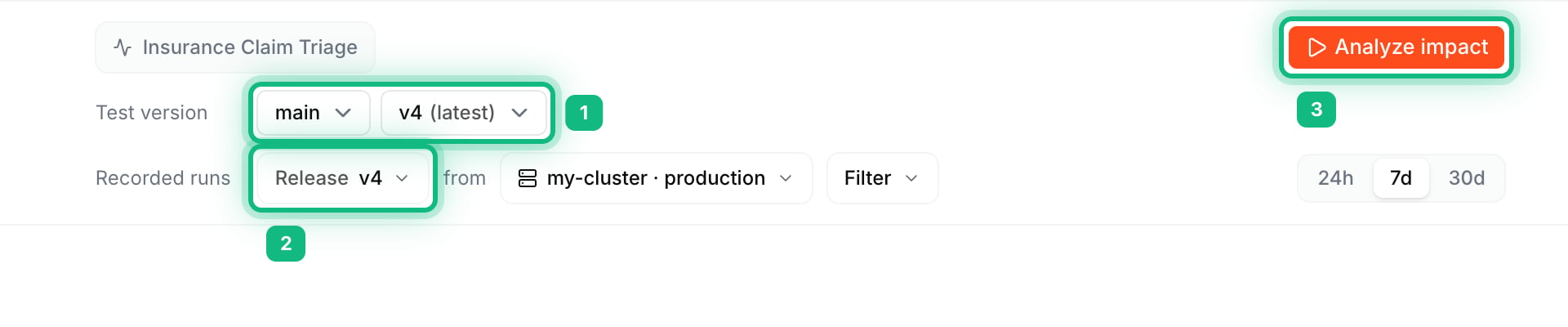
Choose the version to test (1) and the release whose runs are replayed (2), then click Analyze impact (3).
Read the result
The result shows how many runs Leapter replayed, split into three tiles:- Changed: at least one output parameter has another value on the tested version, or the run now fails, no longer fails, or fails differently.
- Unchanged: both versions give the same output parameters, or fail with the same error.
- Not run: runs without a complete recording, for example ones that timed out. There is nothing to compare.
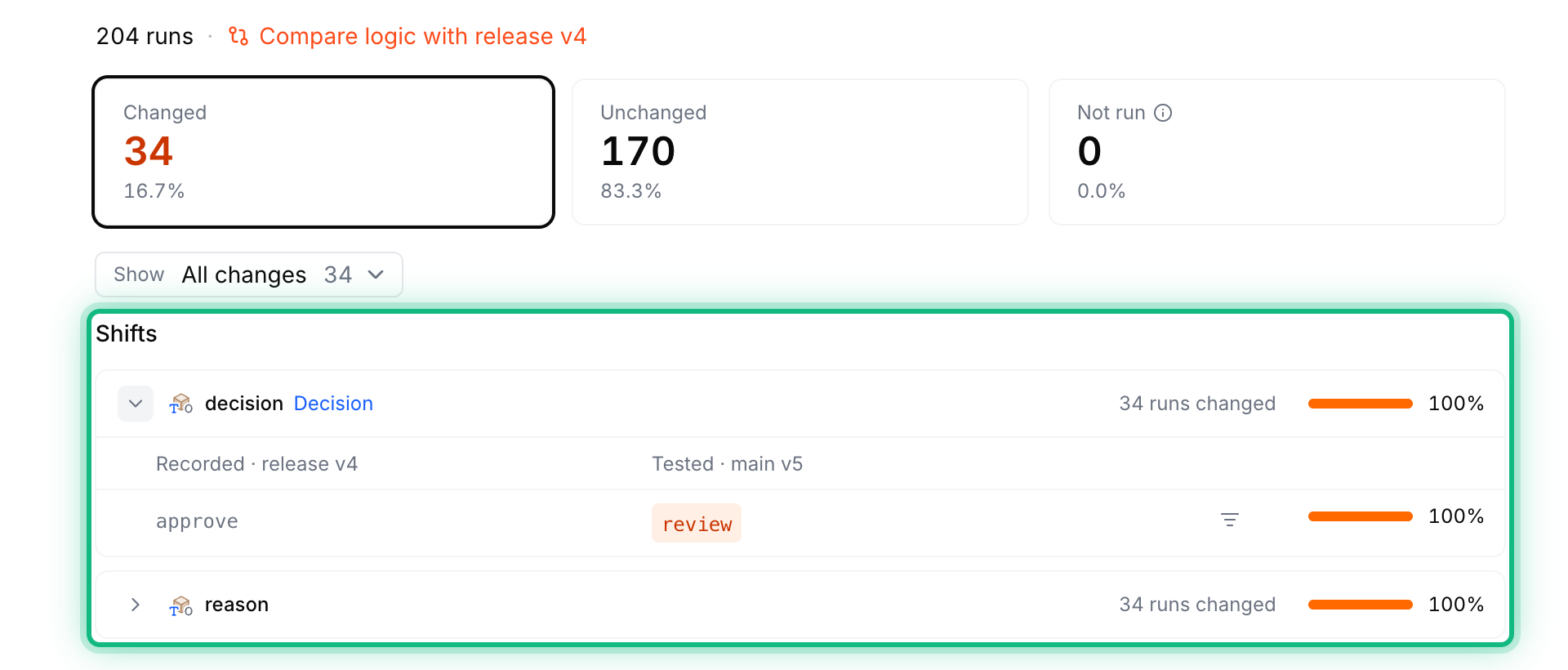
34 of 204 runs changed. Shifts (ringed) shows that decision changed from approve to review in all 34.
Keep a case as a test case
- On the Changed tab, click a run under Changed cases (1). The case shows each changed output parameter with its recorded value (Recorded · release) and its new value (Tested ·).
- Click Keep as test case (2).
- The dialog Create test case from run is prefilled with the run’s inputs, and with the tested version’s output parameters as the expected outputs. Adjust them if needed.
- Click Add test case. Leapter adds it to the test suite the dialog names.
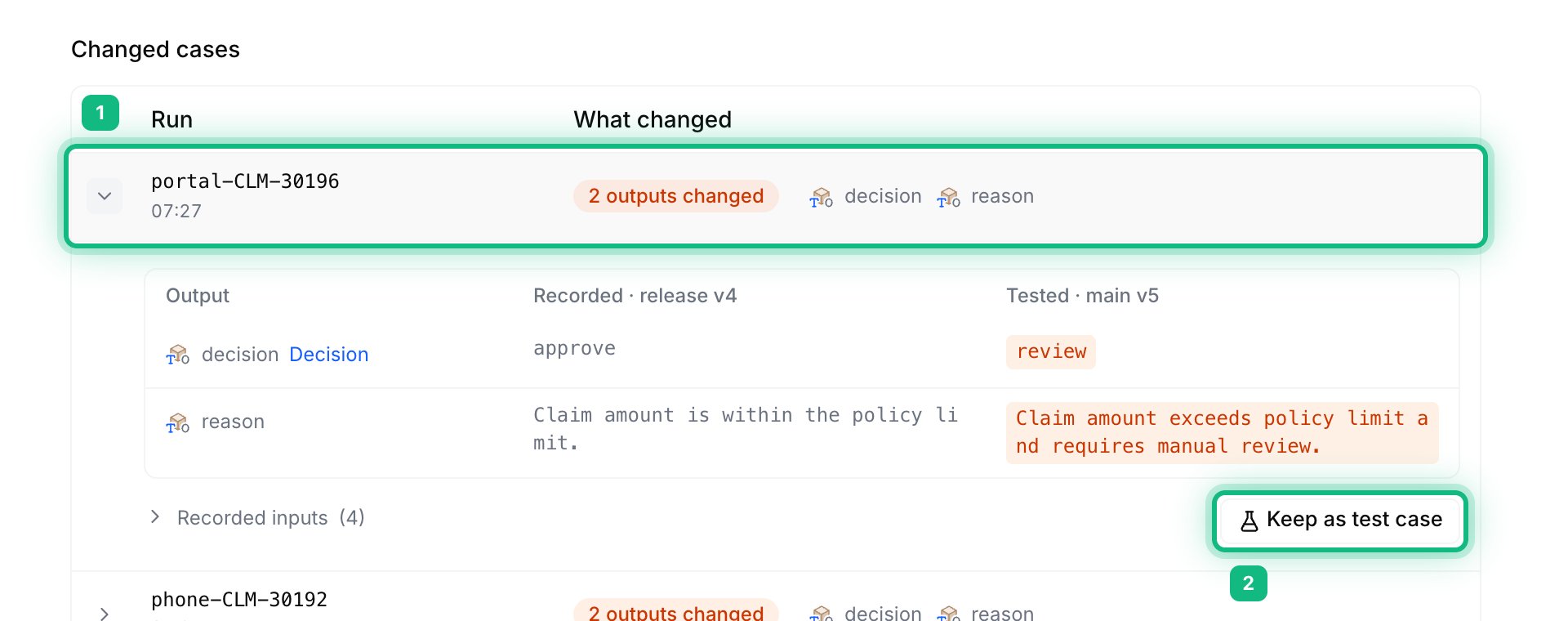
Open a changed case (1), then click Keep as test case (2).
Leapter keeps the result only while the browser tab is open. After a reload, sign in to the runtime cluster and click Analyze impact again.
Troubleshooting
What to do next
- Test Suites: run the test cases you kept
- Releases: release the version once its output parameters are right