

Prerequisites
- The project’s change workflow is Pending changes + Save.
- At least one review rule is turned on (see below). A workspace owner sets both.
- For Four-eyes approval, a second member in the workspace who can review.
Set up review rules
Review rules live in the same place as the change workflow: Projects › ⋮ on the project card › Settings › Change Workflow › Review rules. Select a rule to turn it on, then click it to see its settings.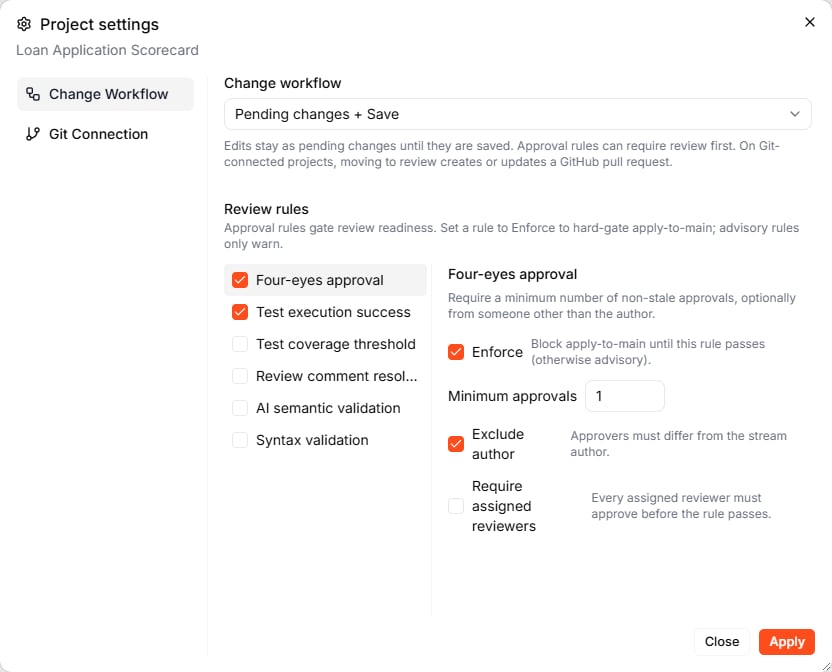
Each rule can Enforce — then the draft cannot be saved until the rule passes — or only warn, if you leave Enforce off.
Four-eyes approval has three more settings:
- Minimum approvals — how many approvals the draft needs
- Exclude author — the author’s own approval does not count (on by default)
- Require assigned reviewers — every assigned reviewer must approve, in addition to the minimum
An approval counts only for the version it was given on. If the draft changes afterwards, the reviewer has to decide again.
The Review & Delivery panel
Click the stream pill at the bottom of the editor to open Review & Delivery for the draft you are on.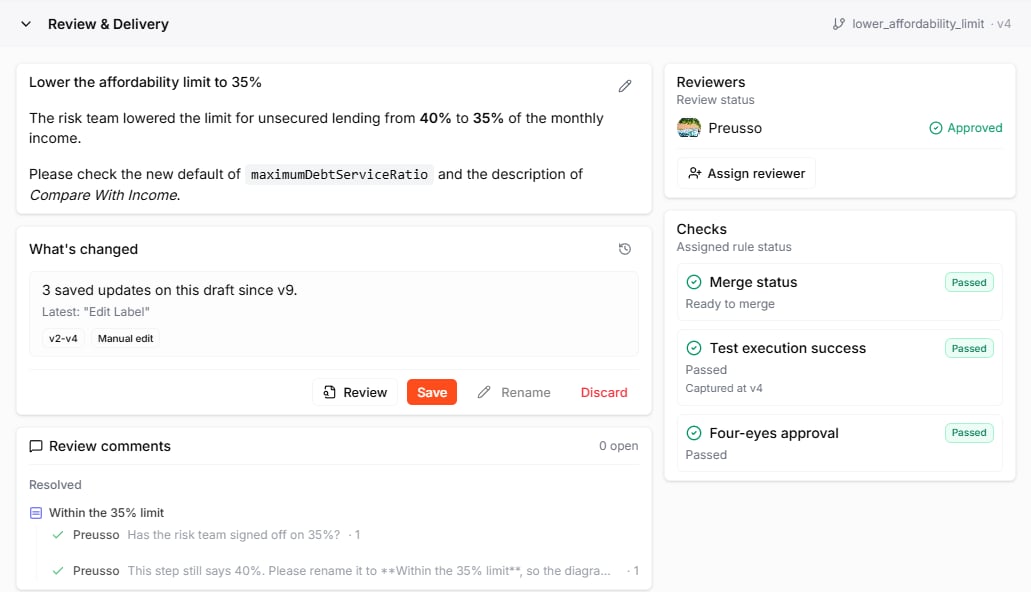
Review a draft, step by step
The example below follows a change to the Loan Application Scorecard: the author lowers the affordability limit from 40% to 35%, and a colleague reviews it.1. Move the draft to review
On the draft, open Review & Delivery and click Move to review. Give the review a title and, optionally, a description — Markdown is supported, and Preview shows how it will look.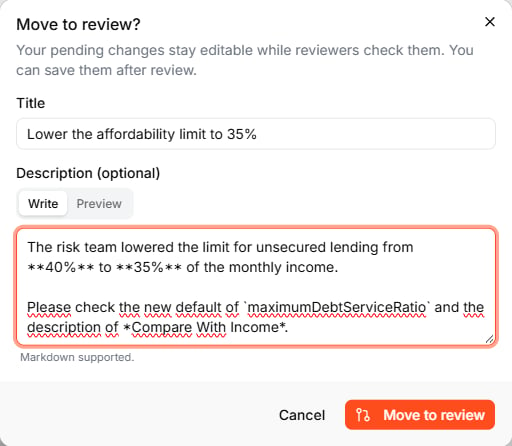
2. Assign a reviewer
Under Reviewers, click Assign reviewer and pick a member of the workspace. Assigning someone does not send them a notification — share the link to the draft with them, or @mention them in a comment. Any member of the workspace can review, assigned or not.3. Review the changes
The reviewer opens the draft and clicks Review in Review & Delivery. The editor switches to Draft Review: unchanged parts are greyed out, every changed element is marked MODIFIED with the old value struck through in red and the new one in green, and the Diff Summary at the bottom lists every change.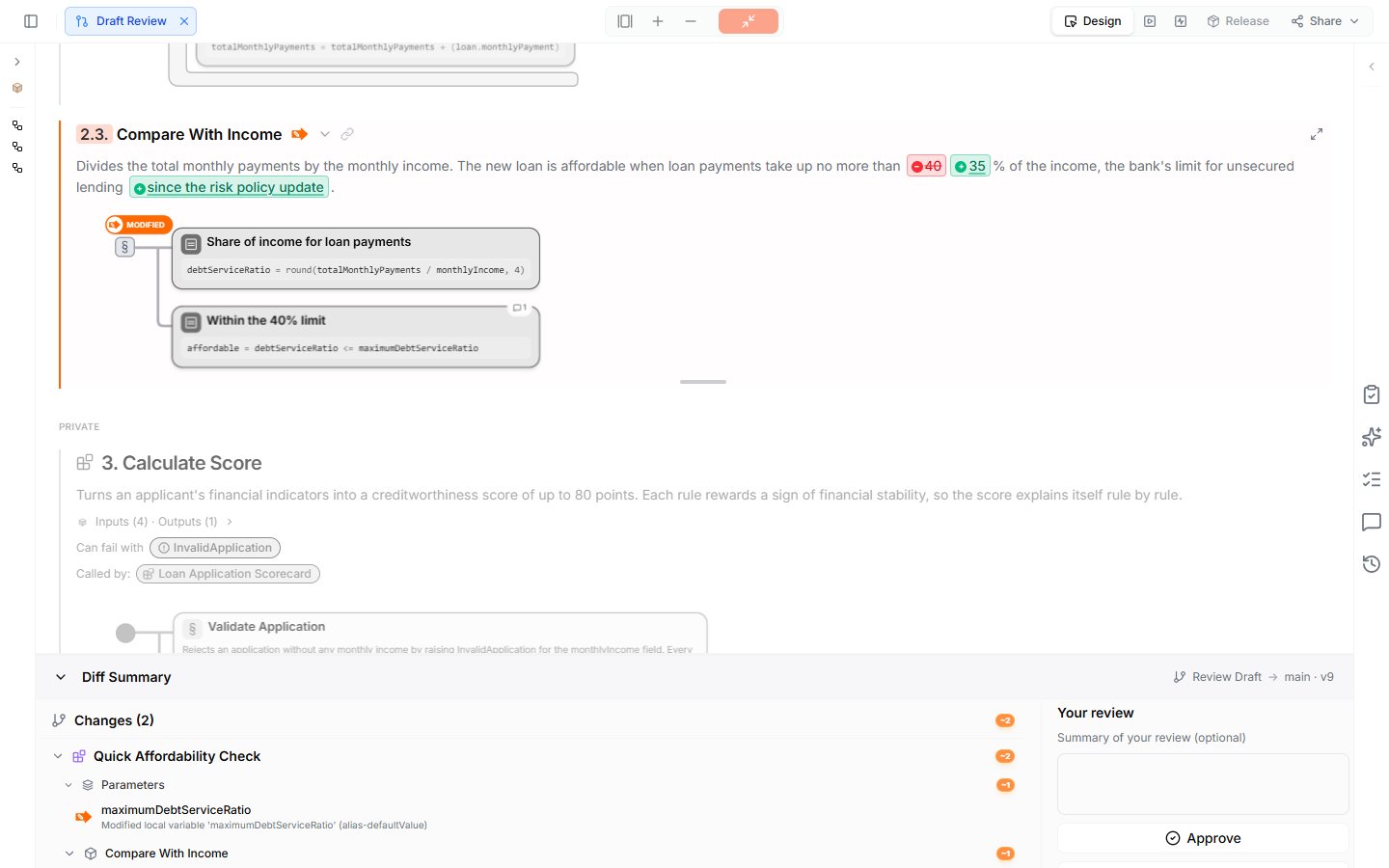
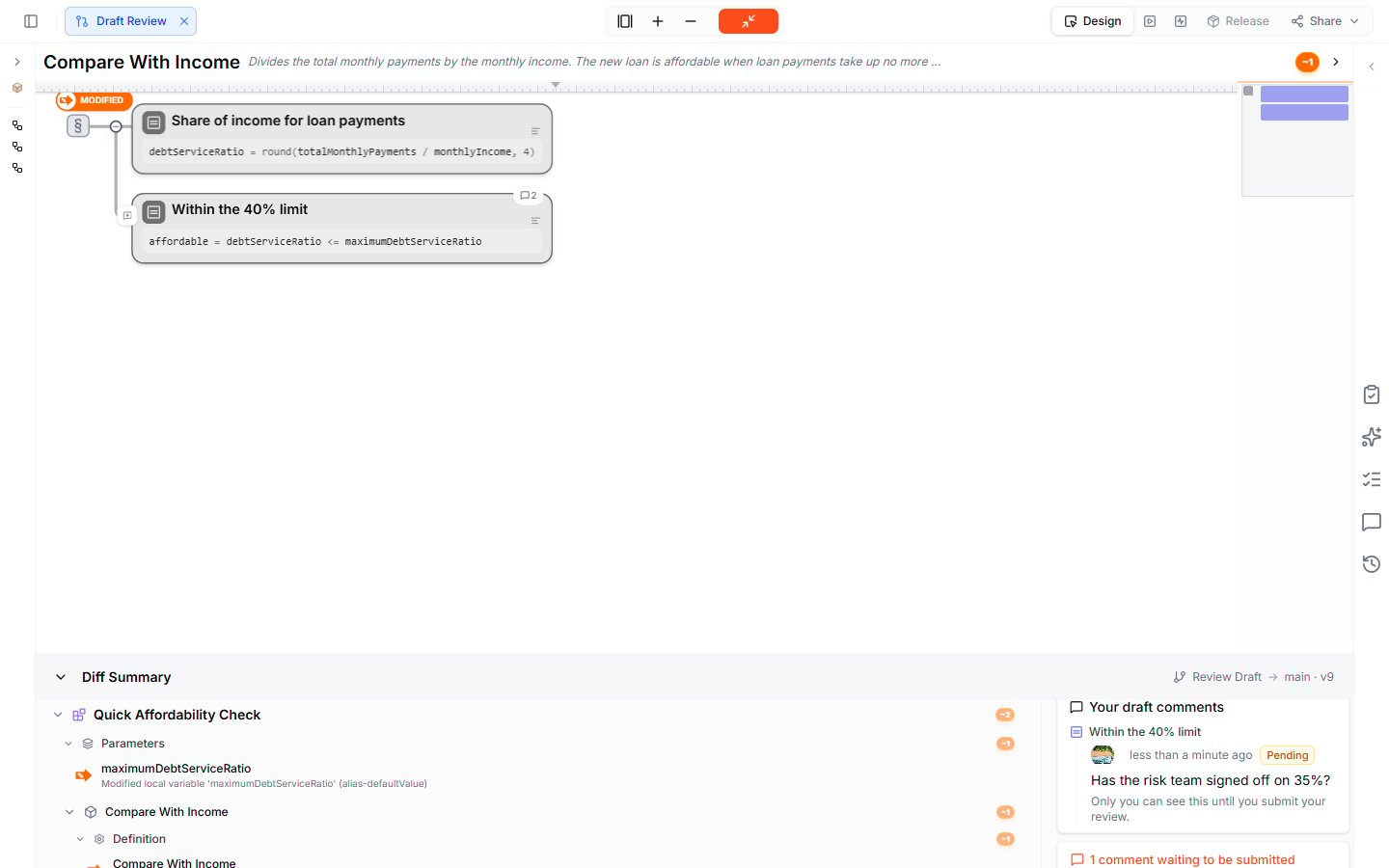
- Approve — the change can go to main
- Request changes — the author has to change something first
- Comment only — share comments without a decision
4. Respond to the review
The author answers each comment under Review comments with Reply and marks it Done when it is settled. When the author changes the draft, the reviewer’s earlier decision no longer counts, and they see The draft changed after your review — decide again to keep it counting.5. Save the draft to main
When every enforced rule passes, Save becomes available. Click it and confirm. The draft’s changes become the new version of main, and the Timeline records the change with Open review, so you can reopen the review later, read-only.With Four-eyes approval enforced and Exclude author on, you cannot approve your own draft. Make sure a second member can review before you enforce the rule.
Review history
Click the clock icon in What’s changed to open the Review history: every version, reviewer assignment, decision, and comment, with names and timestamps, and the current state of each rule.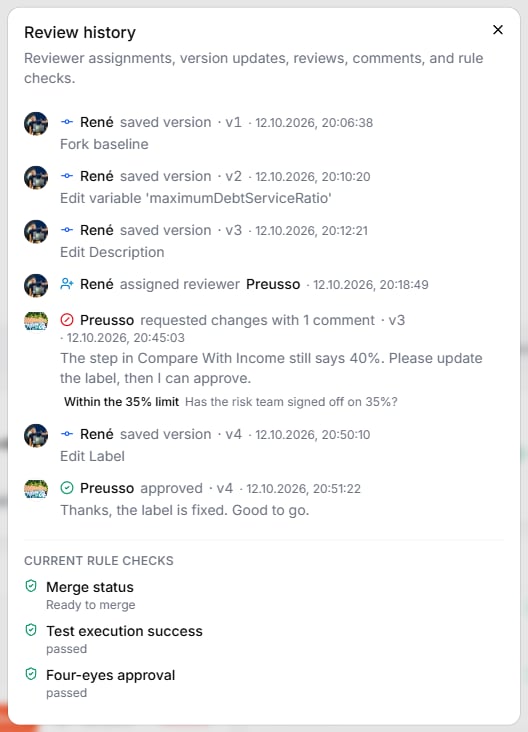
When main has moved on
If someone saved another draft to main while you worked on yours, the Merge status check tells you:- If your changes and theirs do not overlap, the draft can still be saved. Update from main in the check rebuilds your draft on top of the latest main, so you review and test against the current state.
- If both changed the same elements, Merge status reports the conflicting changes. View conflicts lists them.
What to do next
- Change Workflow — the setting that turns on drafts
- Timeline — see saved drafts and every version in the change graph
- Collaborating — comments outside of reviews