

Where to find the Timeline
Open the Timeline tab in the right sidebar of the Blueprint Editor.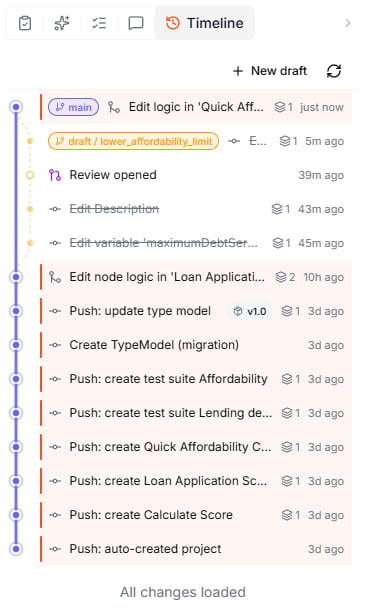
+ New draft at the top starts a draft when the project uses Pending changes + Save.
The list does not show who made each change. To see the author, open the change.
Streams and the change graph
A stream is a line of changes. Every project has a main stream. With the change workflow Pending changes + Save, you also work on drafts — separate streams that start from main and return to it when you save them. The graph makes this visible:- A draft’s lane starts at the version of main it was created from.
- When a draft is saved, a new change appears on main. Its card says which draft was saved and lists the changes it included.
- Saved drafts are struck through — once a draft is saved, its history stays visible but is crossed out.
Open a change to see the detail
Click any change to expand its card.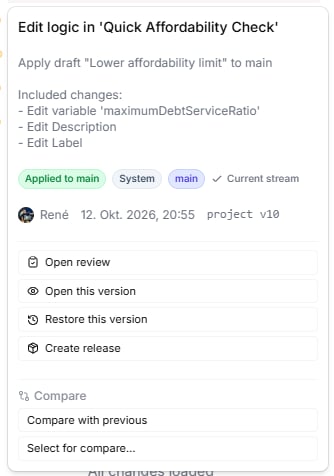
- What happened — a description and badges for the kind of change (for example Applied to main), its origin (Manual edit, AI, or System), and its stream
- Who and when — the author, the exact timestamp, and the project version the change produced
- Actions — inspect, restore, release, or compare the change
Timestamps in the list are rounded (3h ago). The exact time — down to the minute — is only shown on the card.
Actions on a change
Compare changes
Use the Compare section of a change card to see exactly what a change altered:- Compare with previous — compare this change with the one before it
- Compare with target stream — on a draft, compare it with the stream it will be saved to (usually main)
- Select for compare… — pick this change as one side of a comparison, then choose another change as the other side
Reading a comparison
Once you pick two versions, the editor switches to Compare and shows the difference between them.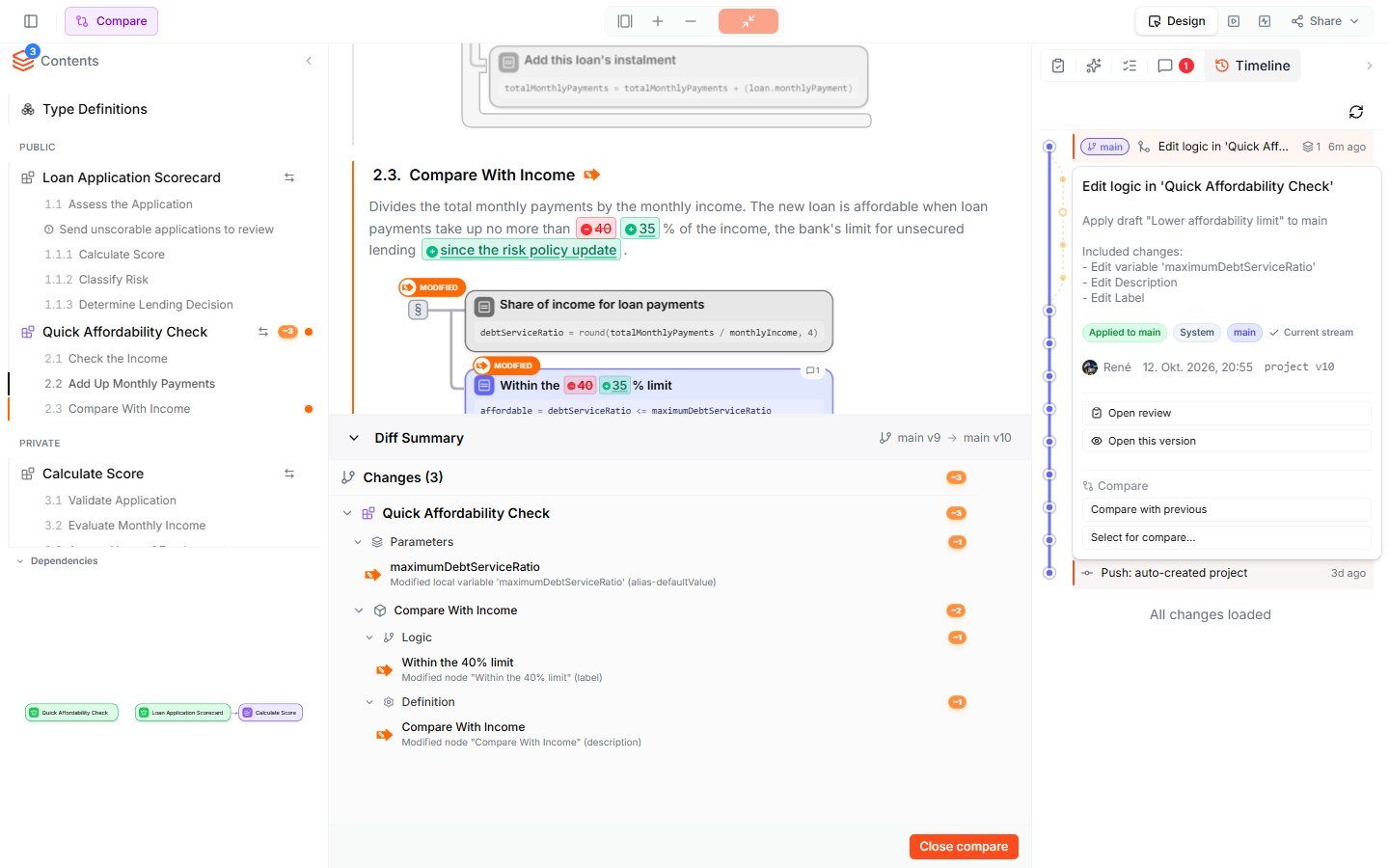
- The document marks every change in place: removed values are struck through in red, added values are highlighted in green. In the example above, the affordability limit changes from
40to35. - The Contents sidebar marks the Blueprints and sections that changed.
- The Diff Summary at the bottom names the two versions — for example main v9 → main v10 — and lists every change, grouped by Blueprint and element.
Restore an earlier version
If a change introduced a problem, you can roll the project back:- Open the change you want to return to.
- Click Restore this version and confirm.
What to do next
- Change Workflow — choose how edits are saved, and work on drafts
- Review & Approvals — require a review before changes reach main
- Lab Agent — the conversations behind your changes, available from View conversation