

Add a comment
- Select a step in a diagram. If the step’s section is shown in the document, maximize the section first, so the node toolbar has room.
- Click Add comment in the node toolbar. A comment box opens right at the step.
- Write your comment and click Comment.
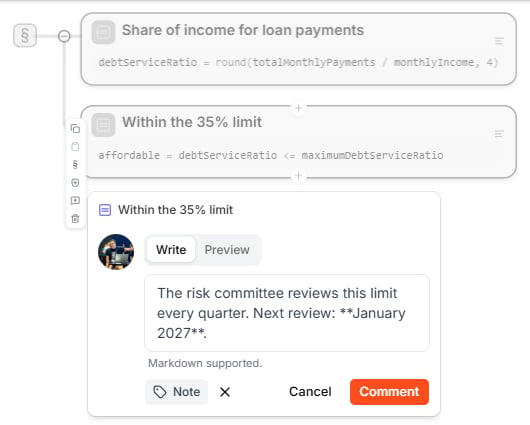
- Use Markdown for formatting — Preview shows how it will look.
- Type @ to mention someone. They find the comment in their @Me tab.
- Click Add tag to mark what kind of comment it is: Note, Todo, Fixme, Question, or Suggestion.
The Comments panel
Click the Comments tab in the right sidebar to see all comments in the project.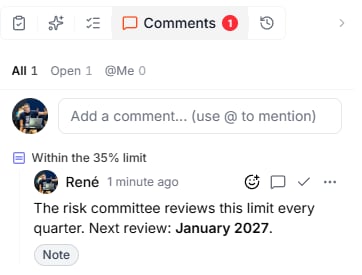
The field at the top adds a comment about the project as a whole. Comments on a step are grouped under the step’s name.
Reply, resolve, and more
Hover over a comment to see its actions:Comments in a review
While a draft is in review, comments on it belong to the review: you find them under Review comments in Review & Delivery, not in the Comments panel. Comments a reviewer writes in Draft Review stay private until they submit their review. See Review & Approvals.What to do next
- Review & Approvals — have a teammate review a change before it reaches main
- Workspaces — invite the people you work with
- Lab Agent — let the agent work on what your comments ask for