

Open your account settings
Click your profile picture at the bottom of the left sidebar and select Account settings. The same menu shows which email you are signed in with, lets you switch the Theme, and has Sign out.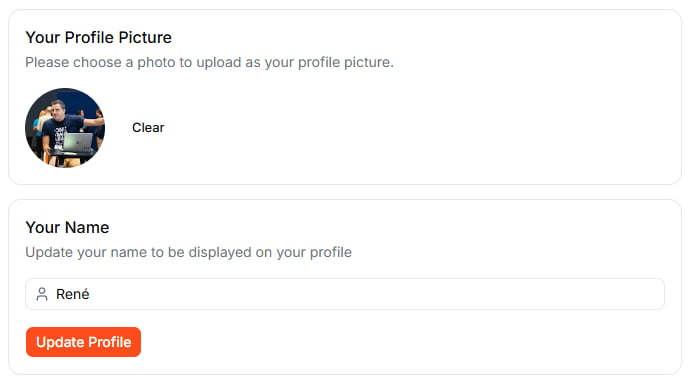
Accept an invitation
When a workspace has invited you, a Pending Invitations card appears at the top of your account settings. It shows who invited you and when the invitation expires. Click Accept to join the workspace.Update your profile picture and name
Your picture and name appear next to your comments, in member lists, and wherever others see what you are working on.- Picture — click the picture (or the placeholder) and choose an image. Clear removes it.
- Name — edit it under Your Name and click Update Profile.
Change your email or password
- Update your Email — enter the new address twice and click Update Email Address.
- Update your Password — enter the new password twice and click Update Password.
Secure your sign-in
- Multi-Factor Authentication — click Setup a new Factor to add a second factor to your sign-in.
- Linked Accounts — see which sign-in methods your account uses, such as Google, and add another one.
What to do next
- Workspaces — set up a workspace to share projects and collaborate with others
- Collaborating — work together on shared projects