

Choose the workflow
The change workflow is a setting of each project. Only workspace owners can change it.- Go to the Projects page.
- Click ⋮ on the project card and select Settings.
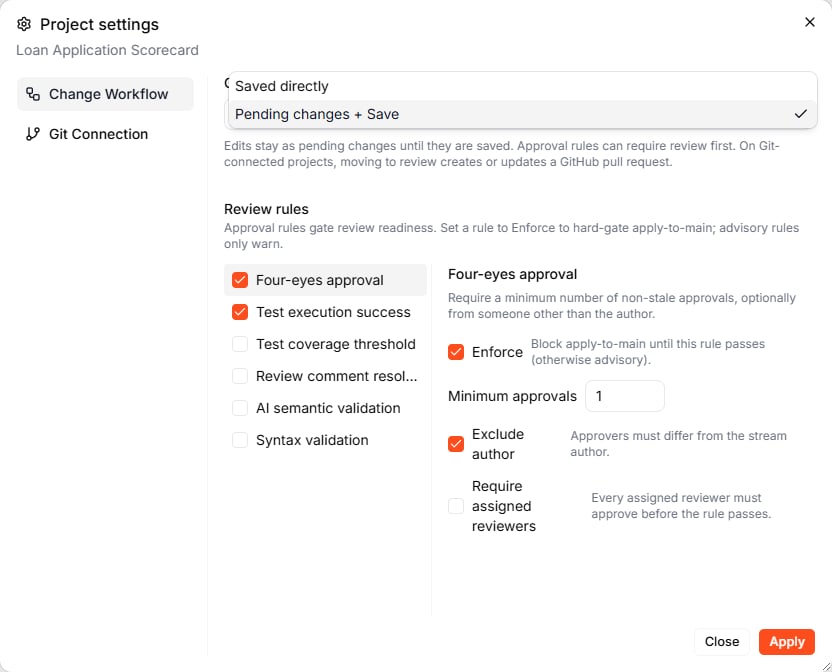
- On the Change Workflow tab, pick the workflow and click Apply.
Changing the workflow does not touch the project’s history.
Saved directly
In Saved directly mode, editing is saving. Each change you make — by hand, with the Lab Agent, or with Ctrl+I — updates the project straight away and appears on the Timeline as a new change on main. This is the fastest way to work, and a good fit while you build a project on your own.Pending changes + Save
In Pending changes + Save mode, main is read-only: the stream pill at the bottom of the editor shows a lock. You work on a draft — a separate stream that starts from the current version of main. Your team keeps working with main until you save the draft.Start a draft
- Just start editing. When you change something on main, Leapter creates a new draft from the current main version and switches you to it. A message confirms it, for example Draft created from main v10.
- Give it a name first. Click + New draft at the top of the Timeline, describe what the draft is about, and click Create. If you leave the name empty, Leapter names the draft after the project.
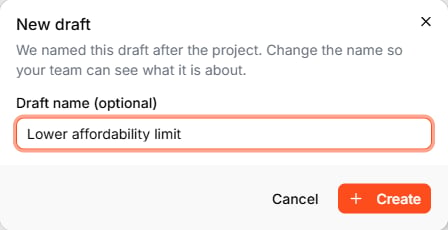
?stream=lower_affordability_limit — so you can send the link to a colleague. To change the name later, click Rename in Review & Delivery, as long as the draft is not in review.
Work on the draft
Edit as usual — by hand or with the Lab Agent. Each change creates a new version of the draft (v1, v2, …) on the Timeline. The stream pill at the bottom of the editor shows the draft and its version; click it to open Review & Delivery.Save the draft to main
Open Review & Delivery from the stream pill. What you can do depends on the project’s review rules:
Only the person who created the draft, or a workspace owner, can save, move to review, or discard it.
After you save, main has a new version, and the Timeline shows the change on main with the draft’s lane closed. Releases are created from main — save a draft before you release its changes.
What to do next
- Review & Approvals — have a teammate review a draft before it reaches main
- Timeline — follow drafts and saved changes in the change graph
- Test your Blueprint — check a draft before you save it