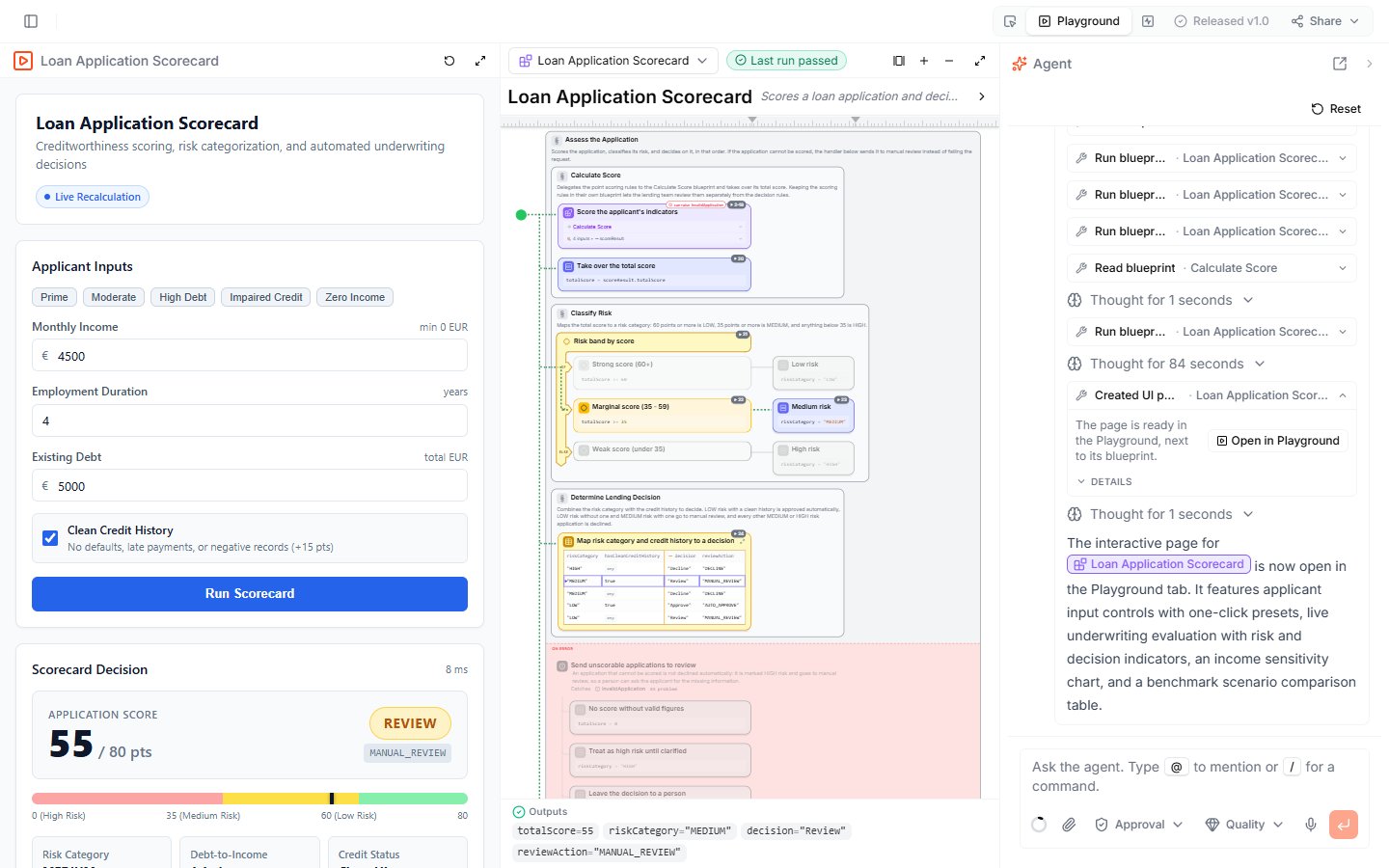
The Playground puts a small app next to a Blueprint: a form for its inputs, a Run button, and a view of the result. The Lab Agent builds the app for you. It is the easiest way to show a Blueprint to someone who doesn’t want to read logic — they fill in the form, run it, and see the decision. The Playground for the Loan Application Scorecard — on the left an app with presets, input fields, a Run Scorecard button, and the score of 55 with the decision Review; in the middle the Blueprint's diagram with the path of the last run; on the right the Agent panel that created the page

Open the Playground

In the Blueprint Editor, click Playground in the view switcher of the top toolbar. The Playground has three areas:

Create an app for a Blueprint

When a Blueprint has no app yet, the UI area says so and offers Create a UI with the agent:
  1. Select the Blueprint in the selector above the diagram.
  2. Click Create a UI with the agent.
The agent reads the Blueprint, runs it to learn its inputs and outputs, and writes the page. When it is done, the agent’s message shows Created UI page with an Open in Playground button, and the app appears in the UI area. To change the app — add a preset, a chart, or a different layout — ask the agent in the Agent panel, for example “Add a preset for an applicant with high debt”.

Use the app

Fill in the form and click the run button. The app runs the Blueprint in the editor, so it uses the version you are working on, including unreleased changes. The diagram in the middle shows the path the run took, and the result appears in the app. Use the buttons in each area’s header to make an area bigger: Maximize the UI or Maximize the blueprint, and Restore the split to go back.

What to do next

  • Lab Agent — ask the agent to change the app or the logic behind it
  • Test your Blueprint — step through a run in detail
  • Sharing — share the project with people outside your workspace